
Use Office Niaga email with Gmail or Outlook.com
Updated For SmarterMail Build 7692

There are three common ways to use Office Niaga Mail together with Gmail. Choose the one you need.
Send email as your Office Niaga address from Gmail
Section titled “Send email as your Office Niaga address from Gmail”Email you send from Gmail will show your company address as the sender.
-
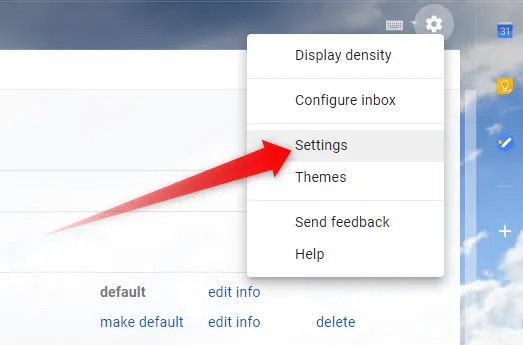
In Gmail, click the Settings icon (top right), then See all settings.
-
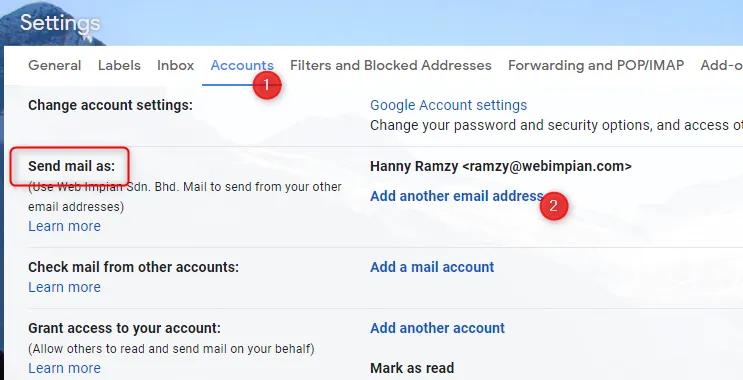
Click the Accounts and Import tab. Under Send mail as, click Add another email address.
-
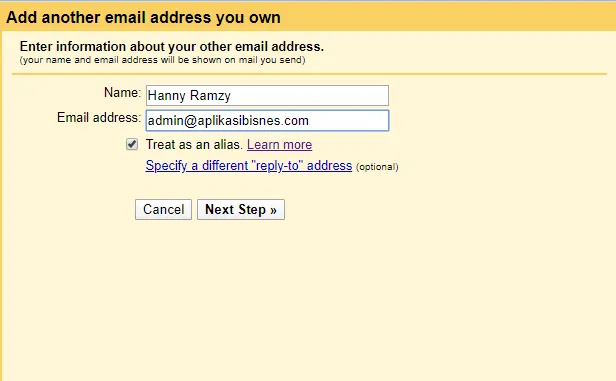
Enter your name and your Office Niaga email address.
-
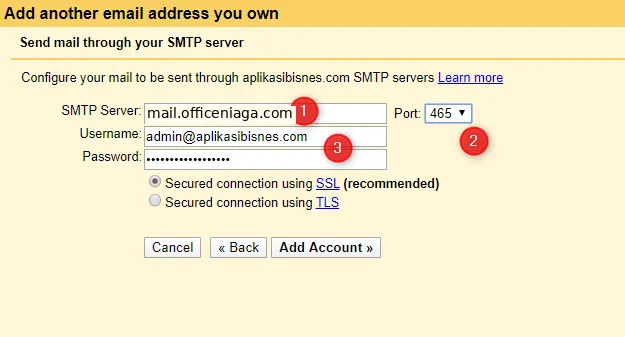
Fill in the server details:
- SMTP Server:
mail.officeniaga.com - Port: 465
- Username and Password: your full Office Niaga email address and password
- Choose Secured connection using SSL
- SMTP Server:
-
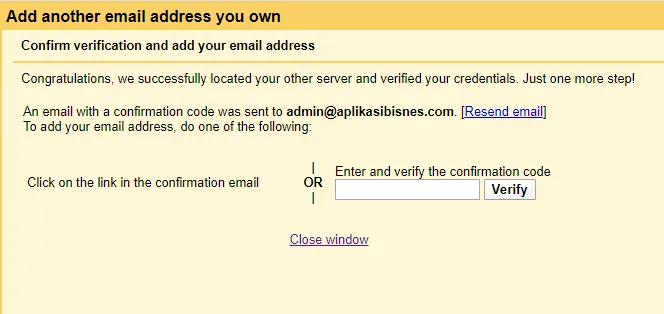
Google sends a verification code to your Office Niaga email. Enter the code and click Verify.
-
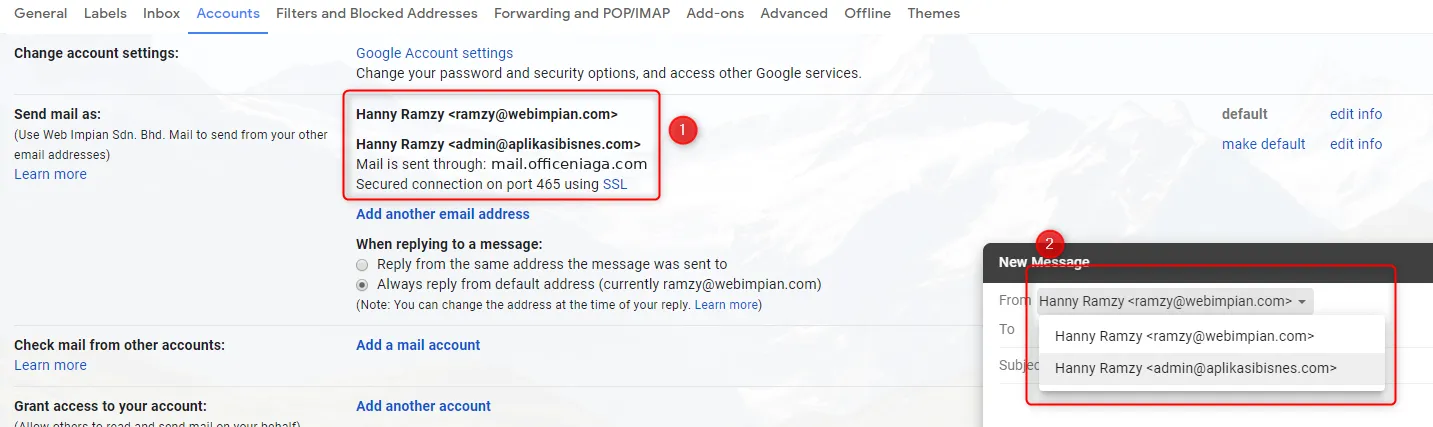
Check your settings under Send mail as.
Receive Office Niaga email in Gmail
Section titled “Receive Office Niaga email in Gmail”Gmail can no longer fetch email from other accounts with POP. Instead, set up email forwarding in Office Niaga Mail so a copy of every email is sent to your Gmail. See Forward email and autoresponder.
If you only want to read your email on your phone, add the account directly to the Gmail app on Android using IMAP - see Set up email on an Android phone.
Move old email from Gmail
Section titled “Move old email from Gmail”Use Mailbox Migration in Office Niaga Mail to copy your old email from Gmail over IMAP. It copies email only. To move your Gmail contacts, see Import contacts.
-
In your Google account: turn on 2-Step Verification, then create an App Password at myaccount.google.com/apppasswords. Copy the 16-character password. Your normal Gmail password will not work.
-
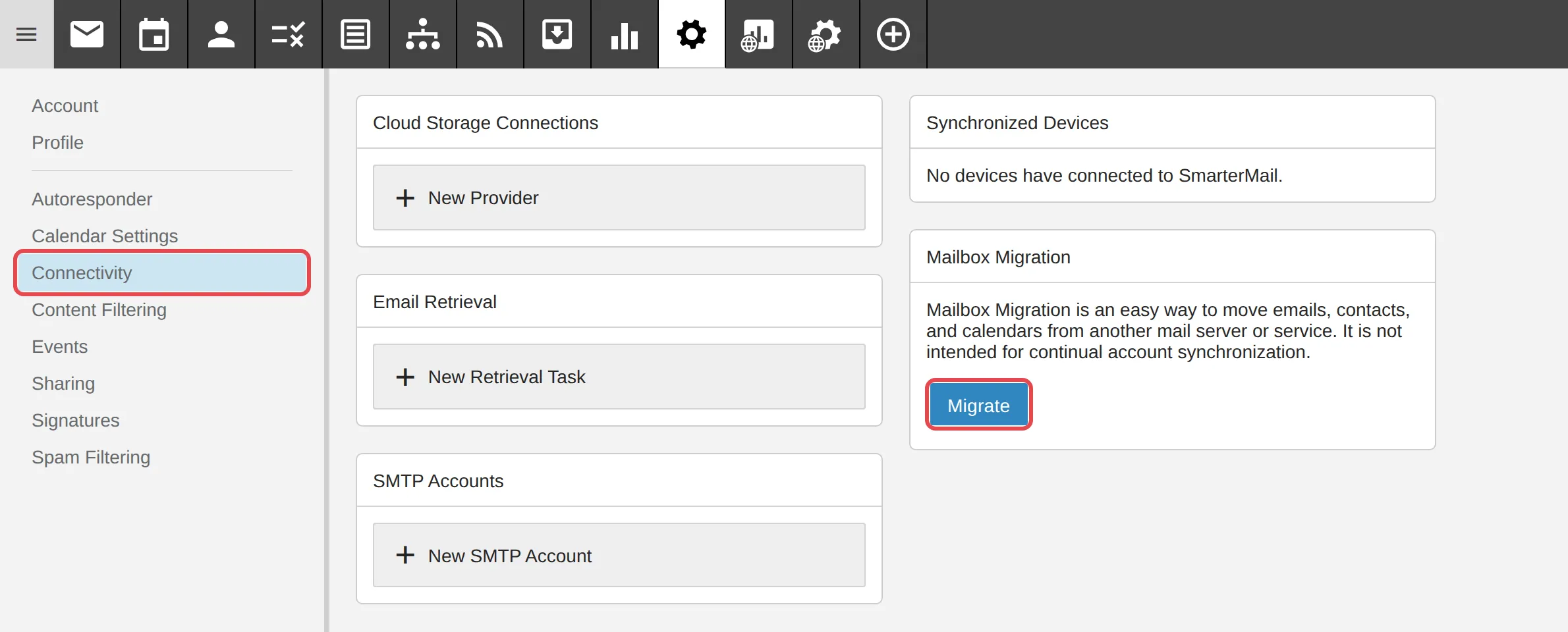
Log in to webmail and click Settings.

-
Click Connectivity. In the Mailbox Migration card, click Migrate.
-
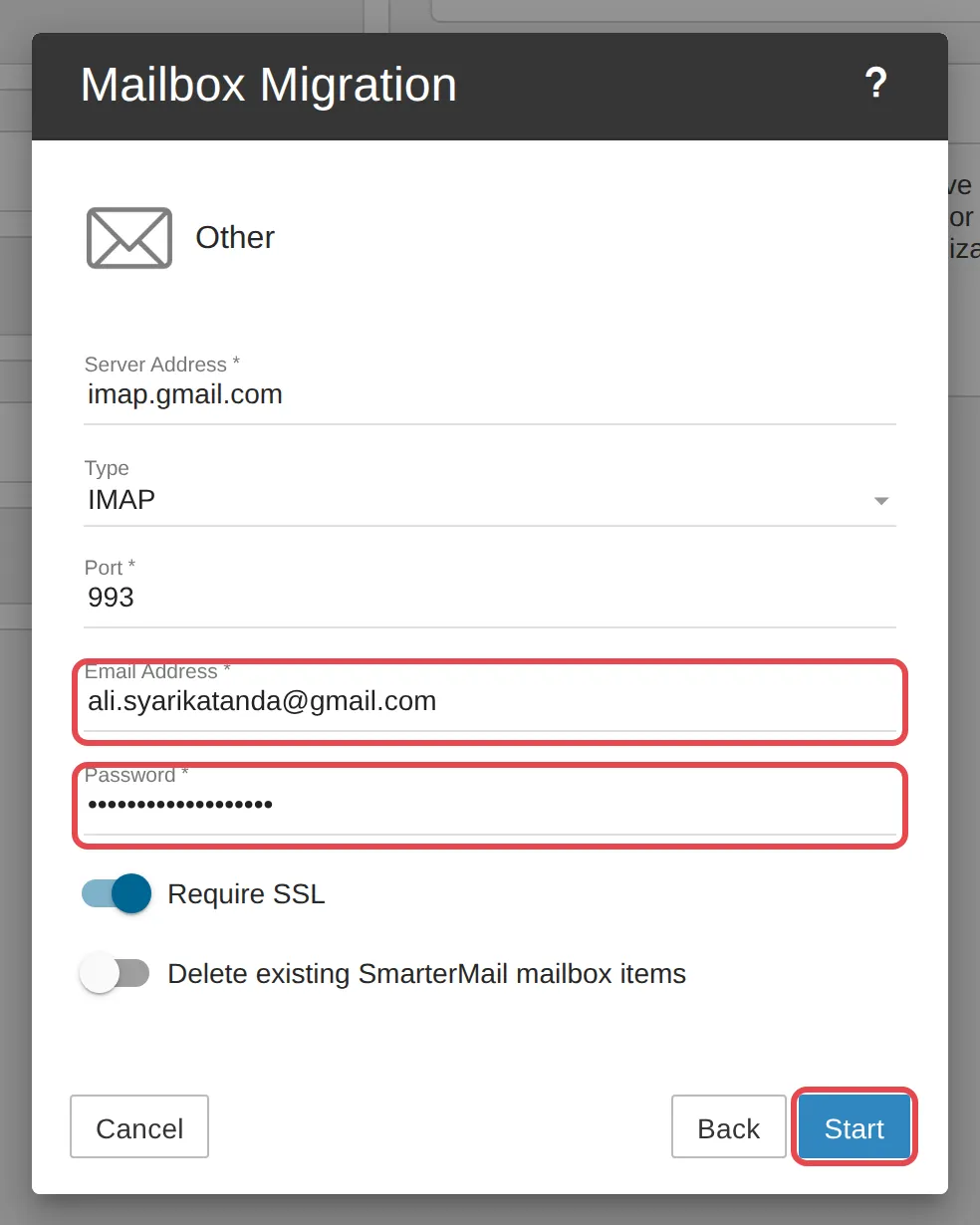
Gmail is not in the list of services, so click Other. Then fill in:
- Server Address:
imap.gmail.com - Type: IMAP
- Port: 993
- Email Address: your Gmail address
- Password: the App Password you created earlier
- Turn on Require SSL. Leave Delete existing SmarterMail mailbox items turned off, or the email already in your Office Niaga mailbox will be deleted.
Click Start.
- Server Address:
When it finishes, your old email will be in Office Niaga Mail.
Outlook.com & Hotmail
Section titled “Outlook.com & Hotmail”If your Outlook.com account still has the option to add another account (Settings, Sync email, Other email accounts), use these manual settings:
- Incoming (POP):
mail.officeniaga.com, port 995, SSL/TLS - Outgoing (SMTP):
mail.officeniaga.com, port 465, SSL/TLS
Still stuck
Section titled “Still stuck”WhatsApp our support team at +60 16-916 3324.
Common issues
Old guides say to use "Add an email account" in Gmail to fetch email. Why is it gone?
Google has stopped Gmail from fetching email from other accounts with POP. Use email forwarding in Office Niaga Mail to send a copy of your email to Gmail - see the section Receive Office Niaga email in Gmail.
Moving email from Gmail fails even though the password is correct.
Google does not let other apps use your normal Gmail password. Create an App Password in your Google account and use that instead - see the section Move old email from Gmail.
Gmail asks for a verification code for "Send mail as".
Google sends the code to your Office Niaga address. Log in to webmail, copy the code and enter it in Gmail.
Was this article helpful?
Thanks for your feedback.
Sorry this didn't help. WhatsApp us and we'll sort it out with you.