
Ask an AI about this page
 ChatGPT
 Claude
 Perplexity
 Google AI Mode
 Microsoft Copilot
 Grok
 Mistral Le Chat
Forward email & set up an autoresponder
Both of these settings are under your account’s Settings. They are often used together, for example while a staff member is on leave.
Forward email to another address
Section titled “Forward email to another address”Every email that arrives is also sent to another address, for example your Gmail or a colleague.
-
Log in to webmail. Click Settings, then Account.
-
Scroll down to the Forwarding card.
-
Enter the address in the Forwarding Address field. You can enter more than one.
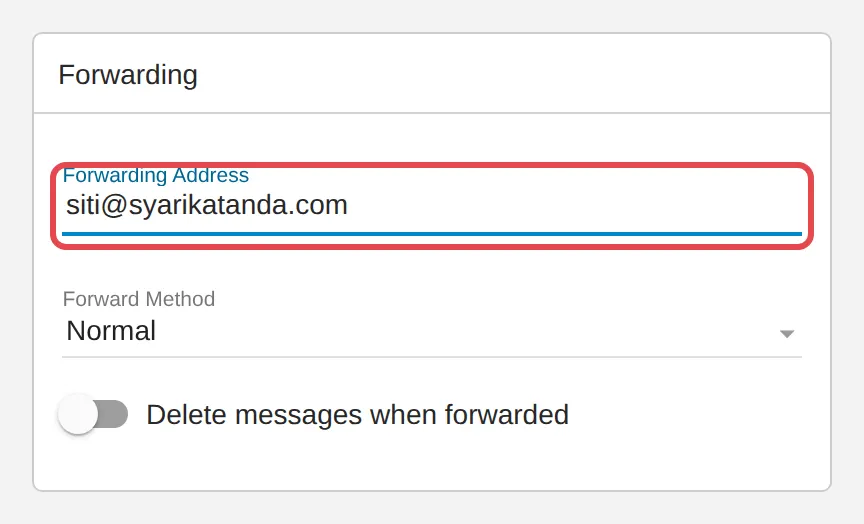
-
If needed, change the Forward Method. Leave Delete messages when forwarded turned off so a copy of every email stays in your mailbox.
-
Click Save.
Turn on the autoresponder
Section titled “Turn on the autoresponder”The autoresponder replies to every email automatically, for example “I am on leave until 30 September”.
-
Click Settings, then Autoresponder.
-
Turn on Enable Autoresponder.
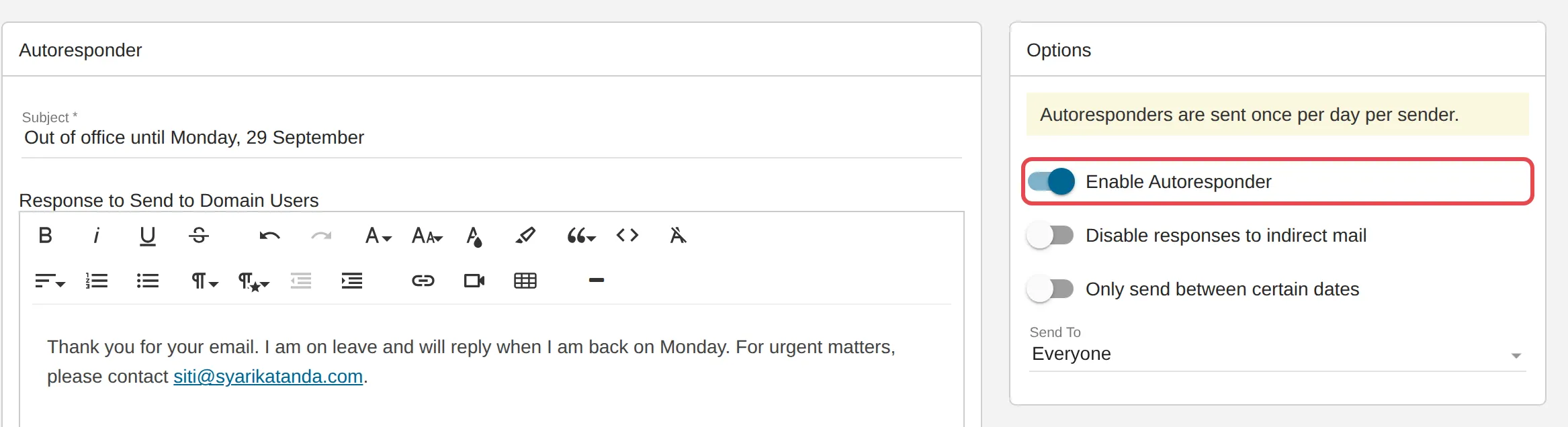
-
Fill in the subject and reply message, then click Save.
Still stuck
Section titled “Still stuck”WhatsApp our support team at +60 16-916 3324.
Common issues
I forward my email to Gmail. Can I reply from Gmail as my Office Niaga address?
Yes. Set up Send mail as in Gmail - see Use Office Niaga email with Gmail.
Can I forward email to more than one address?
Yes. Enter several addresses in the Forwarding Address field.
Was this article helpful?
Thanks for your feedback.
Sorry this didn't help. WhatsApp us and we'll sort it out with you.