
Ask an AI about this page
 ChatGPT
 Claude
 Perplexity
 Google AI Mode
 Microsoft Copilot
 Grok
 Mistral Le Chat
Import contacts into Office Niaga Mail
You can import contacts from a CSV or vCard file into your Office Niaga Mail address book from Contacts in webmail.
-
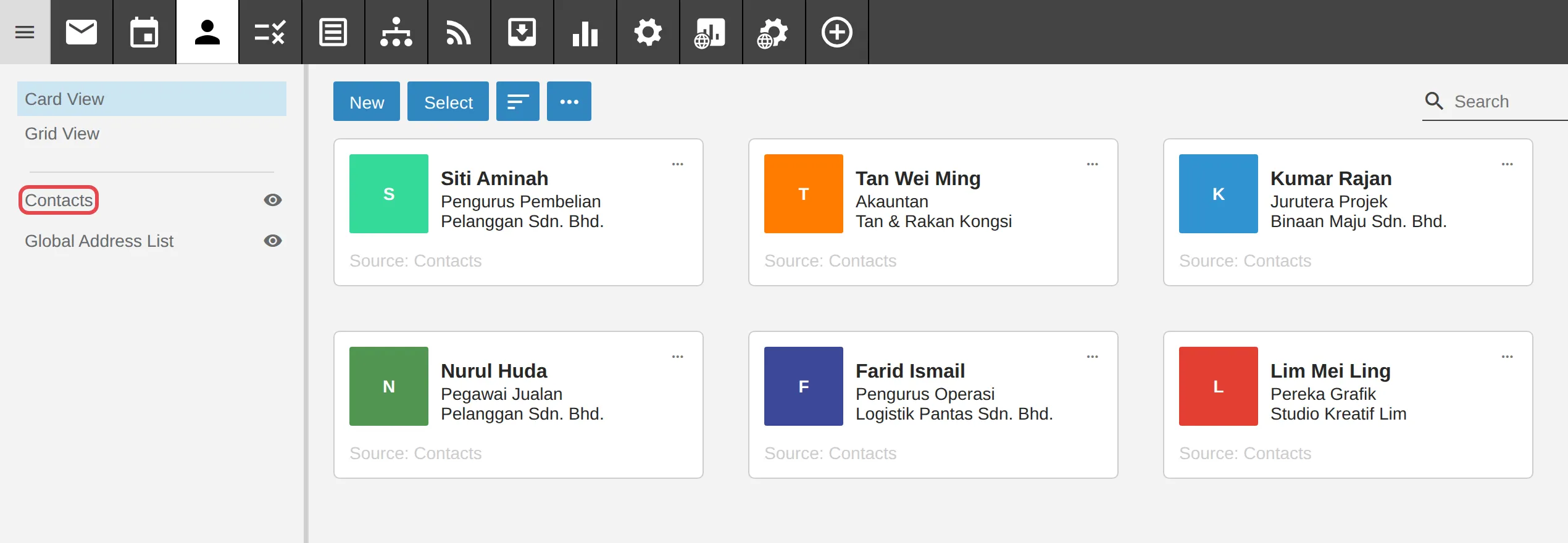
Log in to webmail and open Contacts.
-
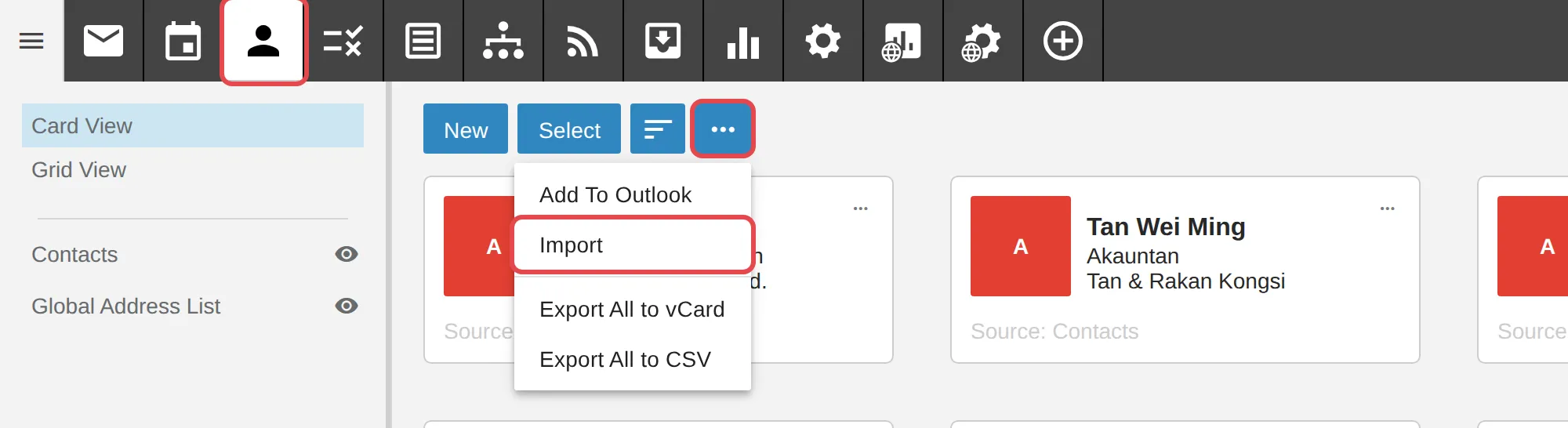
Click the … button, then Import.
-
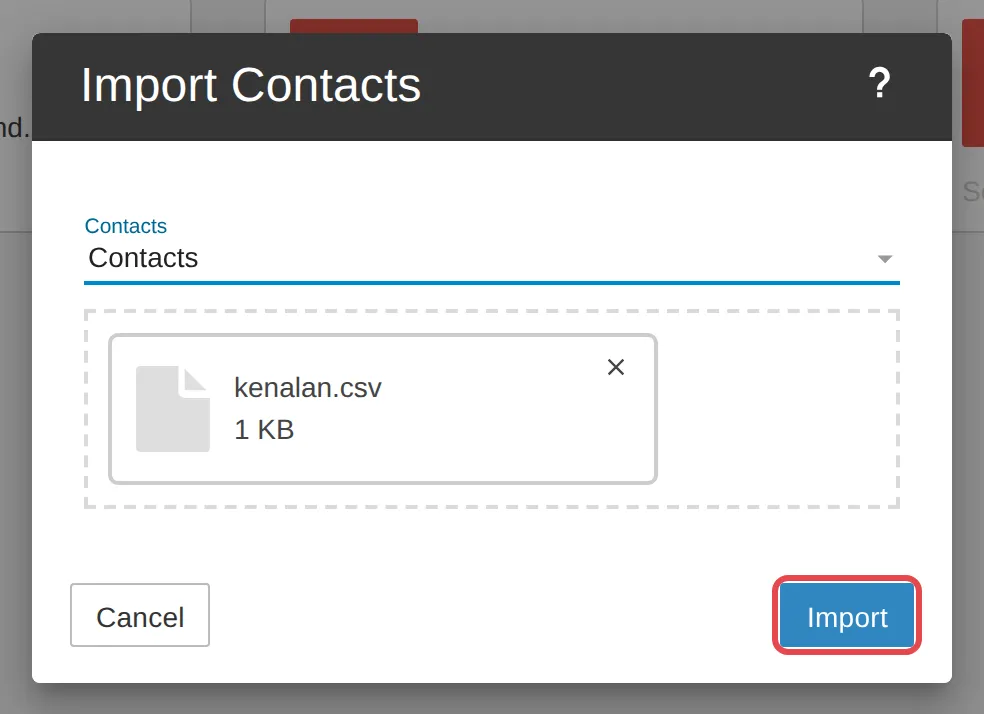
In Contacts, choose the address book to import into. Add your contacts file in CSV or vCard format, then click Import.
-
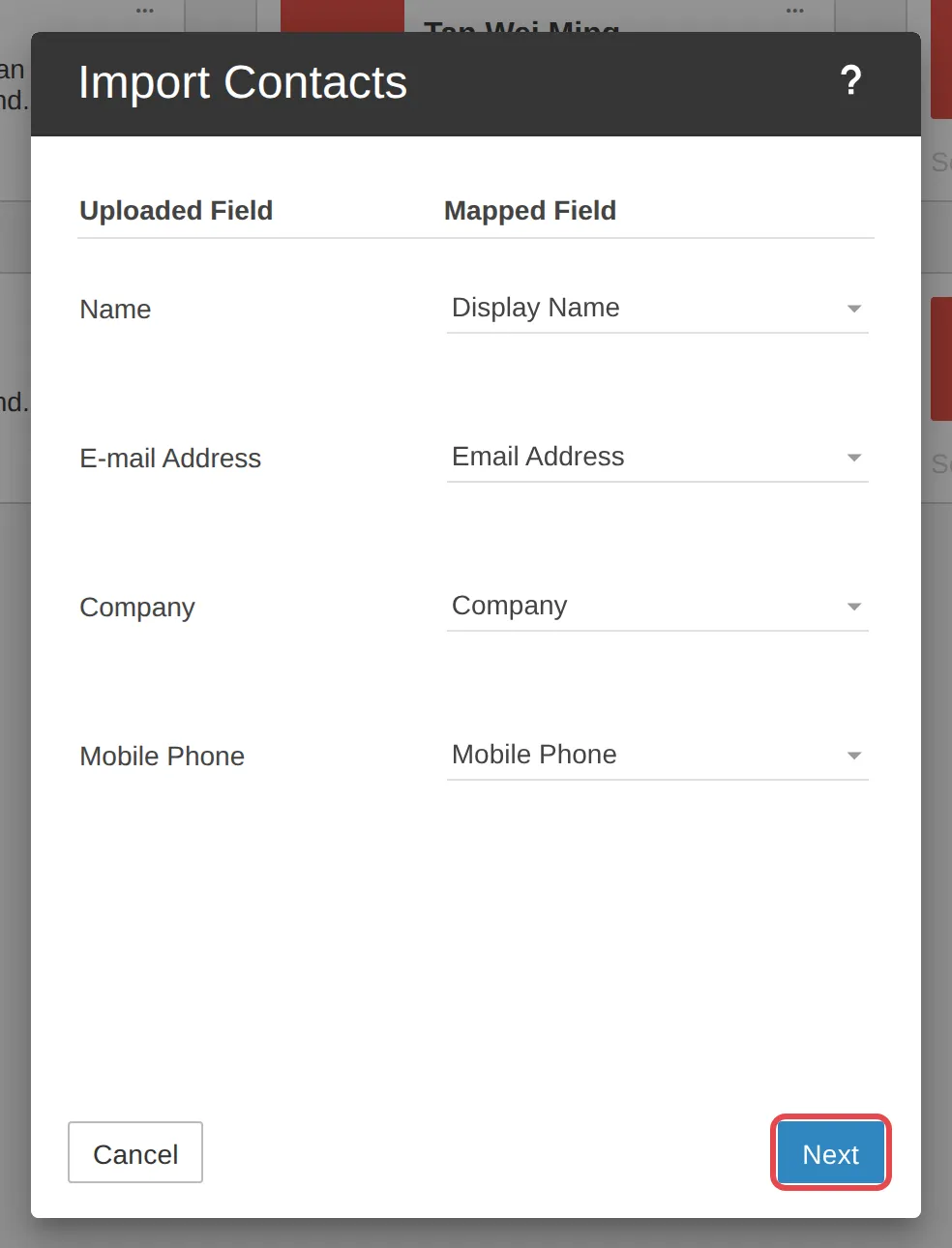
Each Uploaded Field from your file is matched to a Mapped Field in Office Niaga Mail. Change any that are wrong, then click Next.
-
A summary shows how many contacts were loaded from the file, and how many may already exist in your address book. If there are conflicts, choose what to do in Conflict resolution, for example skip them, add them anyway, or merge them with the contacts you already have. Click Next.
-
The result shows how many contacts were added, skipped or merged. Click Close.
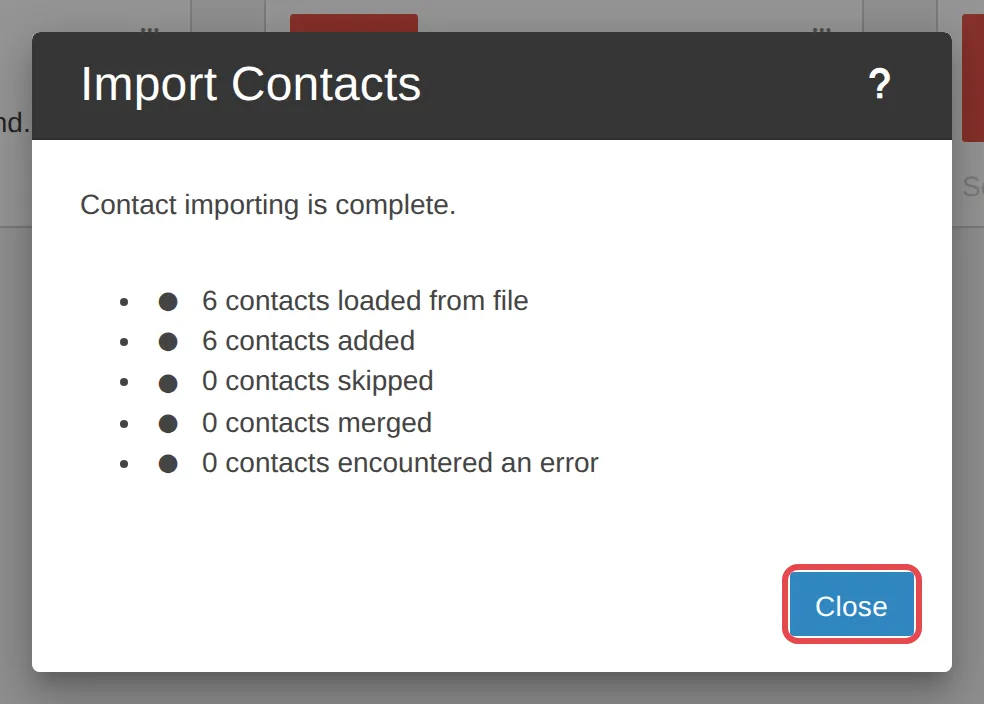
Your contacts are now in Contacts.
Still stuck
Section titled “Still stuck”WhatsApp our support team at +60 16-916 3324.
Common issues
Where can I get a contacts file from Gmail?
In Google Contacts, choose Export and save as vCard or Google CSV, then import that file here.
Names and phone numbers went into the wrong fields.
During the import, check the Mapped Field column. Each Uploaded Field from your file must match the right field. Fix any that are wrong before you click Next.
Was this article helpful?
Thanks for your feedback.
Sorry this didn't help. WhatsApp us and we'll sort it out with you.