
Ask an AI about this page
 ChatGPT
 Claude
 Perplexity
 Google AI Mode
 Microsoft Copilot
 Grok
 Mistral Le Chat
Google Workspace storage full - check usage & free up space
When your Google Workspace storage is full, delete large emails and Drive files, then empty Trash and Spam to free space and start receiving email again.
How storage works
Section titled “How storage works”Gmail, Google Drive and Google Photos all use the same storage. Each licence adds to a storage pool shared by your company, and your admin can set a limit for each user. A user over their limit cannot upload to Drive, create new Docs, or send and receive email, so new email may bounce (see emails not arriving in Gmail). If the whole company pool is full rather than one user’s limit, email still works but Drive uploads and new files stop.
Free up space (every user)
Section titled “Free up space (every user)”Any user can do this in their own Gmail and Drive, starting with the largest items.
-
Open Gmail and search
has:attachment larger:10Mto find emails with big attachments. Delete the ones you do not need.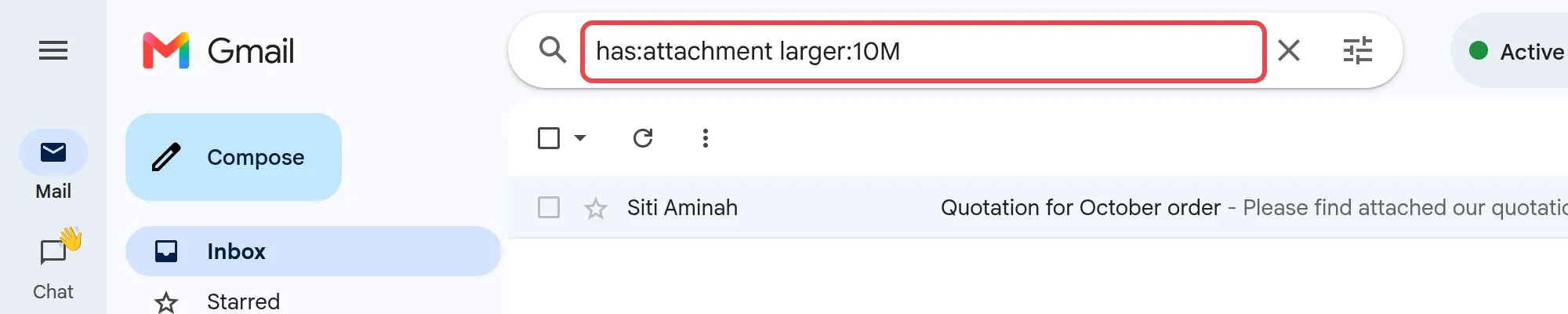
-
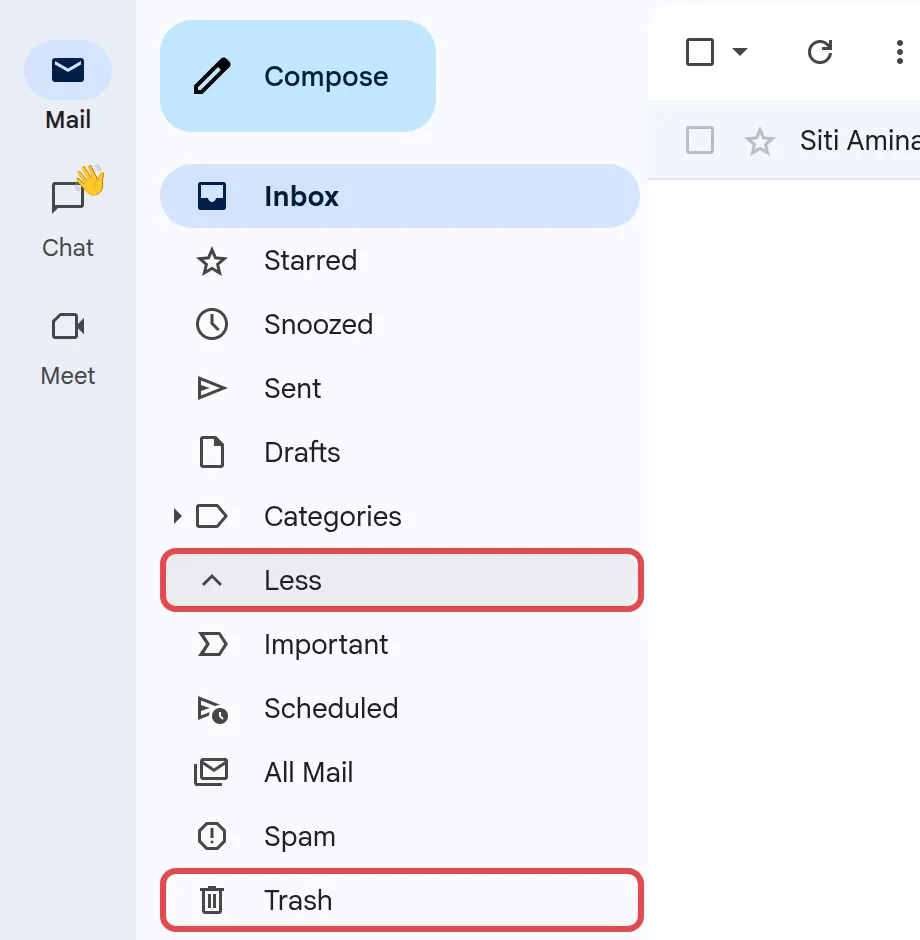
In Gmail, click More in the left menu (it then changes to Less), then Trash, then Empty Trash now.
-
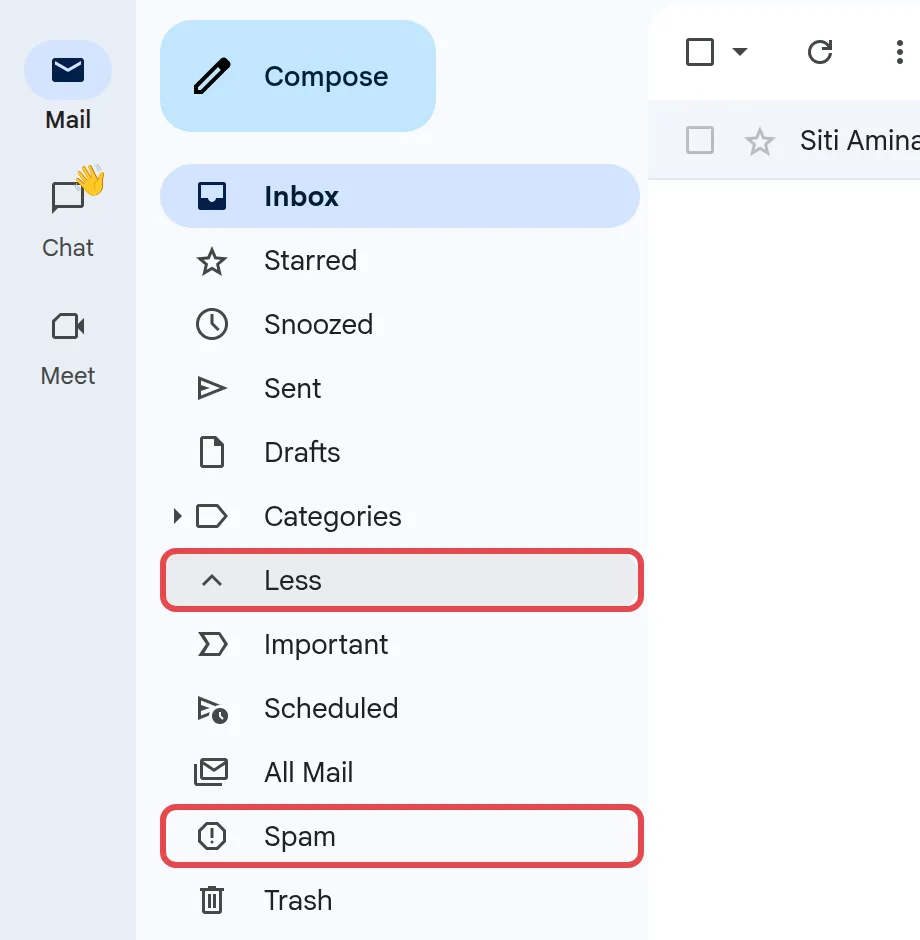
Click More → Spam, then Delete all spam messages now.
-
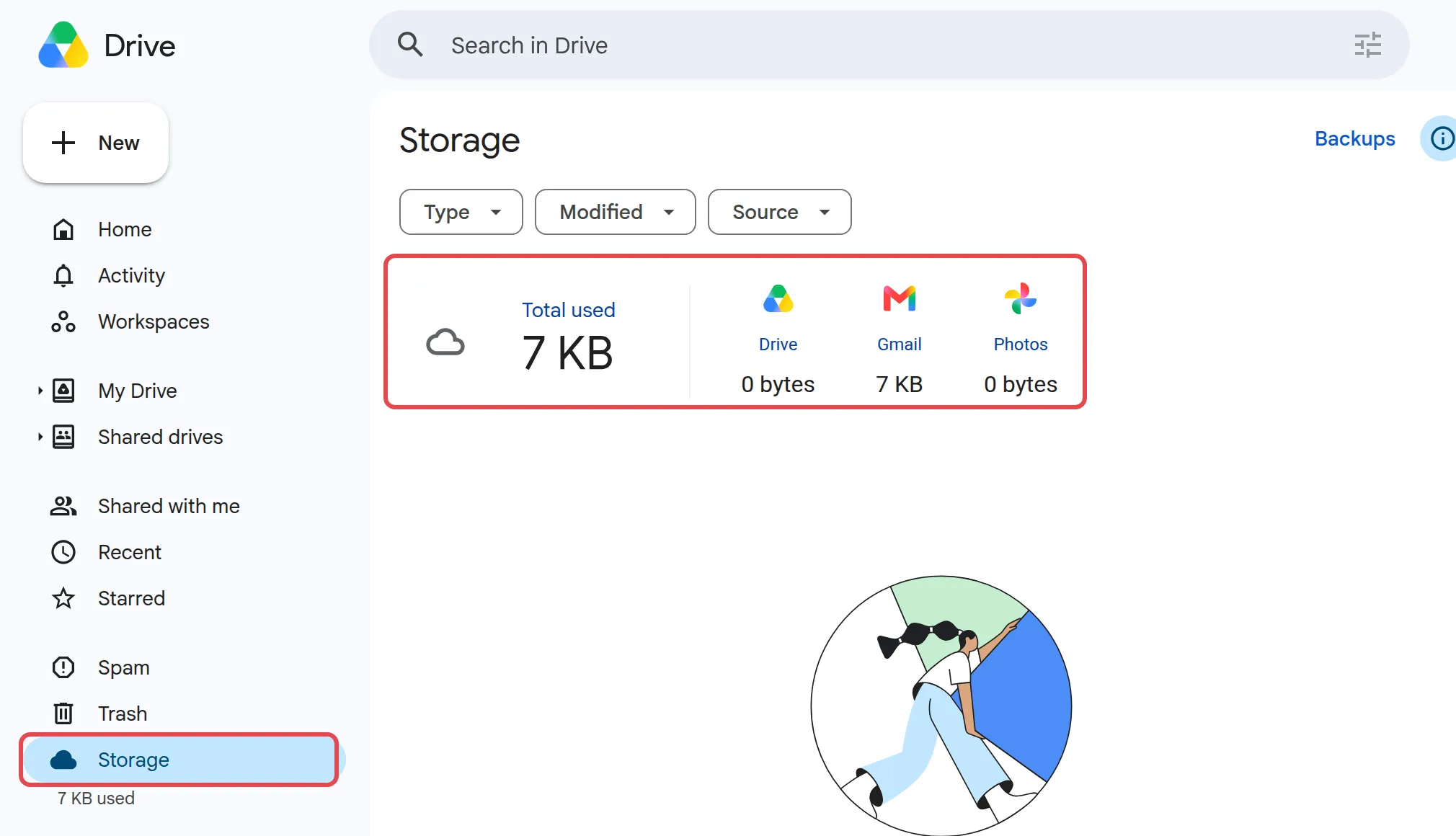
In Google Drive, click Storage on the left. Files are listed largest first. Delete what you do not need.
-
In Drive, click Trash, then Empty trash and confirm with Delete forever.
Emptying Trash is permanent. Deleted something by mistake? Read Recover deleted emails and files.
Check usage (admins)
Section titled “Check usage (admins)”You need a Google Workspace admin account to see usage for everyone.
-
Sign in to the Admin console.
-
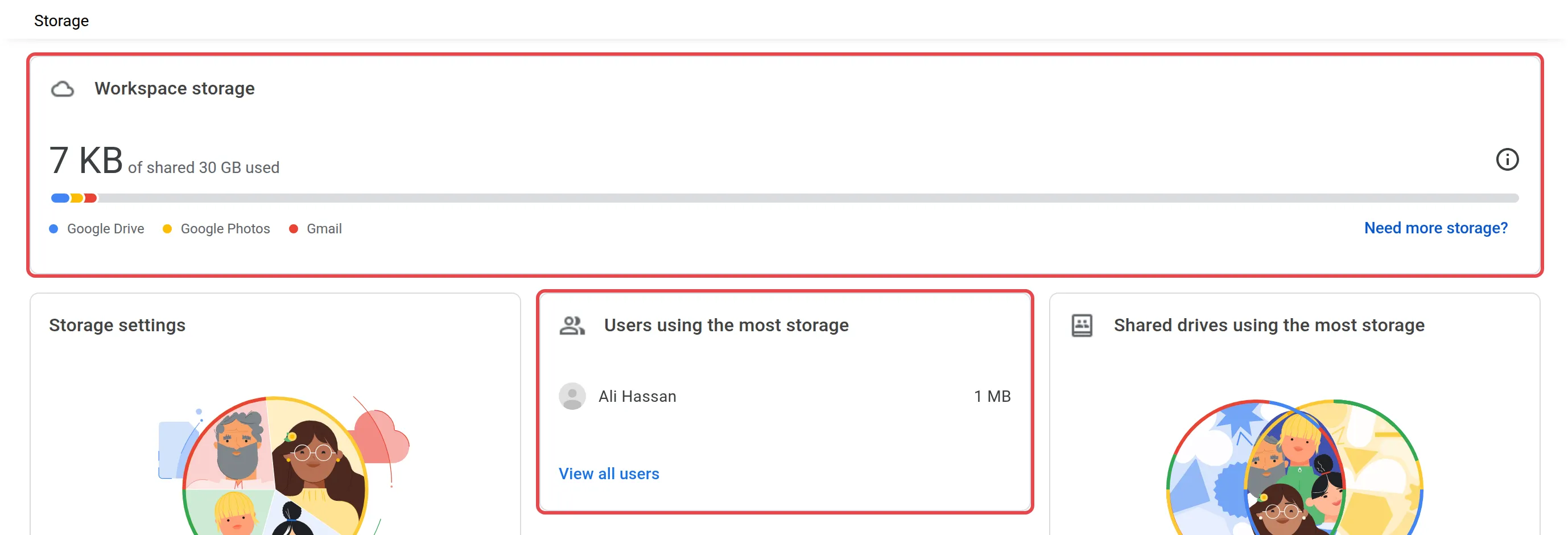
Go to Menu → Storage to see total usage and Users using the most storage.
Need more storage?
Section titled “Need more storage?”Adding a licence also adds to the pool, so you may not need to change plan. A higher plan also adds storage, but a normal upgrade moves every user. To move only some users, see Use more than one plan. Office Niaga arranges both for you, not the Admin console. See Licences and renewal or compare plans on our pricing page.
Still stuck
Section titled “Still stuck”WhatsApp our support team at +60 16-916 3324.
Common issues
Why are people saying their emails to me bounce back?
Your storage is probably full. When a user goes over their storage limit, Gmail cannot send or receive properly. Free up space with the steps on this page, then see Gmail not receiving email if it still fails.
I deleted lots of emails but my storage has not gone down. Why?
Deleted items still count until you empty Trash and Spam. After a big clean-up, the storage figure can take up to 72 hours to update.
Can Office Niaga just give one person more storage?
Storage is pooled across the company, so your admin can raise that person's limit within the pool. If the whole pool is full, adding a licence or moving users to a higher plan adds storage. Both go through Office Niaga, not the Admin console. See Licences and renewal.
Was this article helpful?
Thanks for your feedback.
Sorry this didn't help. WhatsApp us and we'll sort it out with you.