
Write & refine documents with Gemini in Google Docs
Updated For Google Workspace

Gemini in Google Docs helps you write a first draft, rewrite text and summarise a document. It is included with Business Standard, Business Plus and Enterprise plans, but not Business Starter.
Write a first draft
Section titled “Write a first draft”Start from a blank document and describe what you need.
-
Open Google Docs and create a new document.
-
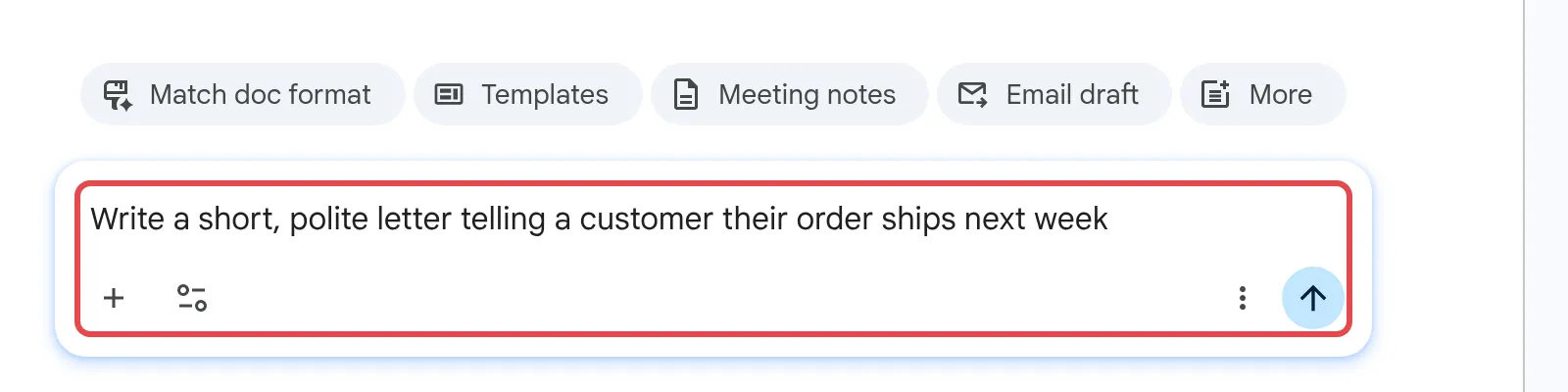
Type your prompt in the Gemini box. For example: “Write a one-page company policy on working from home for a 20-person office in Kuala Lumpur.”
-
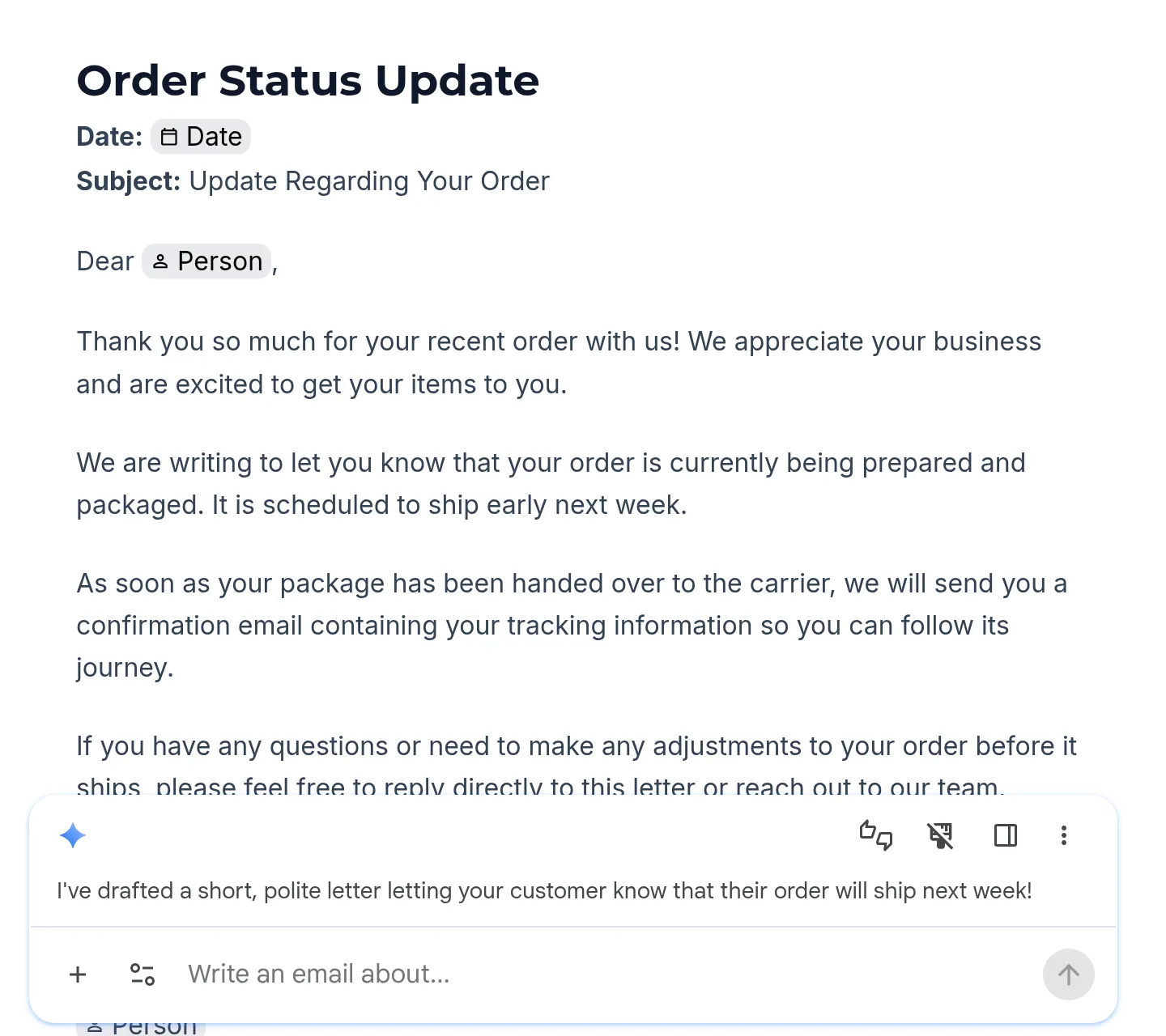
Click submit and wait for the draft.
-
Read it through and fix names, dates and figures before you share it.
Want Gemini to use your own files? Type @ and pick a Drive file, or click Sources > Add from Drive or other location.
Edit the whole document with a prompt
Section titled “Edit the whole document with a prompt”You can ask for broad changes without selecting any text.
-
Open the document.
-
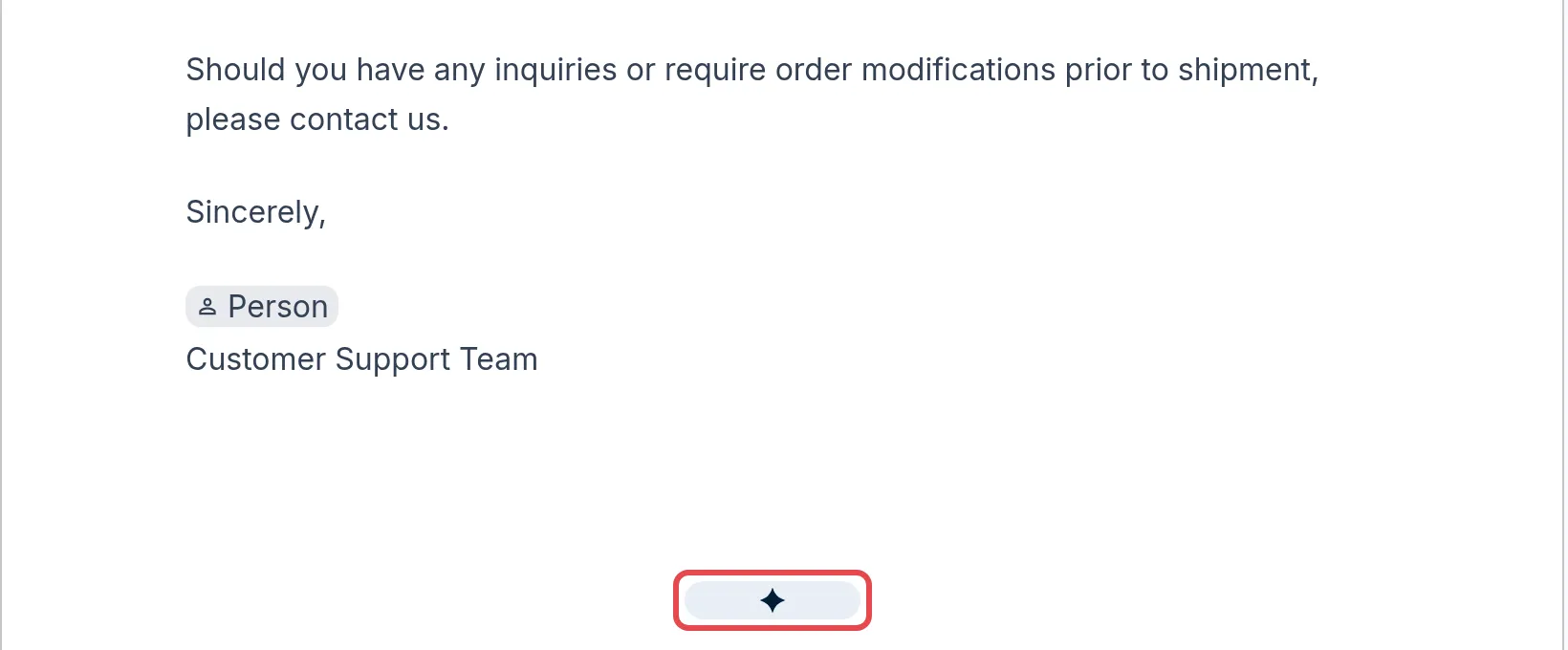
Hover over the Gemini sparkle near the bottom of the page to open the bottom bar.
-
Type an instruction, such as “Make the introduction shorter and more formal” or “Turn the to-do list into a table”.
-
Gemini shows its changes as suggestions. Click Accept suggestion for each one, or Accept all or Reject all.
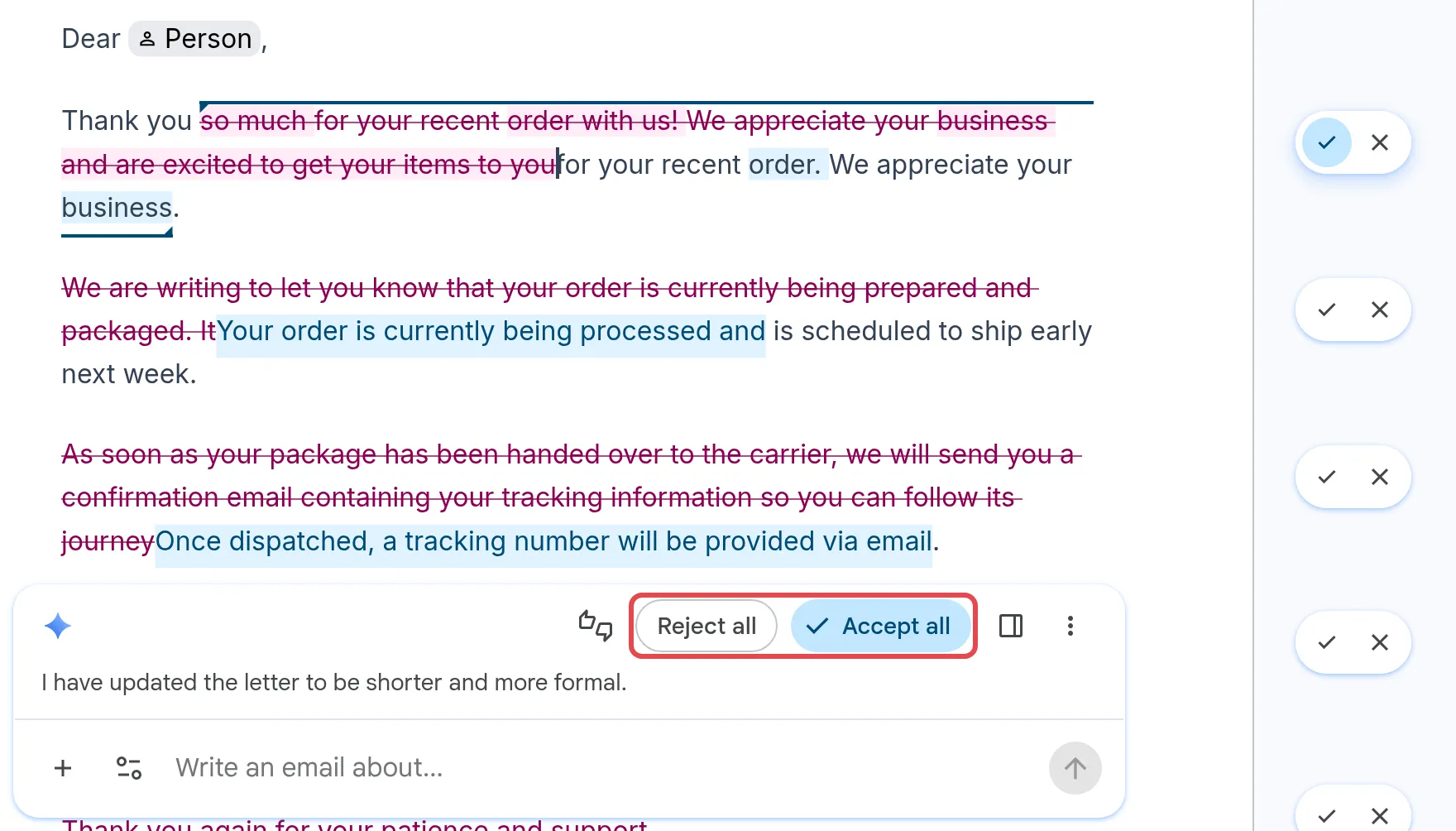
To keep Gemini open while you work, click Switch to side panel.
Refine selected text in one click
Section titled “Refine selected text in one click”Use this to quickly tidy up a paragraph.
-
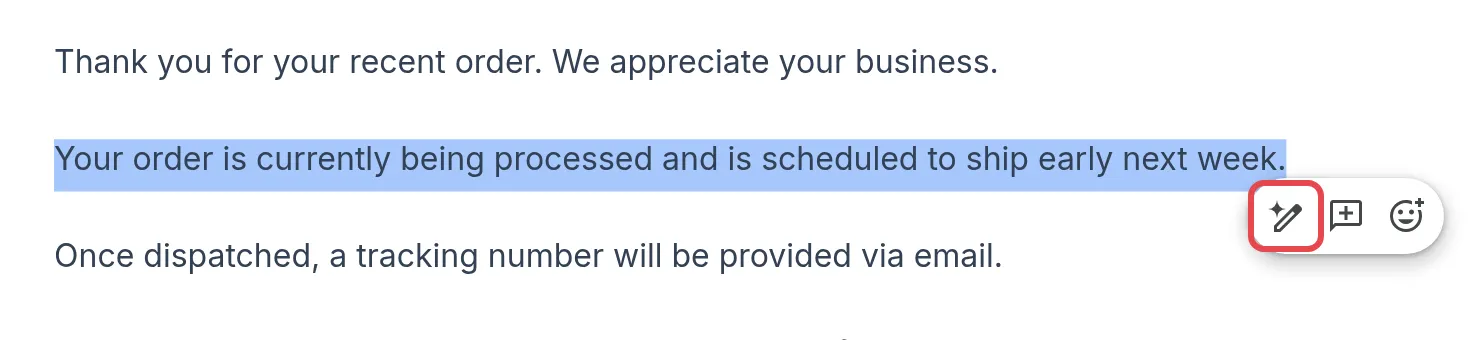
Select the text you want to change.
-
On the floating bar, click Refine.
-
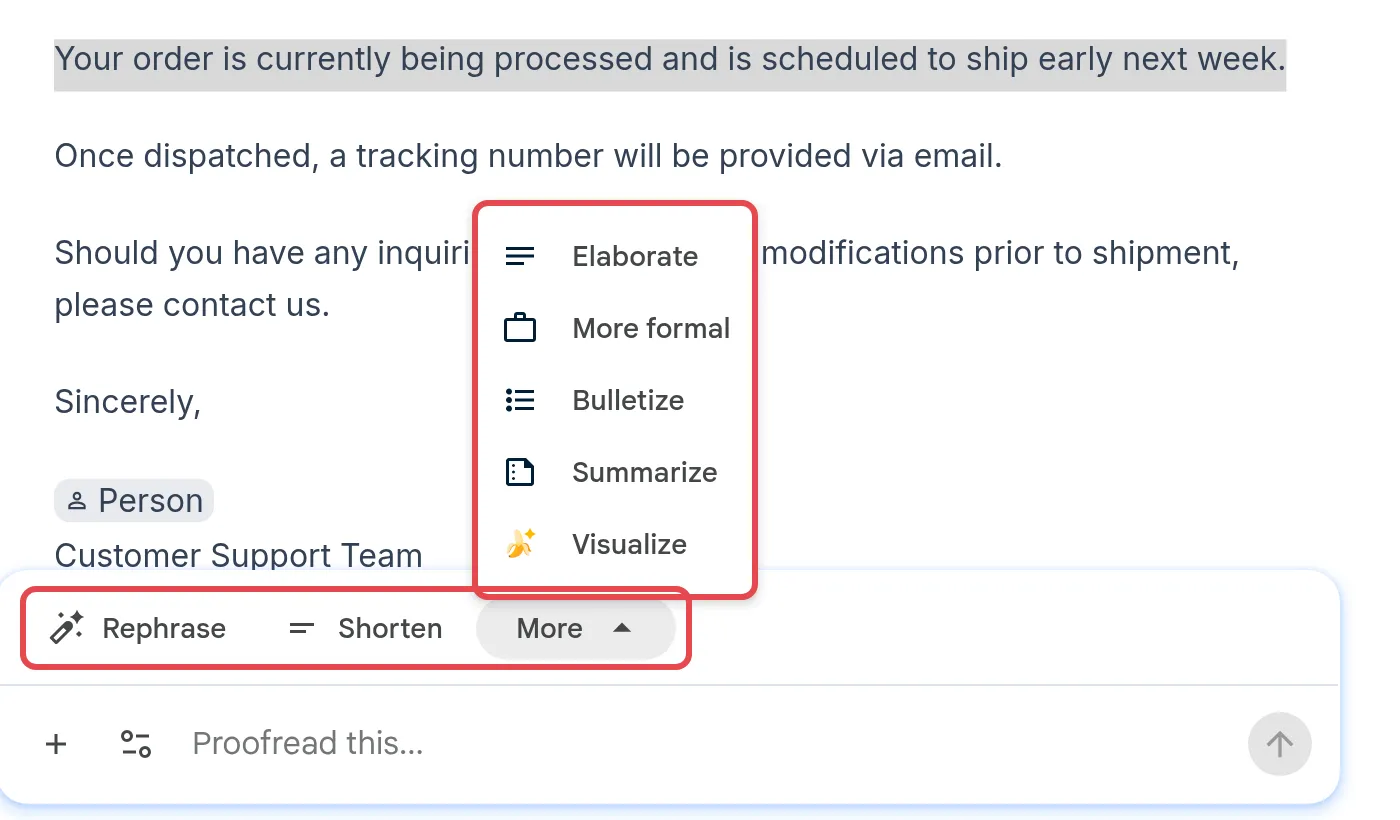
Pick Rephrase or Shorten, or click More for Elaborate, More formal, Bulletize, Summarize and Visualize. The options can change depending on your text.
-
Review the change, then click Accept all or Reject all.
Summarise a long document
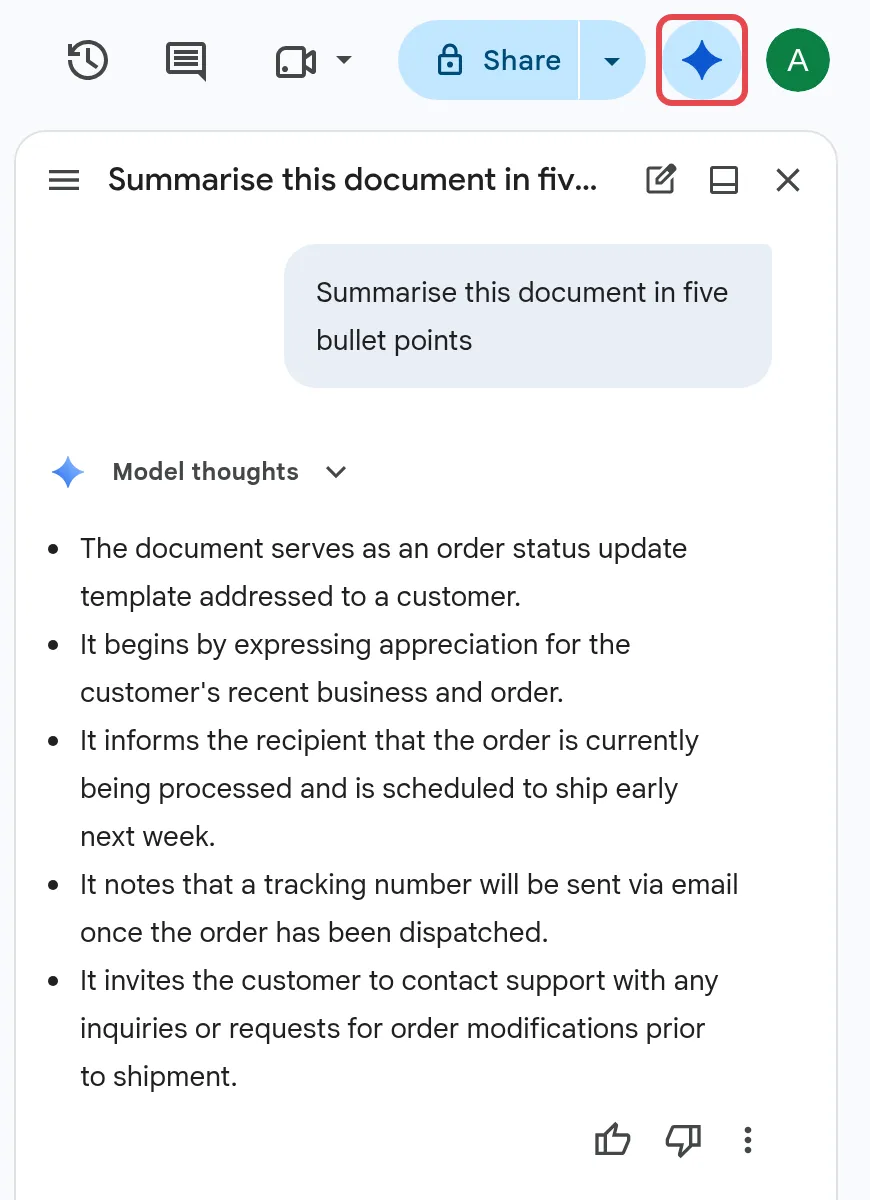
Section titled “Summarise a long document”For a quick summary of the whole document, select the text and choose Refine > More > Summarize, or open Ask Gemini at the top right and type “Summarise this document in five bullet points”.
Tips for better results
Section titled “Tips for better results”A short, specific prompt works best. Say who the document is for, what it should include and the tone you want. Gemini can make mistakes, so always check facts, amounts and legal wording yourself.
Still stuck
Section titled “Still stuck”WhatsApp our support team at +60 16-916 3324.
Common issues
I cannot find Gemini in Google Docs. Why?
Gemini in Docs needs Business Standard, Business Plus or an Enterprise plan. It is not part of Business Starter. If you are on a qualifying plan, check that smart features are on in Gmail settings and that your admin has not turned Gemini off.
Can my colleagues see Gemini's suggestions in a shared document?
No. Suggested edits are only visible to you until you accept them, and your chat with Gemini is private to you, even in a shared file.
Does Gemini in Docs work in Malay?
Yes. In July 2026 Google added Malay, Mandarin and other languages to the main Gemini features in Docs. Some newer features may still start in English first.
Was this article helpful?
Thanks for your feedback.
Sorry this didn't help. WhatsApp us and we'll sort it out with you.