
Create & share a Gem, your custom Gemini assistant
Updated For Google Workspace

A Gem is a saved version of Gemini with your own instructions, for jobs you do again and again, such as replying to customer enquiries in your company’s tone or checking quotations against a price list. Gems are included in the Gemini app on all Business and Enterprise plans.
Create a Gem
Section titled “Create a Gem”Build Gems on your computer at gemini.google.com, signed in with your work account.
-
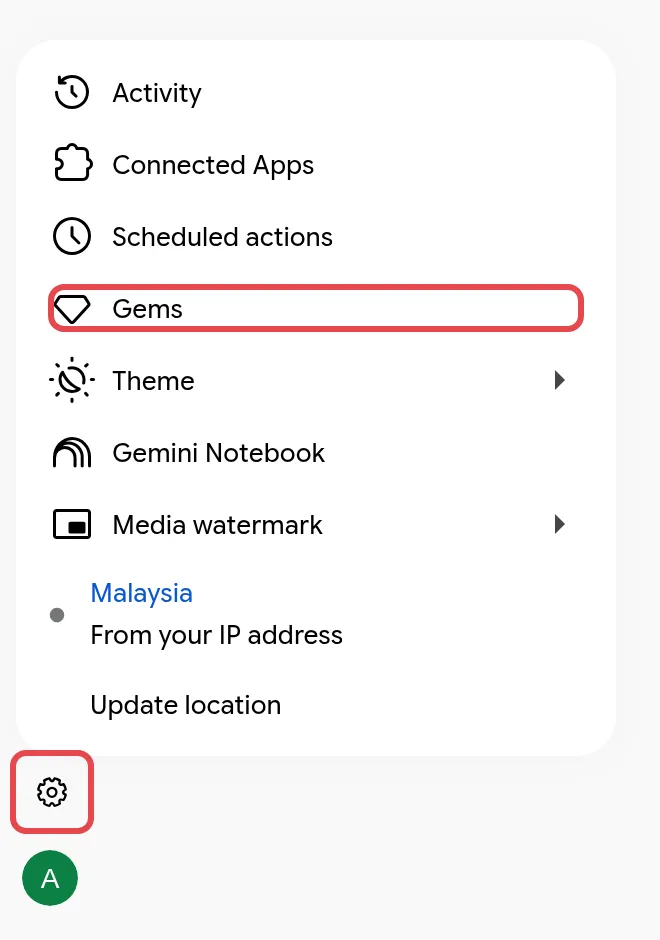
Click Settings (the gear icon at the bottom left), then Gems. The Gem manager opens.
-
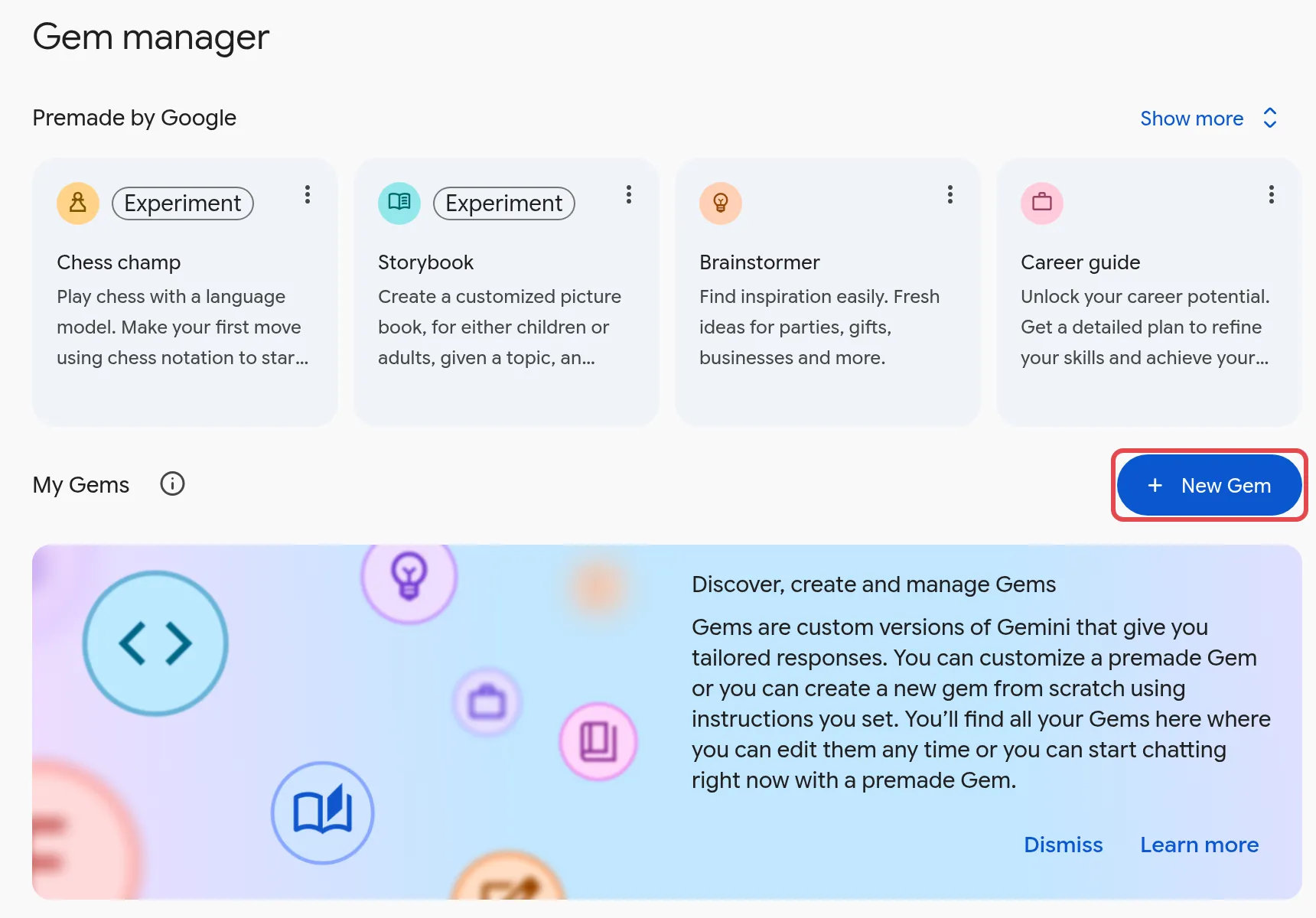
Click New Gem.
-
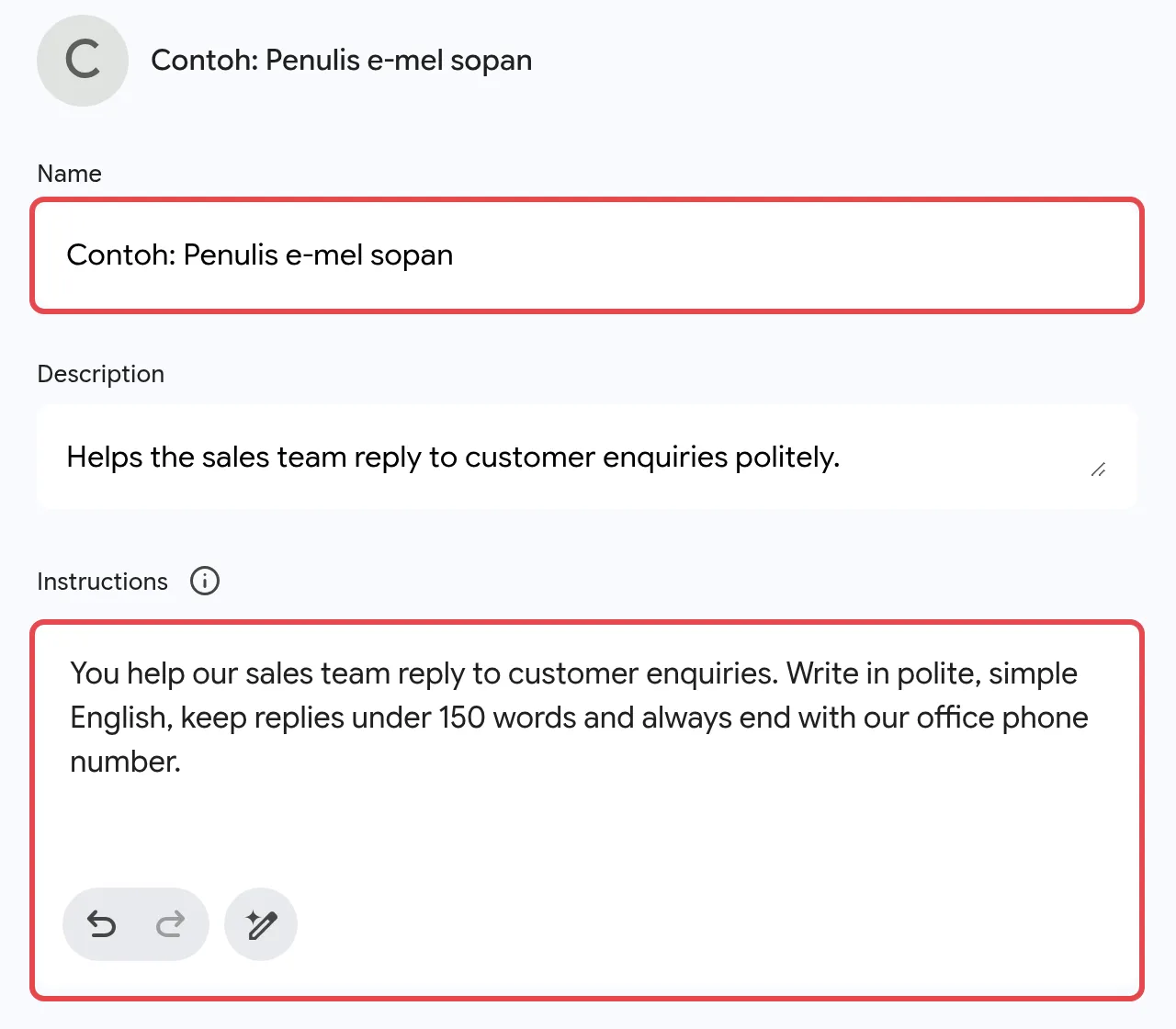
Enter a Name and the Instructions. For example: “You help our sales team reply to customer enquiries. Write in polite, simple English, keep replies under 150 words and always end with our office phone number.” You can also add a short Description so colleagues know what the Gem is for, and pick a Default tool if you want the Gem to always start with one.
-
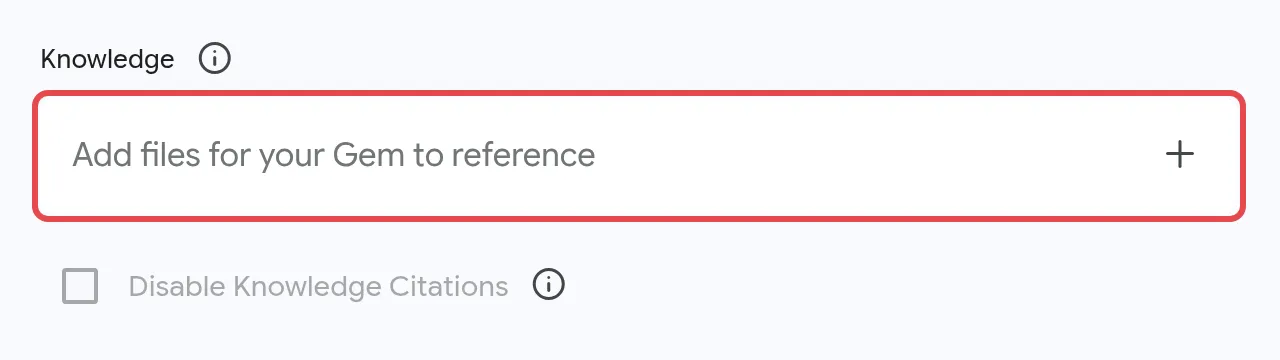
Optional: under Knowledge, click the + in the Add files for your Gem to reference box to upload a price list or product sheet, or add a file from Drive.
-
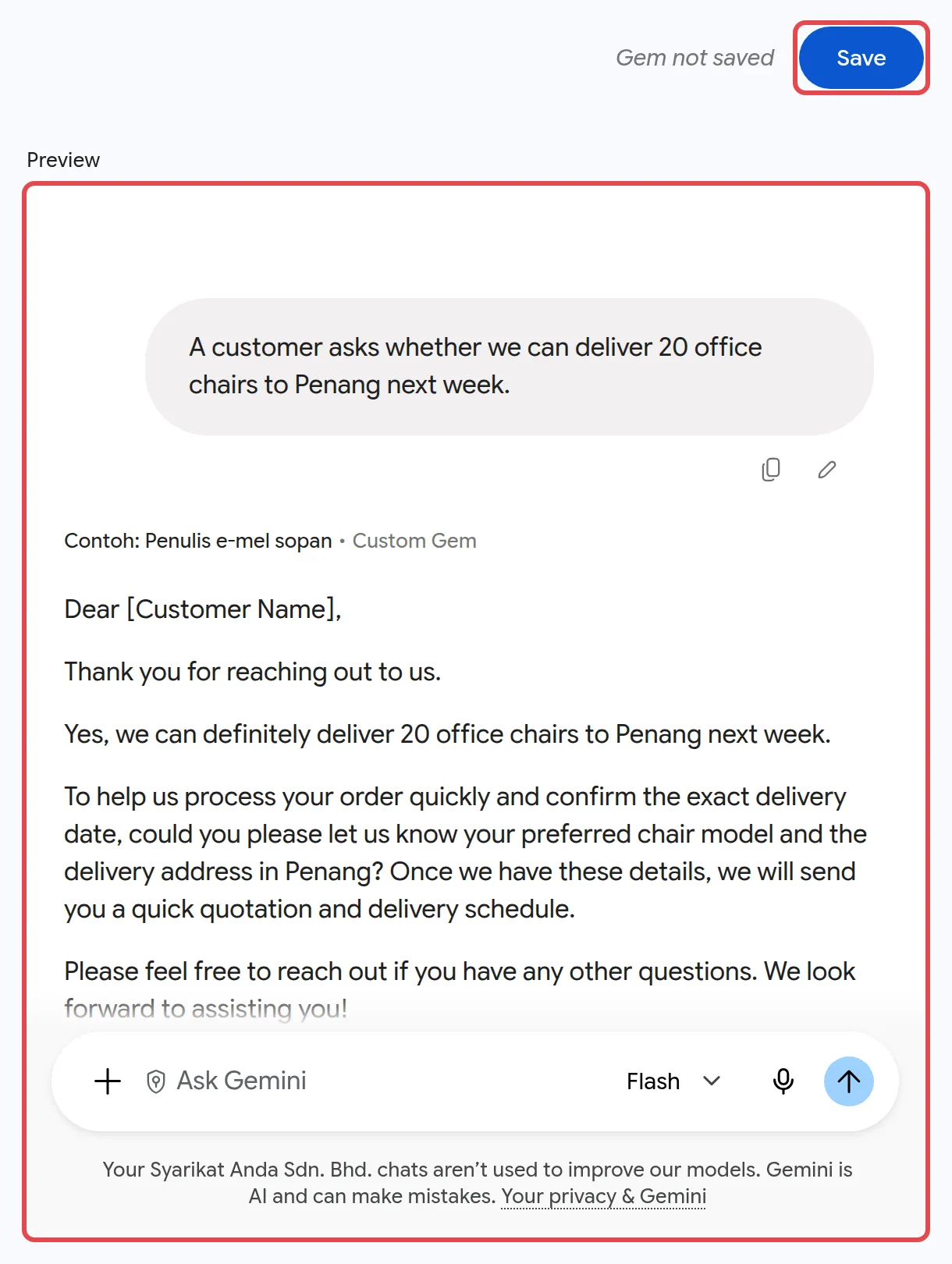
Try it in the preview on the right, adjust the instructions, then click Save.
Use a Gem
Section titled “Use a Gem”Your saved Gems appear in the Gemini app and in the Gemini side panel of Workspace apps.
- Go to gemini.google.com, click Settings (the gear icon at the bottom left), then Gems.
- Under My Gems, pick the Gem.
- Type your request and click Submit.
Share a Gem with colleagues
Section titled “Share a Gem with colleagues”Sharing saves everyone rebuilding the same assistant.
- At gemini.google.com, click Settings (the gear icon at the bottom left), then Gems.
- Next to the Gem, click Share.
- Enter your colleague’s email and choose Viewer or Editor.
- If the Gem uses uploaded files, choose whether to share those files too.
- Click Send or Share.
Anyone with access can read the Gem’s instructions and files, and editors can change or delete it. Shared Gems are stored in Google Drive, so your company’s Drive sharing rules apply, including whether they can go outside the company.
Still stuck
Section titled “Still stuck”WhatsApp our support team at +60 16-916 3324.
Common issues
I cannot see Gems in the Gemini app on my phone. Why?
Work accounts cannot use Gems in the Gemini mobile app. Create and use them at gemini.google.com on your computer.
A colleague shared a Gem with me but it is not in my list. Where is it?
Shared Gems are not added automatically. Open the link your colleague sent and use the Gem once; it then appears under My Gems.
Why can I not share my Gem?
Your admin may have turned off Gem sharing. Admins find it in the Admin console under Generative AI > Gemini app > Sharing > Gem sharing.
Was this article helpful?
Thanks for your feedback.
Sorry this didn't help. WhatsApp us and we'll sort it out with you.