
Start or join a Google Meet video meeting
Updated For Google Workspace

Google Meet runs in your web browser on a computer, so there is nothing to install. On a phone, use the Google Meet or Gmail app.
Join a meeting
Section titled “Join a meeting”Pick whichever way you received the invitation. Each ends with a preview screen where you can check your camera and microphone.
- From Google Calendar: click the event, then Join with Google Meet, then Join now.
- From a link in an email, the Calendar invitation or a chat message: click the link, then Join now.
- With a code: go to meet.google.com, type the code in Enter a code or nickname, click Join, then Join now.

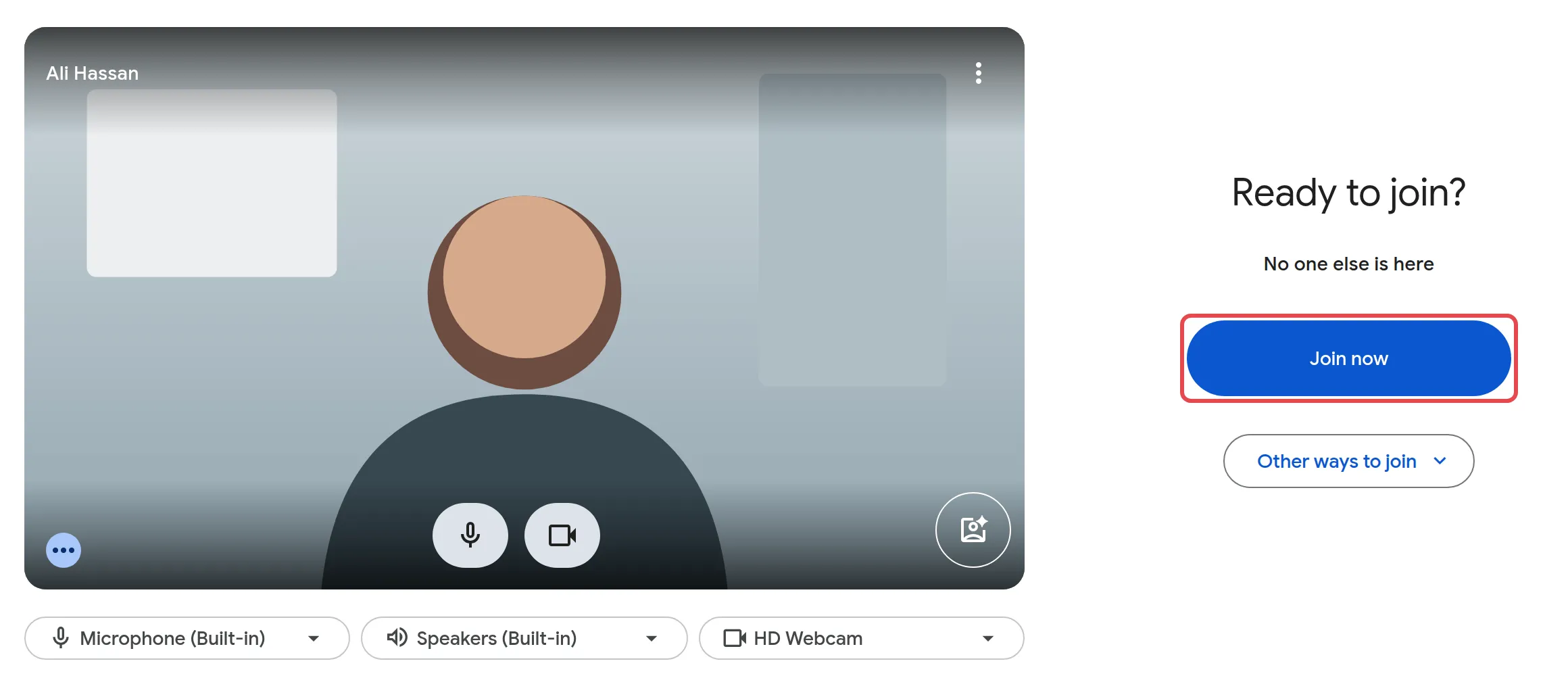
If you were not on the invitation, you see Ask to join instead, and someone in the meeting has to let you in.
Start a meeting from Google Meet
Section titled “Start a meeting from Google Meet”Use this for a quick call now, or to get a link to send out.
-
Go to meet.google.com.
-
Click New.
-
Choose one of these:
- Create a meeting for later gives you a link to copy and send.
- Start an instant meeting starts the call straight away.
- Schedule in Google Calendar opens a Calendar event with a Meet link.
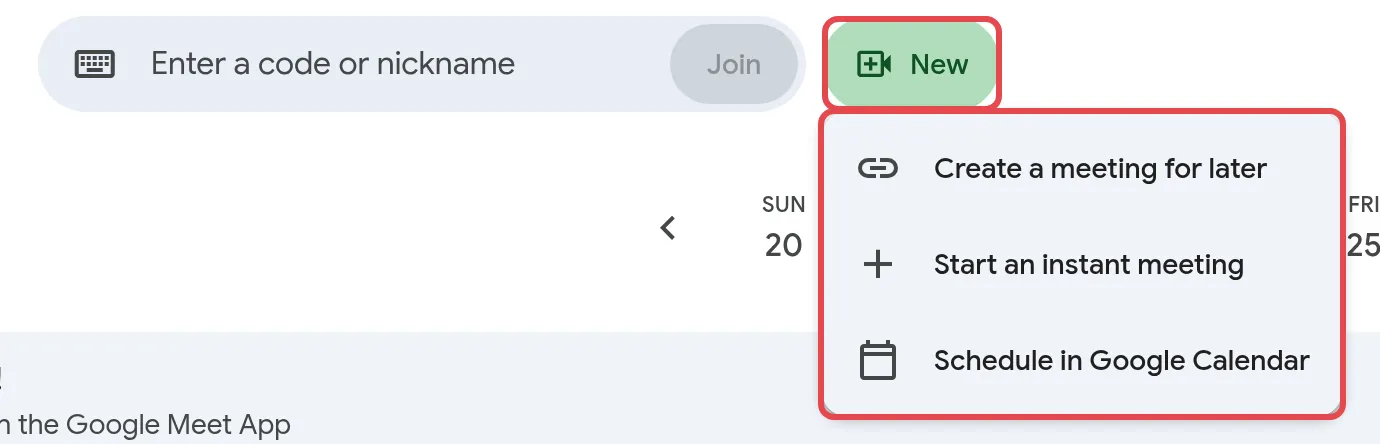
In Gmail, you can also click Meet in the left menu, then New meeting.
For planned meetings, creating the event in Calendar is best: guests get an invitation and the link is saved in the event. See create a Calendar event & add Meet.
Control who can get in
Section titled “Control who can get in”The host decides who can join without asking. Set this before or during the meeting.
-
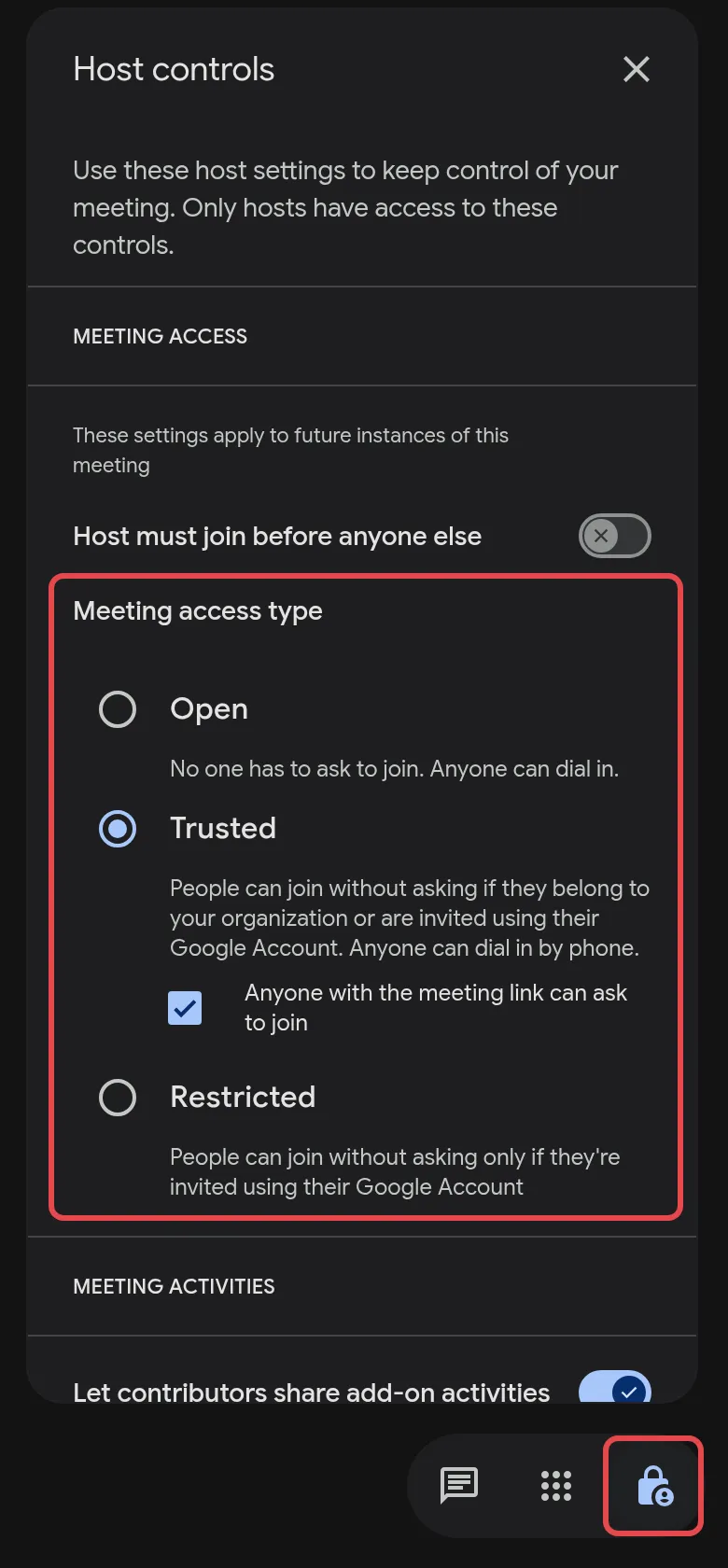
In the meeting, click Host controls at the bottom right. Before the meeting, open the Calendar event, click Video call options next to Join with Google Meet, then Host controls.
-
Scroll to Meeting access and choose one:
- Open: anyone with the link joins without asking.
- Trusted: your colleagues and anyone on the Calendar invitation join directly; others ask.
- Restricted: only people invited through Calendar or by the host join directly.
Still stuck
Section titled “Still stuck”WhatsApp our support team at +60 16-916 3324.
Common issues
Can a client join without a Google account?
Yes. They click the link, type their name and click Ask to join. Someone in the meeting from your company then lets them in. Your admin can turn this off, so check with them if outsiders cannot get in.
People say the camera or microphone does not work.
The browser must be allowed to use them. Click Allow when the browser asks the first time. If you blocked them, allow the camera and microphone for meet.google.com in your browser's site settings, then reload the page. Also close other apps that may be using the camera.
Why do some people have to knock to get in?
It depends on the meeting's access setting. Colleagues and people on the Calendar invitation usually join straight away; anyone else asks to join. The host can change this under Host controls > Meeting access.
Was this article helpful?
Thanks for your feedback.
Sorry this didn't help. WhatsApp us and we'll sort it out with you.