
Calendar views, colours & extra calendars in webmail
Updated For SmarterMail Build 7692

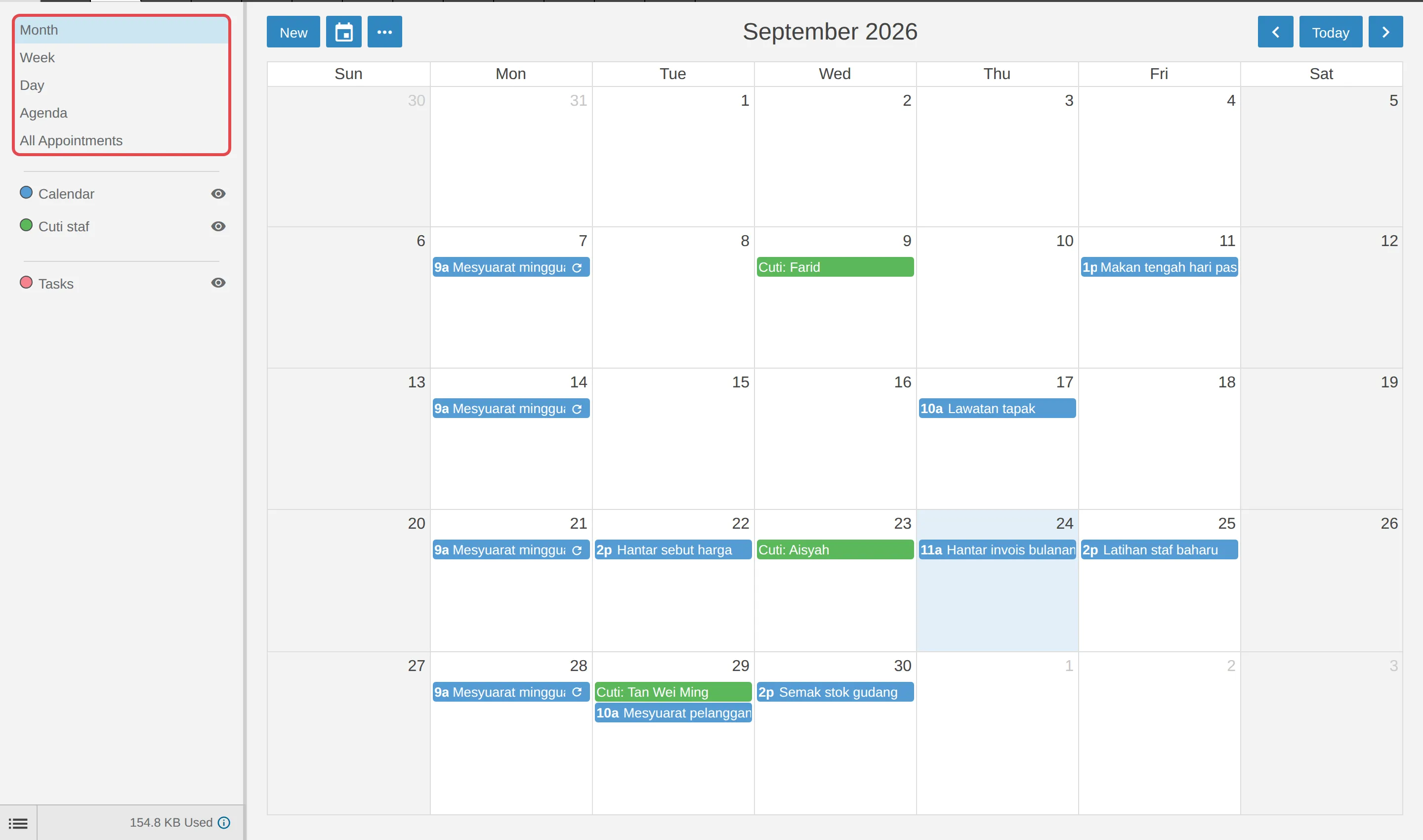
The left pane of the calendar has the view list at the top and your calendars below it. Each calendar has its own colour and an eye icon to show or hide it.
Choose a view
Section titled “Choose a view”Webmail remembers the last view you used.
-
Log in to webmail and click the Calendar icon on the top bar.
-
Click a view in the left pane:
- Month shows the whole month.
- Week and Day show each hour, with all-day items in the All Day row at the top.
- Agenda lists the next two weeks as a list, starting today.
- All Appointments lists every appointment in a table you can search.
-
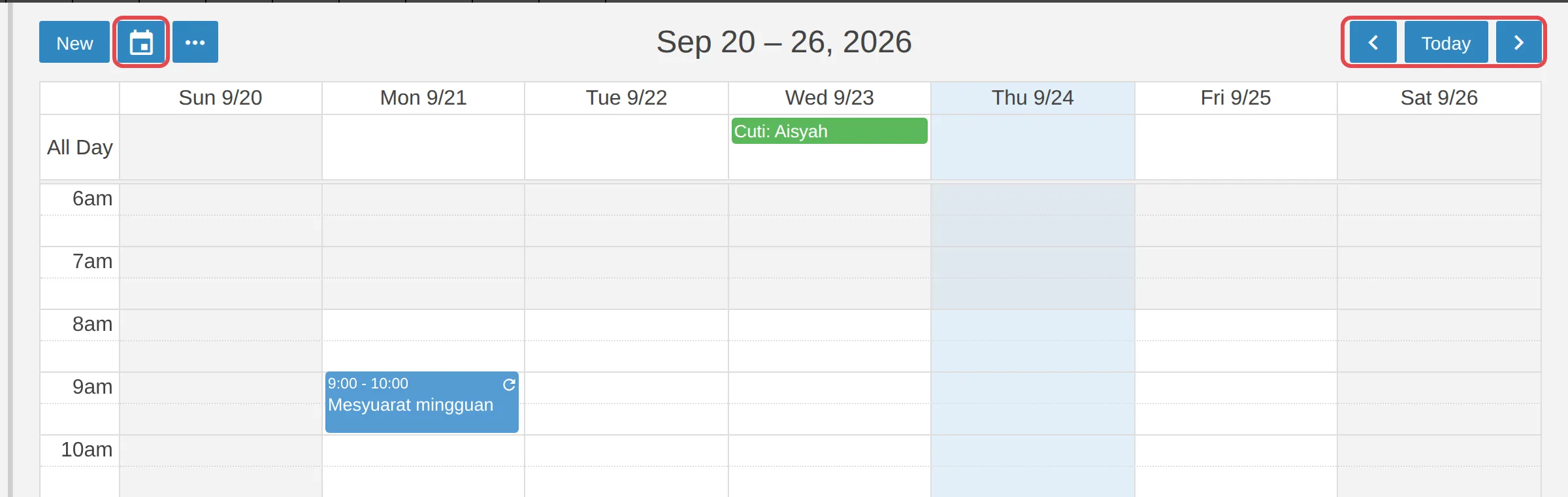
Use the arrows at the top right to move back or forward, and Today to come back to the current date. To jump to a date, click the calendar button beside New and pick the day.
Show or hide a calendar
Section titled “Show or hide a calendar”Hiding a calendar only hides it from view. Its appointments are kept.
-
In the left pane, click the eye icon beside a calendar, such as Calendar or Tasks. The calendar and its appointments are hidden.
-
Click the eye icon again to show it.
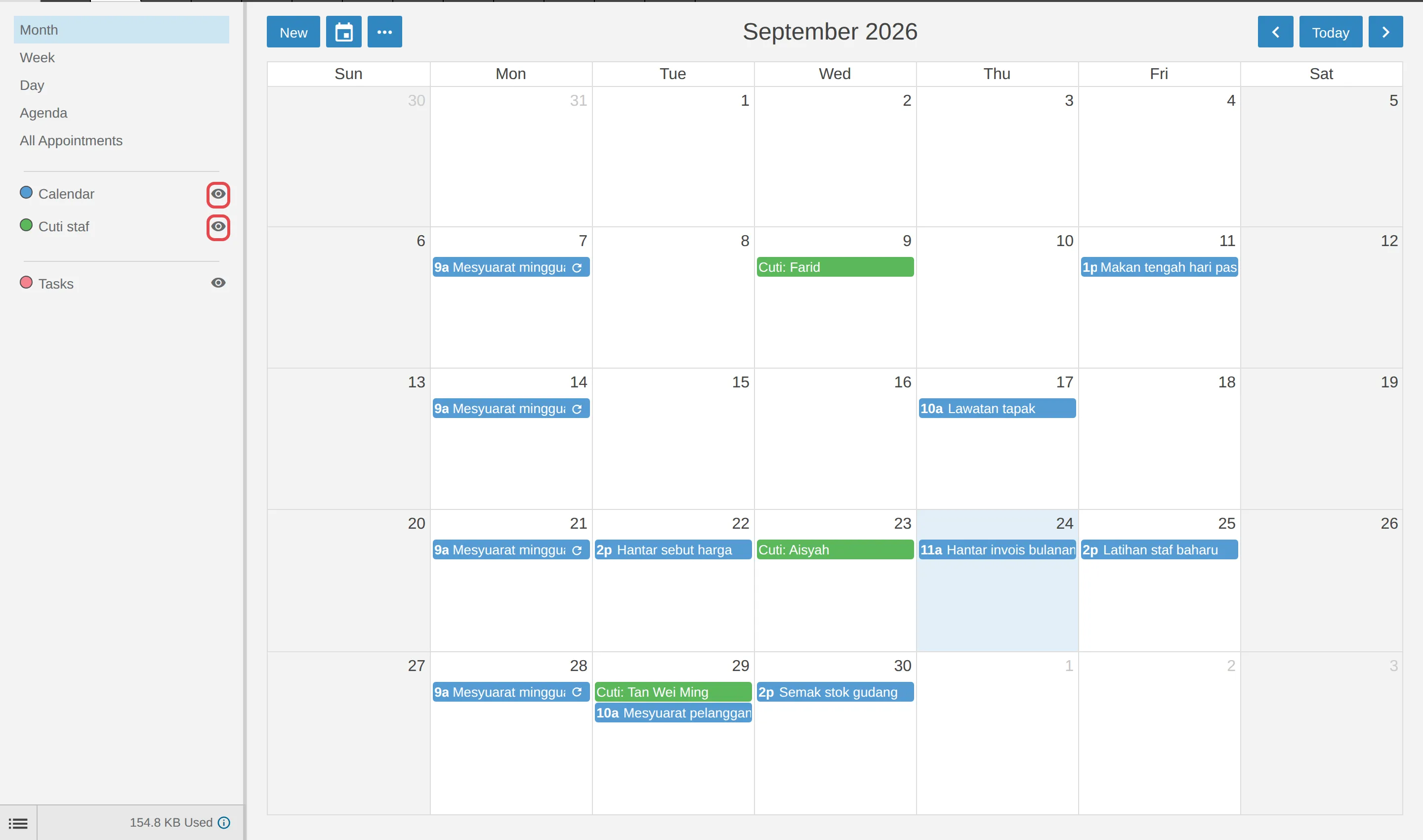
Tasks shows your task start and due times on the calendar. To turn these off, go to Settings > Calendar Settings.
Add another calendar with its own colour
Section titled “Add another calendar with its own colour”A separate calendar keeps one kind of item apart, for example staff leave, and you can share it on its own.
-
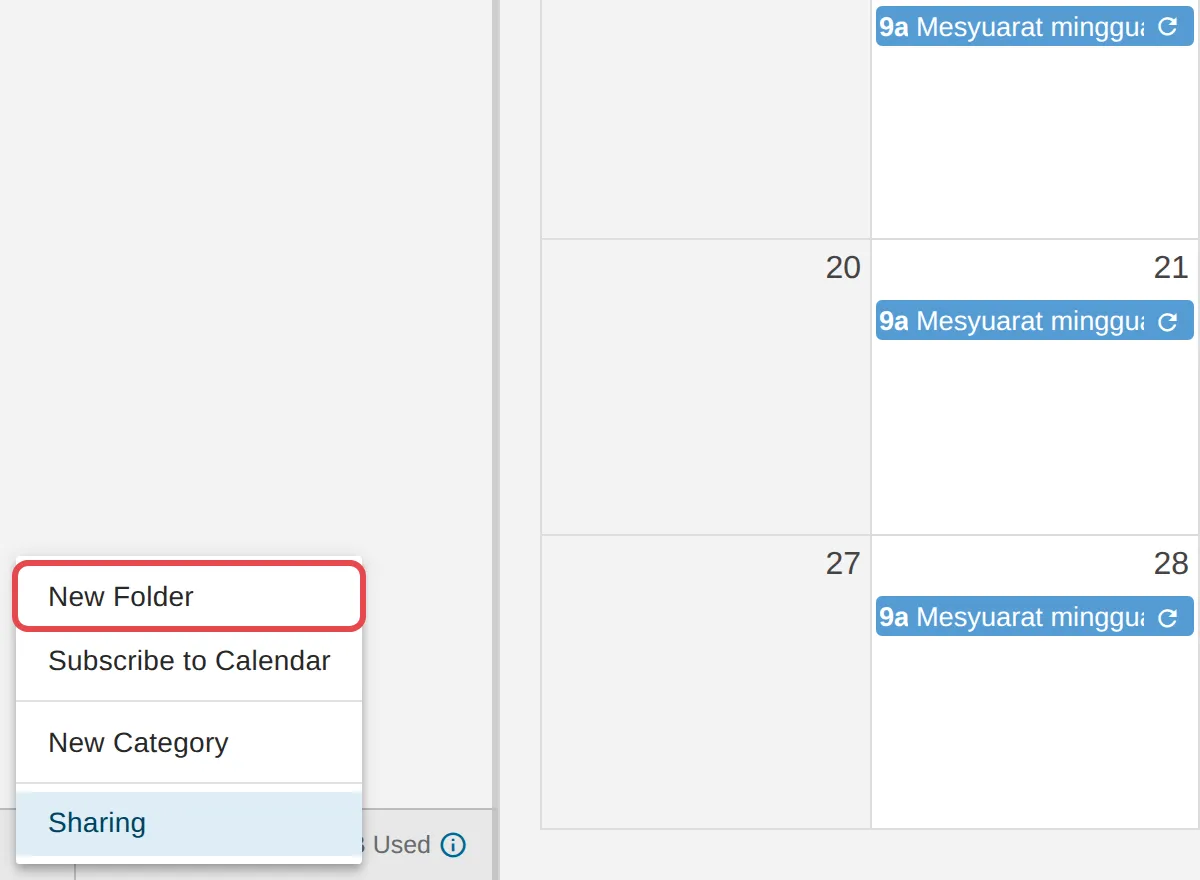
Click the list icon at the bottom left of the calendar pane, then click New Folder.
-
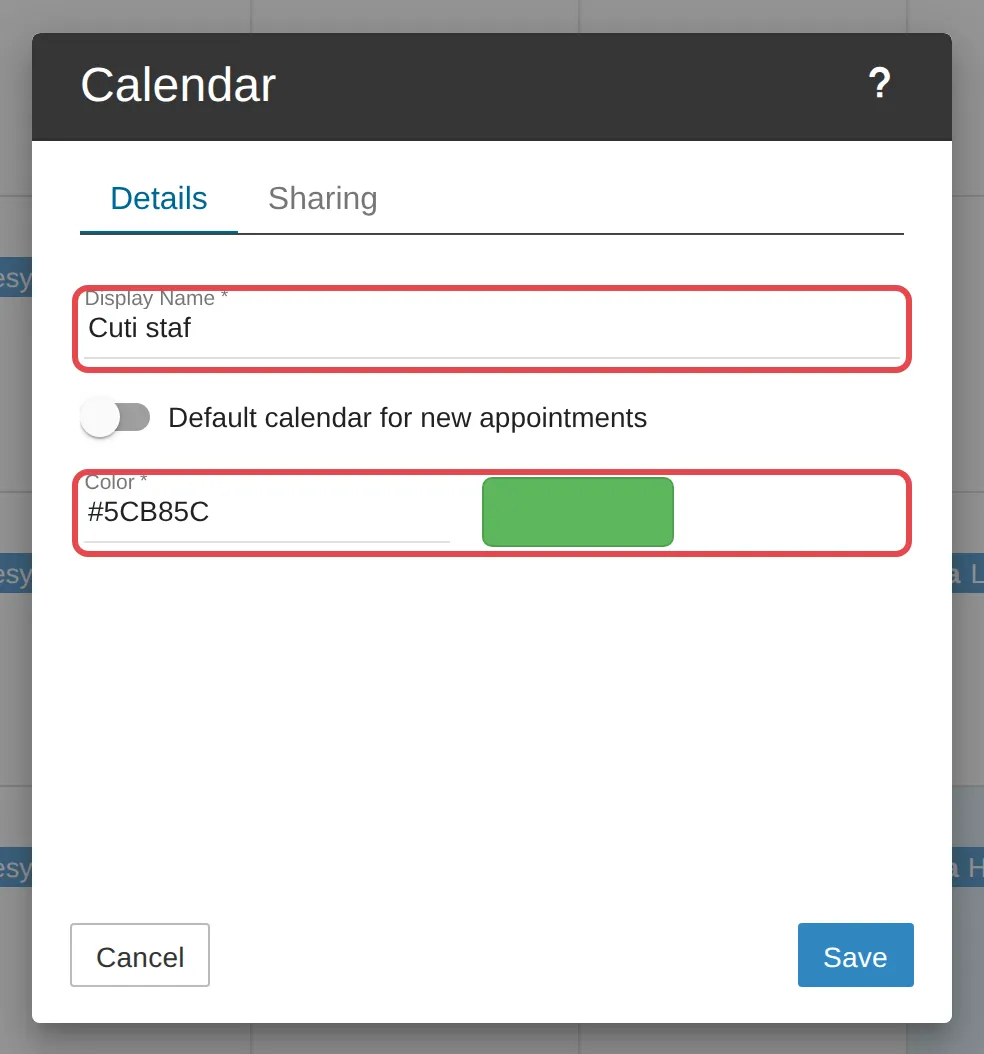
Type a Display Name, for example “Cuti staf”. In Color, type a colour code such as #5CB85C, or click the colour box to pick one. Turn on Default calendar for new appointments if new appointments should go here. Click Save.
-
The new calendar appears in the left pane. When you create an appointment, choose the calendar in the Source list under Options.
To change a calendar’s name or colour later, click its name in the left pane, change Display Name or Color on the Details tab and click Save. The same window has a Sharing tab, described in Share your calendar with a colleague.
Hide weekends
Section titled “Hide weekends”You can drop Saturday and Sunday from Week and Month view.
-
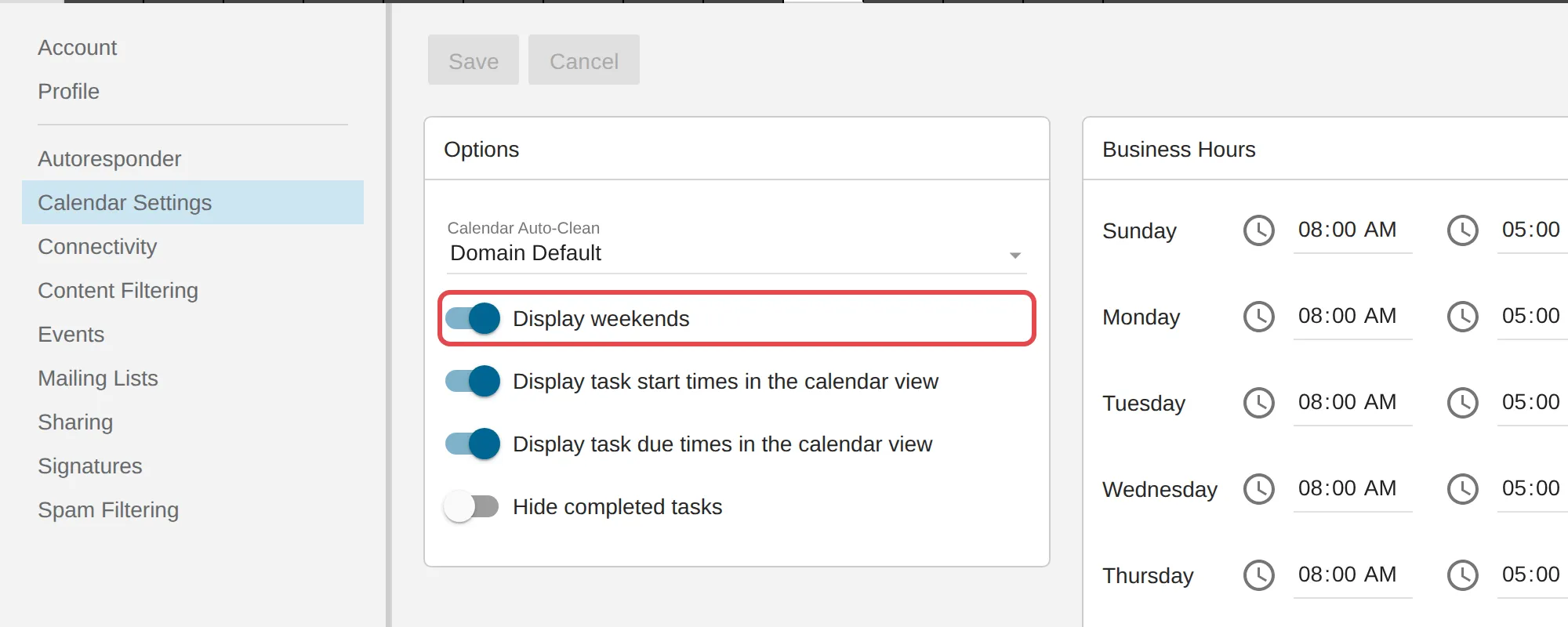
Click the Settings (gear) icon on the top bar, then Calendar Settings.
-
Turn off Display weekends and click Save.
Still stuck
Section titled “Still stuck”WhatsApp our support team at +60 16-916 3324.
Common issues
My calendar is empty but I know I have appointments.
Check the eye icon beside Calendar in the left pane. If the calendar is hidden, its appointments do not show. Click the eye icon again to show it.
Can I hide Saturday and Sunday?
Yes. Go to Settings > Calendar Settings, turn off Display weekends and click Save.
Why are some hours shaded grey in Week and Day view?
The white hours are your business hours, 8:00 AM to 5:00 PM by default. Change them under Settings > Calendar Settings > Business Hours. See Set your time zone & business hours.
Was this article helpful?
Thanks for your feedback.
Sorry this didn't help. WhatsApp us and we'll sort it out with you.