
Ask an AI about this page
 ChatGPT
 Claude
 Perplexity
 Google AI Mode
 Microsoft Copilot
 Grok
 Mistral Le Chat
Add or replace an email user
Only the domain admin can add or delete email users. The number of users allowed is set by the package you subscribe to.
Add a new user
Section titled “Add a new user”You need the domain admin account and a free user slot in your package. The new user can log in as soon as you save.
-
Log in to webmail with the domain admin account.
-
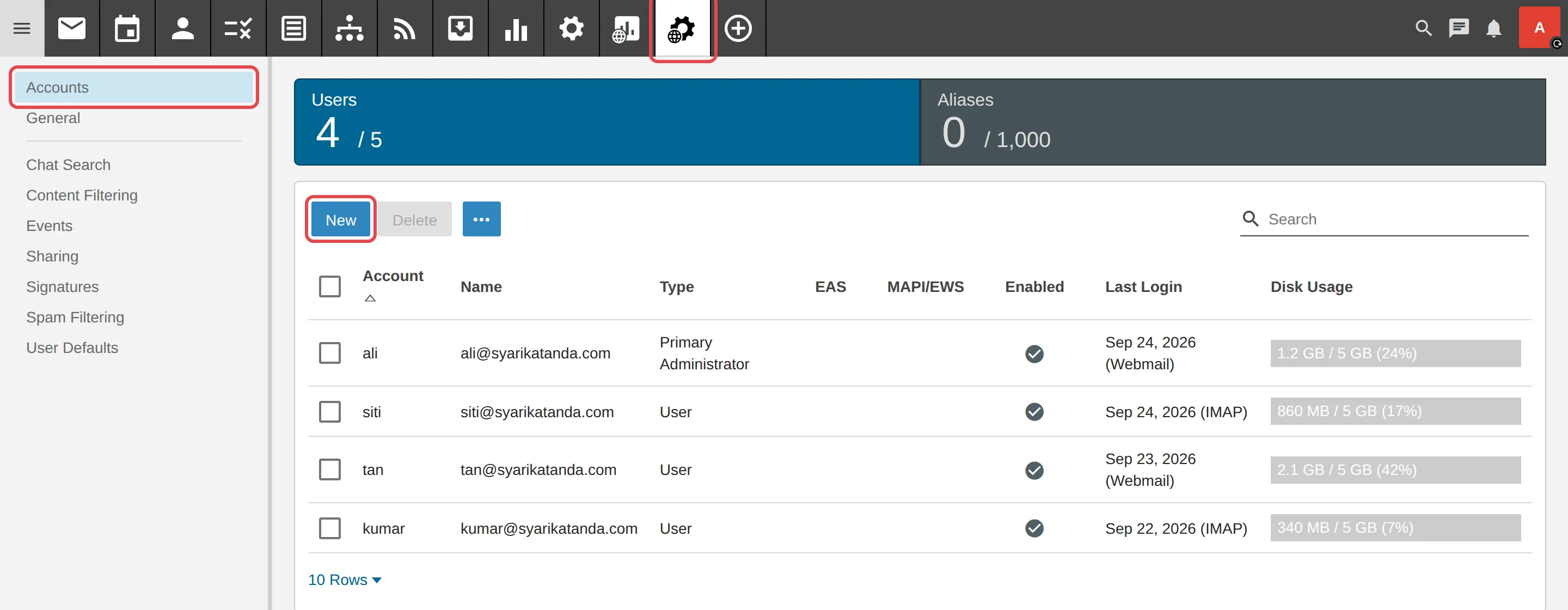
Click Domain Settings.
-
On the left, click Accounts.
-
Click New.
-
Enter the username, password and confirm password for the new user, then click Save.
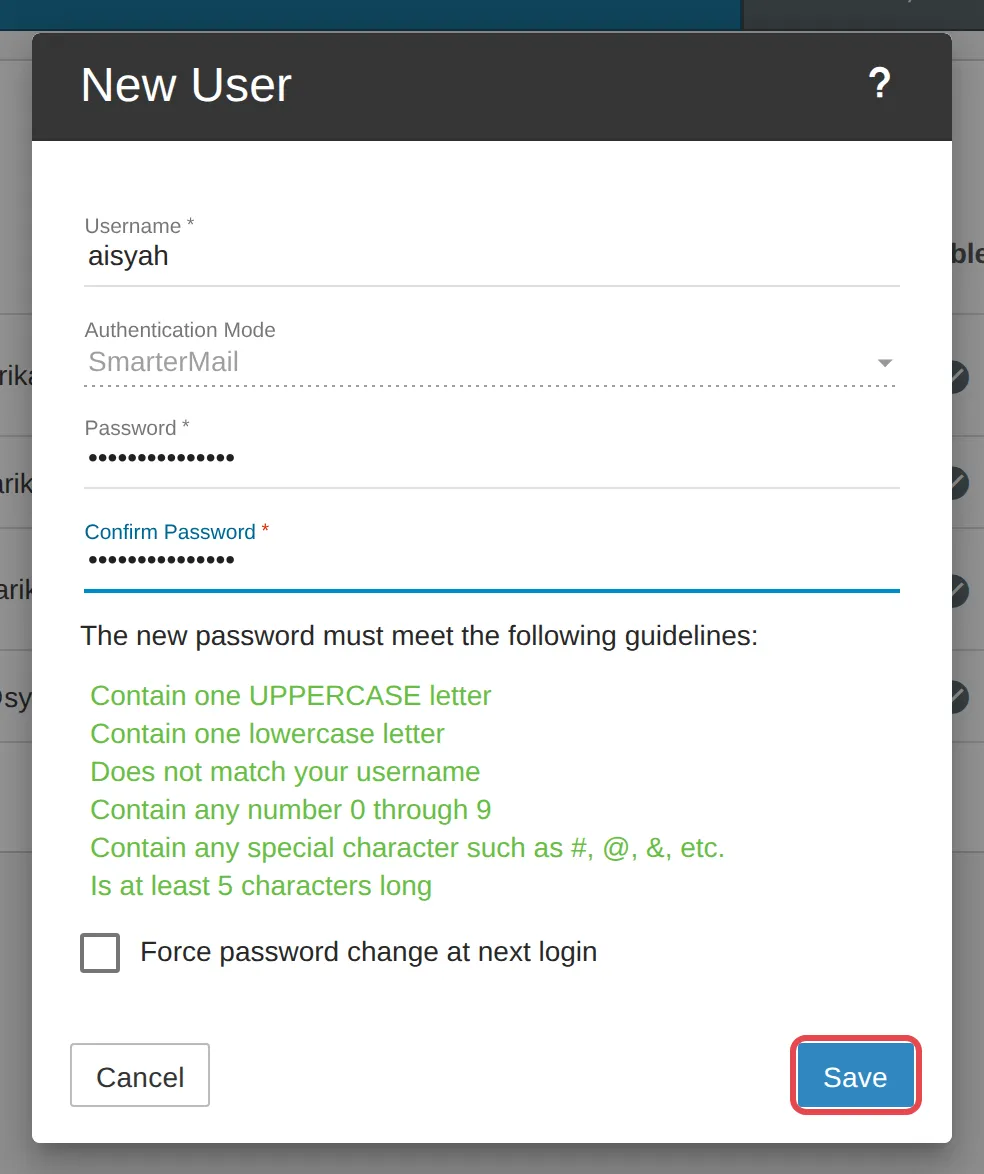
Give the email address and password to the user. They can log in and change the password themselves.
Replace an old user with a new one
Section titled “Replace an old user with a new one”If your package is already full, delete a user you no longer need first, then add the new user.
-
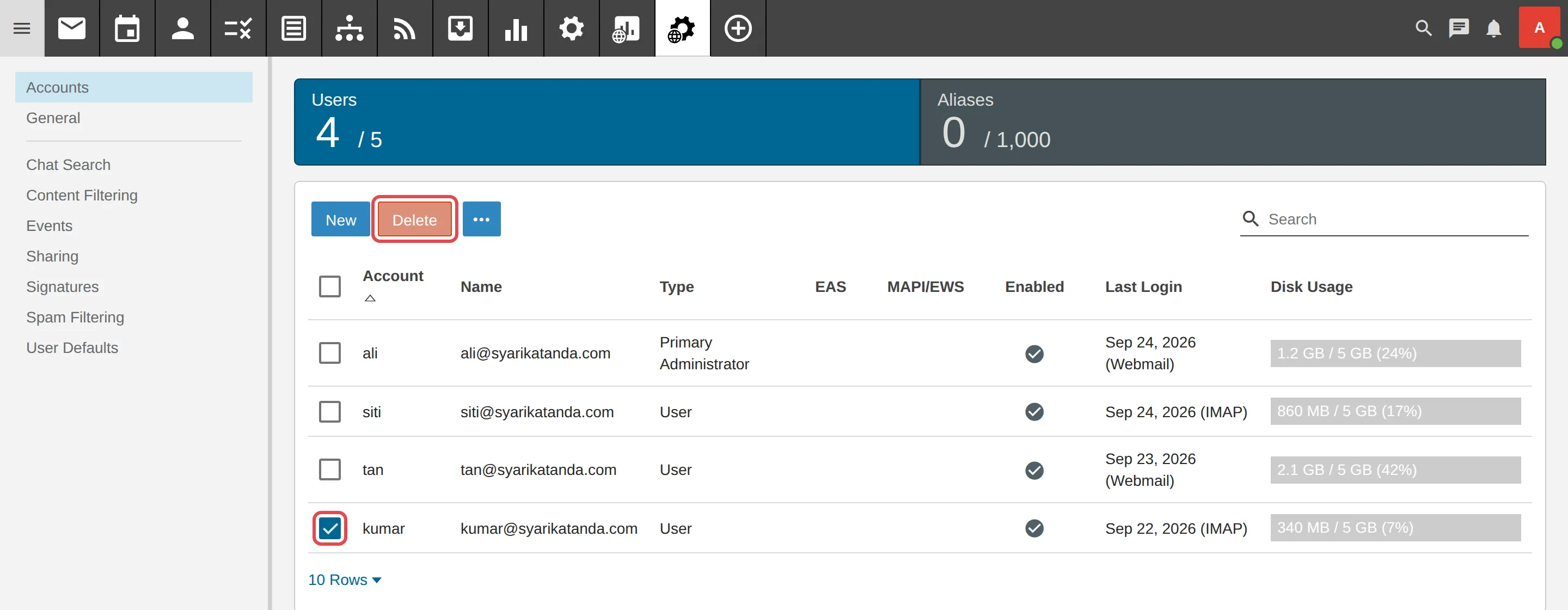
Click Domain Settings, then Accounts. A list of all users is shown.
-
Tick the user you want to delete, then click Delete.
-
Add the new user as in the steps above.
Still stuck
Section titled “Still stuck”WhatsApp our support team at +60 16-916 3324.
Common issues
I cannot add a new user.
The number of users is limited by the package you subscribe to. Delete users you no longer need, or WhatsApp us to upgrade your package.
A staff member has left. What happens to their email if I delete their account?
Deleting the account also deletes the email in that mailbox. If you still need the old email, save it first or share the mailbox with another staff member before you delete it - see Share a mailbox (shared inbox).
Who can add users?
Only the domain admin. If you are not the admin, ask your company's admin, or contact us.
Was this article helpful?
Thanks for your feedback.
Sorry this didn't help. WhatsApp us and we'll sort it out with you.