
Ask an AI about this page
 ChatGPT
 Claude
 Perplexity
 Google AI Mode
 Microsoft Copilot
 Grok
 Mistral Le Chat
Whitelist senders & domains
Email from addresses or domains on your whitelist goes straight to your inbox without being filtered into the spam folder.
Add a trusted domain
Section titled “Add a trusted domain”Use this for a customer or supplier whose whole company emails you, so every address on their domain is trusted.
-
Log in to webmail and click Settings.
-
Click Spam Filtering, then click the pencil icon next to Trusted Domains.
-
Enter the domain, one per line, for example
supplier.com. Click OK, then click Save.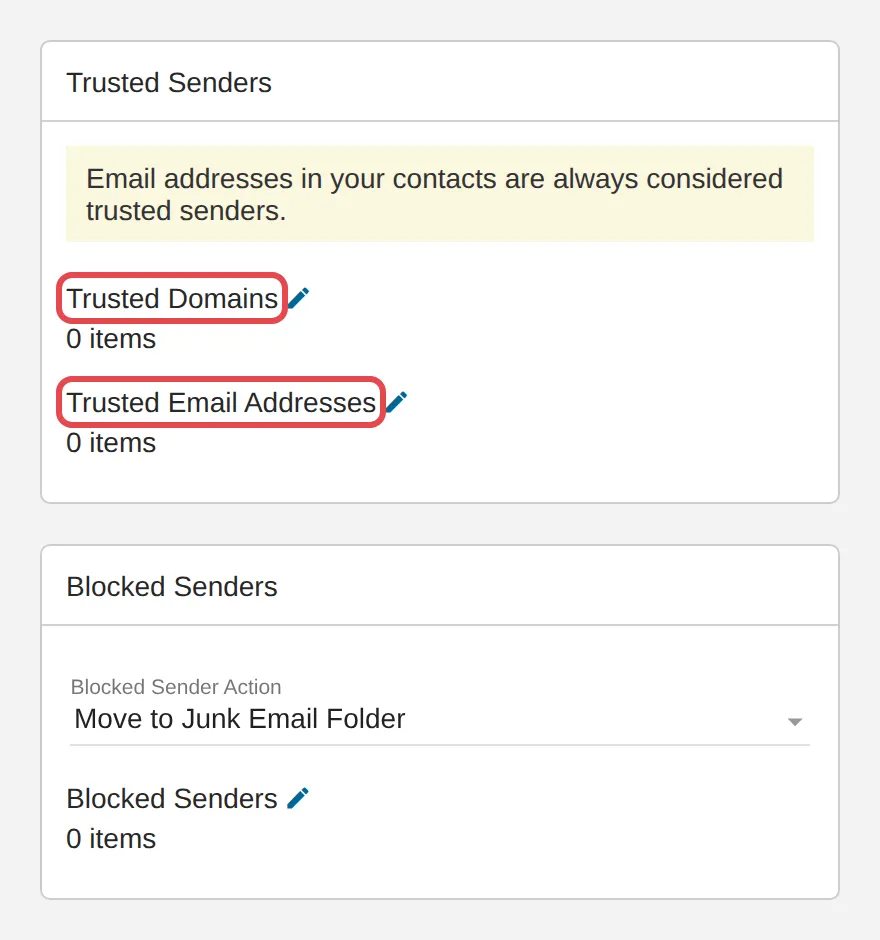
Add a trusted email address
Section titled “Add a trusted email address”Use this when you only want to trust one person, not their whole company.
-
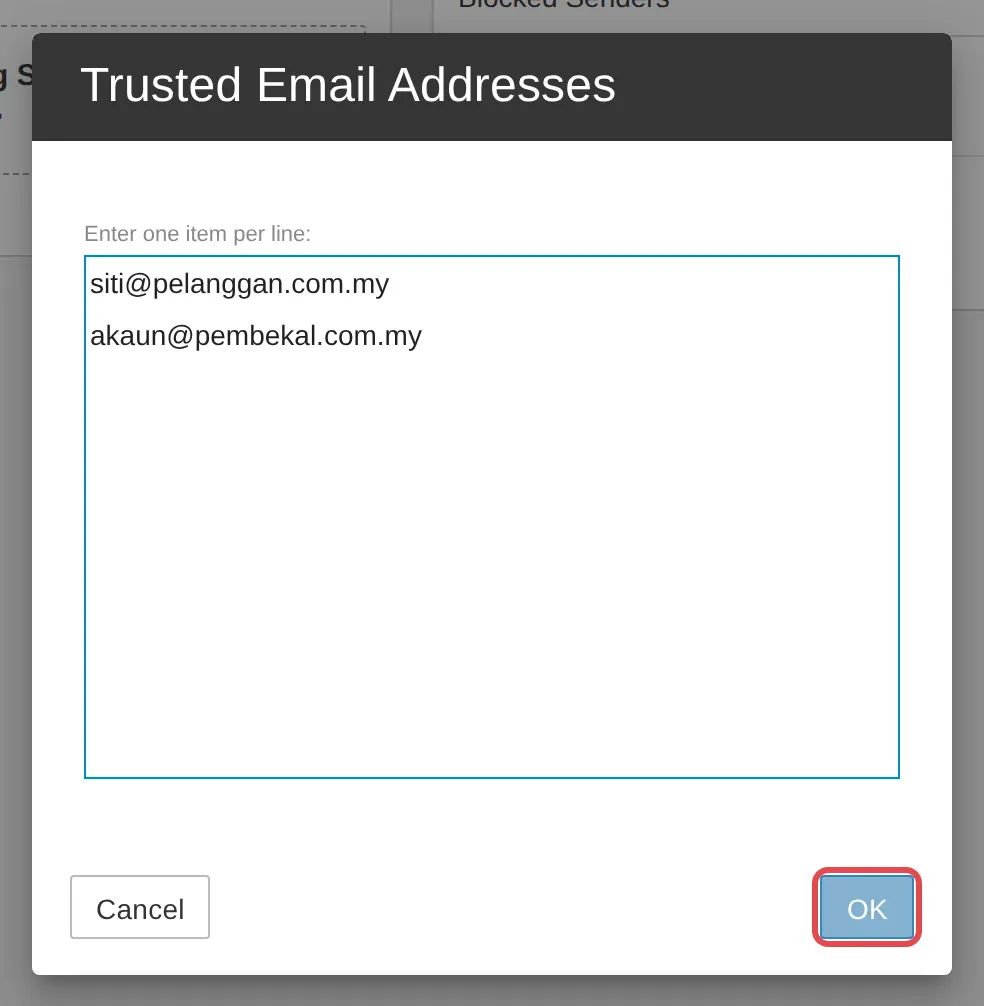
In Settings → Spam Filtering, click the pencil icon next to Trusted Email Addresses.
-
Enter the email address, one per line. Click OK, then click Save.
Still stuck
Section titled “Still stuck”WhatsApp our support team at +60 16-916 3324.
Common issues
Should I whitelist a domain or an email address?
Whitelist a domain if you trust everyone who sends from that company, for example a main supplier. Whitelist an email address if it is only one sender.
Was this article helpful?
Thanks for your feedback.
Sorry this didn't help. WhatsApp us and we'll sort it out with you.