
Take notes with Gemini & meeting notes in Google Meet
Updated For Google Workspace

With Take notes with Gemini (previously called Take notes for me), Gemini writes a summary of your Google Meet call into a Google Doc, with decisions and next steps. It is included with Business Standard, Business Plus and Enterprise plans. The meeting organiser needs one of these plans.
Before you start
Section titled “Before you start”Check these points first, or the button may not appear:
- The meeting is held in English or another language Google supports (see the questions below). Malay is not supported yet.
- Your admin has allowed Gemini note-taking. See turn Gemini on or off.
- Tell everyone in the meeting that notes are being taken. Meet also shows a pencil icon to all participants.
Start notes during a meeting
Section titled “Start notes during a meeting”You can start notes once the call begins.
-
Join the meeting from meet.google.com on your computer.
-
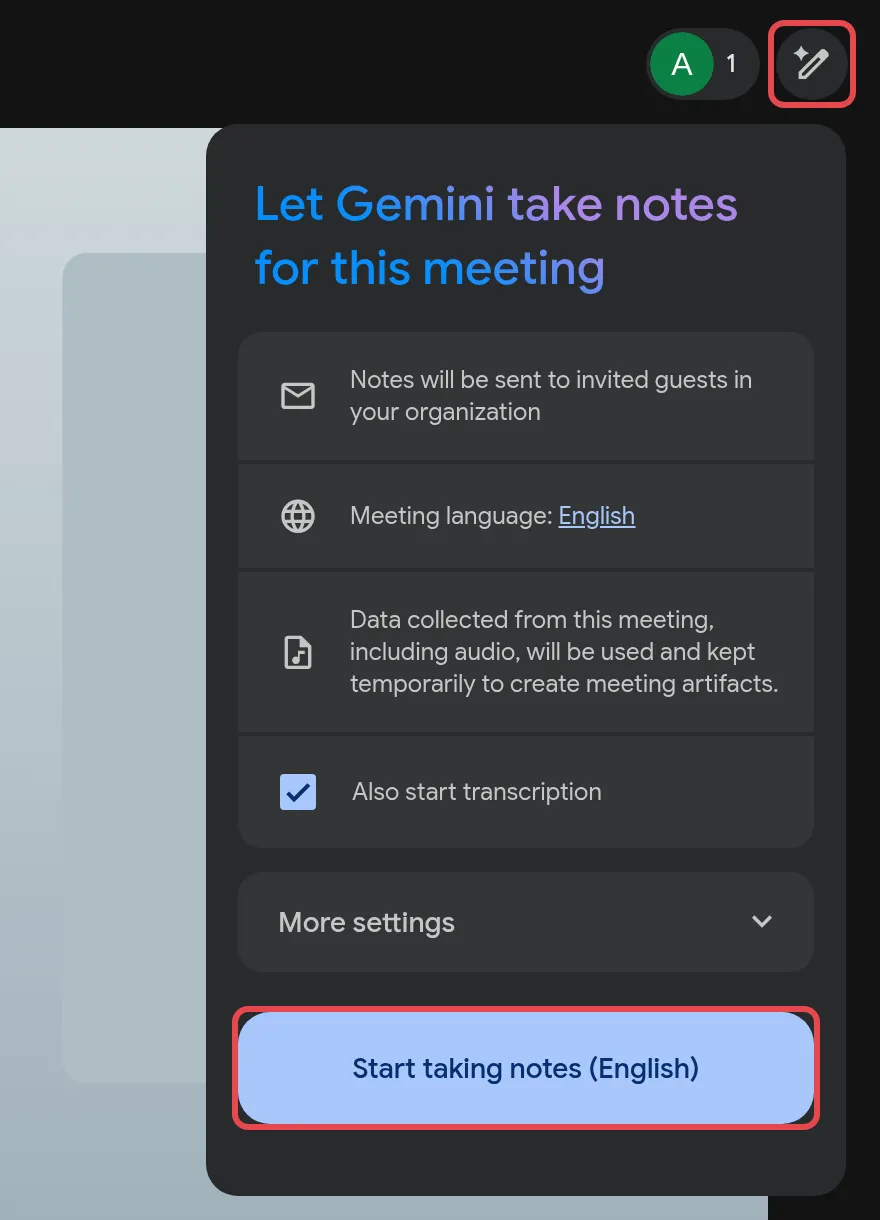
At the top right, click Take notes with Gemini. The panel shows that notes will be sent to invited guests in your organisation.
-
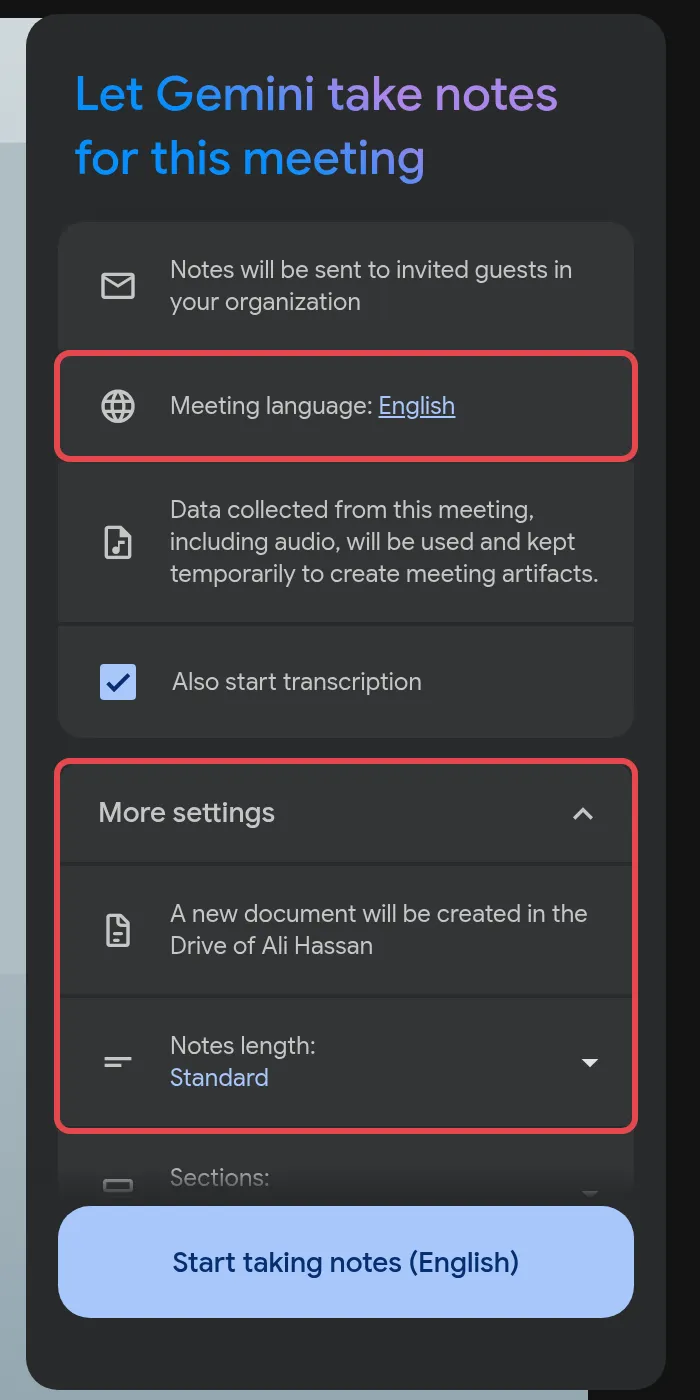
Optional: click the language next to Meeting language to change it. Click More settings to see where the notes document will be saved and to choose Notes length and Sections.
-
Also start transcription is ticked by default. Untick it if you only want notes.
-
Click Start taking notes. The button also shows the meeting language, for example Start taking notes (English).
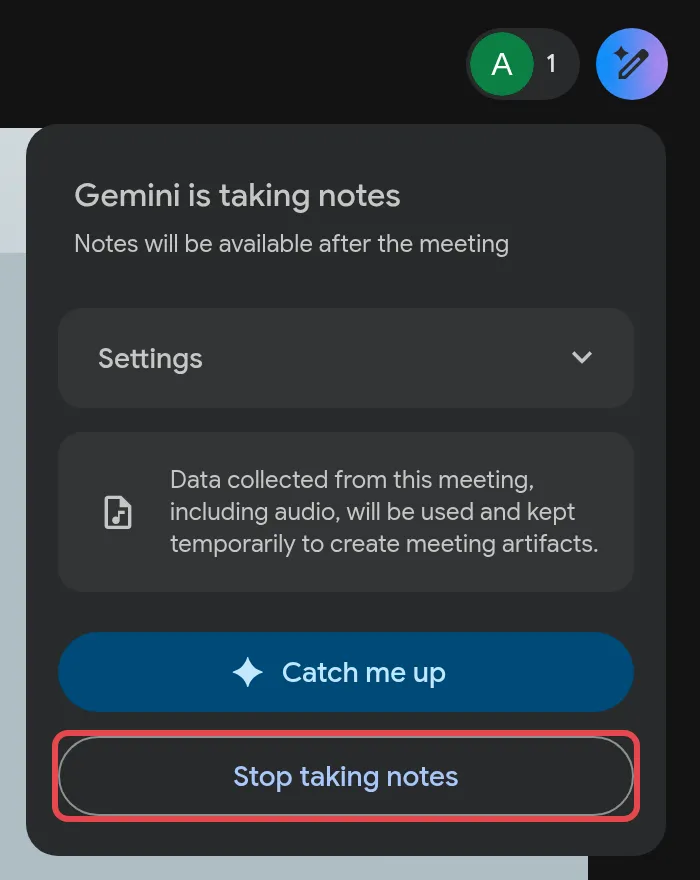
To stop, click the Gemini notes icon at the top right, then Stop taking notes. Anyone in your organisation who is in the meeting can stop note-taking at any time, for example before a confidential part of the discussion. If the host has turned on host controls, only hosts and co-hosts can start or stop it. Google recommends meetings of at least 15 minutes.
Turn it on before the meeting
Section titled “Turn it on before the meeting”Organisers can switch notes on in advance from Google Calendar.
- Open the event in Google Calendar and click Edit event.
- Make sure Google Meet video conferencing is added.
- Click Video call options, then Meeting records on the left.
- Tick Take notes with Gemini, then save the event.
Find the notes after the meeting
Section titled “Find the notes after the meeting”The notes arrive shortly after the meeting ends:
- The organiser gets an email with a link to the notes.
- The Doc is saved in the organiser’s Google Drive, in the Google Meet folder, in a sub-folder for that meeting.
- The notes are attached to the Calendar event for people they are shared with.
The Doc has two tabs: Quick notes with the key points and action items, and Full notes with more detail. Check it before forwarding, as AI notes can miss or mishear things.
Still stuck
Section titled “Still stuck”WhatsApp our support team at +60 16-916 3324.
Common issues
Take notes with Gemini is greyed out or missing. Why?
The meeting organiser needs Business Standard, Business Plus or an Enterprise plan, and the admin must allow Gemini note-taking. Smart features must also be on. Business Starter does not include it.
Does Take notes with Gemini work if we speak Malay?
Not yet. Google supports English, French, German, Italian, Japanese, Korean, Portuguese and Spanish, one language per meeting. A meeting mostly in Malay, or mixing languages, may give poor or no notes.
Who can see the meeting notes?
By default, notes are sent to invited guests in your organisation. The panel shows this before you start, and your admin sets the default. The Doc is saved in the organiser's Google Drive.
Was this article helpful?
Thanks for your feedback.
Sorry this didn't help. WhatsApp us and we'll sort it out with you.