
Ask an AI about this page
 ChatGPT
 Claude
 Perplexity
 Google AI Mode
 Microsoft Copilot
 Grok
 Mistral Le Chat
Filter spam email
You can filter spam at two levels:
- Domain Settings - for all email in the domain, for example every
@yourcompany.comaddress. Domain admin only. - Settings - for one account only, for example
admin@yourcompany.com.
Set the spam filter for your account
Section titled “Set the spam filter for your account”These settings only change spam handling for your own mailbox.
-
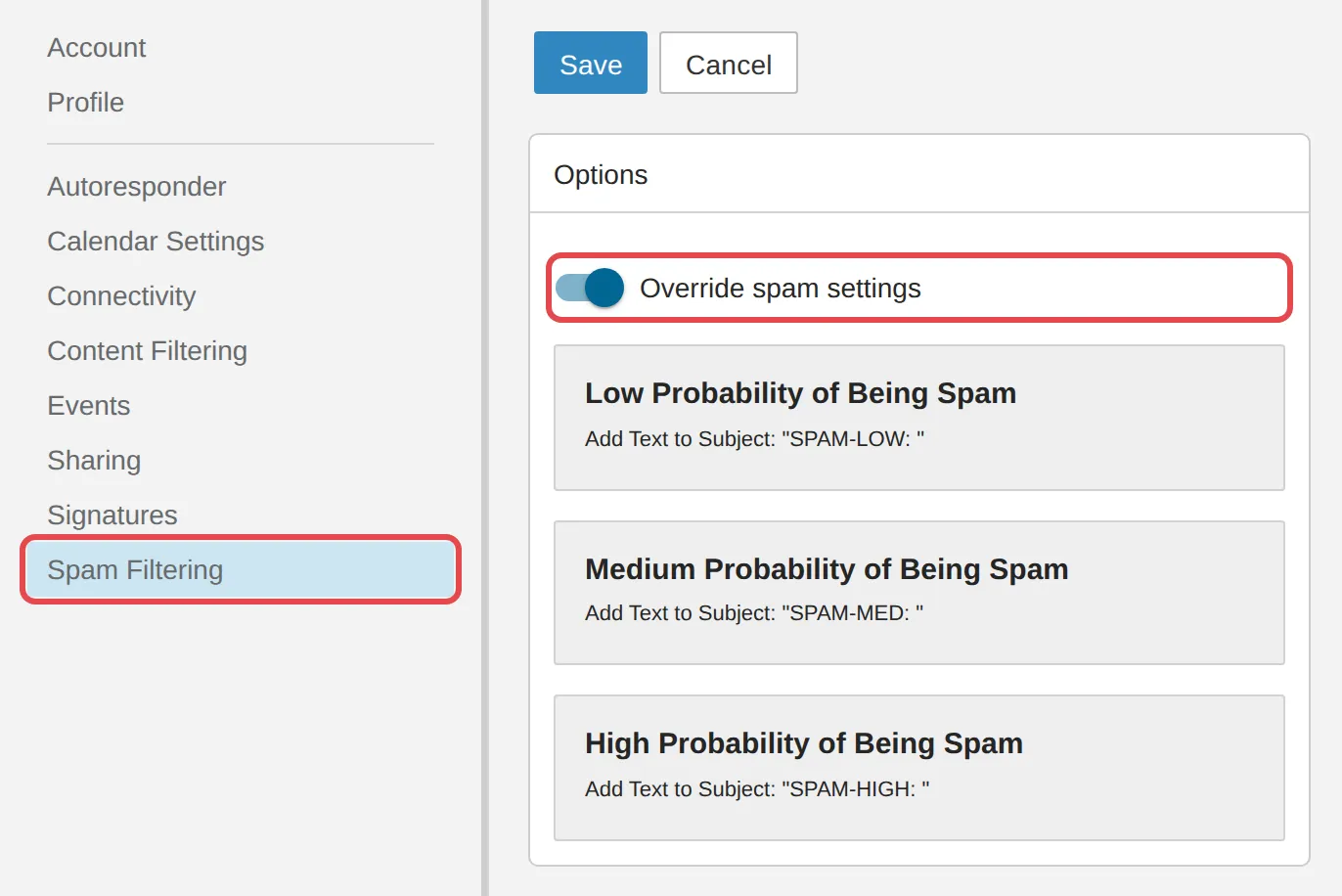
Log in to webmail. Click Settings, then Spam Filtering, and turn on Override spam settings.
-
Click the card for the spam level you want to change: Low Probability of Being Spam, Medium Probability of Being Spam or High Probability of Being Spam.
-
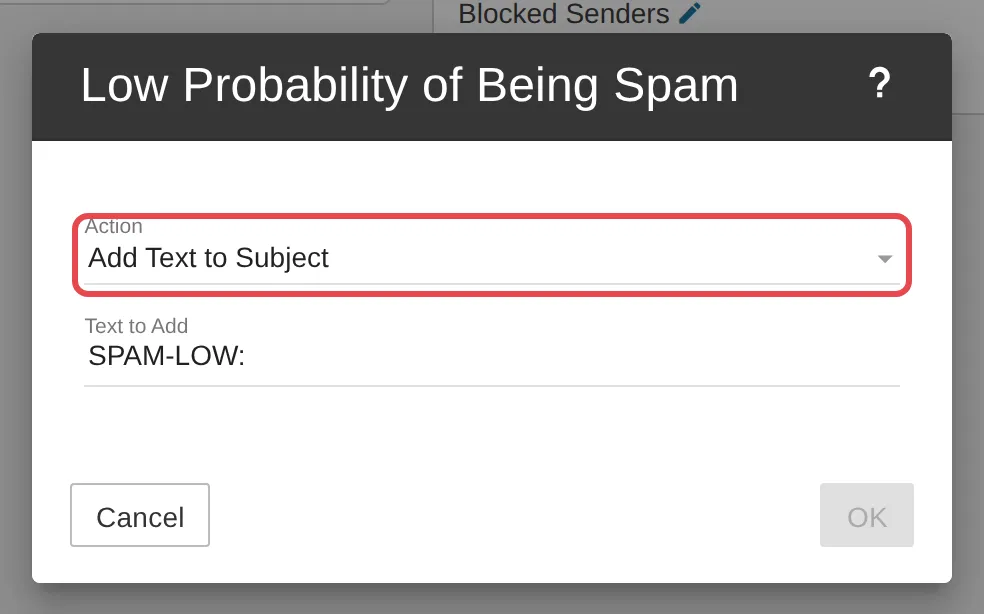
In the dialog box, choose an Action:
- Delete Message - deletes it straight away
- Move to Junk Email Folder - moves it to the Junk Email folder
- Add Text to Subject - adds text to the subject. Enter that text in the Text to Add field.
-
Click OK, then click Save. Repeat steps 2 to 4 for the other spam levels.
Still stuck
Section titled “Still stuck”WhatsApp our support team at +60 16-916 3324.
Common issues
Important emails are going to my Junk Email folder.
Add that sender's address or domain to your whitelist so their email always reaches your inbox - see Whitelist senders and domains.
Which option is the safest?
Move to Junk Email Folder. Spam is kept apart but not deleted, so you can still check for important emails that were filtered by mistake.
Was this article helpful?
Thanks for your feedback.
Sorry this didn't help. WhatsApp us and we'll sort it out with you.