
Ask an AI about this page
 ChatGPT
 Claude
 Perplexity
 Google AI Mode
 Microsoft Copilot
 Grok
 Mistral Le Chat
Sync your contacts with your phone
Add a CardDAV account on your phone. Your Office Niaga contacts then appear in the phone’s Contacts app, and changes made on either side sync both ways.
iPhone & iPad
Section titled “iPhone & iPad”You add your contacts as a CardDAV account, using your full email address and email password.
- Open Settings, then Contacts, Accounts, Add Account. On iOS 18 and later, go to Settings, Apps, Contacts, Contacts Accounts, Add Account.
- Tap Other, then Add CardDAV Account.
- Fill in:
- Server:
mail.officeniaga.com - User Name: your full email address
- Password: your email password
- Server:
- Tap Next and wait for the iPhone to verify the account.
- Turn on Contacts, then tap Save.
Android
Section titled “Android”Android has no built-in CardDAV support. Use DAVx⁵ (Google Play, or free from F-Droid), the same app used in Sync your calendar with your phone.
-
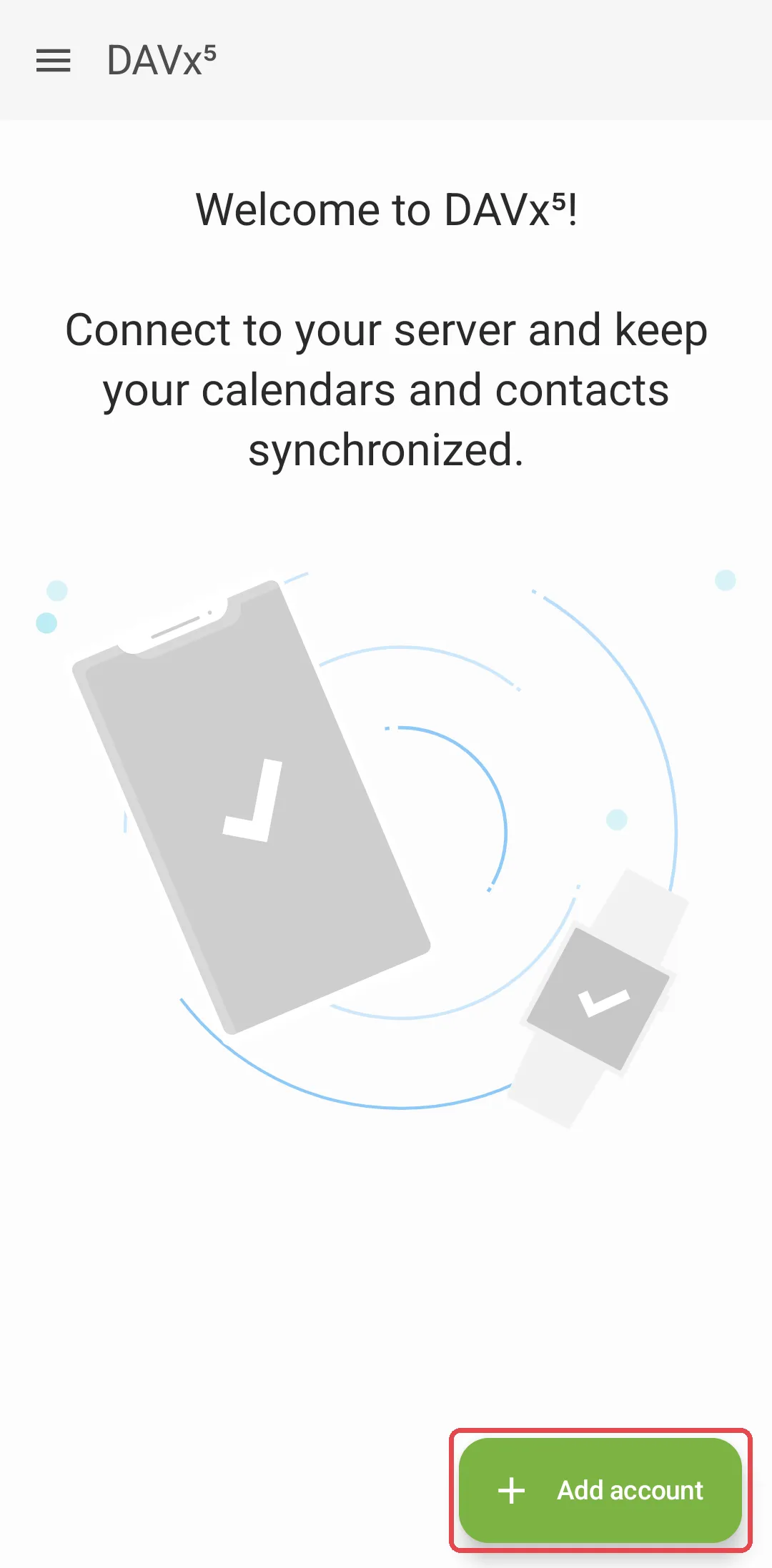
Install the app, open it and tap Add account.
-
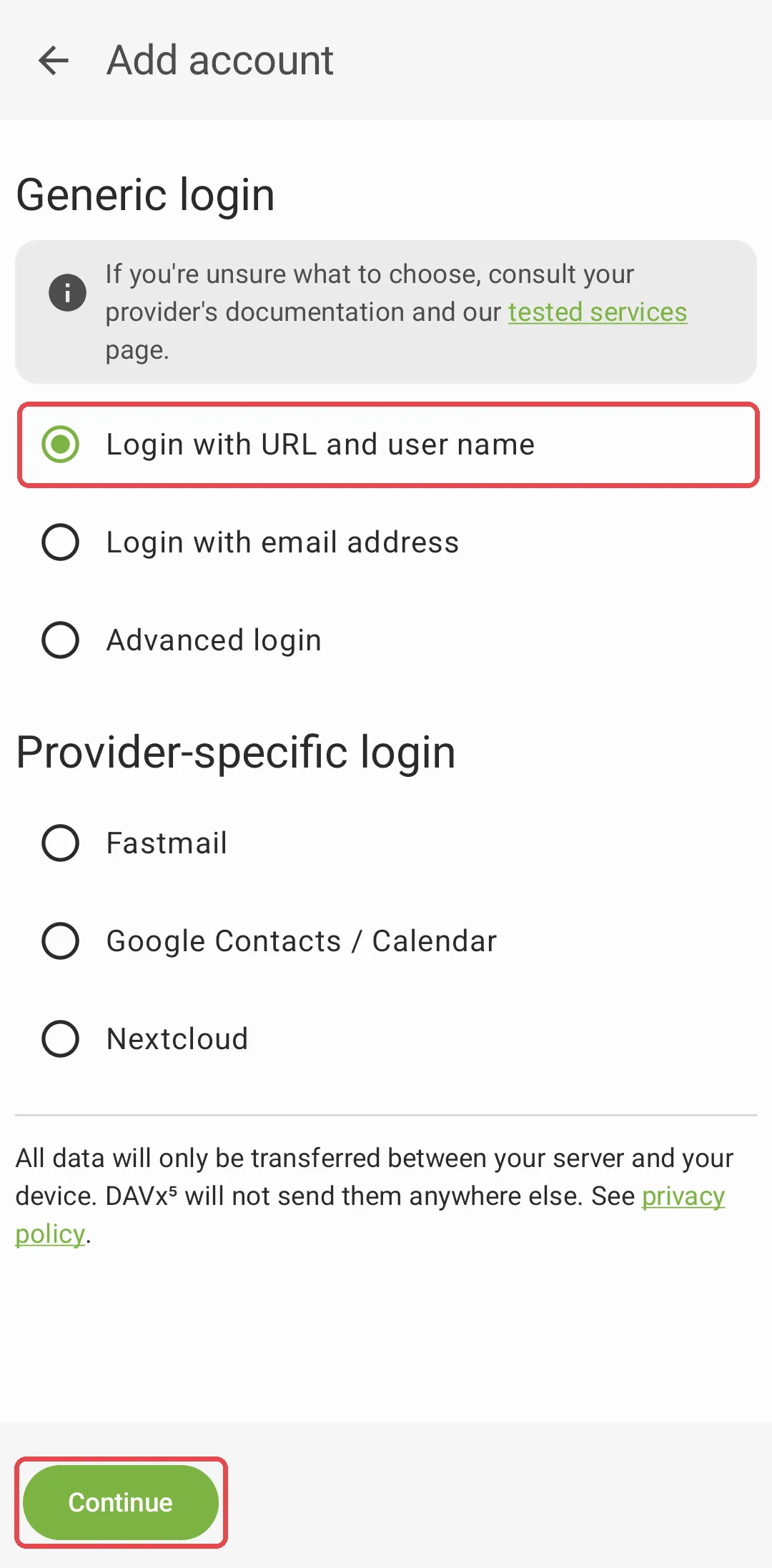
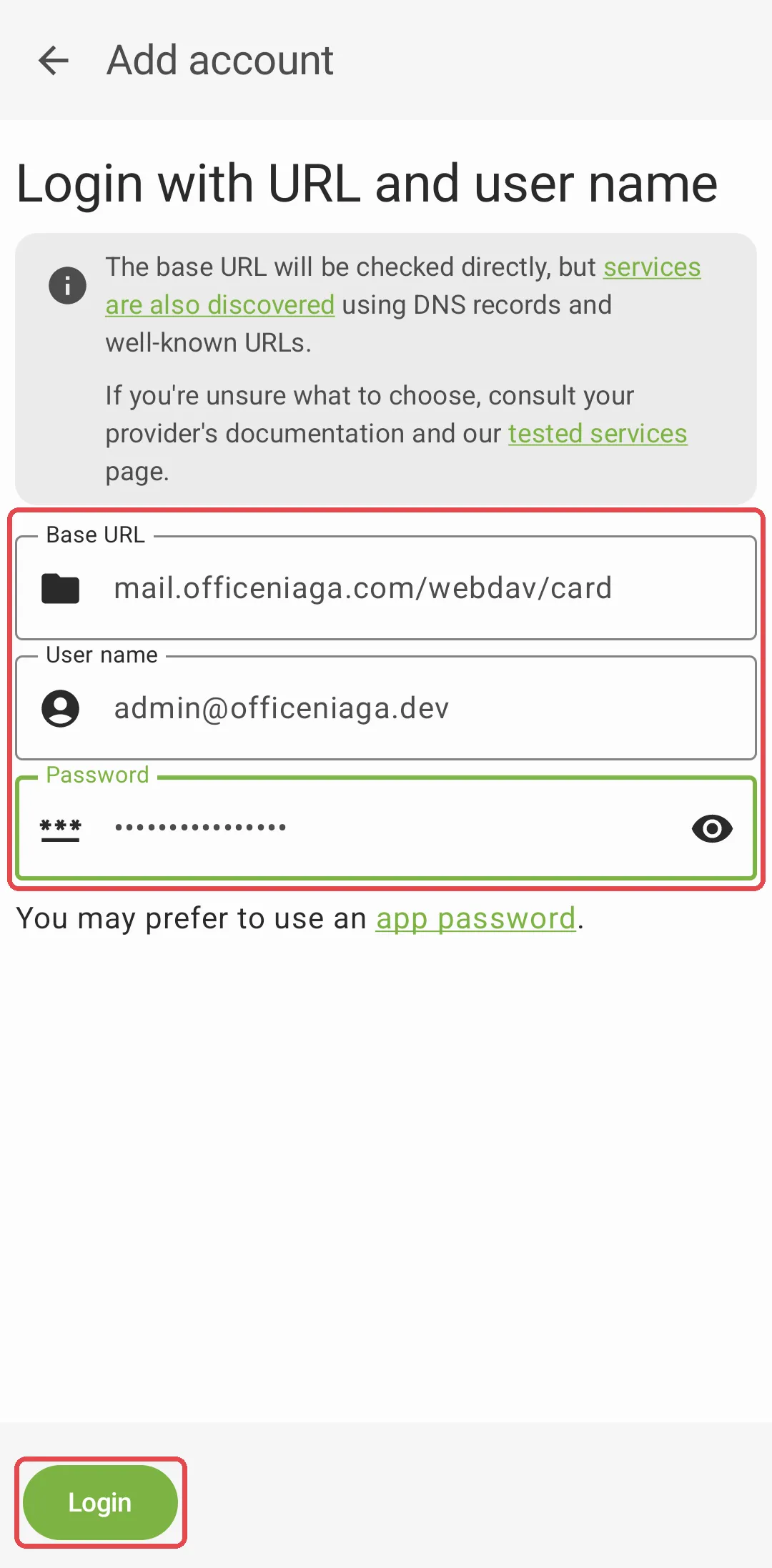
Choose Login with URL and user name and tap Continue. Then fill in:
- Base URL:
https://mail.officeniaga.com/webdav/card - User name: your full email address
- Password: your email password
Tap Login.
- Base URL:
-
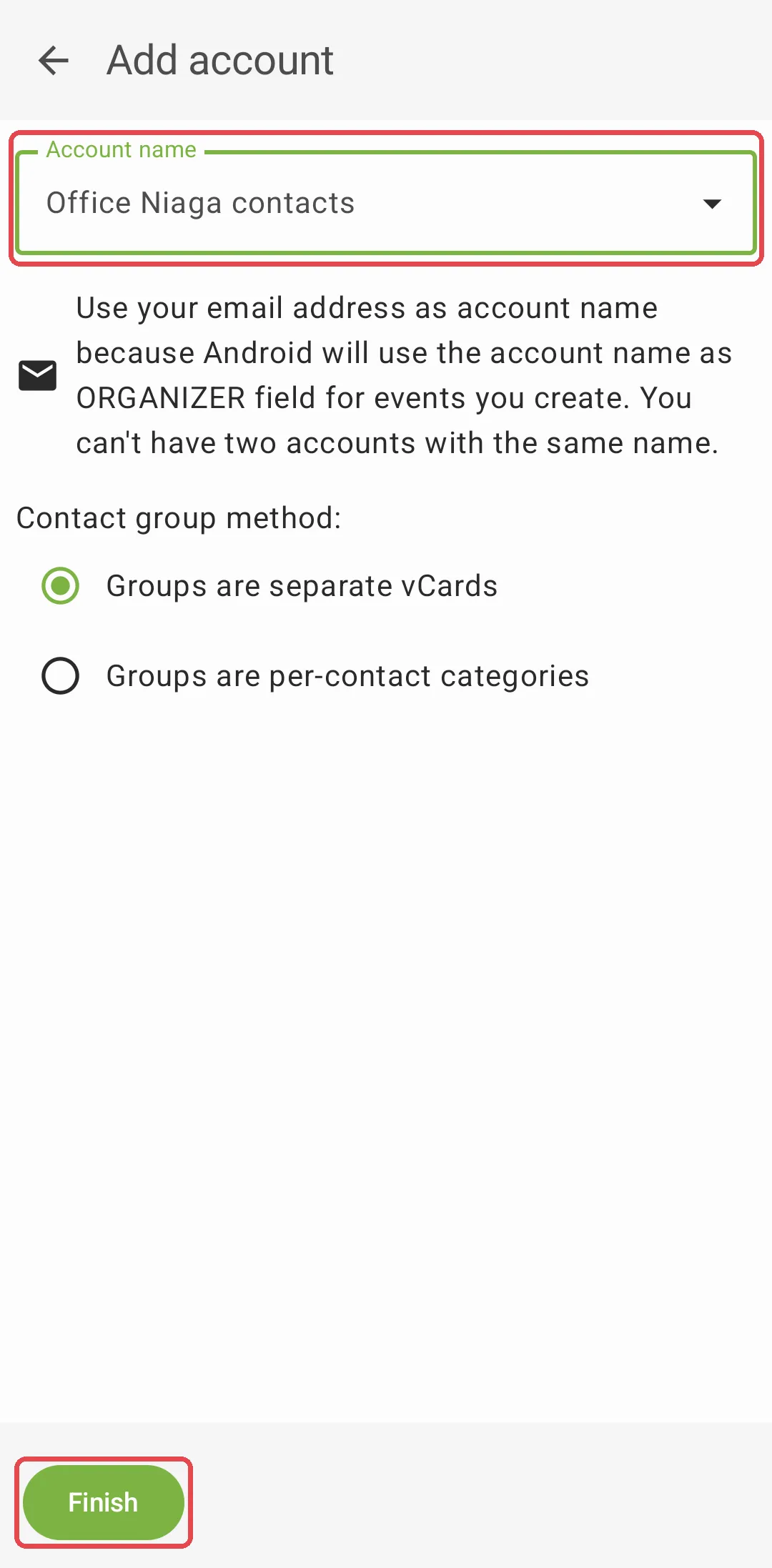
DAVx⁵ shows the account name (your email address). Tap Finish. If you already added your calendar in DAVx⁵, it says the name is already taken. Type another name, for example Office Niaga contacts, then tap Finish.
-
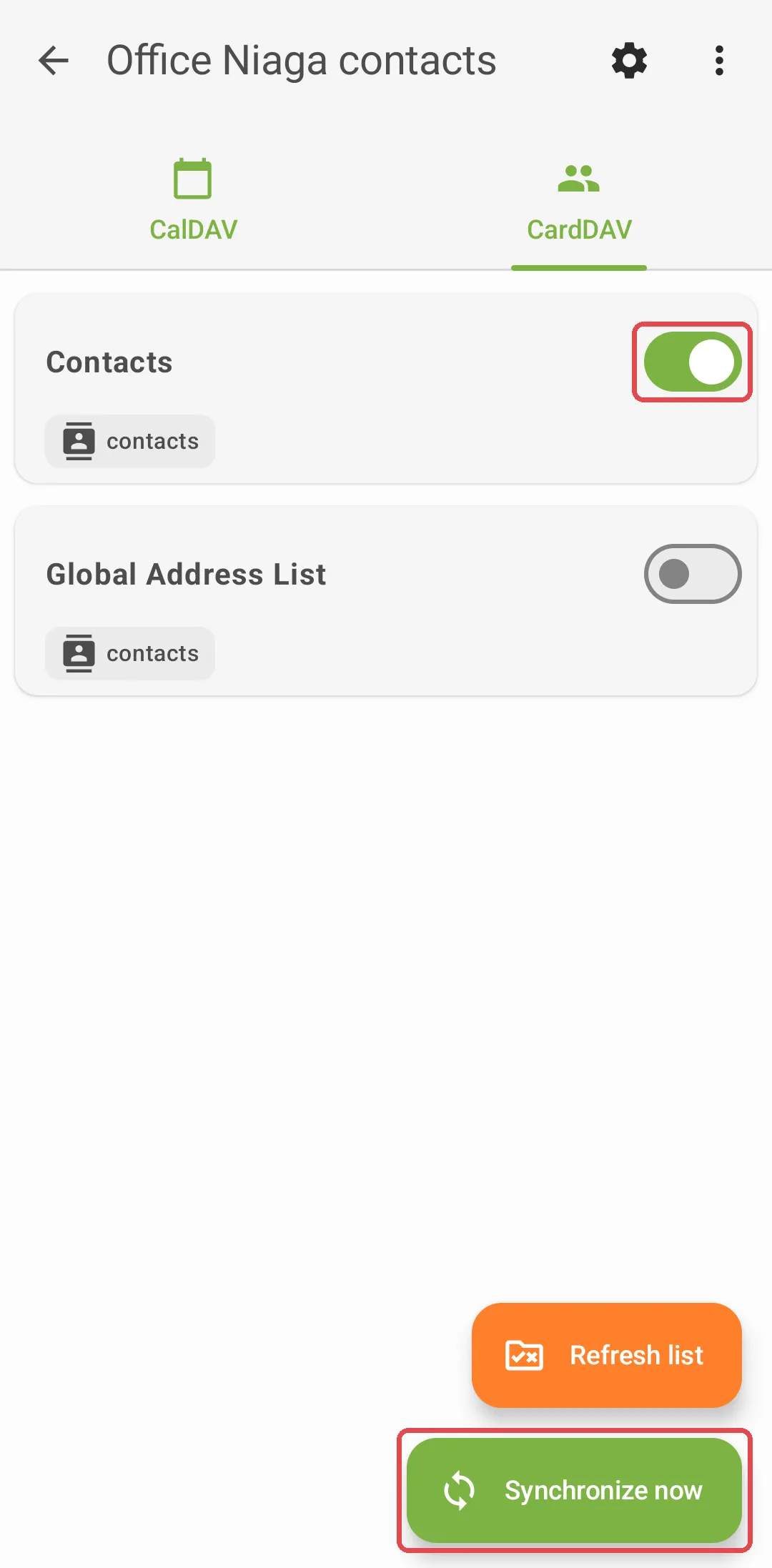
The account opens. On the CardDAV tab, turn on your address book, then tap Synchronize now.
Just need a one-off copy?
Section titled “Just need a one-off copy?”You do not need sync to move contacts once. See Export your contacts and Import contacts.
Common issues
My iPhone says it cannot verify the CardDAV account. What should I check?
Check that Server is mail.officeniaga.com and User Name is your full email address. Then test your password by logging in to webmail.
Contacts I added on my phone do not appear in webmail. Why?
Make sure you saved them to the Office Niaga account, not to iCloud, Google or the phone itself. On Android, open DAVx⁵ and tap the sync button, then refresh Contacts in webmail.
DAVx⁵ created the account but shows no address book to tick. What now?
Check that Base URL is exactly https://mail.officeniaga.com/webdav/card. If it still shows nothing, contact support on WhatsApp at +60 16-916 3324.
Was this article helpful?
Thanks for your feedback.
Sorry this didn't help. WhatsApp us and we'll sort it out with you.