
Use Gemini in Gmail - Help me write, summaries & replies
Updated For Google Workspace

Gemini in Gmail is included in every Google Workspace Business and Enterprise plan, including Business Starter. It can draft an email for you, summarise a long thread and suggest a reply.
Before you start
Section titled “Before you start”Gemini in Gmail needs smart features turned on for your account. The first time you open Gmail you may see a short 3-step window headed Turn on smart features to get more out of Gmail, Chat, and Meet (“1 of 3” at the bottom). Choose Turn on smart features, click Next and go through the other two steps. If you choose Turn off smart features, Gemini in Gmail will not work.
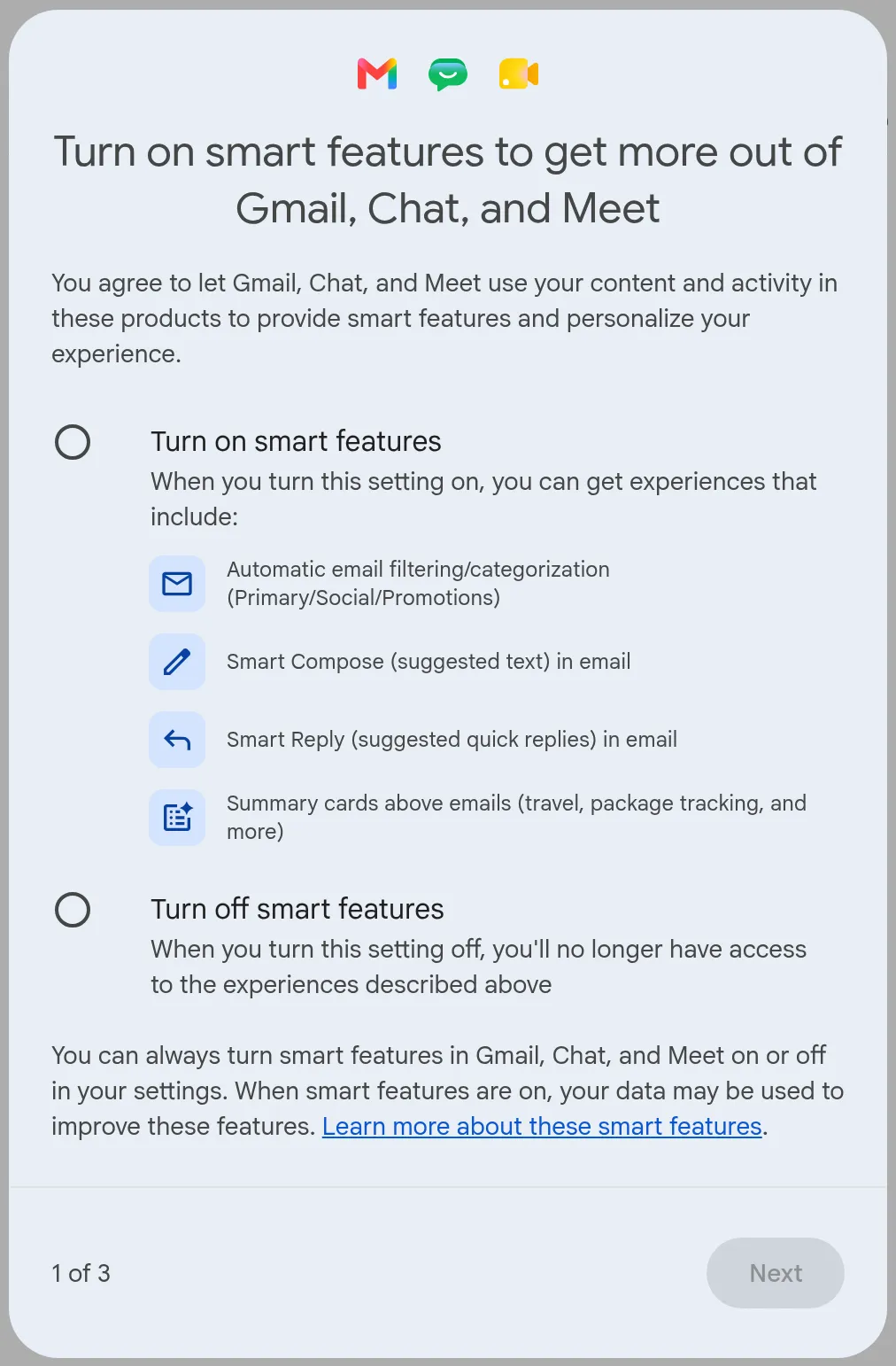
To check or change the setting later:
-
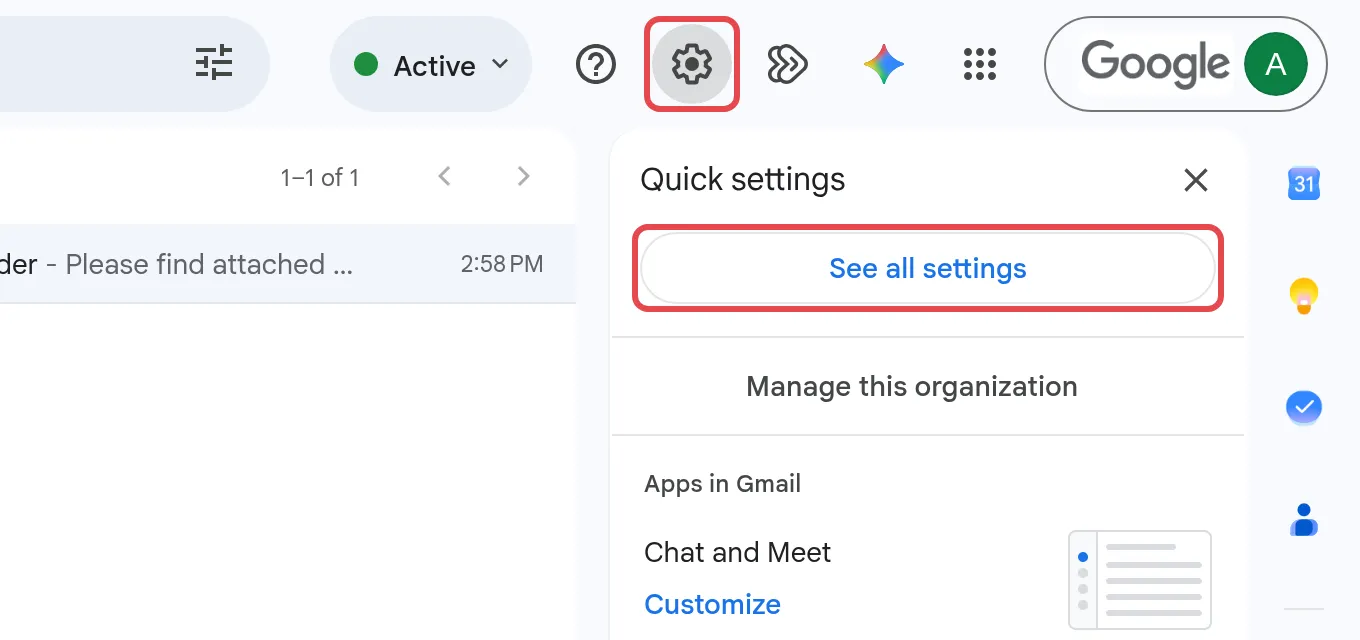
In Gmail on your computer, click the gear icon, then See all settings.
-
On the General tab, next to Smart features, tick Turn on smart features in Gmail, Chat, and Meet.

-
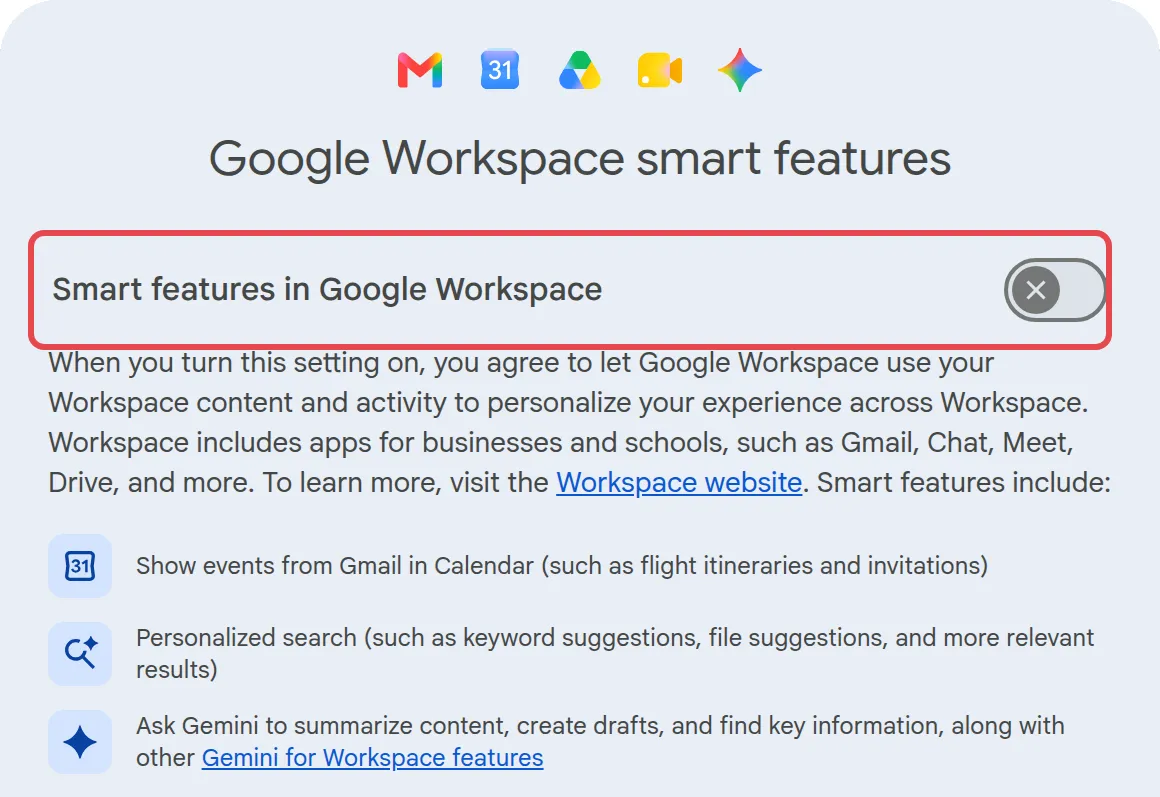
Next to Google Workspace smart features, click Manage Workspace smart feature settings. In the window that opens, turn on Smart features in Google Workspace, then click Save in that window. The window also lists Smart features in other Google products, which you do not need for Gemini in Gmail.
-
Back on the settings page, scroll down and click Save Changes.
Draft an email with Help me write
Section titled “Draft an email with Help me write”Use this for a new email, a reply or a draft you have already started.
-
Click Compose, or open an email and click Reply.
-
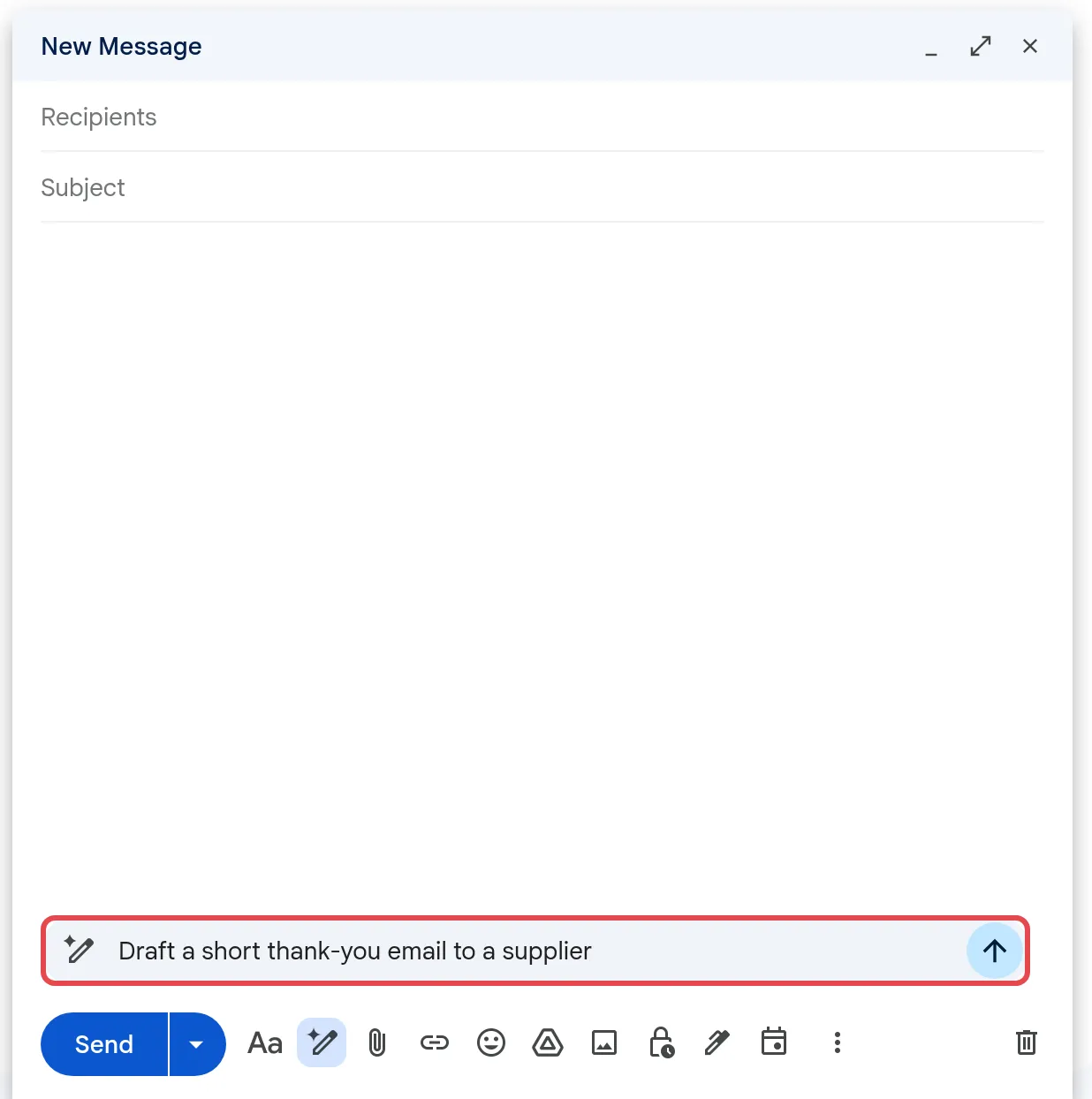
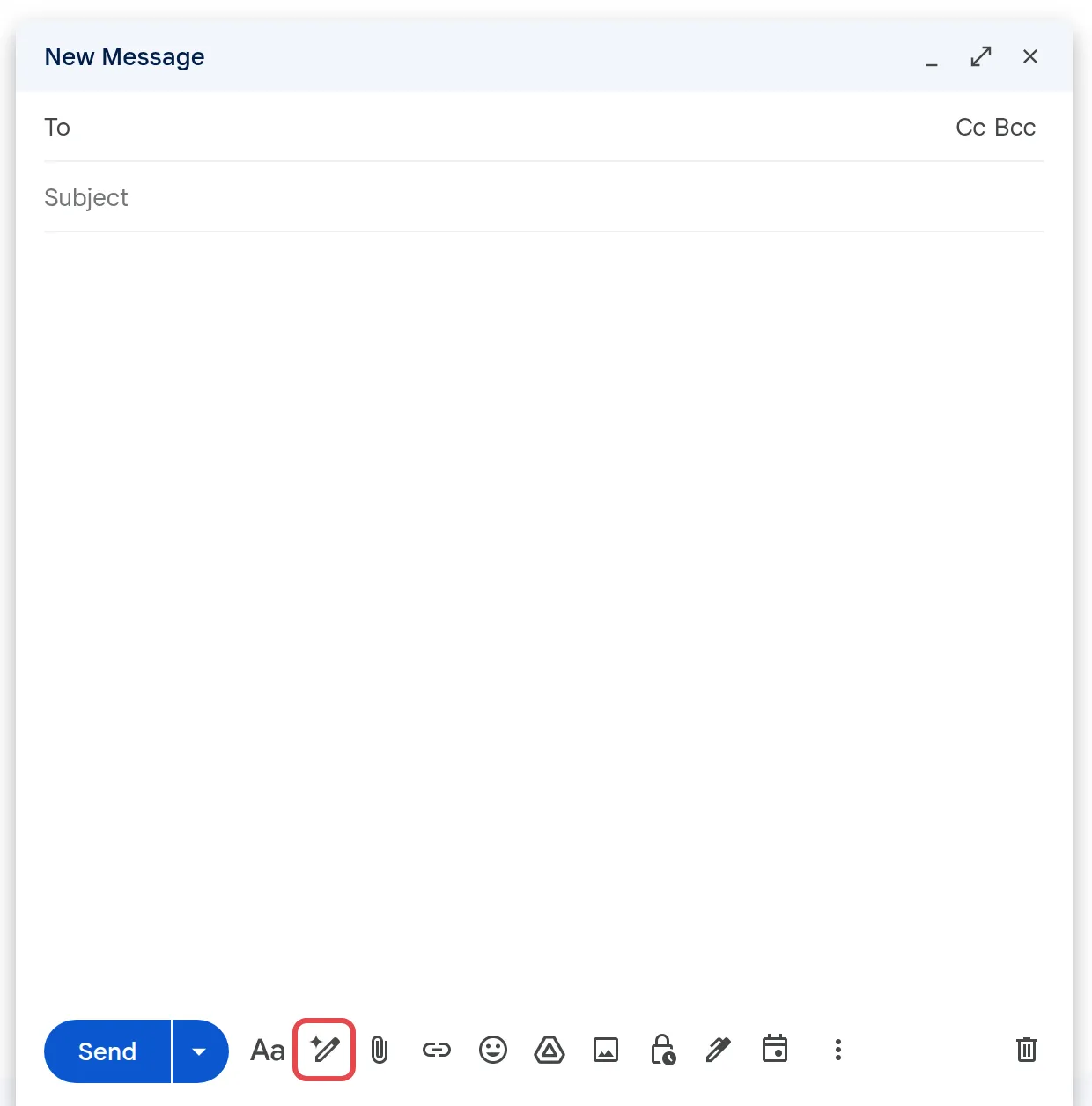
At the bottom of the compose window, type what you want in the Help me write prompt bar, then click the Submit arrow. For example: “Thank a supplier for delivering our order on time and confirm payment next week.”
-
No prompt bar? This happens when smart features are off. Click the Help me write icon in the toolbar at the bottom, type your request and click the Submit arrow.
-
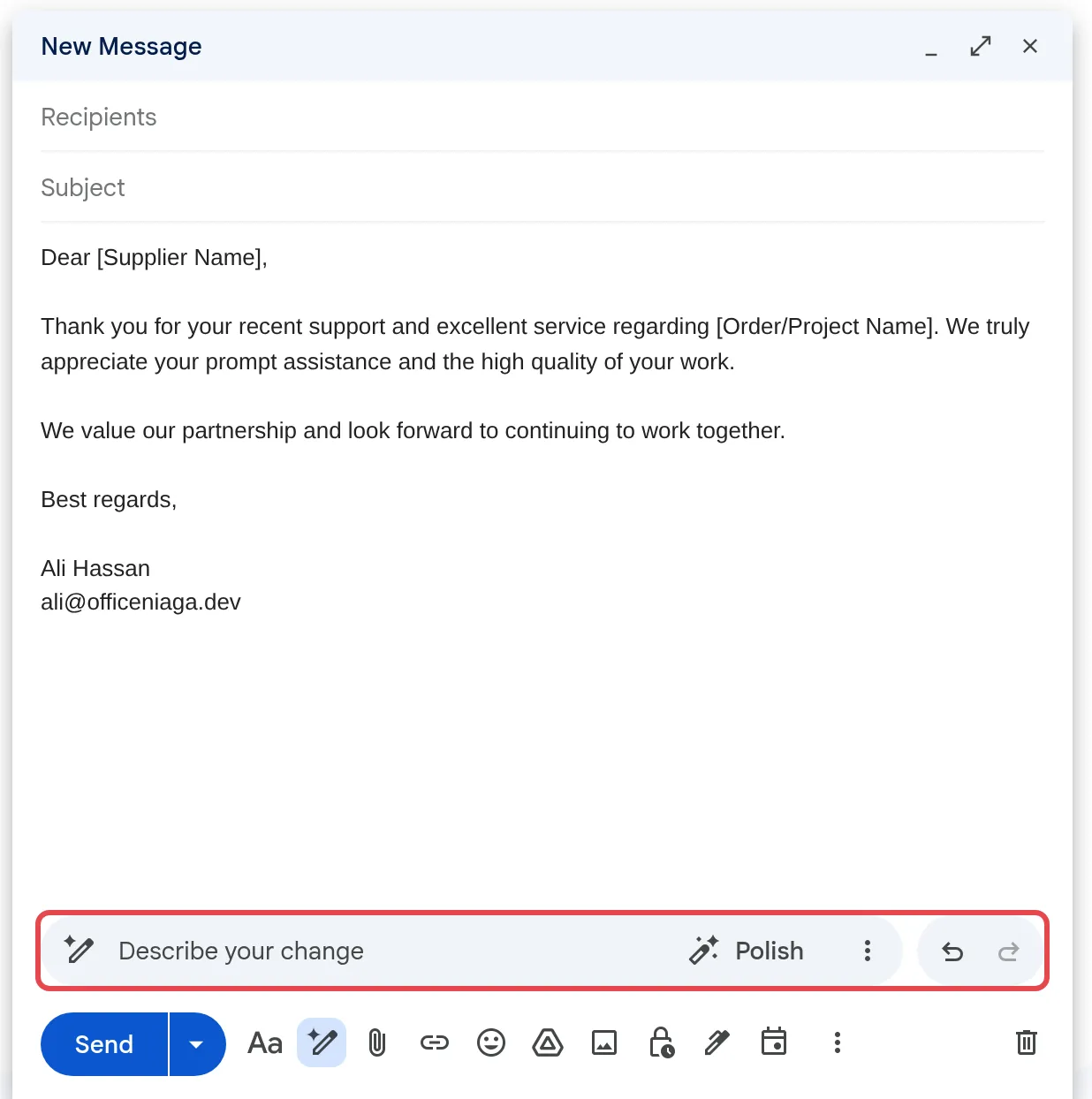
Gemini writes the draft into the email. The bar at the bottom now shows Describe your change and Polish.
-
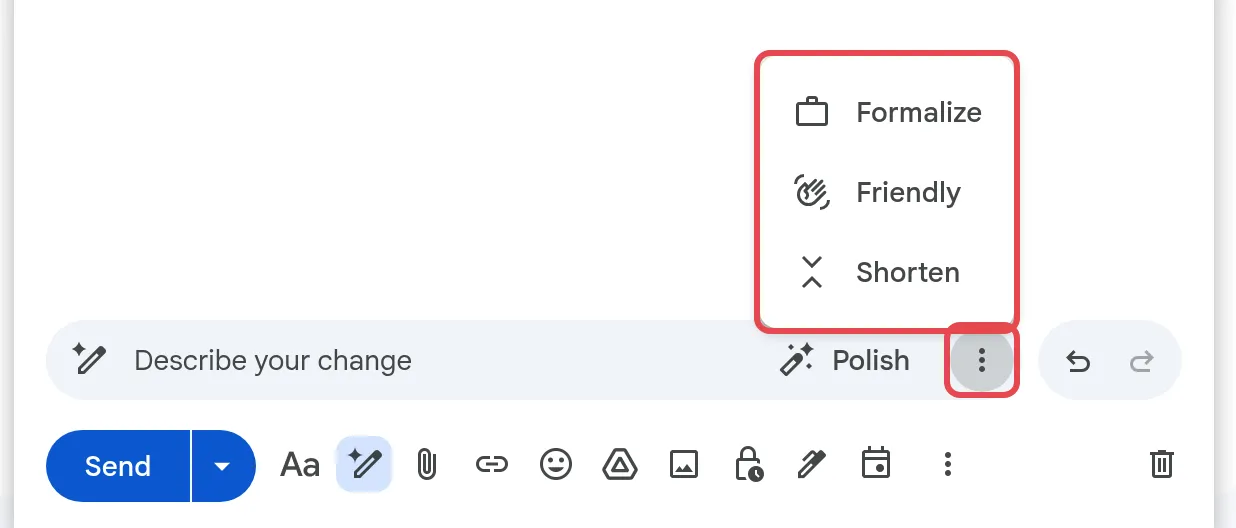
Read the draft. To change it, type a new instruction in Describe your change, such as “Make it shorter” or “Mention the invoice number”, or click Polish. For a different tone or length, click More options (three dots) and choose Formalize, Friendly or Shorten.
-
Edit anything that is wrong, then send it as usual.
To go back to an earlier version, click Undo or Redo at the right of the bar. Gemini may use details from your other emails and Drive files to fill in the draft, so check names, dates and figures before you send.
Summarise an email or thread
Section titled “Summarise an email or thread”Gemini can sum up the email or thread you have open in the Ask Gemini side panel.
- Open the email or thread.
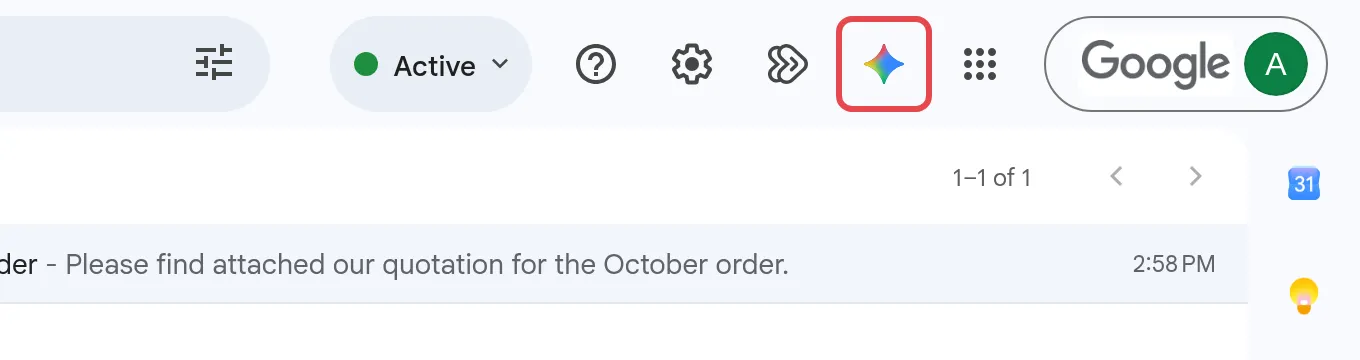
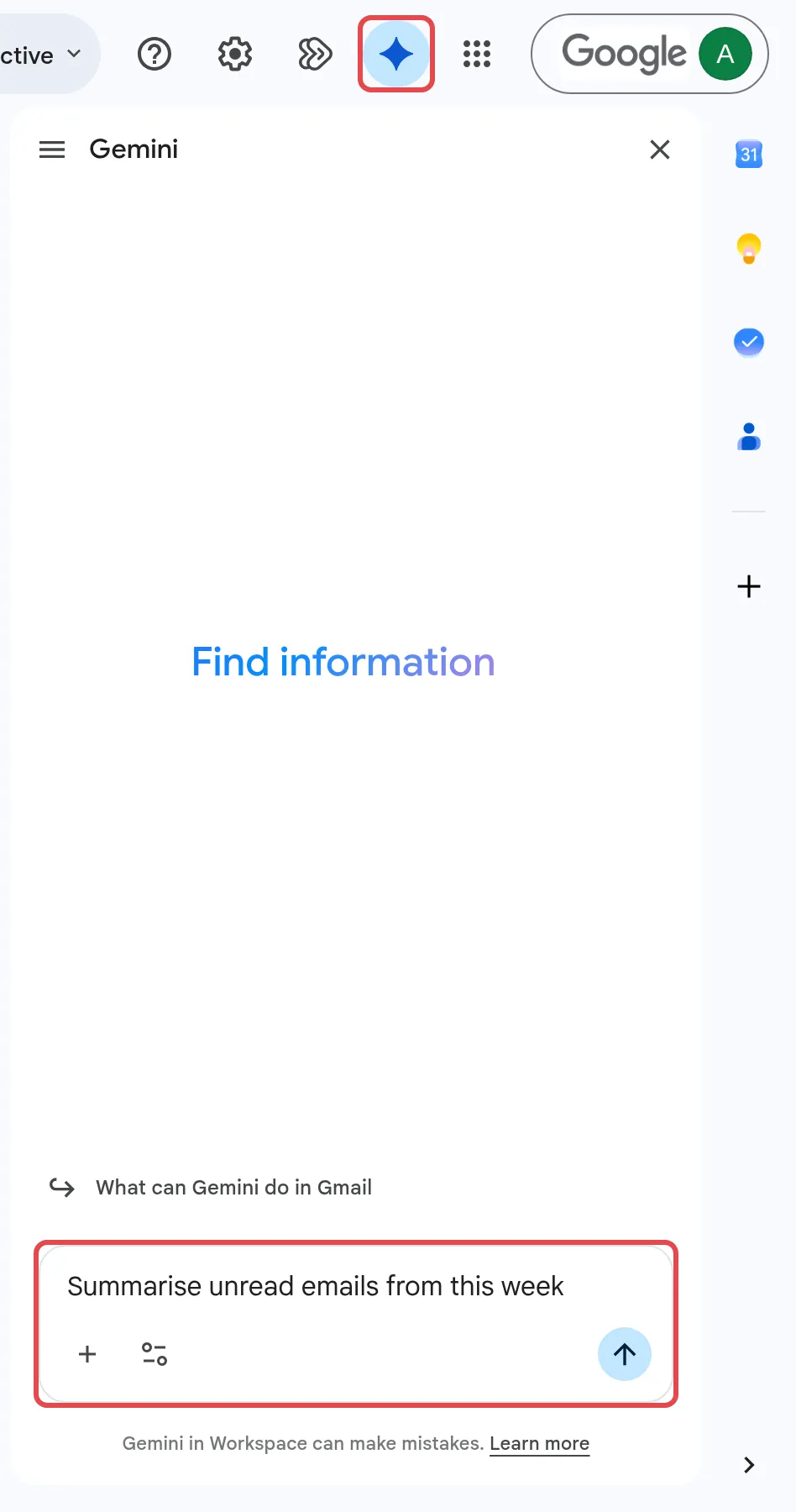
- At the top right of Gmail, click Ask Gemini.
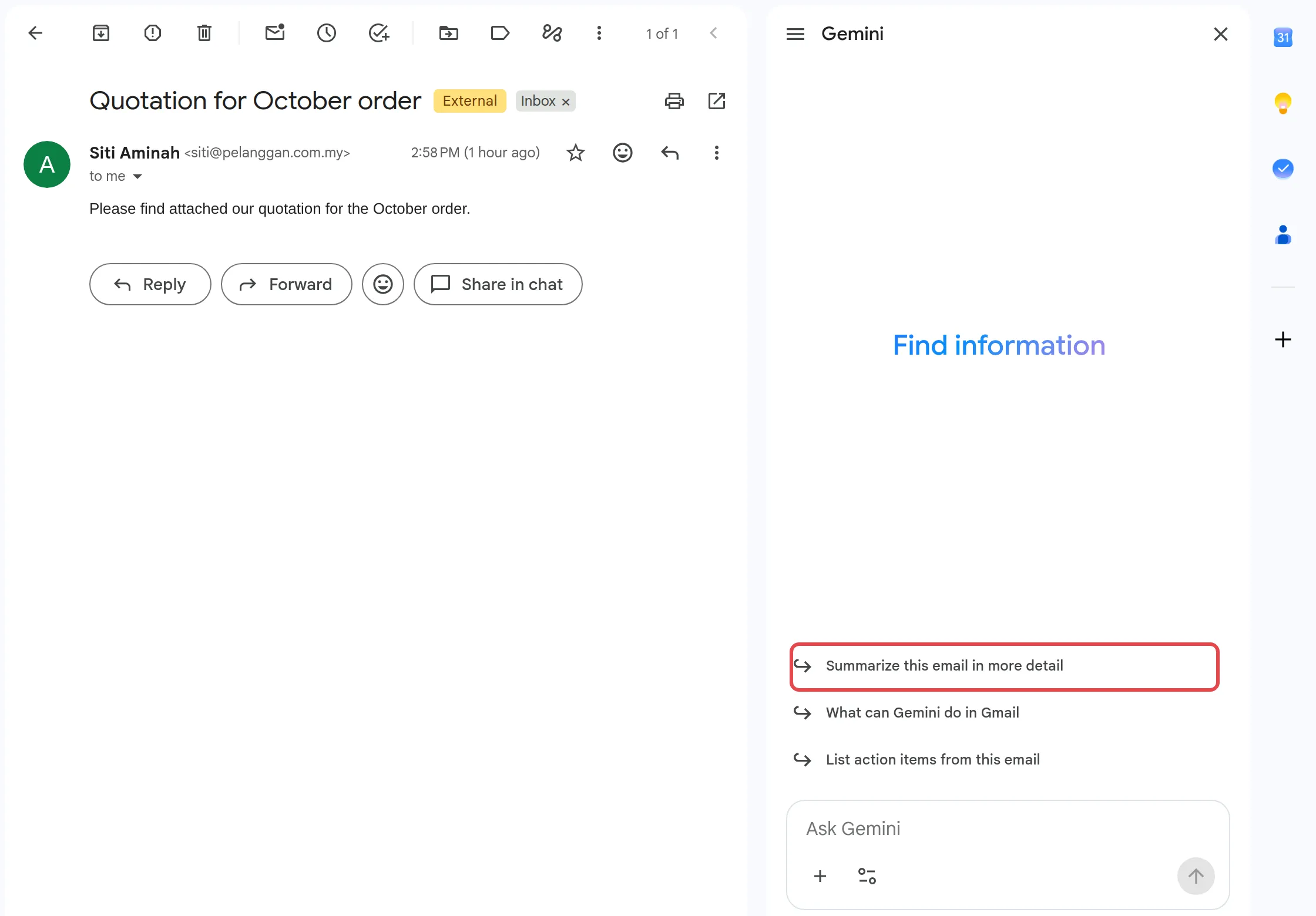
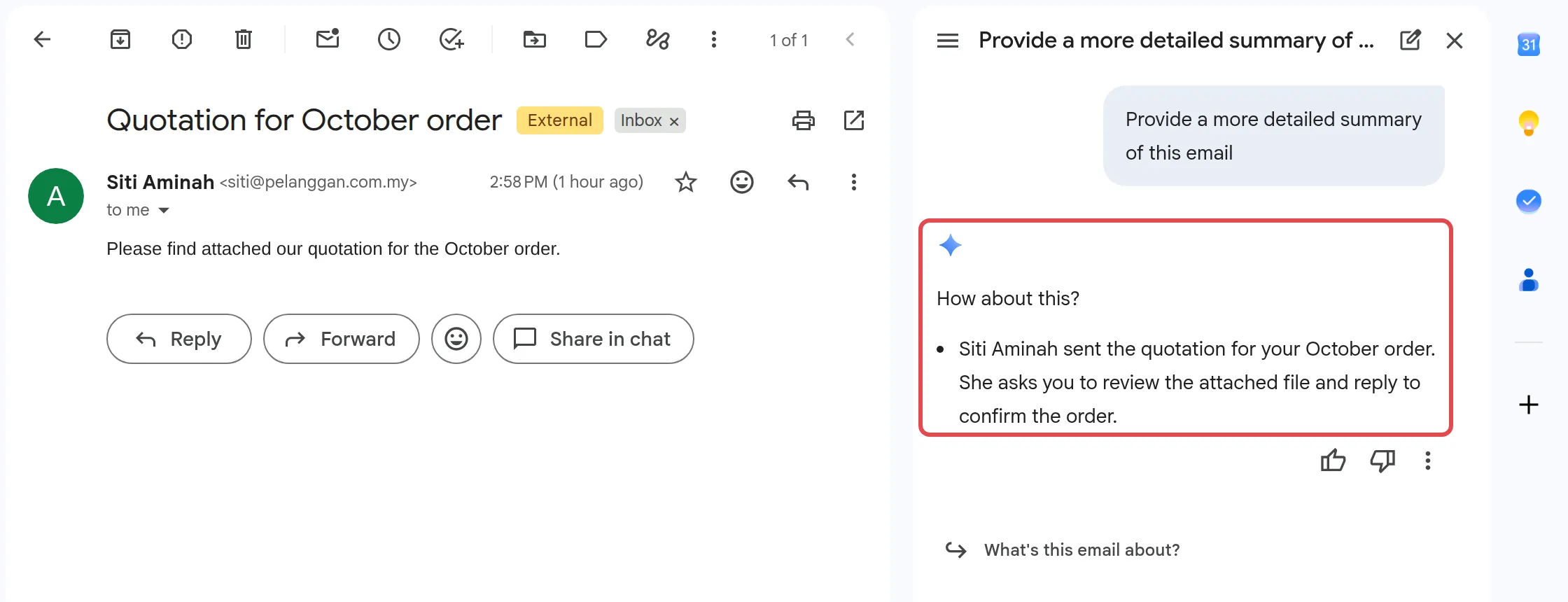
- In the side panel, click the suggestion Summarize this email in more detail, or type your own request, such as “Summarise this thread in three bullet points”.
- Read the summary in the side panel.
On some longer threads, Gmail may also show a summary at the top of the thread. If the thread mentions a task with a due date, Gemini may show Remind me next to it, which adds a reminder to Google Tasks and Calendar.
Use a suggested reply
Section titled “Use a suggested reply”Gemini can suggest a full reply that matches your usual tone.
- Open an email you received.
- At the bottom of the email, click the suggested reply.
- Edit the text, then click Send.
Suggested replies only appear when your Google Account language is English, and not for every email.
Ask Gemini about your inbox
Section titled “Ask Gemini about your inbox”For anything else, click Ask Gemini at the top right of Gmail. The side panel opens. Type a request such as “Summarise unread emails from this week” or “When is my next flight?” and click Submit. Gemini only reads email you already have access to.
When an email is open, the side panel also suggests prompts for it, such as Summarize this email in more detail and List action items from this email. Click one and Gemini answers in the panel.
Proofread before you send
Section titled “Proofread before you send”Gemini can underline grammar, tone and style issues in a draft. Click an underlined word to see the suggestion, then click it to accept or click Ignore. Proofread works in English and Spanish. To stop it, go to Settings > See all settings > General and choose Grammar suggestions off.
Still stuck
Section titled “Still stuck”WhatsApp our support team at +60 16-916 3324.
Common issues
I cannot see Help me write or Ask Gemini. Why?
Turn on smart features first. In Gmail, go to Settings > See all settings > General and tick Turn on smart features in Gmail, Chat, and Meet. Then click Manage Workspace smart feature settings, turn on Smart features in Google Workspace, click Save in that window, and finally click Save Changes at the bottom of the settings page. If you still cannot see it, your admin may have turned it off. See turn Gemini on or off.
Does Help me write work in Malay?
Google lists Help me write in Gmail as supported in English and a few other languages, but not Malay yet. Writing your prompt in English and asking for a reply in Malay may work, but check the result carefully.
Why can I not find Help me schedule in Gmail?
Help me schedule, which suggests meeting times inside an email, needs Business Standard or higher. Business Starter includes Help me write, thread summaries, suggested replies and proofreading only. See Licences and renewal to upgrade.
Was this article helpful?
Thanks for your feedback.
Sorry this didn't help. WhatsApp us and we'll sort it out with you.