
Share your Google Calendar & view a colleague's calendar
Updated For Google Workspace

Share your calendar so colleagues can see when you are free or manage your meetings, and add their calendars next to yours.
Share your calendar with a colleague
Section titled “Share your calendar with a colleague”Do this on a computer. The person gets an email with a link to add your calendar.
-
Open Google Calendar.
-
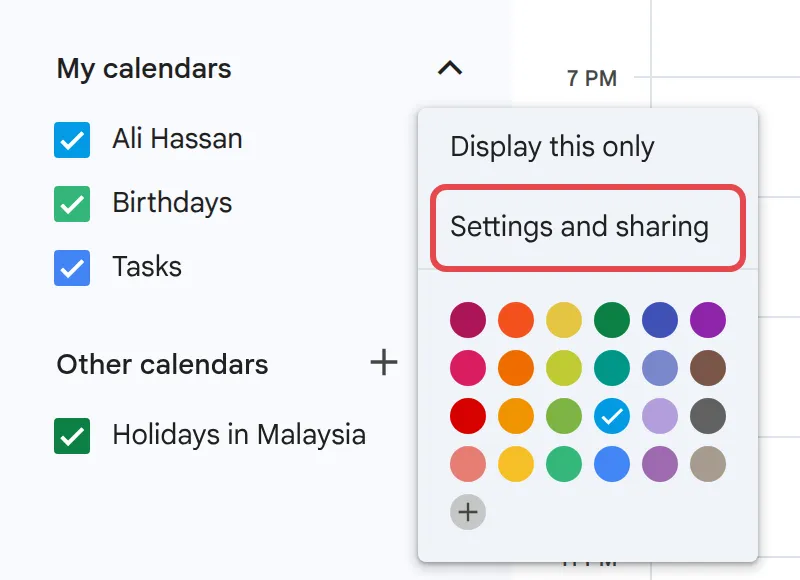
Under My calendars on the left, point to your calendar, click the three dots, then Settings and sharing.
-
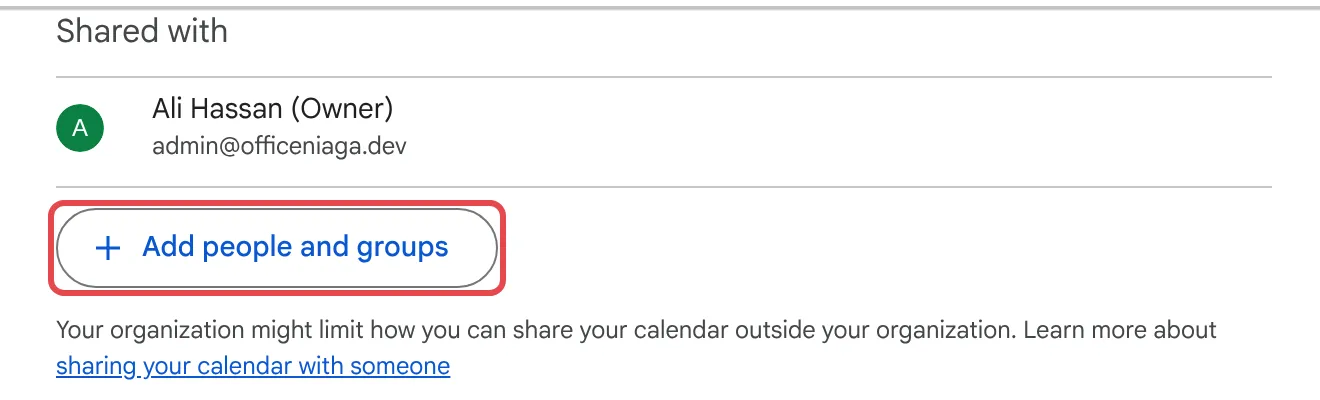
Under Shared with, click Add people and groups.
-
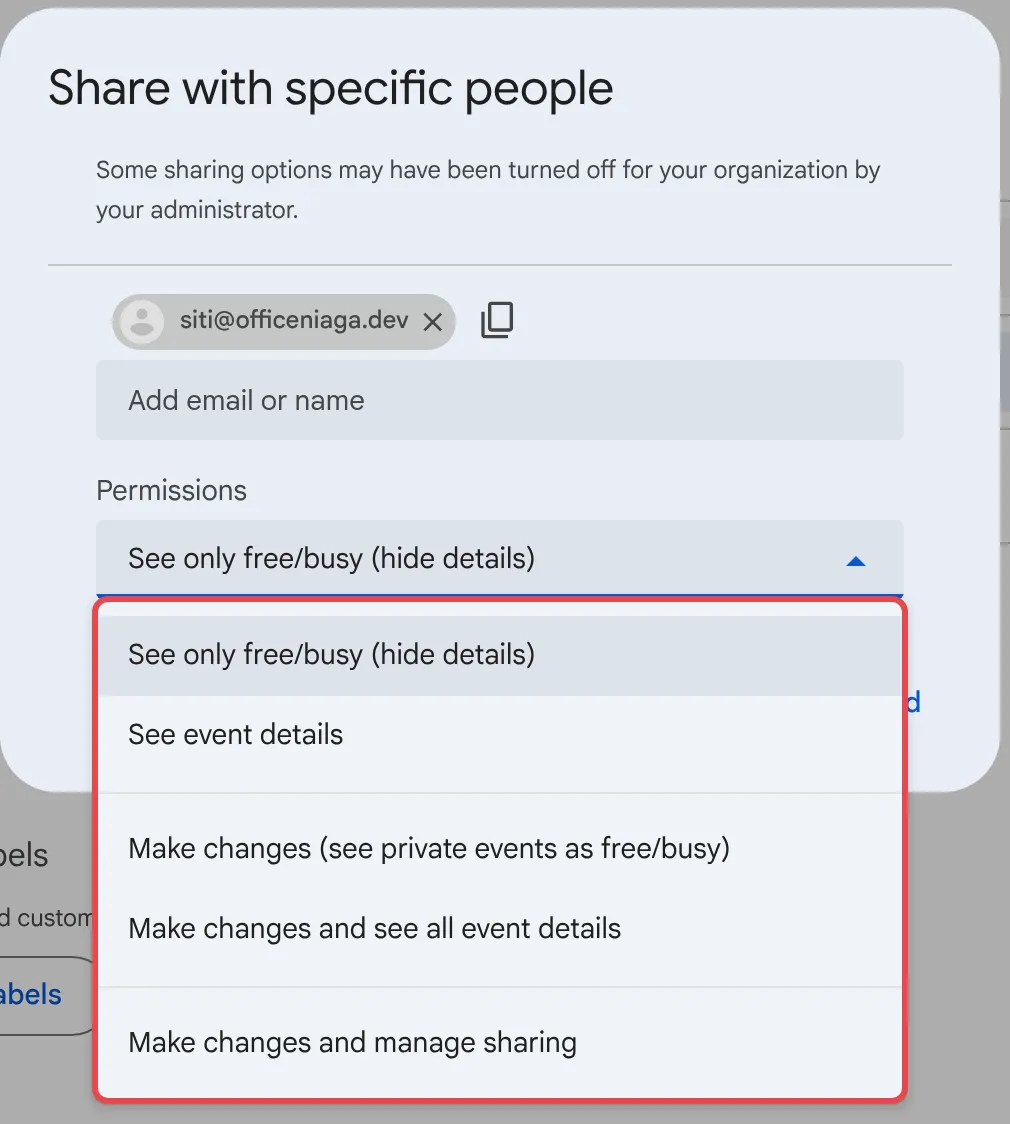
Type the person’s email address, or a group email to share with a whole team.
-
Under Permissions, choose what they can do (see below).
-
Click Send.
The permission options, from least to most access:
- See only free/busy (hide details): they see when you are busy, but not what the event is.
- See event details: they see event titles, times, places and descriptions.
- Make changes (see private events as free/busy): they can edit your events, except private ones.
- Make changes and see all event details: they can edit and see everything.
- Make changes and manage sharing: full control, including sharing your calendar with others. Give this only to someone like a personal assistant.
Let everyone in the company see your calendar
Section titled “Let everyone in the company see your calendar”This saves sharing with each person one by one. People outside the company still cannot see it.
-
Open Settings and sharing for your calendar, as above.
-
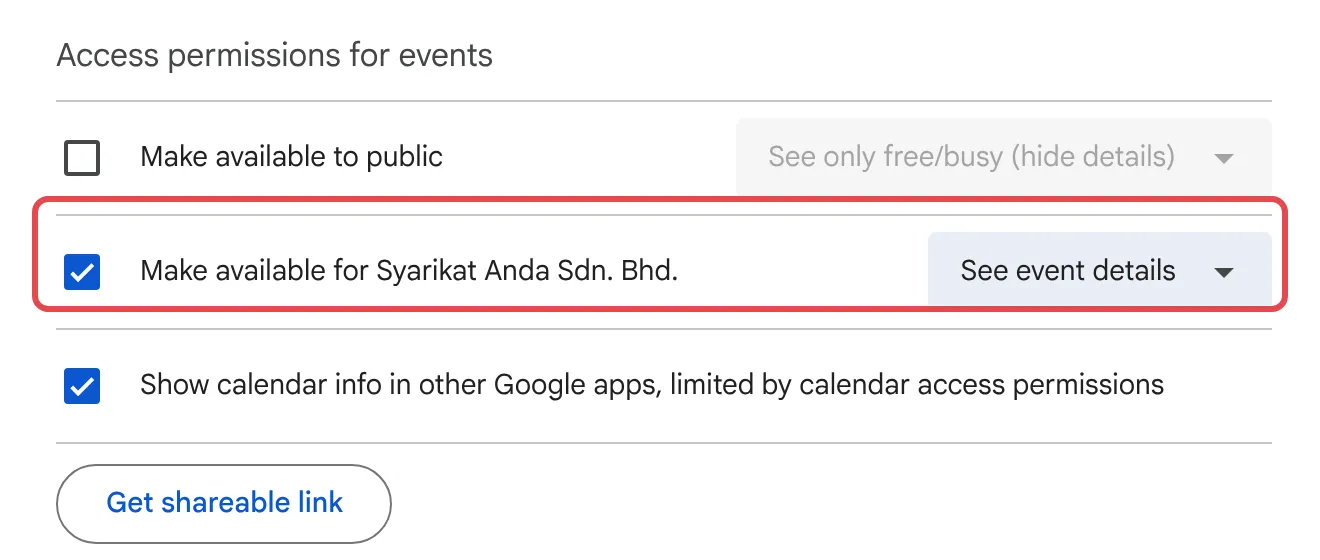
Under Access permissions for events, tick Make available for, followed by your company name.
-
Choose See only free/busy (hide details) or See event details from the dropdown.
Add a colleague’s calendar to your view
Section titled “Add a colleague’s calendar to your view”If the calendar is not shared with you yet, Calendar sends the owner a request.
-
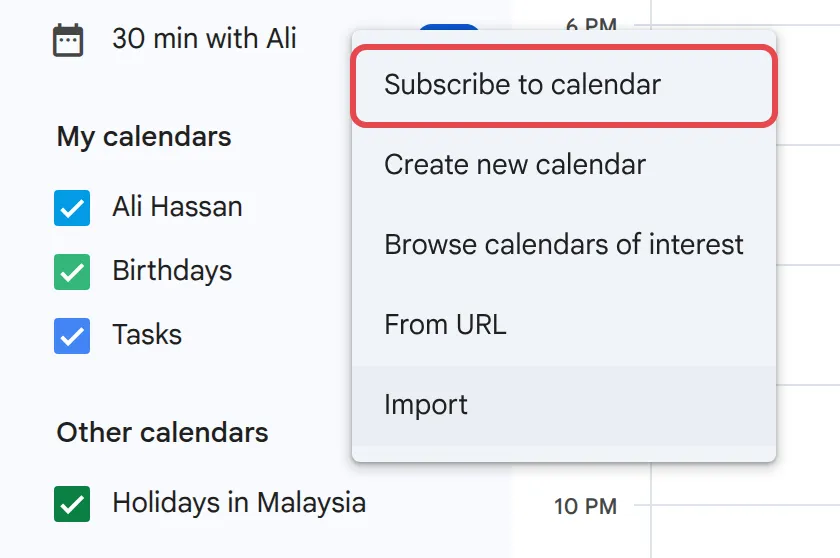
On the left, next to Other calendars, click + (Add other calendars).
-
Click Subscribe to calendar.
-
Type your colleague’s email address and pick them from the list.
Their calendar appears under Other calendars. Untick it to hide it without removing it. For a one-off check, type their name under Meet with… on the left instead.
Stop sharing
Section titled “Stop sharing”You can take access back at any time.
- Open Settings and sharing for your calendar.
- Under Shared with, click the X next to the person or group.
- To stop company-wide sharing, untick Make available for under Access permissions for events.
Still stuck
Section titled “Still stuck”WhatsApp our support team at +60 16-916 3324.
Common issues
Can I add a colleague's calendar on my phone?
Not directly. Add it once in Google Calendar on a computer. It then shows up in the Calendar app on your phone automatically.
Why can't I share my calendar with someone outside the company?
Your admin can limit sharing outside your organisation. The sharing box shows a note when some options are turned off. Ask your Google Workspace admin to check the Calendar sharing settings.
Will people I share with see my private events?
Only if you give them Make changes and see all event details or Make changes and manage sharing. Everyone else sees a private event as a block marked Busy. To make an event private, edit it and change Default visibility to Private.
Was this article helpful?
Thanks for your feedback.
Sorry this didn't help. WhatsApp us and we'll sort it out with you.