
Google Meet tips: backgrounds, captions, hand raise & more
Updated For Google Workspace

A few Meet features make calls clearer and calmer. Most are one click from the bar at the bottom of the meeting screen.
Blur or change your background
Section titled “Blur or change your background”Hide a messy room or a busy office. You can set it before you join or during the call.
-
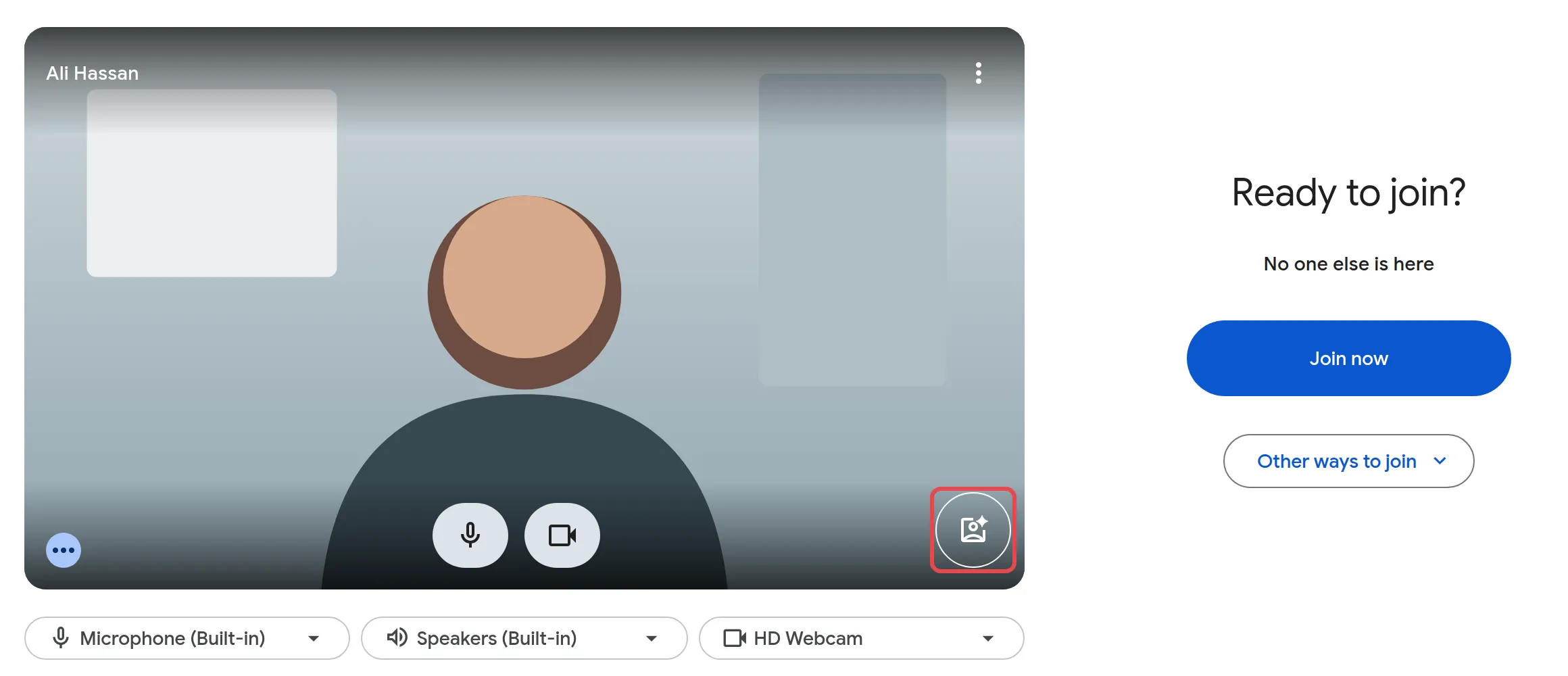
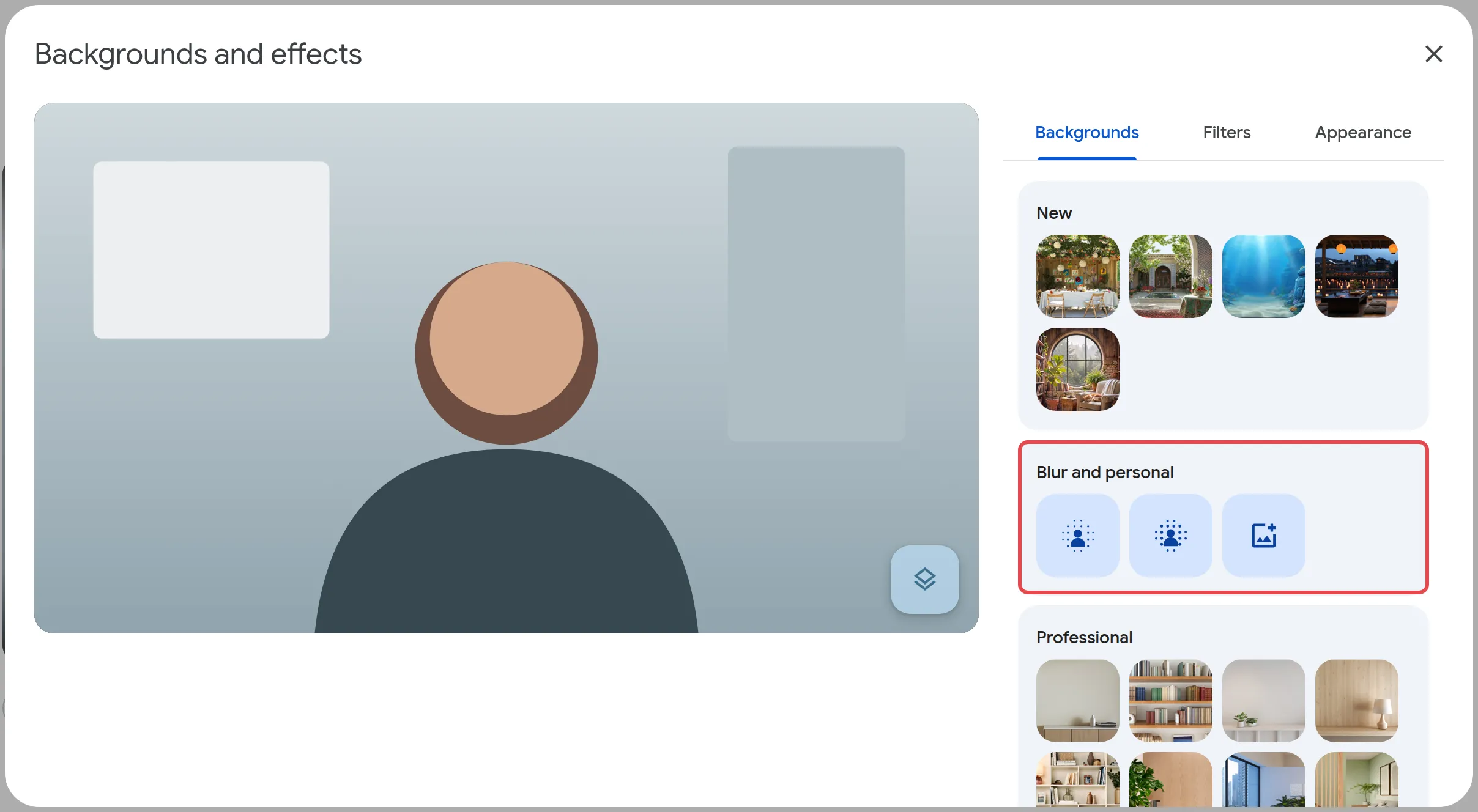
Before you join: on the preview screen, click Backgrounds and effects (the button at the bottom right of your video). Choose a light or full blur under Blur and personal, or pick a background.
-
During the call: at the bottom, click the small arrow next to the camera button, then Blur background, or Backgrounds and effects for more choices.

-
To turn an effect off, open Backgrounds and effects again and click the selected blur or background to deselect it.
Things behind you can still show at the edges, so check your preview. Some effects, such as AI-generated backgrounds, are only on some plans.
Turn on live captions
Section titled “Turn on live captions”Captions help in noisy places or when someone speaks fast. They show only on your screen, not for everyone.
-
At the bottom of the meeting, click Turn on captions.

-
To change the spoken language or the font size and colour, click More options, then Settings > Captions.
Click Turn off captions to hide them again.
Raise your hand
Section titled “Raise your hand”In a big meeting, raise your hand to let the host know you want to speak instead of talking over others.
-
At the bottom, click Raise hand.

-
When you have spoken, click Lower hand. It also lowers by itself after you speak.
Hosts see raised hands in order, under People > Raised hands, and can click Lower all.
Join a breakout room
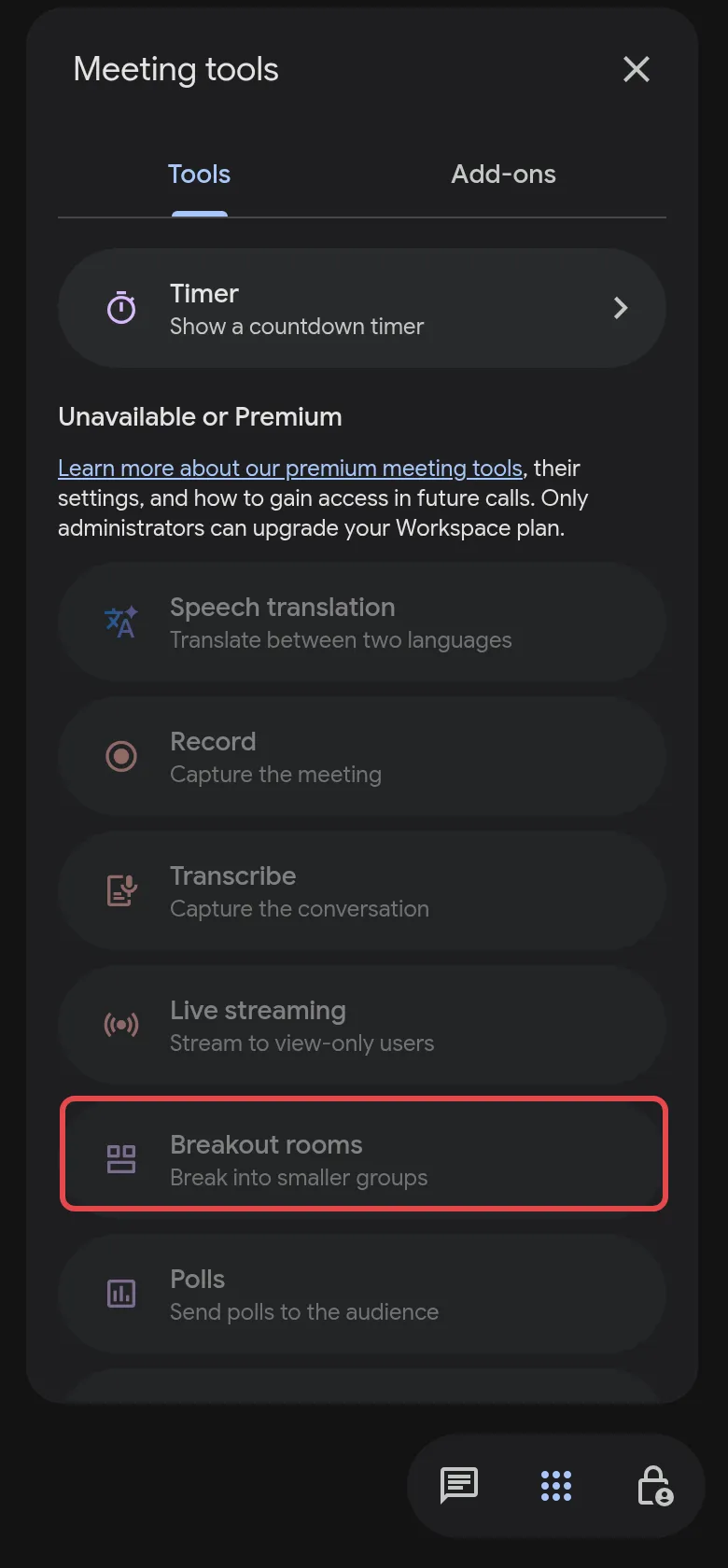
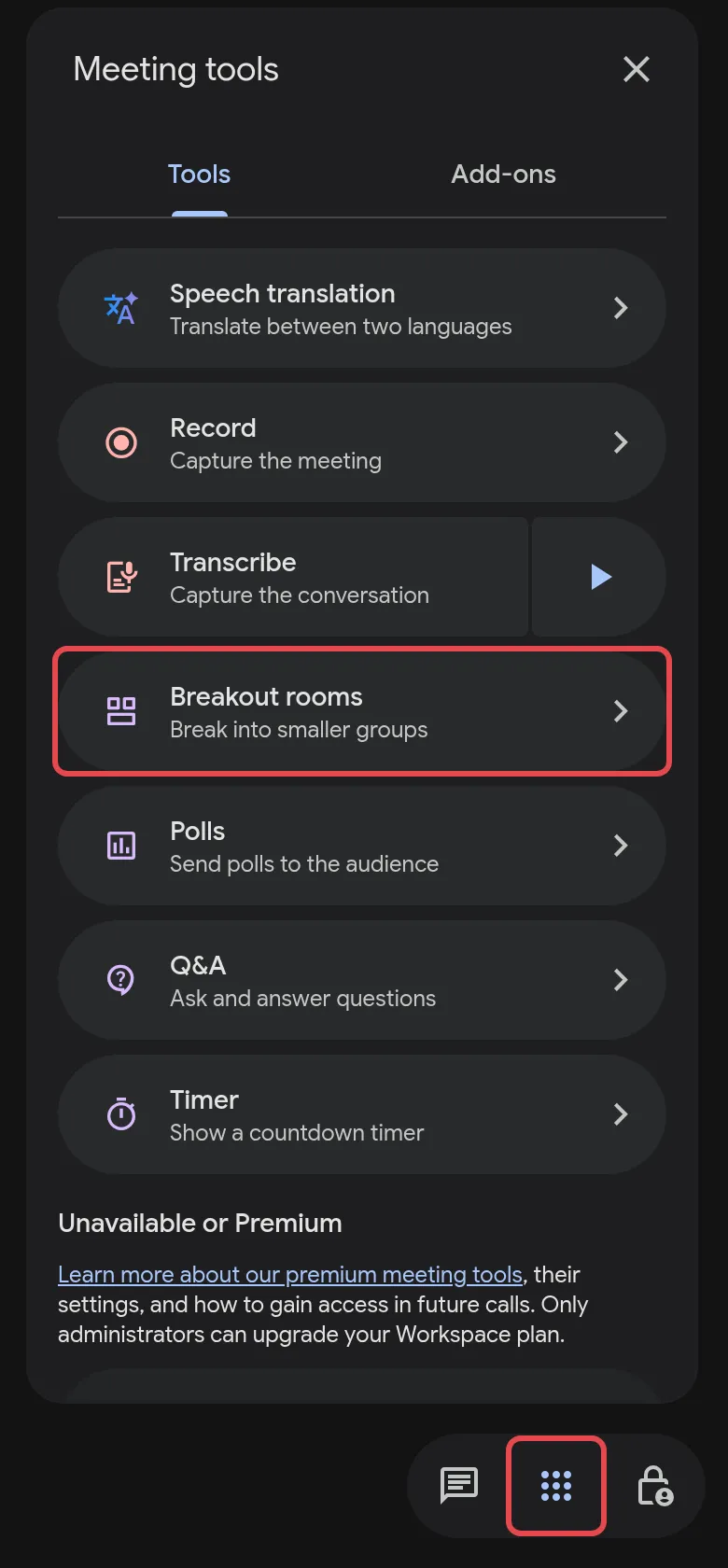
Section titled “Join a breakout room”Breakout rooms split a big meeting into small groups. The host sets them up, and the feature depends on your plan: Business Standard and Business Plus include it, Business Starter does not.
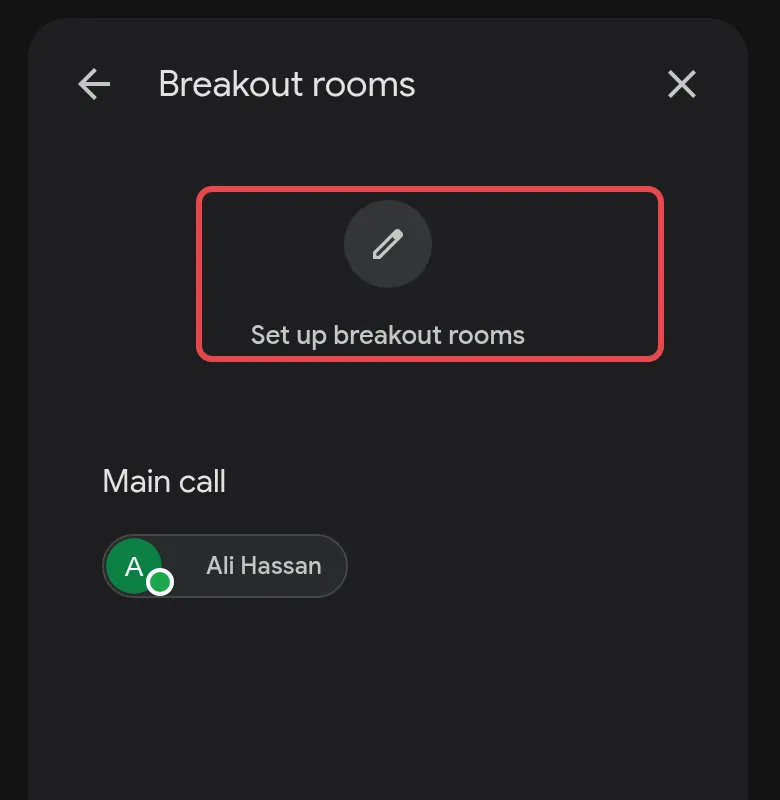
- When the host sends you to a room, click Join on the prompt.
- Need the host? Click Ask for help at the top right.
- To go back early, click Return to main call at the top.
When the host ends the breakout session, everyone returns to the main call after 30 seconds.
Still stuck
Section titled “Still stuck”WhatsApp our support team at +60 16-916 3324.
Common issues
Can Meet show captions in Malay?
Yes. Malay is one of the caption languages, marked as beta, so expect some mistakes. In the meeting, click More options > Settings > Captions and pick Malay under Language of the meeting. Translated captions, for example Malay speech shown in English, need Business Standard or higher.
Why don't I see the breakout rooms option?
Only the host can start breakout rooms, from a computer, and only on plans that include them, such as Business Standard and Business Plus. Business Starter does not. Compare plans on our pricing page.
My computer slows down when I use a background. What can I do?
Backgrounds and effects use a lot of processing power and battery. Switch to a simple blur, or turn effects off, and close other heavy apps.
Was this article helpful?
Thanks for your feedback.
Sorry this didn't help. WhatsApp us and we'll sort it out with you.