
Ask an AI about this page
 ChatGPT
 Claude
 Perplexity
 Google AI Mode
 Microsoft Copilot
 Grok
 Mistral Le Chat
Set up email on iPhone & iPad
Add Office Niaga Mail to the built-in Mail app on your iPhone or iPad. You need your email address and password.
You need your full email address, your password and the server name mail.officeniaga.com.
-
Open Settings, then Mail, Accounts, Add Account. On iOS 18 and later, go to Settings, Apps, Mail, Mail Accounts, Add Account.
-
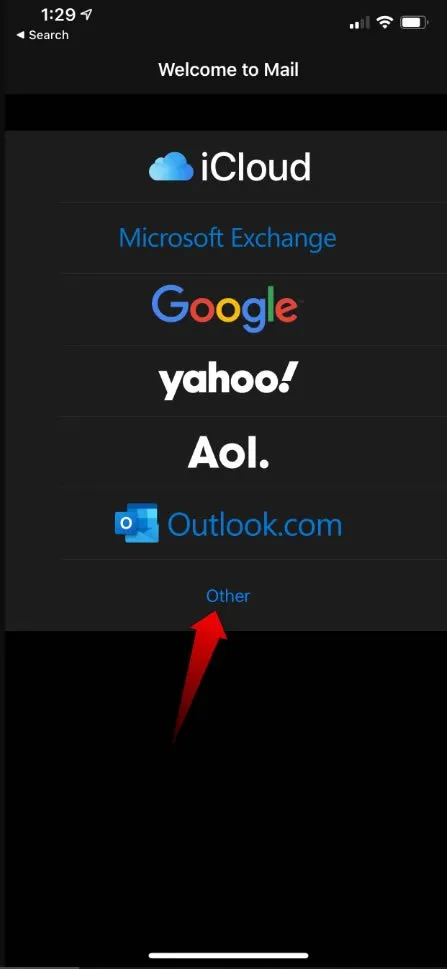
Choose Other, then Add Mail Account.
-
Enter your name, full email address and password, then tap Next.
-
Choose IMAP and fill in the server details:
- Incoming Mail Server and Outgoing Mail Server - Host Name:
mail.officeniaga.com - User Name: your full email address, for example
ali@yourcompany.com - Password: your email password
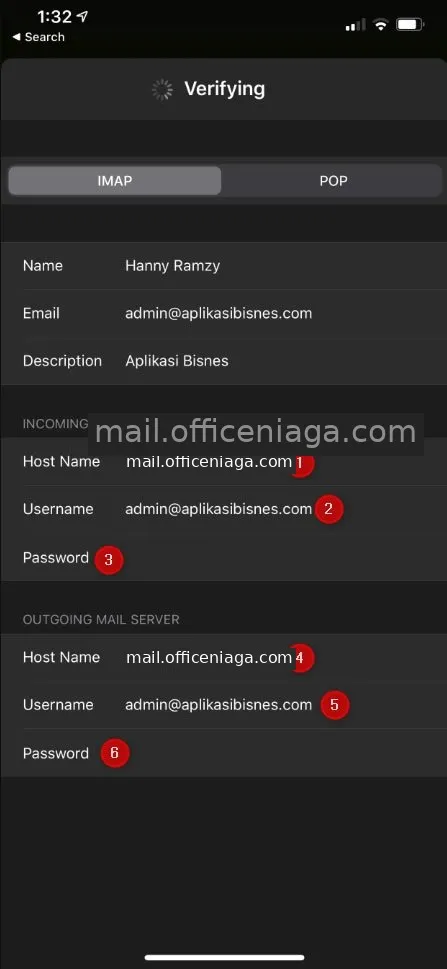
- Incoming Mail Server and Outgoing Mail Server - Host Name:
-
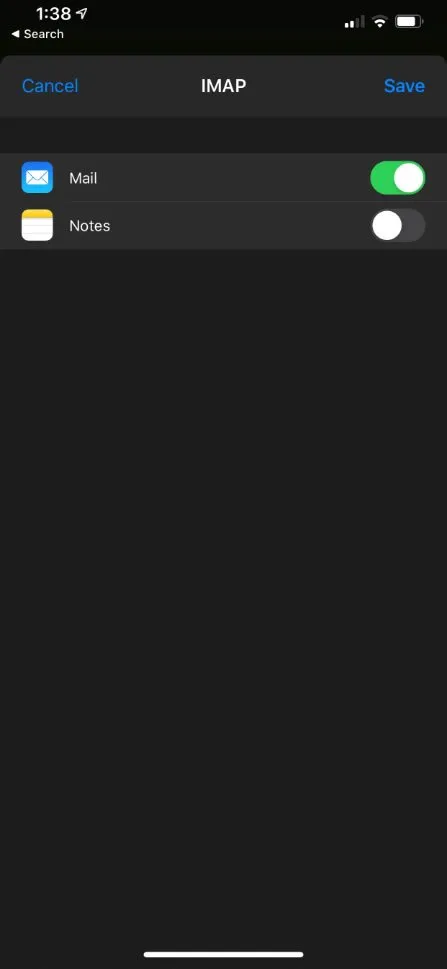
Tap Next. If it works, choose what you want to sync, then tap Save.
-
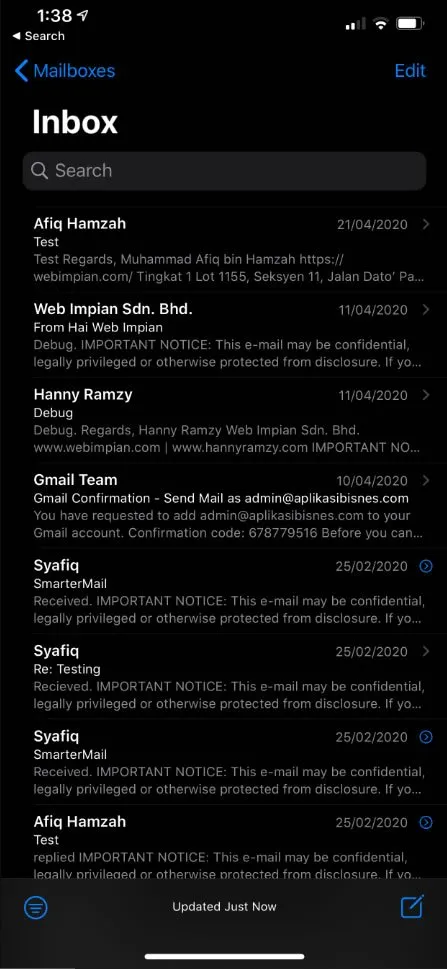
You can now open your email in the Mail app.
Still stuck
Section titled “Still stuck”WhatsApp our support team at +60 16-916 3324.
Common issues
My iPhone shows "Cannot Verify Server Identity" or the account cannot be verified.
Make sure the incoming and outgoing servers are mail.officeniaga.com, not an old address. Also check your email address and password in webmail first.
I can receive email but cannot send.
Open the account, go to SMTP under the outgoing server, and make sure port 465 is used with SSL turned on. See Email server settings.
Was this article helpful?
Thanks for your feedback.
Sorry this didn't help. WhatsApp us and we'll sort it out with you.