
Create tables & formulas with Gemini in Google Sheets
Updated For Google Workspace

Gemini in Google Sheets can build a table from a description, write and fix formulas, and explain your data. It is included with Business Standard, Business Plus and Enterprise plans, but not Business Starter.
Open Gemini in Sheets
Section titled “Open Gemini in Sheets”All the tasks below start from the Gemini side panel.
-
Open a spreadsheet in Google Sheets on your computer.
-
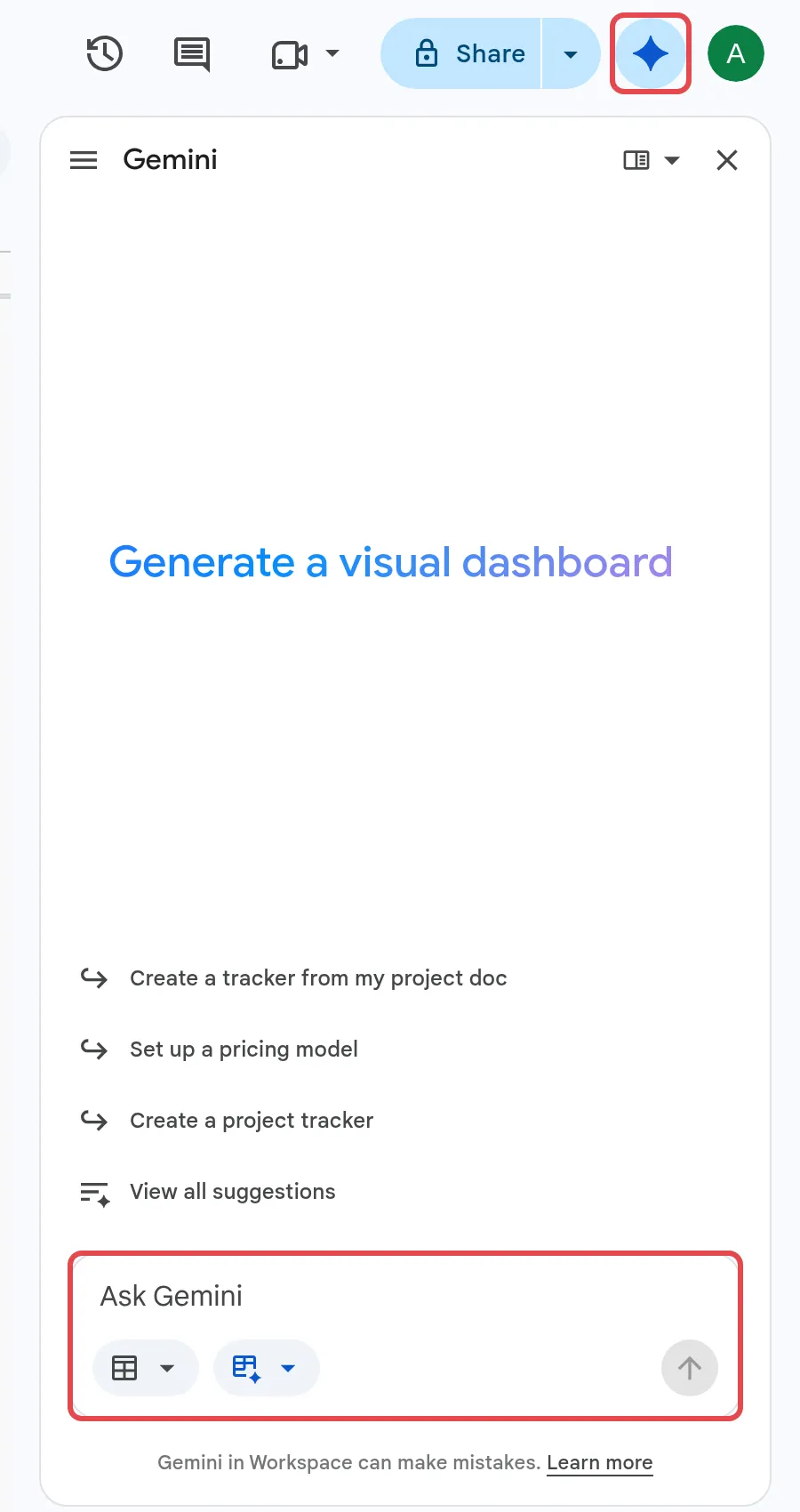
At the top right, click Ask Gemini.
-
Pick a suggested prompt, or type your own at the bottom and press Enter.
If Gemini makes a change you do not want, click Undo.
Create a table
Section titled “Create a table”Describe the table and Gemini plans it, then builds it for you.
-
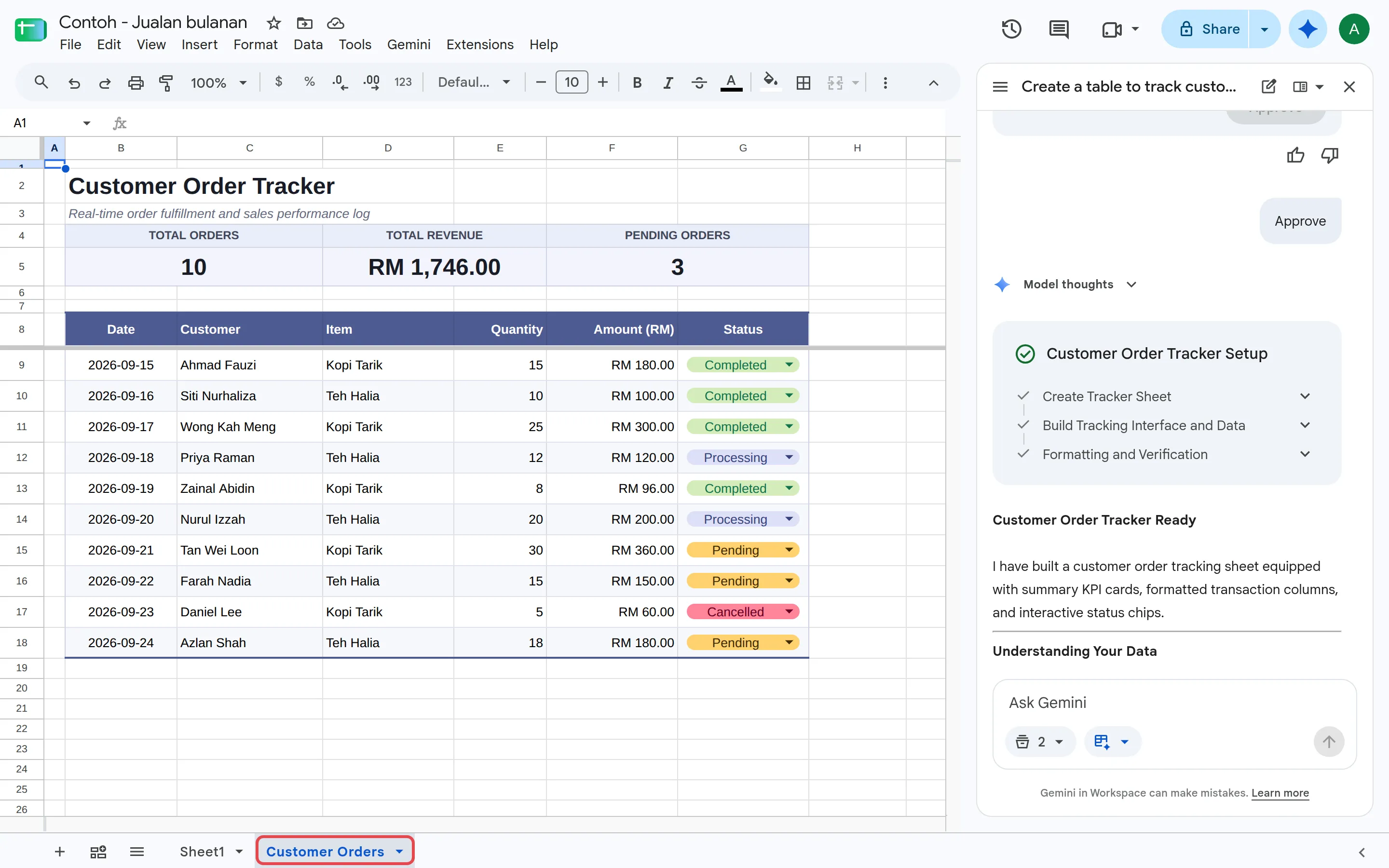
In the Gemini panel, type a prompt such as “Create a table to track customer orders with columns for date, customer, item, quantity, amount in RM and status.”
-
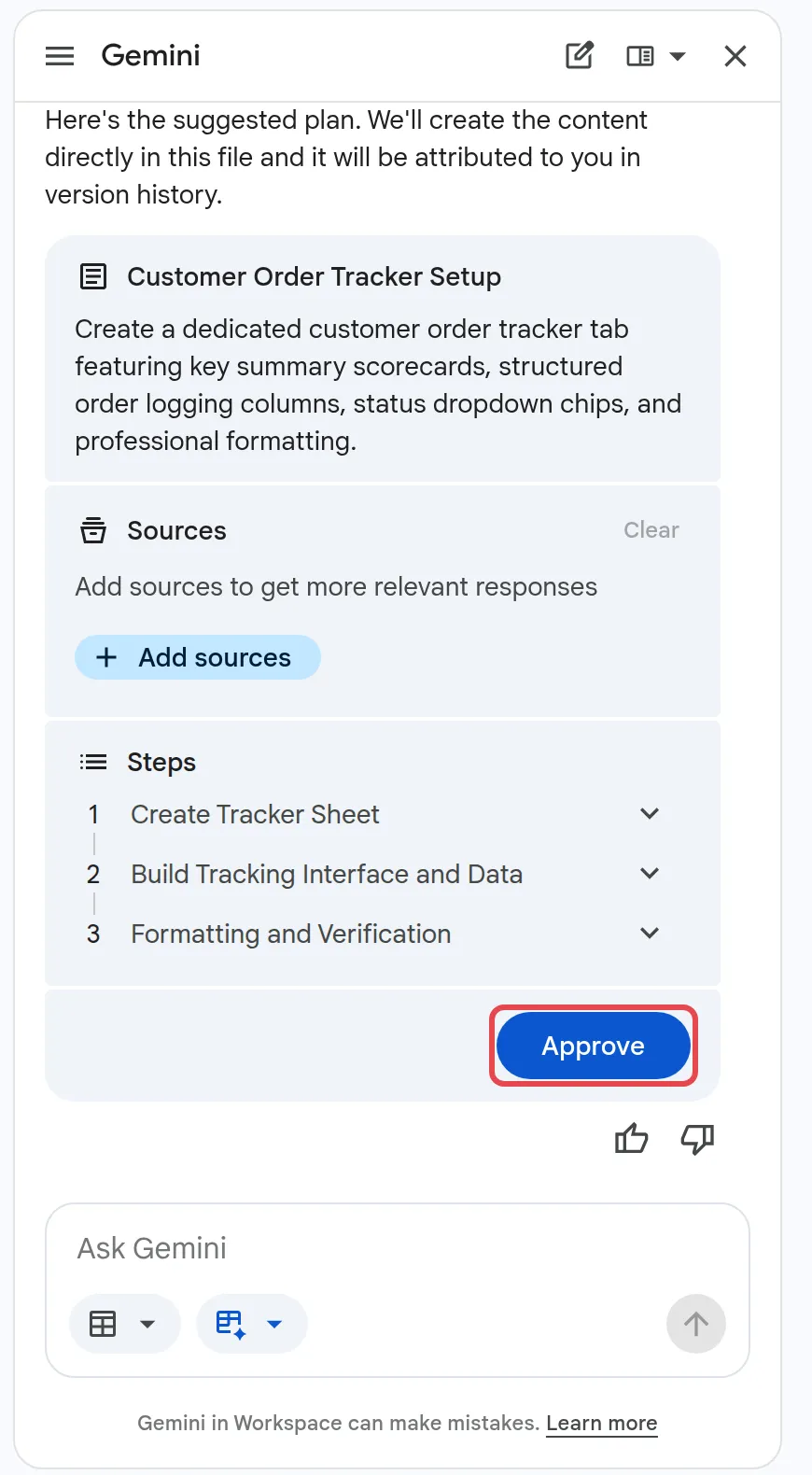
Press Enter. Gemini shows a suggested plan with the steps it will take.
-
Check the plan, then click Approve. Gemini builds the table straight away in a new tab.
-
To change it, add a follow-up prompt, for example “Add a column for payment due date”.
Write or fix a formula
Section titled “Write or fix a formula”Gemini can write a formula from plain words, or explain why one fails.
-
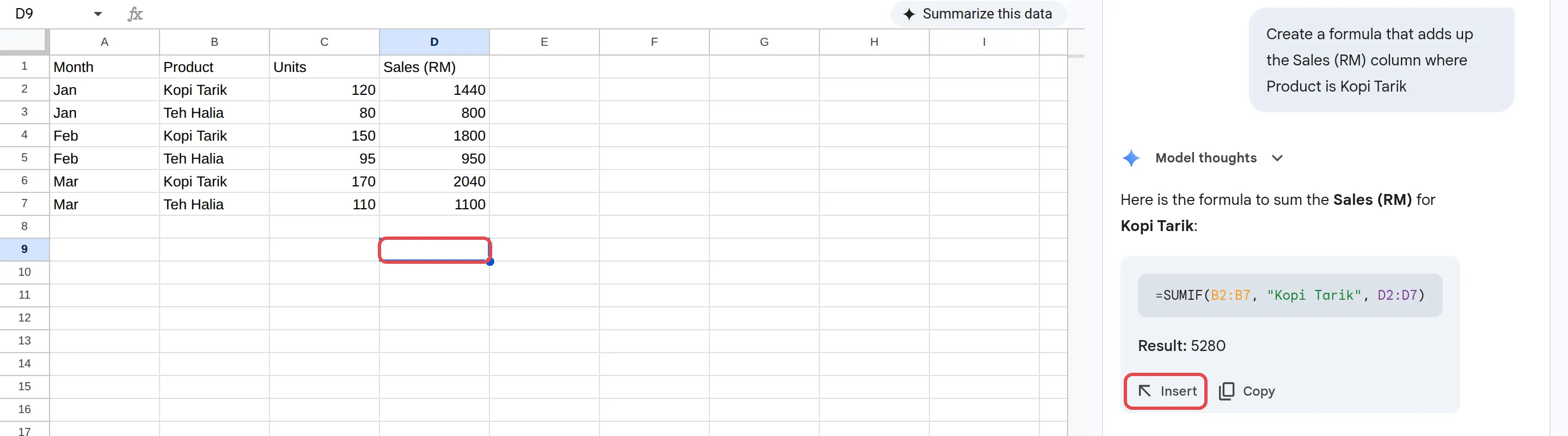
In the Gemini panel, describe the result you want, using your column names. For example: “Create a formula that adds up the amount column where status is Paid.”
-
Click the cell where the formula should go, then click Insert.
-
If a cell shows a formula error, hover over it and click Fix to let Gemini check it.
You can also type = in a cell and press Ctrl + Alt + G (Windows) or ⌘ + Ctrl + G (Mac) to open the formula prompt.
Analyse data & make charts
Section titled “Analyse data & make charts”In the Gemini panel, ask a question about your data, such as “Which month had the highest sales?” or “Make a line chart of sales by month.” Click Insert to add a chart. It goes into a new tab with its own copy of the data, so it will not update if you change the original rows.
Fill a column with the AI function
Section titled “Fill a column with the AI function”The =AI() function writes text, summarises entries or sorts them into categories, straight into your cells.
-
In a cell, type a formula such as
=AI("Classify this customer comment as positive, negative or neutral", B2). -
Press Enter. The result fills in straight away. Copy the formula down the column for the other rows.
-
To get fresh results later, select the cells and click Refresh and fill.
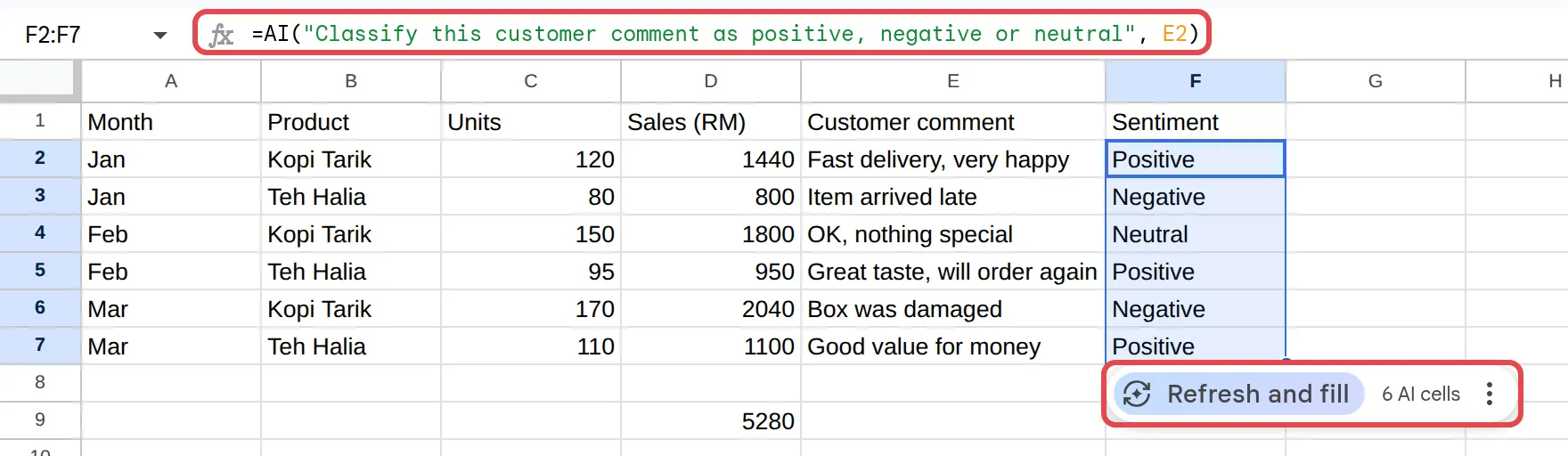
Give it the cells it needs in the range; it cannot see anything else in the file. Only the first 350 selected cells are generated at a time.
Still stuck
Section titled “Still stuck”WhatsApp our support team at +60 16-916 3324.
Common issues
Gemini does not work on my Excel file. Why?
Gemini works best with Google Sheets files. Open the Excel file, then choose File > Save as Google Sheets and use Gemini on the new copy.
I get "AI function not available". What does it mean?
Your plan may not include the AI function (it needs Business Standard or higher), your admin may have turned it off, or you have hit a usage limit. If it is a limit, wait 24 hours and try again.
Can Gemini see all my Drive files when I use =AI()?
No. The AI function only sees the cells you give it in the range. It cannot read the rest of your spreadsheet or your other files.
Was this article helpful?
Thanks for your feedback.
Sorry this didn't help. WhatsApp us and we'll sort it out with you.