
Install Google Drive for desktop & sync files
Updated For Google Workspace

Google Drive for desktop puts your Drive files in File Explorer (Windows) or Finder (Mac), and keeps them in sync with the web.
Before you start
Section titled “Before you start”Check these first, especially on a company computer.
- Your computer’s operating system must be one Google supports. See Google’s system requirements.
- Some companies install Drive for desktop for staff or block it. If the installer will not run, ask your IT person or admin.
- You need your Google Workspace email and password. First time signing in? See sign in to Google Workspace.
Install & sign in
Section titled “Install & sign in”The installer is the same for every account; you choose your account when you sign in.
-
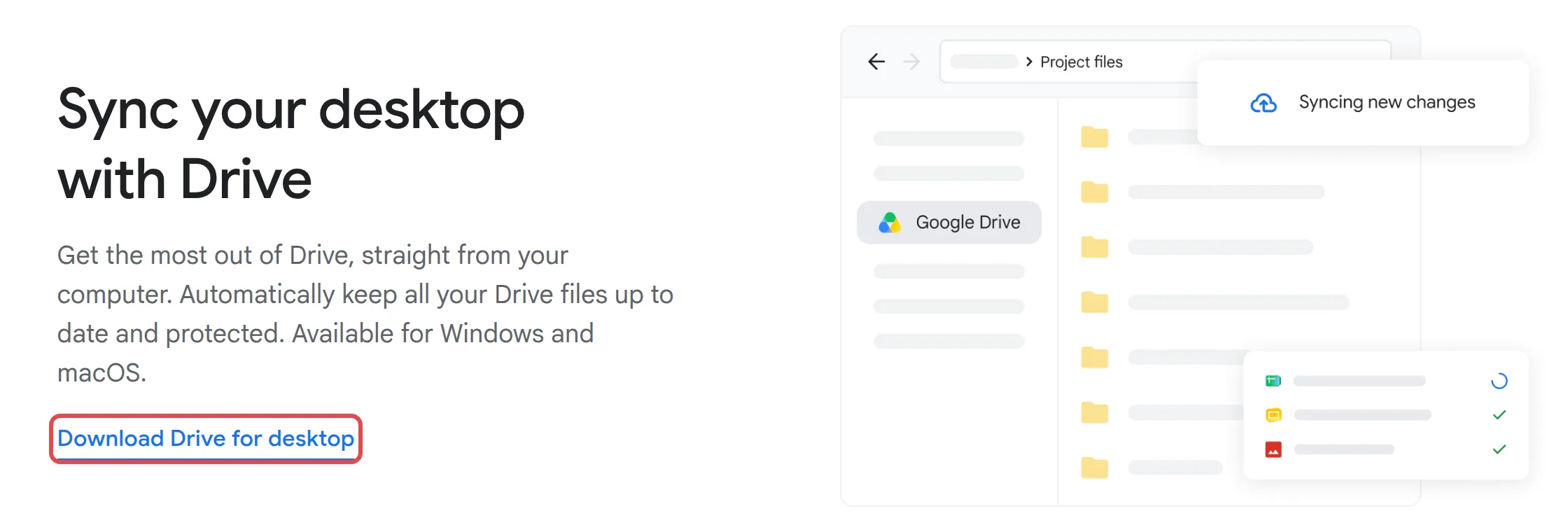
Go to Google’s Drive download page and click Download Drive for desktop. There is no download link in Drive’s own menus. You can also download the installer directly for Windows or Mac.
-
Open GoogleDriveSetup.exe (Windows) or GoogleDrive.dmg (Mac) and follow the on-screen steps.
-
Open Google Drive for desktop, click Get started, then Sign in.
-
Sign in with your work email in the browser window that opens.
When it finishes, a Google Drive entry appears in File Explorer or Finder with My Drive and Shared drives inside. The Drive for desktop icon sits in the system tray at the bottom right (Windows) or the menu bar at the top right (Mac).
Stream or mirror your files
Section titled “Stream or mirror your files”Drive for desktop can keep My Drive on your computer in two ways. Pick the one that suits your internet and disk space.
- Stream files: files stay in the cloud and download when you open them. Uses little disk space, but you need internet for files you have not made available offline.
- Mirror files: a full copy sits on your computer. Works without internet, but uses as much disk space as your Drive.
To change it:
- Click the Drive for desktop icon, then the gear icon, then Preferences.
- Click Folders from Drive on the left.
- Under My Drive syncing options, choose Stream files or Mirror files.
Shared drives can only be streamed. Before switching from mirror to stream, let every file finish syncing so nothing is lost.
Work with your files
Section titled “Work with your files”Treat the Google Drive folder like any other folder. Changes you make there sync to the web, and the other way round.
- Double-click an Office or PDF file to open it in its usual app. Google Docs, Sheets and Slides open in your browser.
- Save straight into the Google Drive folder from Word or Excel to keep files backed up.
- To keep a streamed file on your computer for travel, see use Drive offline.
Still stuck
Section titled “Still stuck”WhatsApp our support team at +60 16-916 3324.
Common issues
Do shared files I sync use my Google storage?
No. Files other people shared with you never count towards your Google storage. They can still fill up your computer's disk if you keep them offline.
I deleted a file from the Google Drive folder on my computer. Is it gone?
It moves to Trash everywhere, including on the web, and stays there for 30 days. See find & restore files in Google Drive to get it back.
Can I add my personal Google account as well?
Yes. Drive for desktop can run up to 4 accounts at once. Click the Drive for desktop icon, then your profile picture, then Add account.
Was this article helpful?
Thanks for your feedback.
Sorry this didn't help. WhatsApp us and we'll sort it out with you.