
Ask an AI about this page
 ChatGPT
 Claude
 Perplexity
 Google AI Mode
 Microsoft Copilot
 Grok
 Mistral Le Chat
Create an alias or mailing list
Both of these need a domain admin account.
- Alias - an extra address, for example
sales@yourcompany.com, that delivers to one or more existing mailboxes. - Mailing list - one address for sending email to a list of subscribers.
Create an alias
Section titled “Create an alias”The mailboxes that will receive the alias mail must already exist, so create them first if needed.
-
Log in to webmail with the admin account, then click Domain Settings.

-
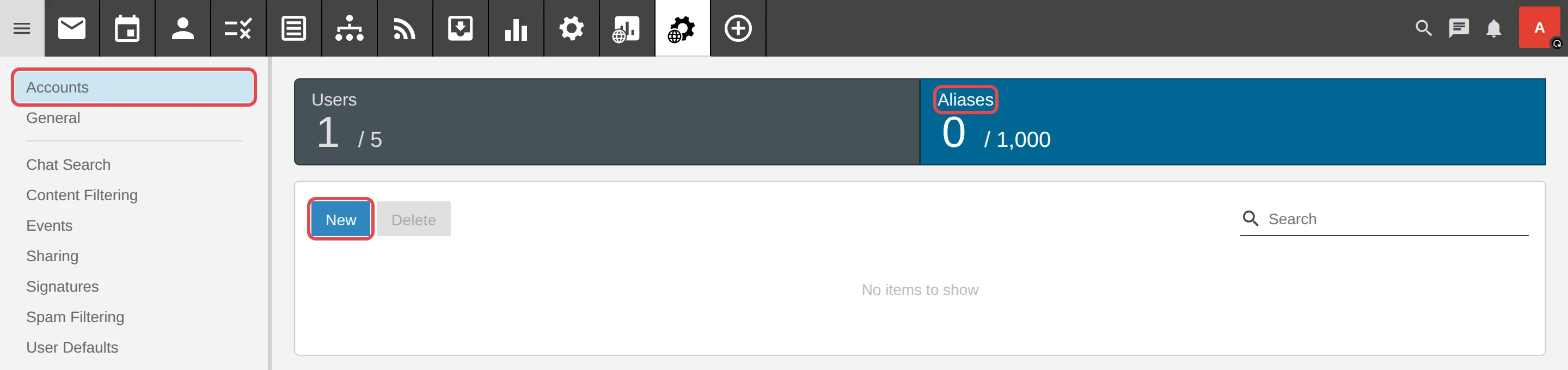
Click Accounts. At the top, click the Aliases box (it shows how many aliases you have), then click New.
-
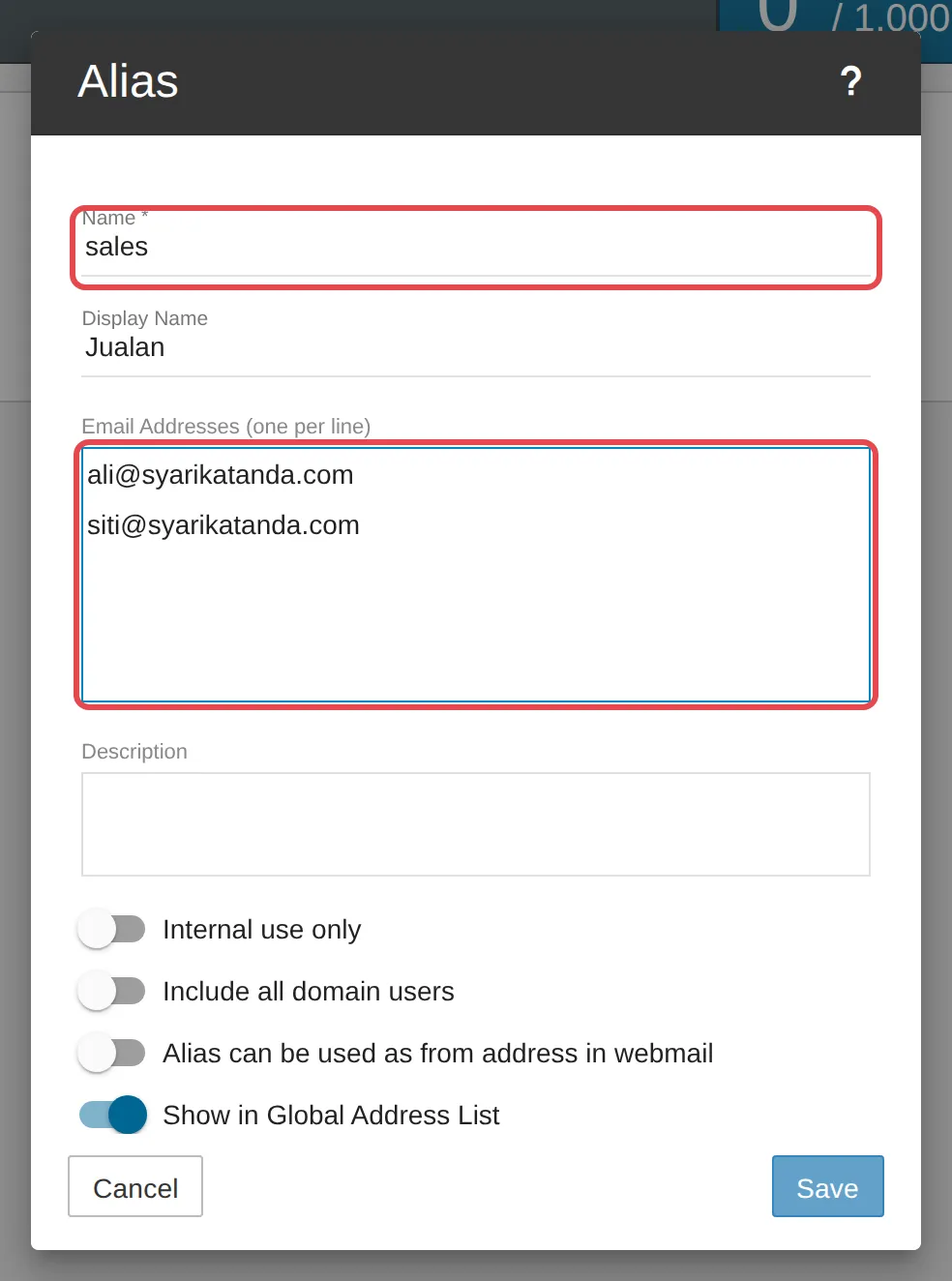
Fill in:
- Name: the part before the @. For
sales@yourcompany.com, typesales. - Display Name (optional): the name people see, for example
Sales. - Email Addresses (one per line): the mailboxes that will receive email sent to this alias.
- Name: the part before the @. For
-
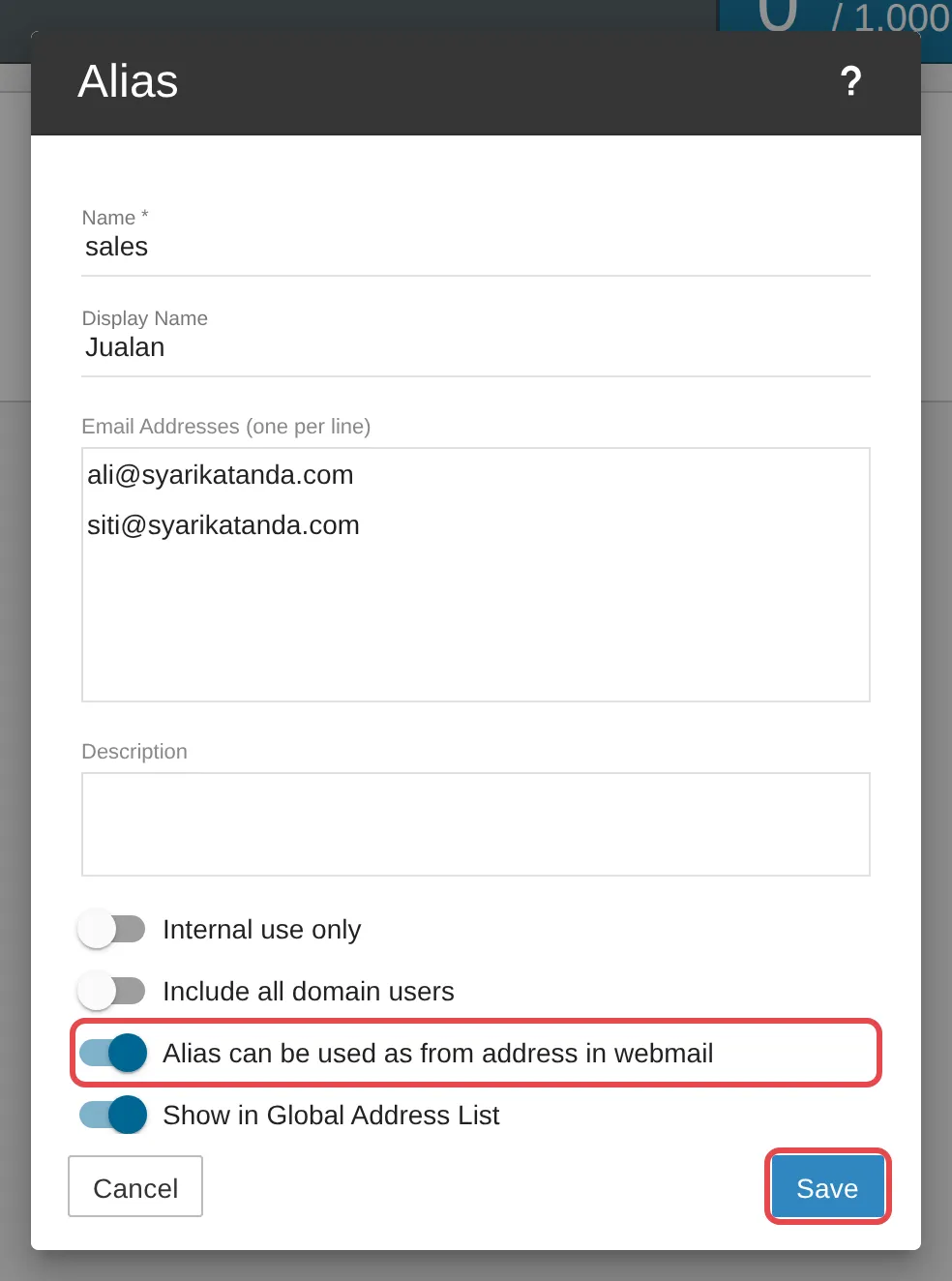
Turn on Alias can be used as from address in webmail if the recipients need to send or reply as the alias address. Click Save.
Create a mailing list
Section titled “Create a mailing list”-
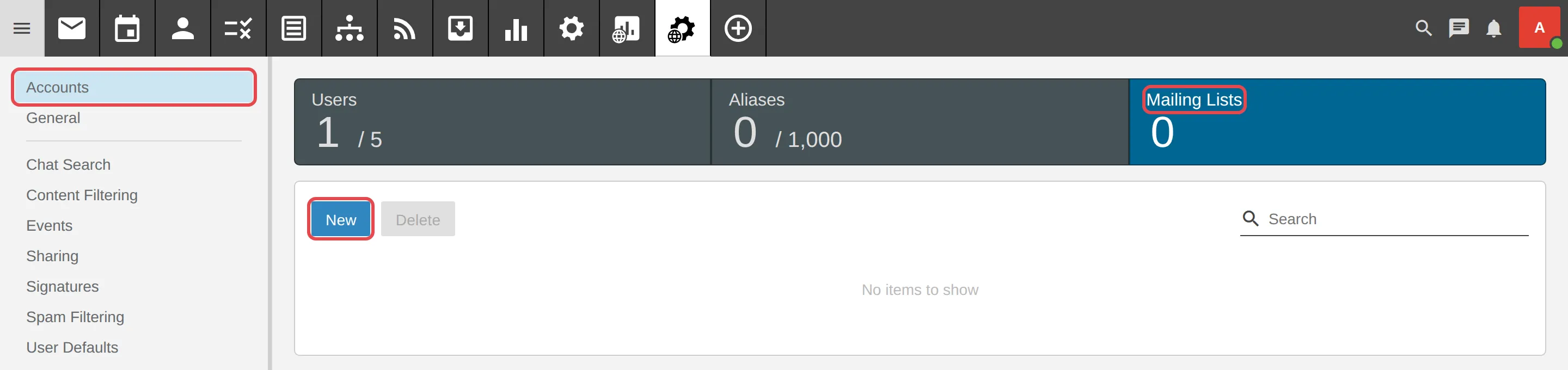
Click Domain Settings, then Accounts. At the top, click the Mailing Lists box, then click New.
-
In List Address, type only the part before the @, with no spaces. For
news@yourcompany.com, typenews. Leave List Administrator as it is, then click Save. The new list opens on its Options tab.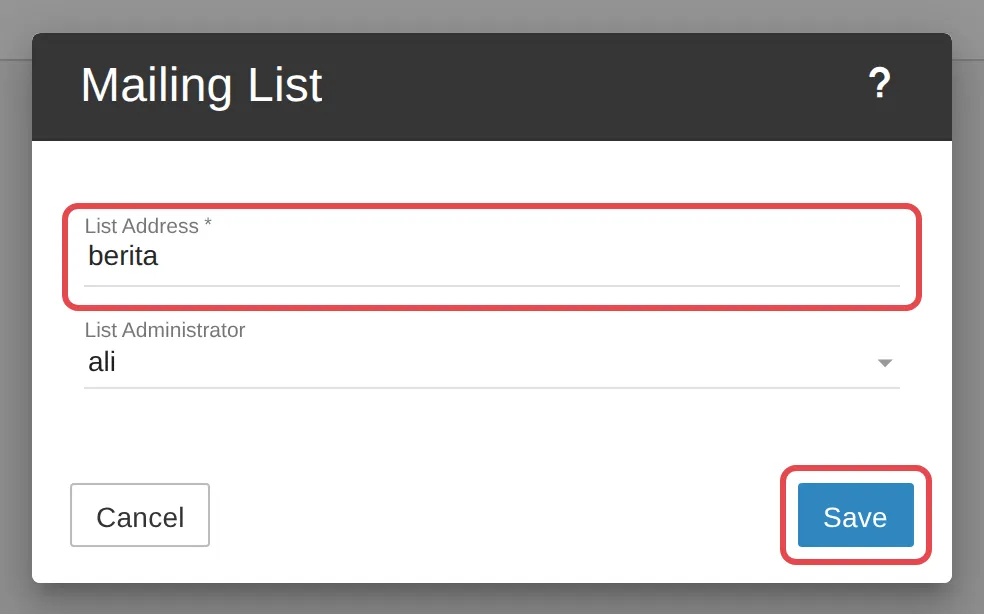
-
On the Options tab, check the list settings. The ones you are most likely to change are Description (click the pencil), Allowed Posters (who can send to the list; the default is List Administrators Only) and Subject Prefix (text added to the start of every subject, for example
[News]). If you change anything, click Save.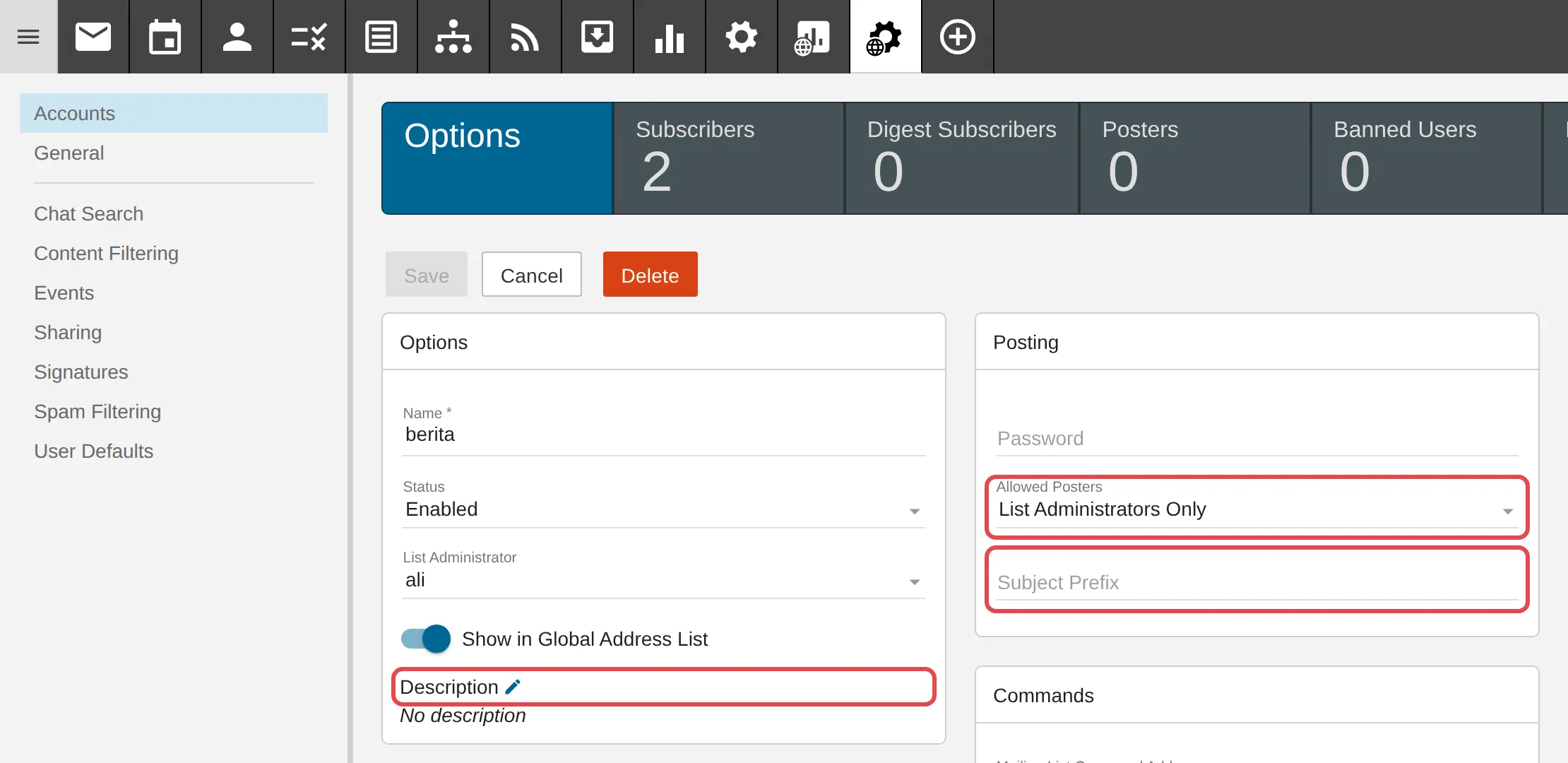
-
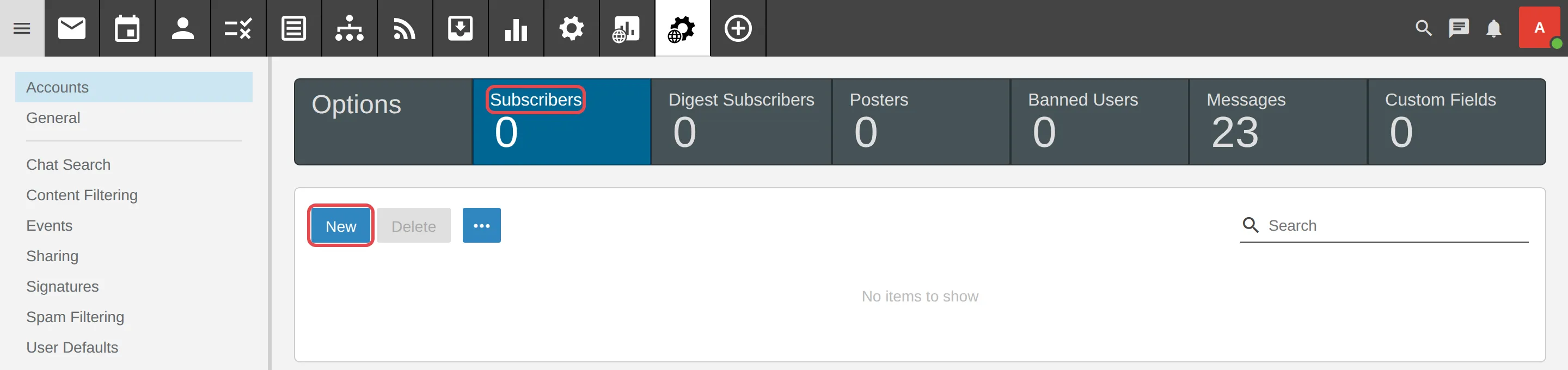
Click the Subscribers box, then click New.
-
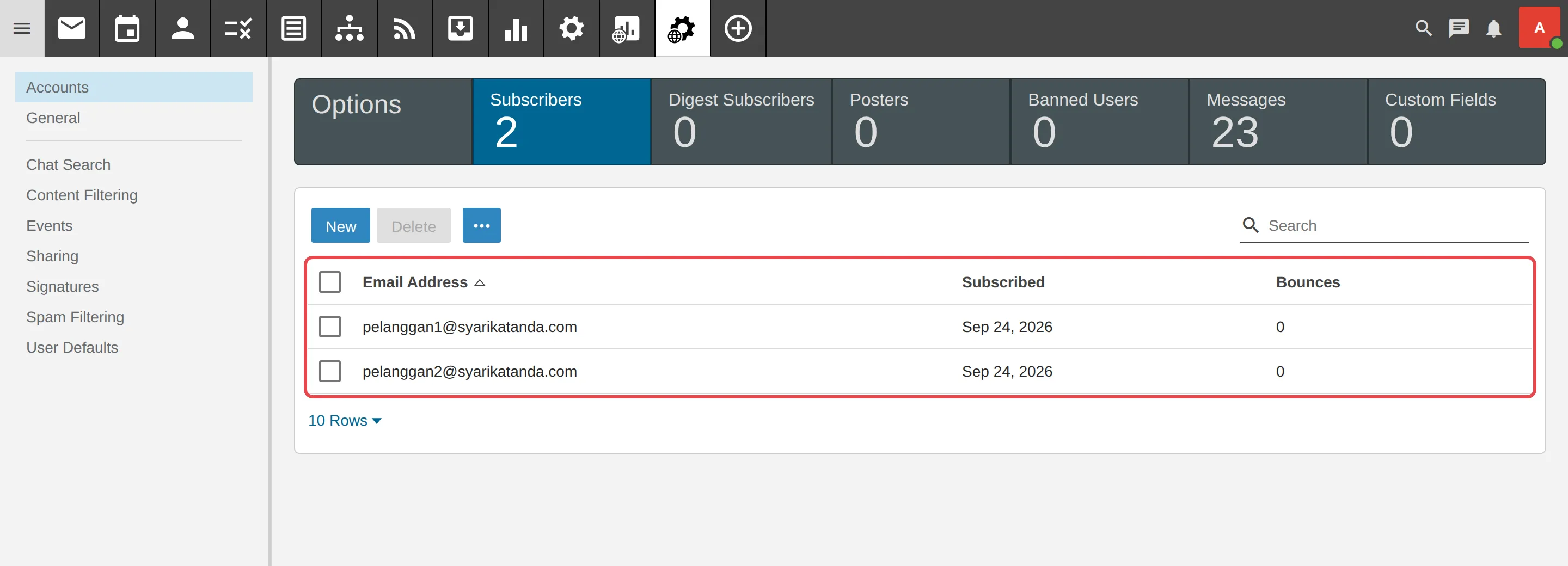
In Email Addresses (one per line), enter each subscriber’s address on its own line, then click Save. The subscribers now show in the list.
Still stuck
Section titled “Still stuck”WhatsApp our support team at +60 16-916 3324.
Common issues
What is the difference between an alias and a new user?
An alias is an extra address with no mailbox of its own - its email goes to an existing mailbox, so it does not use up a user from your package. A new user has their own mailbox and password.
My mailing list name is not accepted.
In List Address, type only the part before the @ (for example news, not news@yourcompany.com), with no spaces.
Was this article helpful?
Thanks for your feedback.
Sorry this didn't help. WhatsApp us and we'll sort it out with you.