
Ask an AI about this page
 ChatGPT
 Claude
 Perplexity
 Google AI Mode
 Microsoft Copilot
 Grok
 Mistral Le Chat
Organise your inbox with folders & flags
Create a folder
Section titled “Create a folder”Folders help you keep emails from one customer, project or supplier together.
-
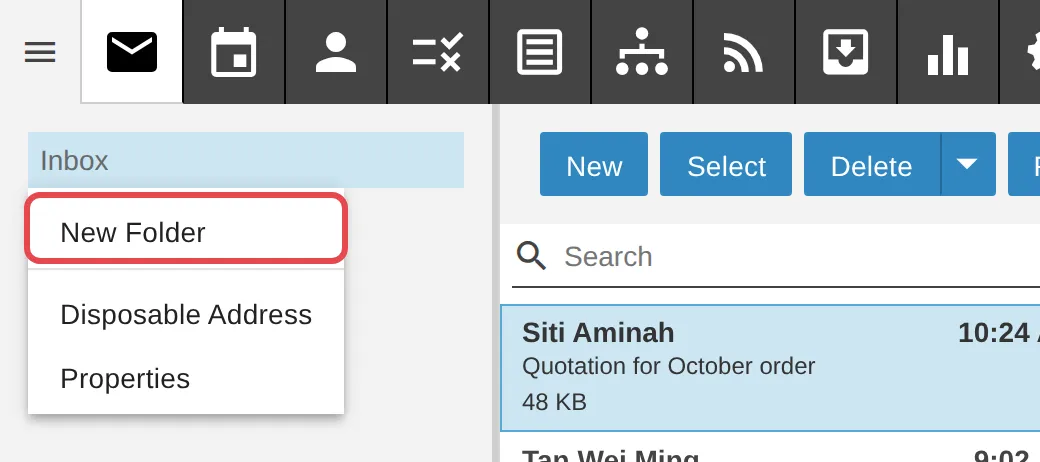
On the Email tab, right-click Inbox (or any folder), then click New Folder.
-
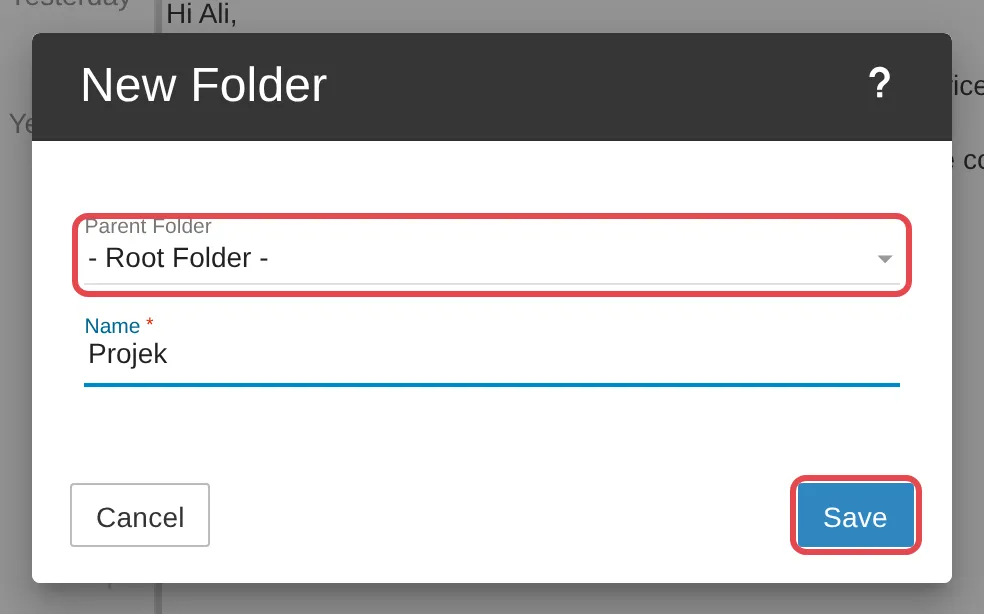
The Parent Folder field shows the folder you right-clicked, so the new folder is created inside it. For a main folder, change Parent Folder to - Root Folder -. Enter a Name, then click Save.
Delete a folder
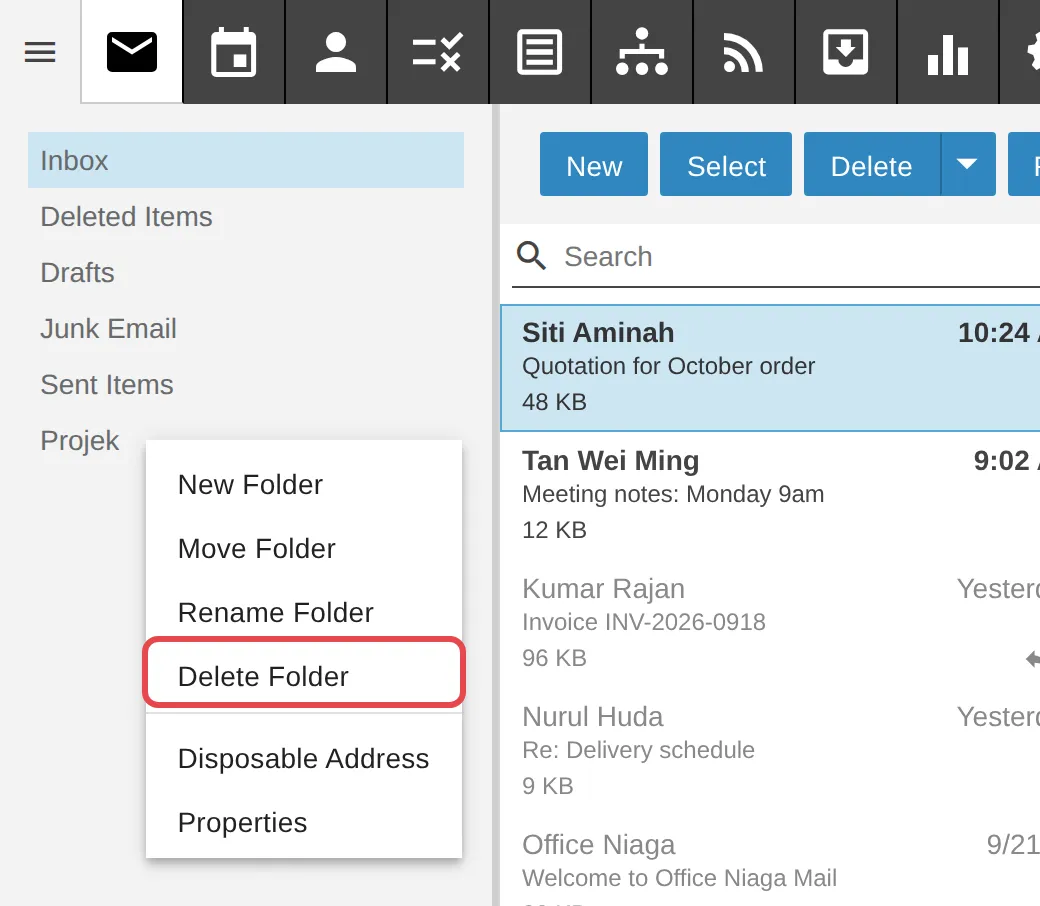
Section titled “Delete a folder”Right-click the folder, then click Delete Folder. This option shows only on folders you created. You cannot delete Inbox, Sent Items, Drafts, Deleted Items or Junk Email.
Flag an email for follow-up
Section titled “Flag an email for follow-up”A flag marks an email you need to act on later, like a Star in Gmail.
-
Click the email in the list.
-
Click the … button above the list, then click Flag.
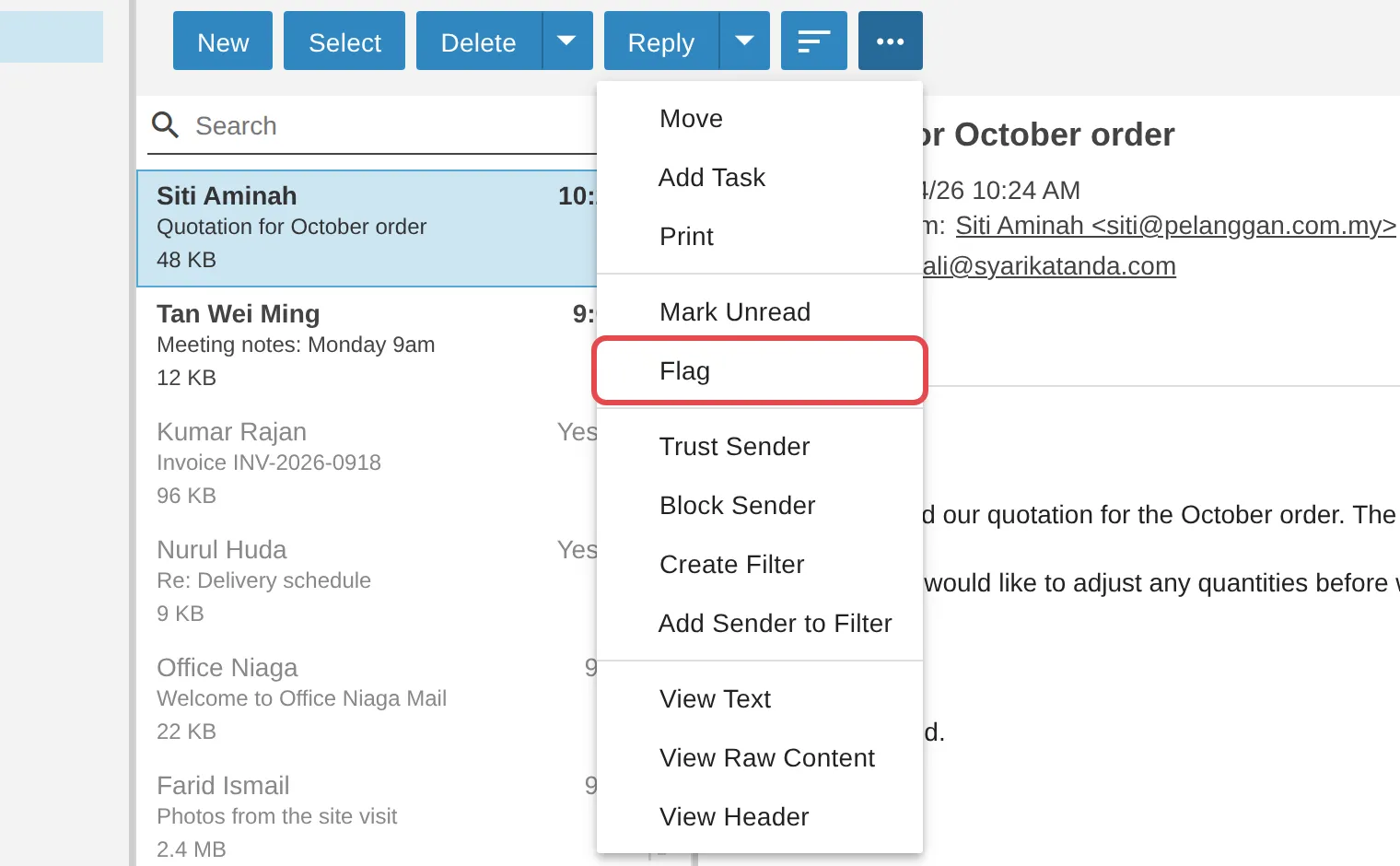
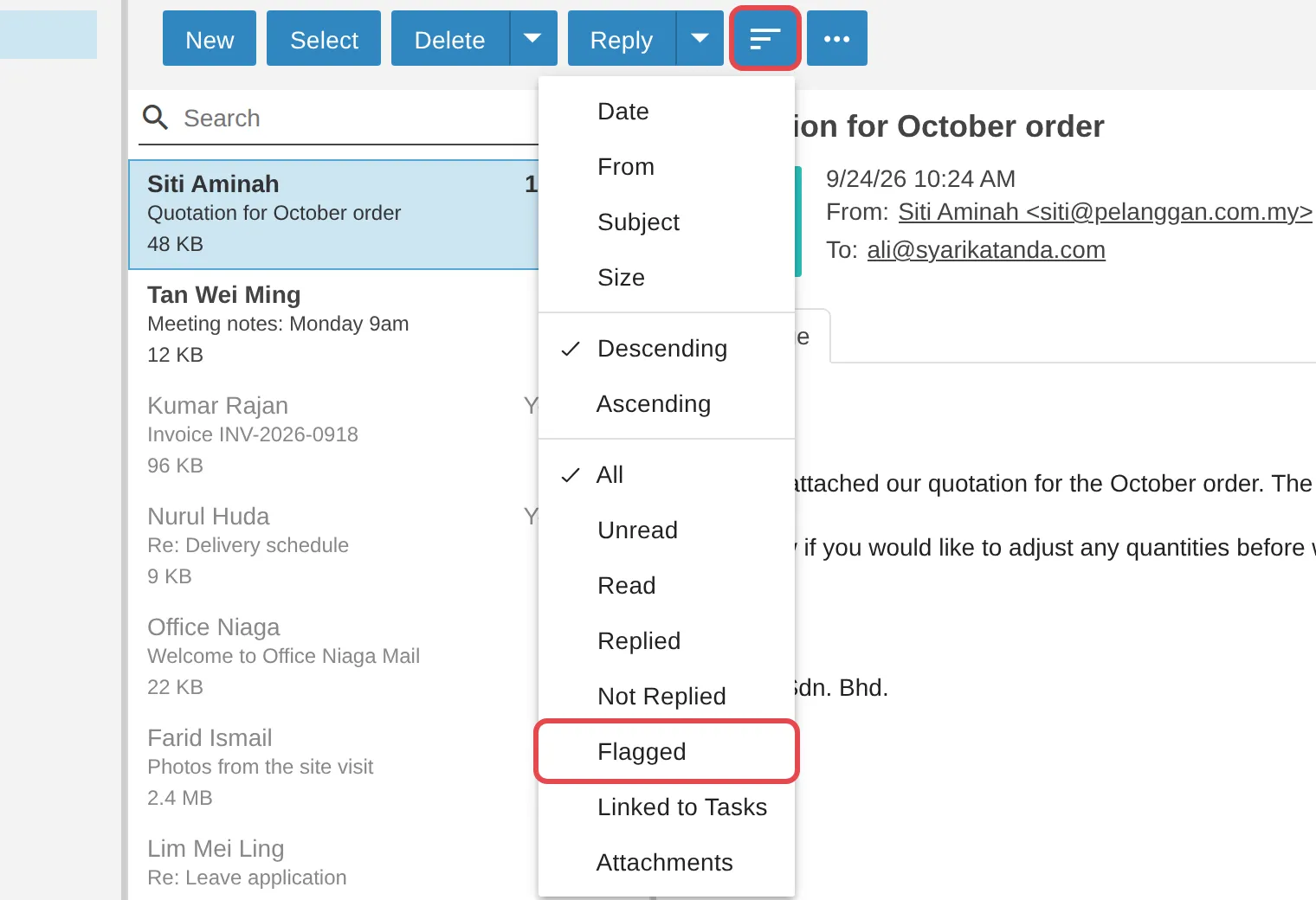
To see only flagged emails, click the sort icon (three lines, next to the … button) and choose Flagged. Choose All to see every email again.
Still stuck
Section titled “Still stuck”WhatsApp our support team at +60 16-916 3324.
Common issues
Can emails be moved to a folder automatically?
Yes. Use content filtering - see Filter email by content.
Was this article helpful?
Thanks for your feedback.
Sorry this didn't help. WhatsApp us and we'll sort it out with you.