
Ask an AI about this page
 ChatGPT
 Claude
 Perplexity
 Google AI Mode
 Microsoft Copilot
 Grok
 Mistral Le Chat
Set up your Gmail signature & out-of-office reply
Set your signature and out-of-office reply in the same place: Gmail Settings → See all settings → General, on your computer.
Create a signature with a logo
Section titled “Create a signature with a logo”Do this on a computer, and have your company logo ready as an image file.
-
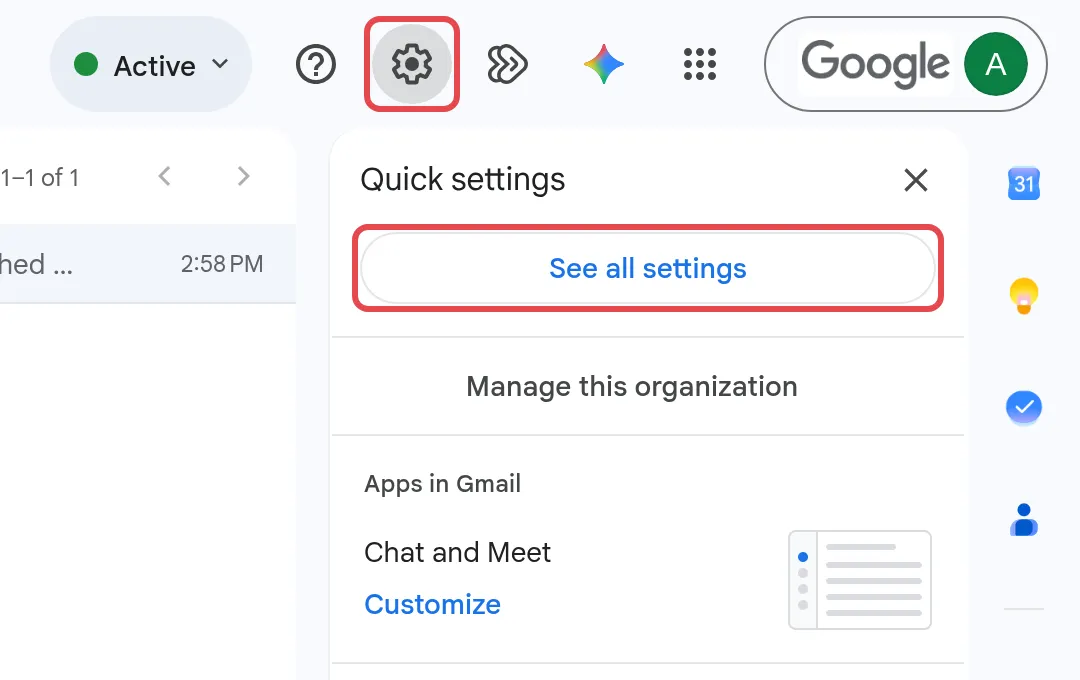
Click the gear icon, then See all settings.
-
Stay on the General tab and scroll to Signature.

-
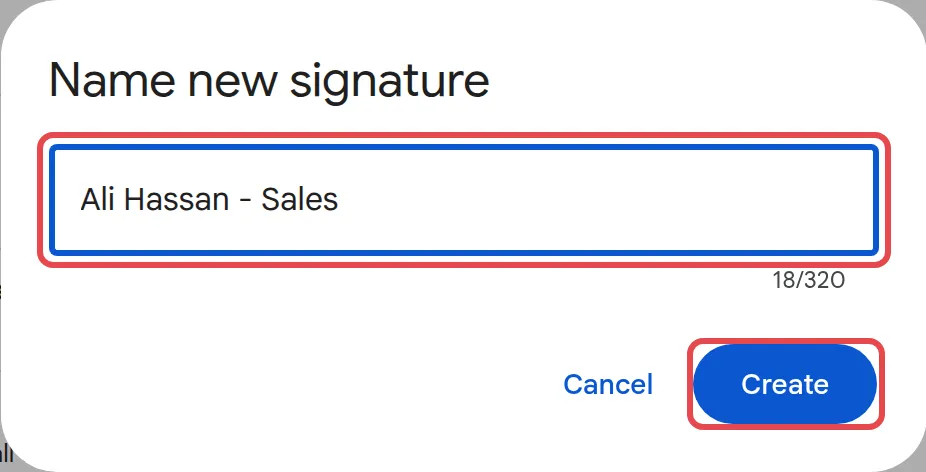
Click Create new, name it, then type your signature text.
-
Use the formatting toolbar to insert your company logo.
-
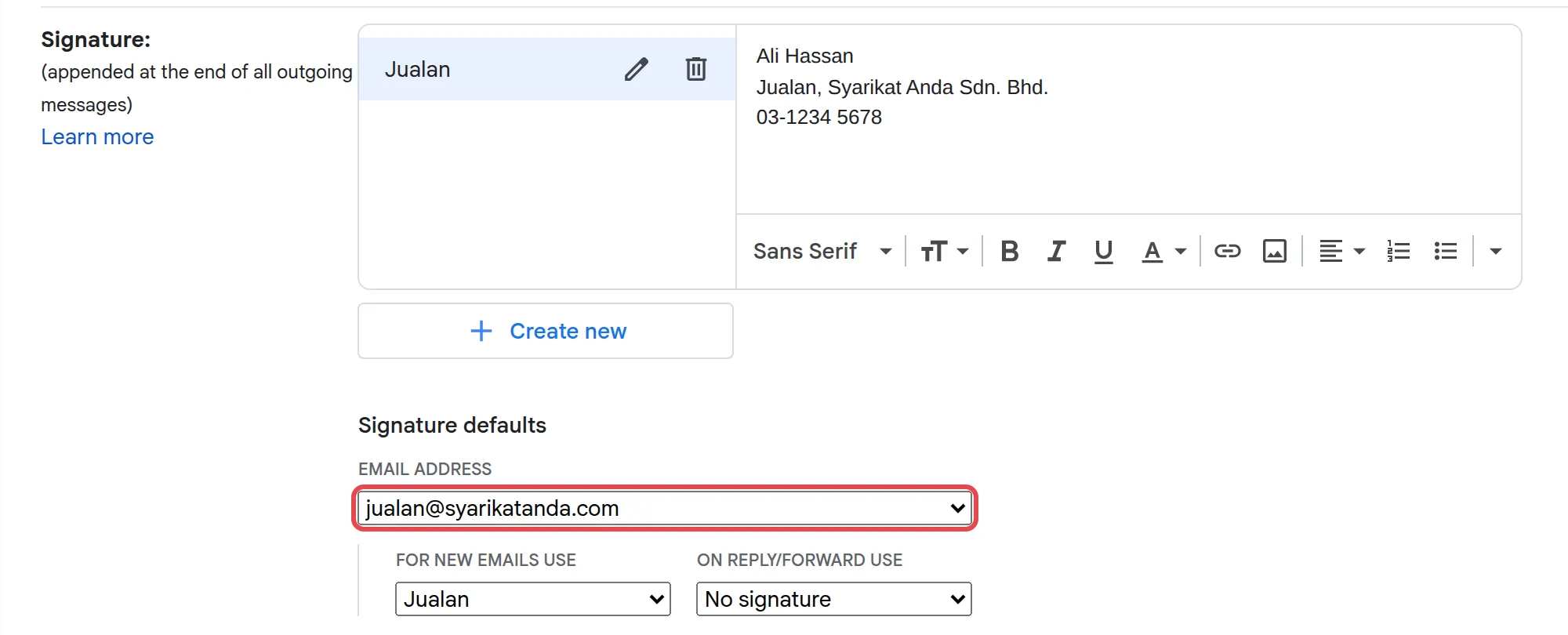
Use the FOR NEW EMAILS USE and ON REPLY/FORWARD USE dropdowns to set this signature as default.
-
Click Save Changes.
Sending from more than one address? First add the alias under Accounts → Send mail as, then pick it from the address dropdown under Signature defaults, below the signature box, to give it its own signature.
Turn on the vacation responder
Section titled “Turn on the vacation responder”Set this before you go on leave, so people who email you know when you will be back.
-
On the same General tab, scroll to Vacation responder.
-
Select Vacation responder on.
-
Set a start date and, if known, an end date.
-
Fill in Subject and Message.
-
Optionally limit replies to people in your contacts.
-
Click Save Changes.
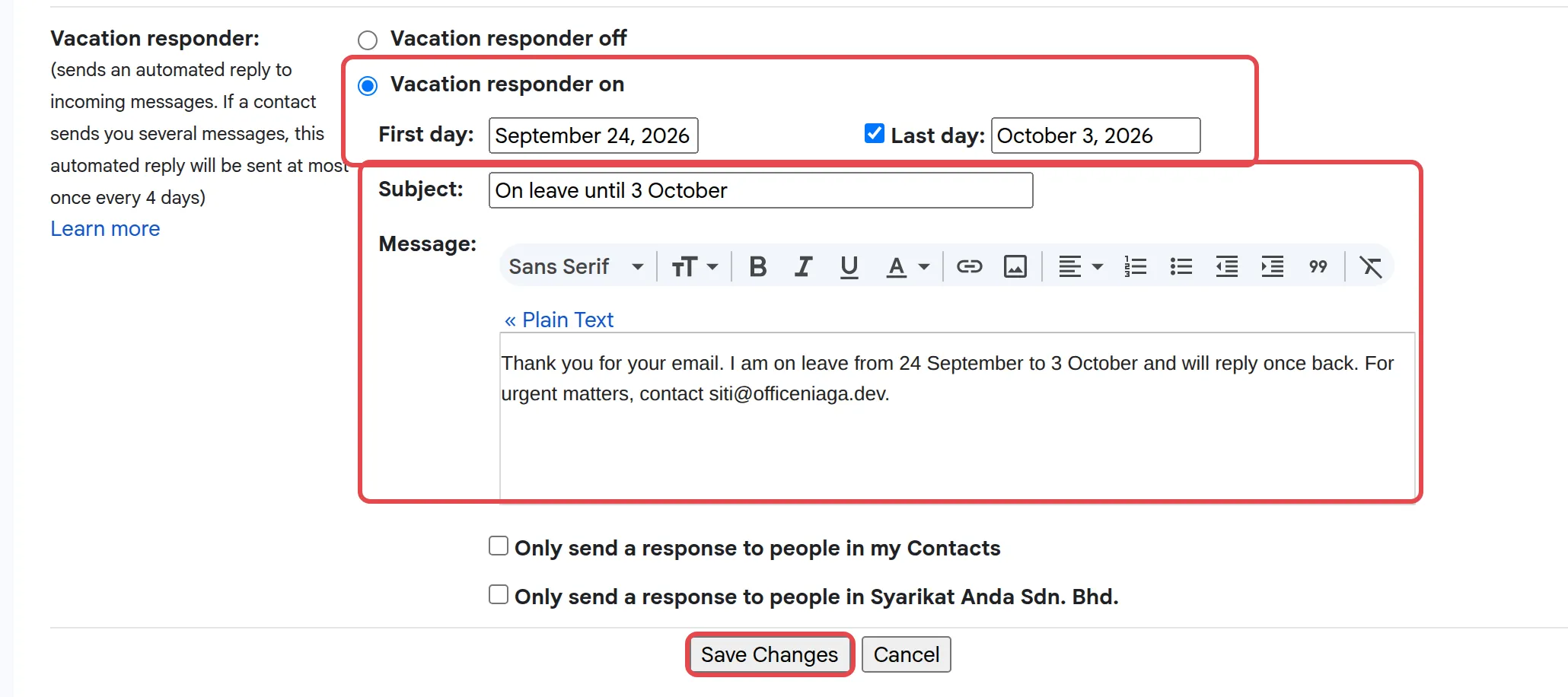
Sample message: “Thank you for your email. I am on leave from [date] to [date] and will reply once back. For urgent matters, contact [name/email].”
On your phone
Section titled “On your phone”The Gmail app has its own signature and vacation responder, set separately:
-
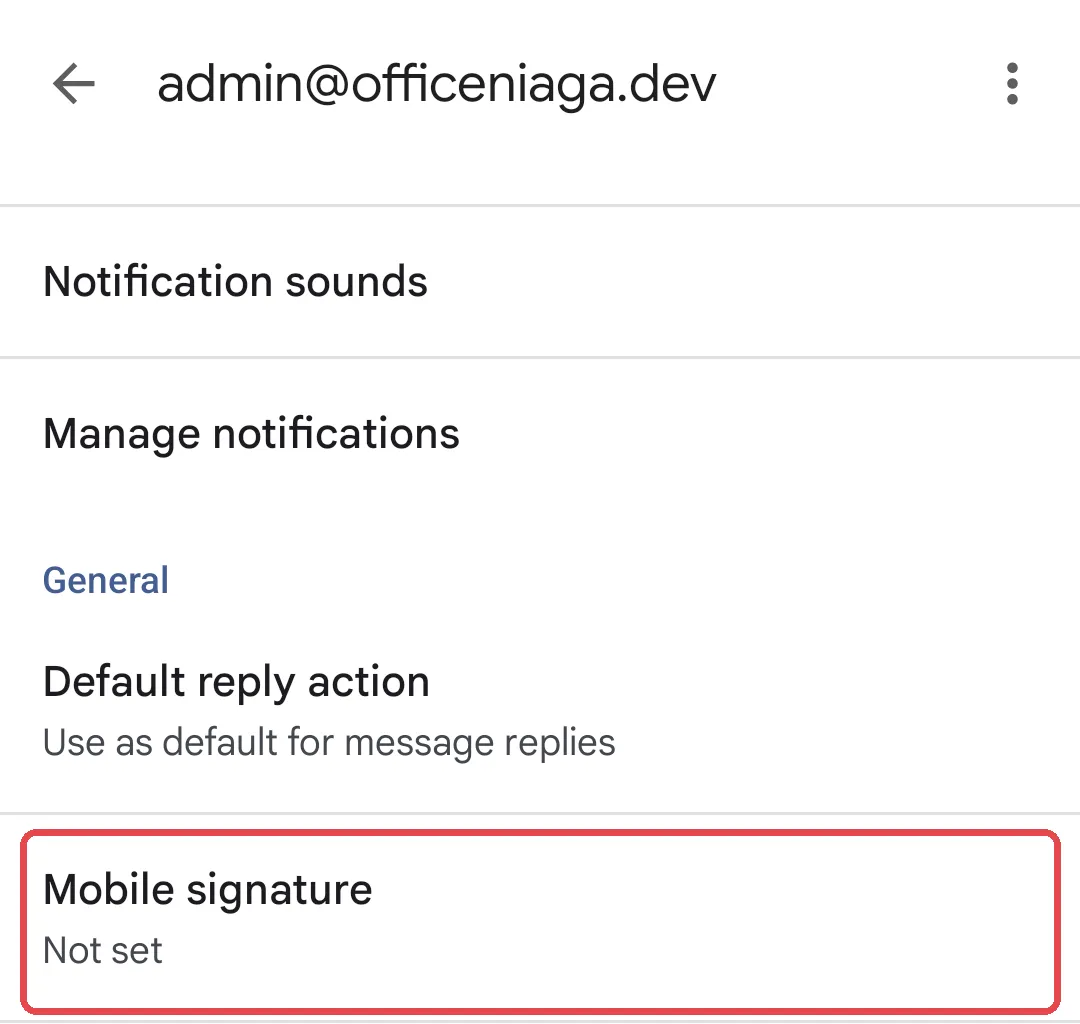
Android: Menu icon → Settings → your account → Mobile signature or Vacation responder.
-
iPhone: Menu icon → Settings → your account → Compose and Reply → Signature settings (turn on Mobile Signature) or Vacation responder.
If Gmail is not on your phone yet, see set up Gmail on your phone. Using Office Niaga Mail instead of Gmail? See add an email signature in webmail.
Still stuck
Section titled “Still stuck”WhatsApp our support team at +60 16-916 3324.
Common issues
Can I have a different signature for each email alias?
Yes, once the alias is added under Send mail as. In Settings → See all settings → General, the address dropdown under Signature defaults, below the signature box, then lets you pick that alias and give it its own signature. It only appears once you have two or more Send mail as addresses.
Why does my phone use a different signature than my computer?
The Gmail app has its own mobile signature, separate from the one you set on the computer. If you never set one in the app, it falls back to your computer signature. If Gmail is not on your phone yet, see set up Gmail on your phone.
Will the vacation responder reply to every email, every time?
Usually once per sender. The same person gets it again if they email after four days while it is still on, or after you edit the reply. Mail sent to spam or to a mailing list gets no reply.
Was this article helpful?
Thanks for your feedback.
Sorry this didn't help. WhatsApp us and we'll sort it out with you.