
Upload files & organise folders in Google Drive
Updated For Google Workspace

Upload files or whole folders from the New button or by dragging them in, then keep things tidy with folders, stars and colours.
Upload files or a folder
Section titled “Upload files or a folder”Use a computer browser for this. Uploading a folder keeps its subfolders and files together.
-
Go to drive.google.com and sign in with your work email.
-
Open the folder you want to upload into, or stay in My Drive.
-
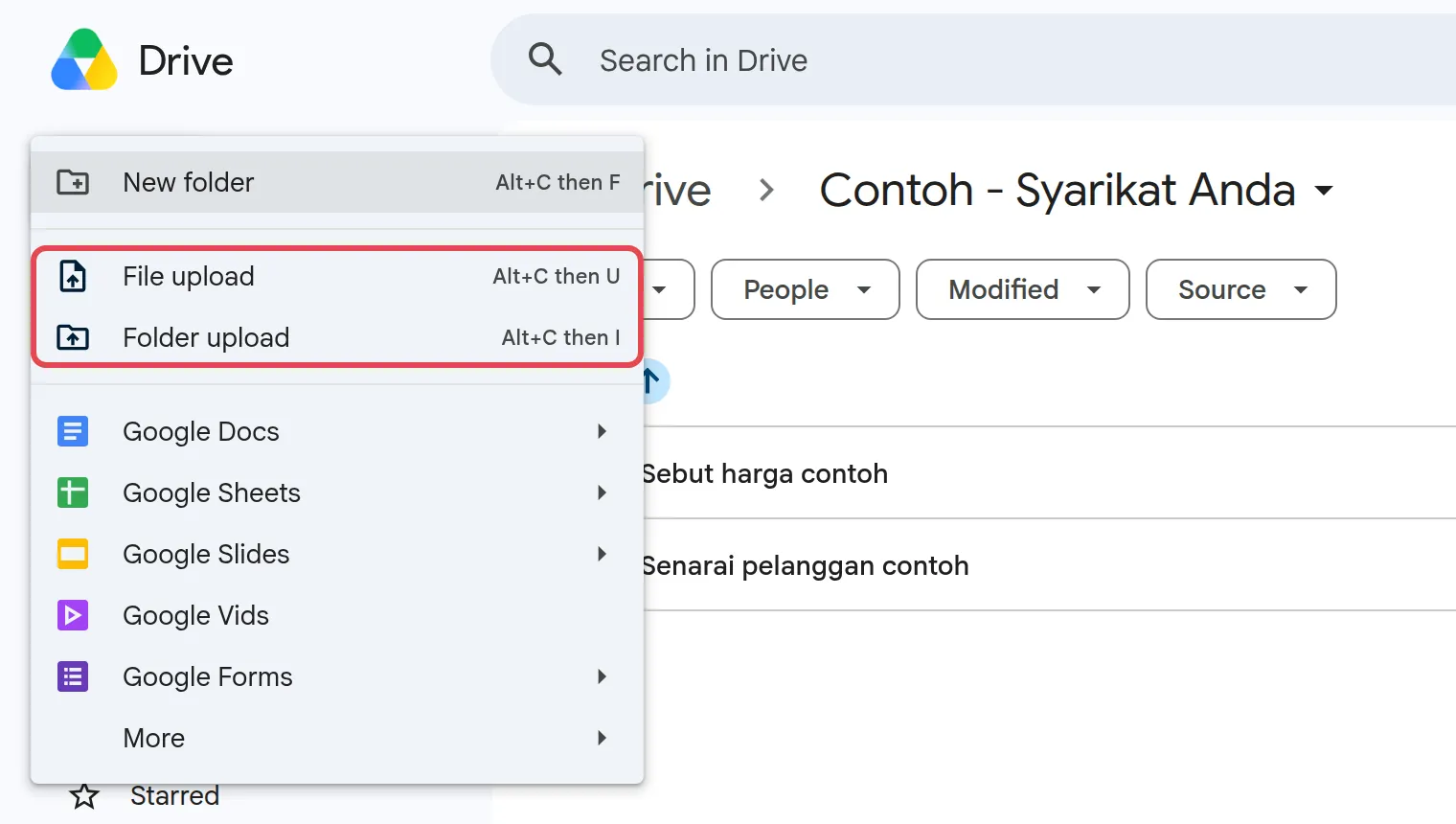
Click New at the top left.
-
Choose File upload or Folder upload.
-
Pick the file or folder on your computer. A progress box at the bottom right shows when the upload is done.
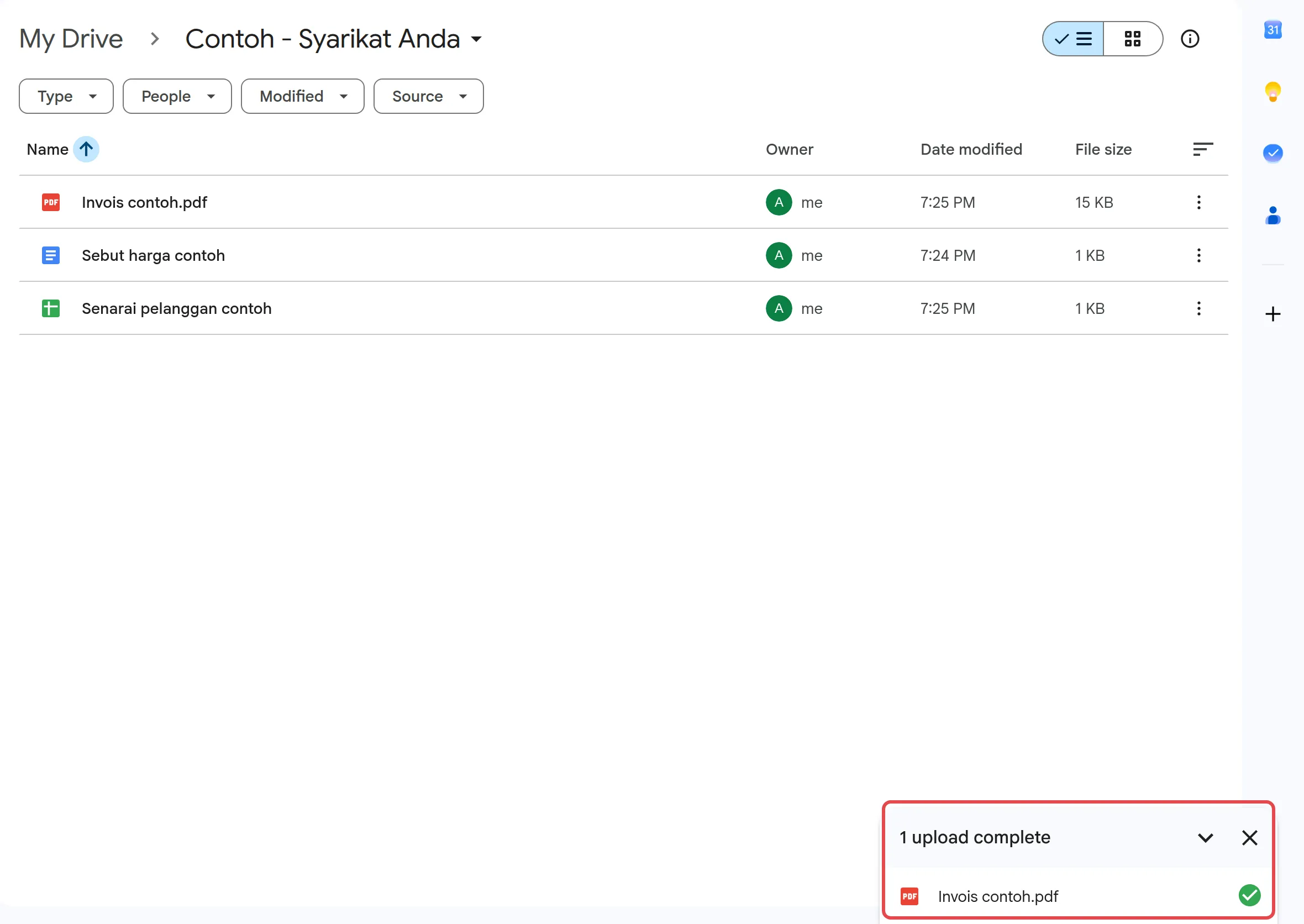
You can also drag files or folders from your desktop straight into an open Drive window.
Create a folder
Section titled “Create a folder”Set up folders before you upload, for example one per client, project or department.
-
Click New, then New folder.
-
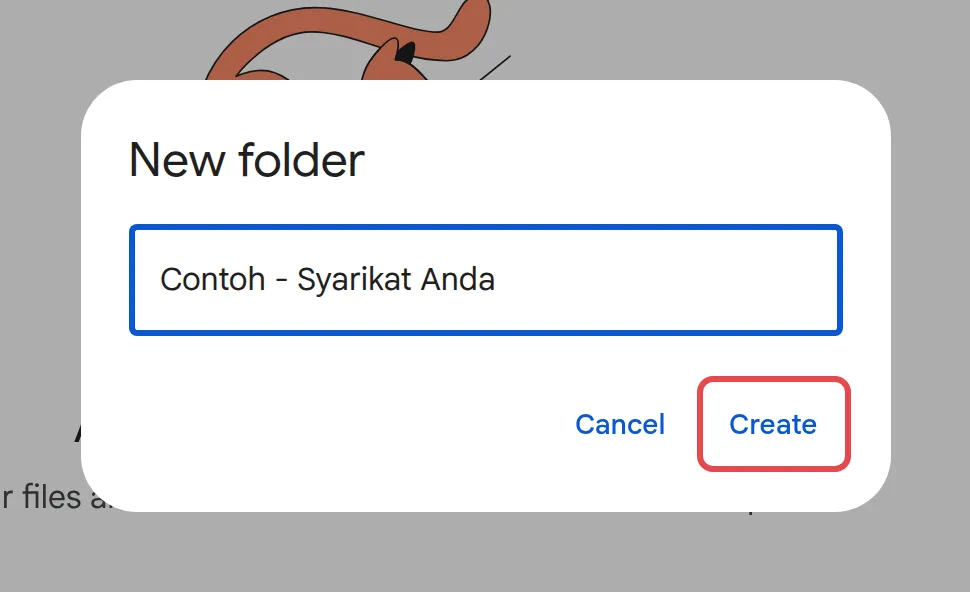
Type a name.
-
Click Create.
Folders can go inside folders. Short, clear names with a date or client name, such as “2026-09 Invoices”, make searching easier later.
Move, star or colour a file or folder
Section titled “Move, star or colour a file or folder”Right-click any file or folder in Drive to see these options under Organize.
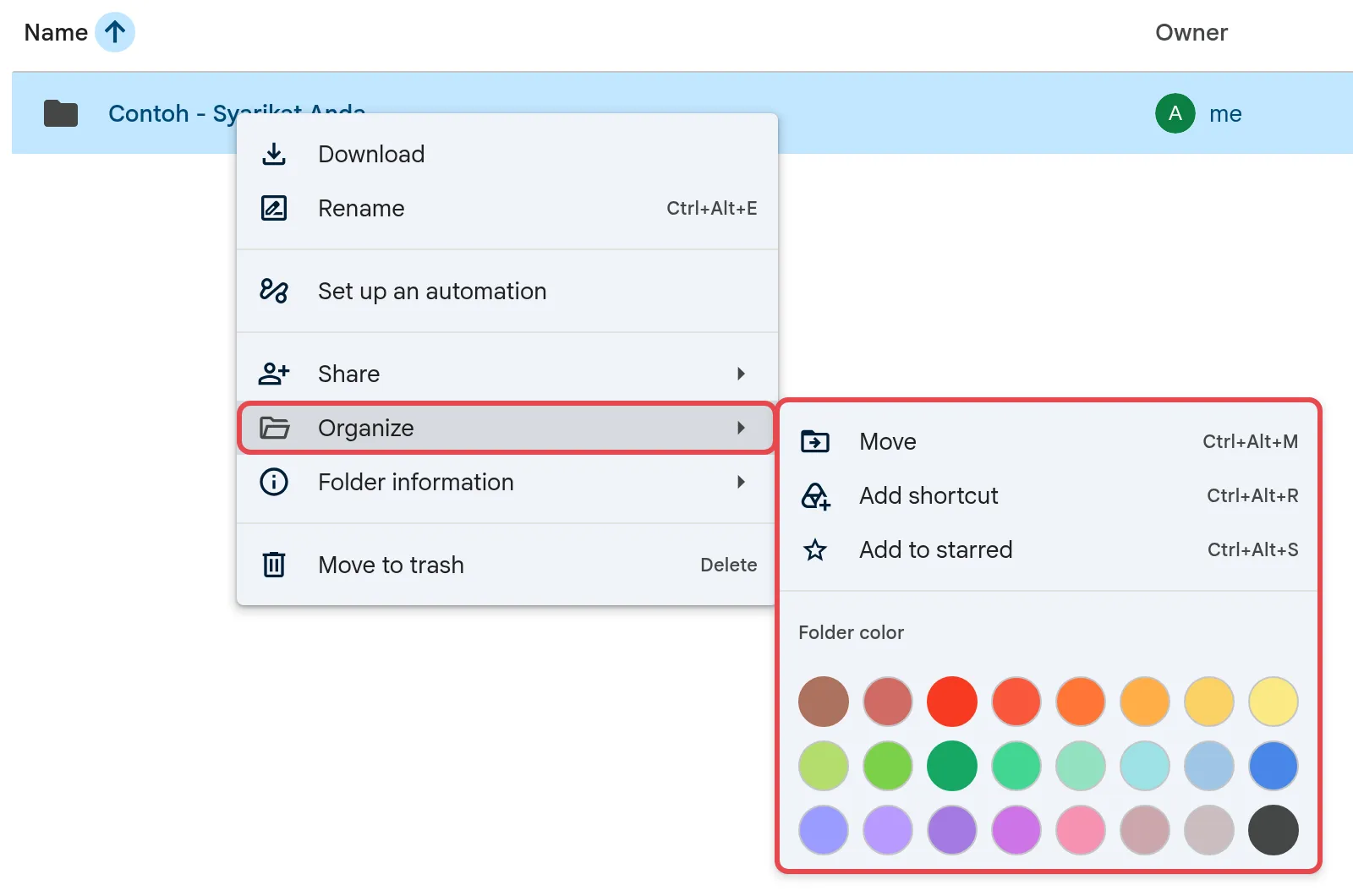
- Move: click Organize > Move, choose the folder, then click Move. You can also drag an item onto a folder.
- Star: click Organize > Add to starred. Starred items appear under Starred on the left.
- Colour a folder: click Organize, then pick a colour under Folder color. Only you see the colour.
- Shortcut: click Organize > Add shortcut to show the same file in a second folder without copying it.
If you do not have permission to move a file out of a shared folder, Drive adds a shortcut in the new place instead.
On your phone
Section titled “On your phone”Uploads from the Google Drive app go to My Drive unless you choose a folder.
- Android: open the Google Drive app, tap New, then Upload, and choose the files.
- iPhone: open the Google Drive app, tap the + button, then File upload. Tap Location to pick a folder.
Ready to give colleagues access? See share a Google Drive file or folder.
Still stuck
Section titled “Still stuck”WhatsApp our support team at +60 16-916 3324.
Common issues
I uploaded a file and it replaced the older one. Why?
If you upload a file with the same name into the same place, Drive saves it as a new version of the existing file. To keep both, click Keep both files when Drive asks.
Can I convert Word or Excel files to Google Docs and Sheets when I upload?
Yes. In Drive, click the gear icon, then Settings, and tick Convert uploads to Google Docs editor format. This only changes future uploads and can only be set on a computer.
Does uploading into a colleague's folder use my storage?
Yes. A file you upload counts towards your own storage, even in a folder someone else owns. If you are running low, see Google Workspace storage full.
Was this article helpful?
Thanks for your feedback.
Sorry this didn't help. WhatsApp us and we'll sort it out with you.