
Record a Google Meet meeting
Updated For Google Workspace

Record a Google Meet meeting to share with people who missed it or to keep for training. The recording goes into the organiser’s Google Drive.
Check that you can record
Section titled “Check that you can record”Recording depends on your plan, your admin and the meeting host.
- Plan: Business Standard, Business Plus and Enterprise plans include recording. Business Starter does not. Compare plans on our pricing page, or see licences & renewal to change plan.
- Admin: your Google Workspace admin must allow recording in the Admin console.
- Host: you can record if you are the host, or if the host has permission to record and has not locked recording in Host controls.
- Device: record from a computer or an Android device. You cannot start a recording on an iPhone.
Start & stop recording
Section titled “Start & stop recording”Get everyone’s consent before you record, including external guests and people who join late. Everyone in the meeting is notified when recording starts and stops.
-
Join the meeting on your computer.
-
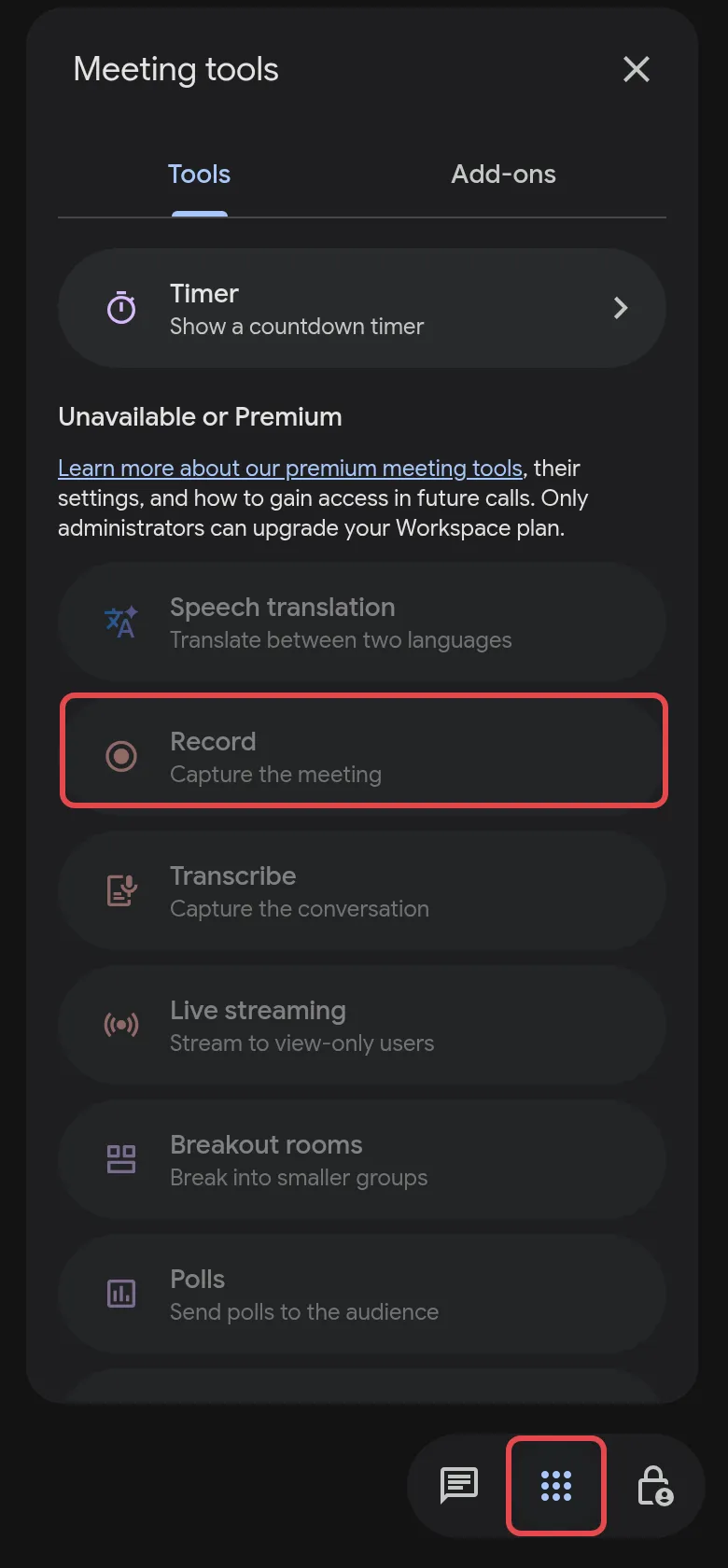
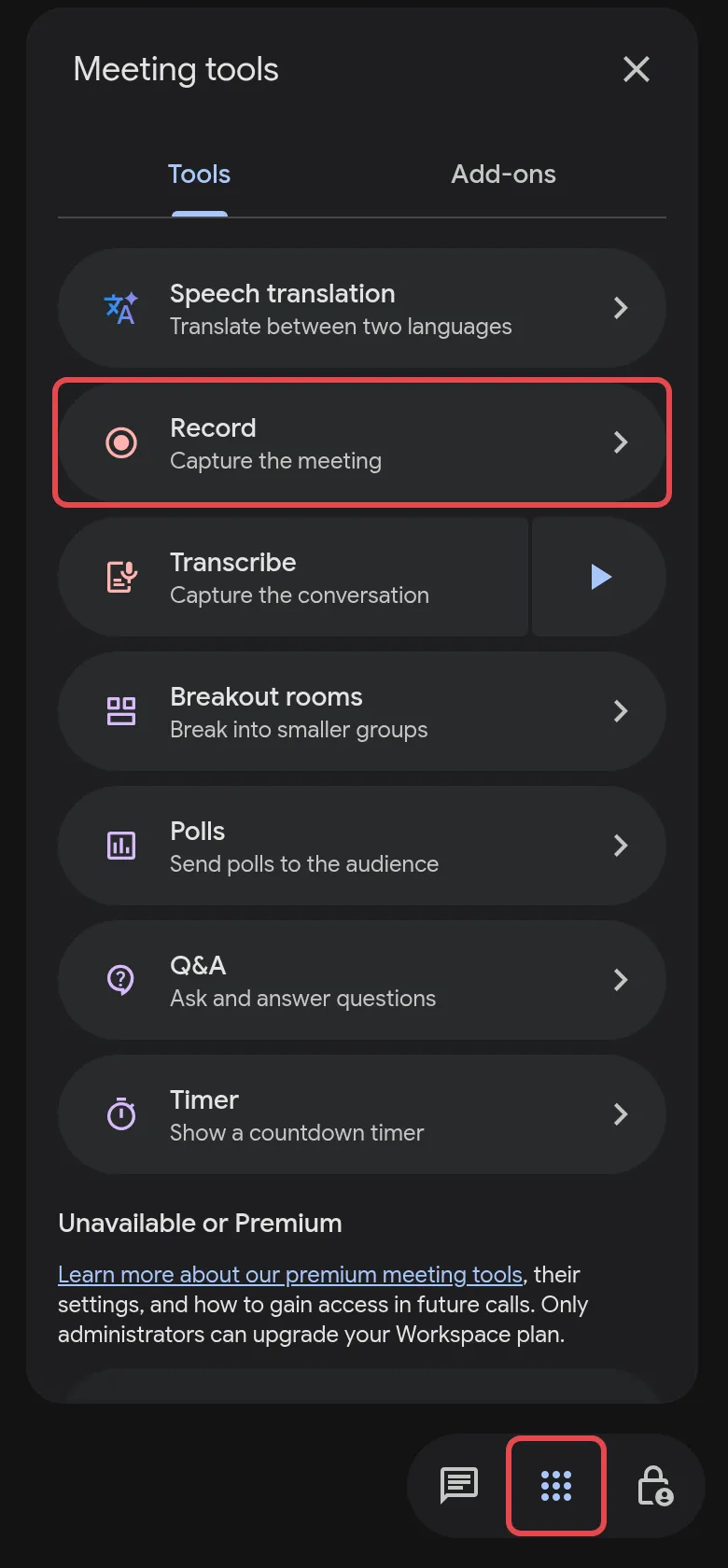
At the bottom right, click Meeting tools, then Record. On Business Starter, Record is listed under Unavailable or Premium and cannot be used.
-
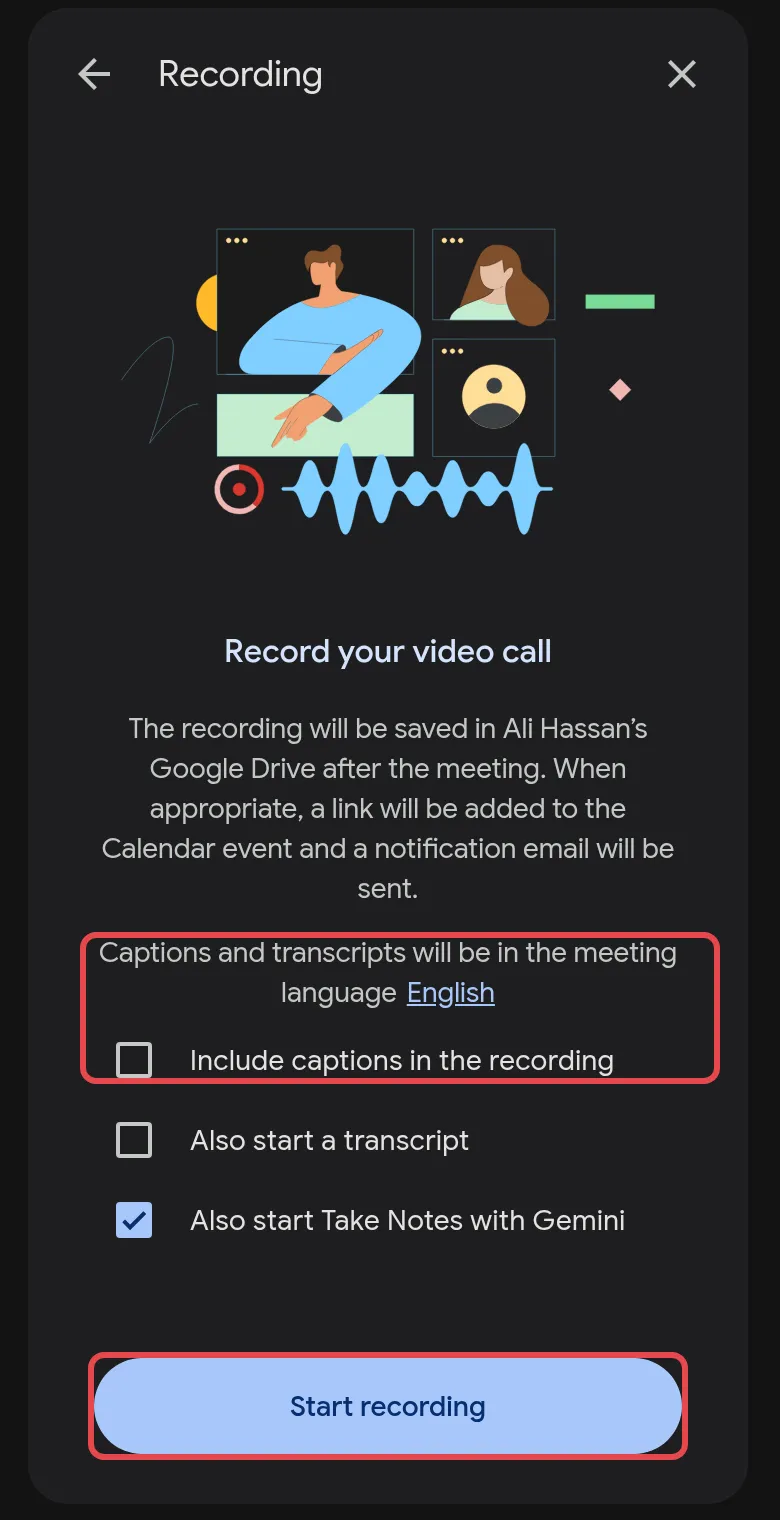
Choose a caption language if you want captions saved with the video. Also start Take Notes with Gemini is ticked by default, so untick it if you do not want Gemini notes.
-
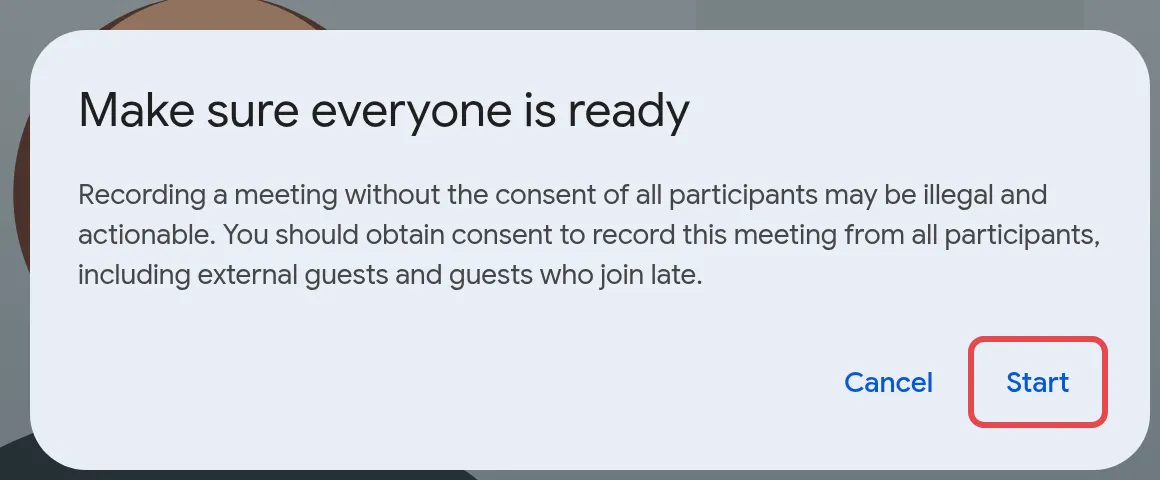
Click Start recording. The Make sure everyone is ready pop-up reminds you to get consent from all participants. Click Start.
-
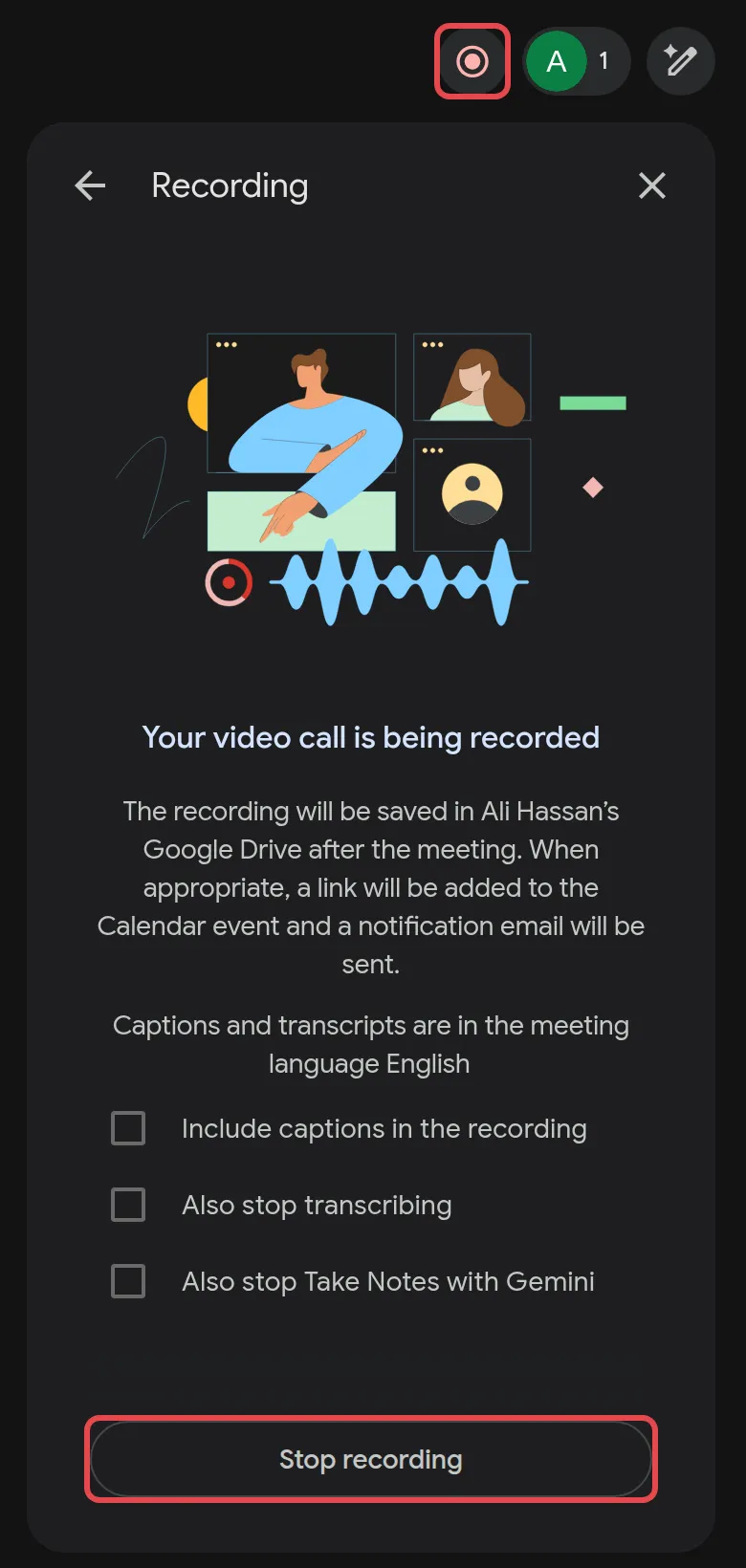
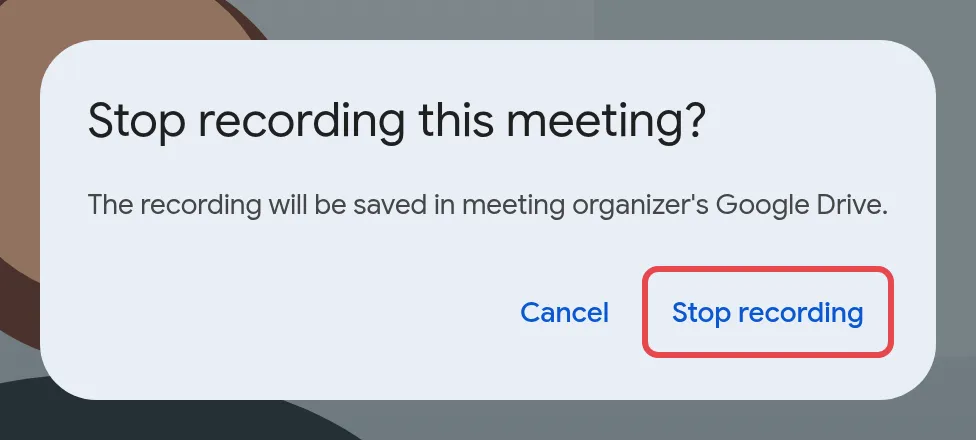
To stop, click Meeting tools > Record > Stop recording, then Stop recording again in the pop-up.
Find & share the recording
Section titled “Find & share the recording”The recording is saved to the organiser’s Drive, even if someone else pressed record.
- Drive: in the organiser’s My Drive, open the Google Meet folder. Each meeting has its own subfolder. Recordings made before July 2026 are in Legacy Meet Recordings inside that folder.
- Email: the organiser and the person who started recording get an email with the link.
- Calendar: if the meeting was in Calendar, the recording link is added to the event, and colleagues invited to it get access automatically.
To share with others, right-click the recording in Drive and click Share, as with any file. See share a Google Drive file.
Start recording automatically
Section titled “Start recording automatically”For a meeting you always record, such as a weekly training, set recording to start by itself. A repeating event keeps the setting for every meeting in the series.
- Open the Calendar event and click Video call options next to Join with Google Meet.
- Click Meeting records.
- Tick Record the meeting, then click Save.
Recording starts once the host or a co-host joins the meeting on a computer.
Still stuck
Section titled “Still stuck”WhatsApp our support team at +60 16-916 3324.
Common issues
I cannot start a recording in my meeting. Why?
Either your plan does not include recording (on Business Starter, Record is listed under Unavailable or Premium), your admin has not turned it on, or the host has not allowed others to record. If you are on Business Starter, ask us about moving to a plan with recording.
The meeting ended but I have no recording email yet.
Recordings take time to process, longer for long meetings. The email goes to the organiser and the person who started the recording. In Drive, the file shows Still processing until it is ready.
Recording stopped on its own. What happened?
A recording stops after 8 hours, when everyone leaves, or when the organiser's Drive or the company's storage is full. See Google Workspace storage full.
Was this article helpful?
Thanks for your feedback.
Sorry this didn't help. WhatsApp us and we'll sort it out with you.