
Sediakan e-mel di Mozilla Thunderbird
Tambah akaun Office Niaga Mail ke Thunderbird dengan IMAP, server mail.officeniaga.com, port 993 untuk e-mel masuk dan port 465 untuk e-mel keluar.
Langkah
Section titled “Langkah”-
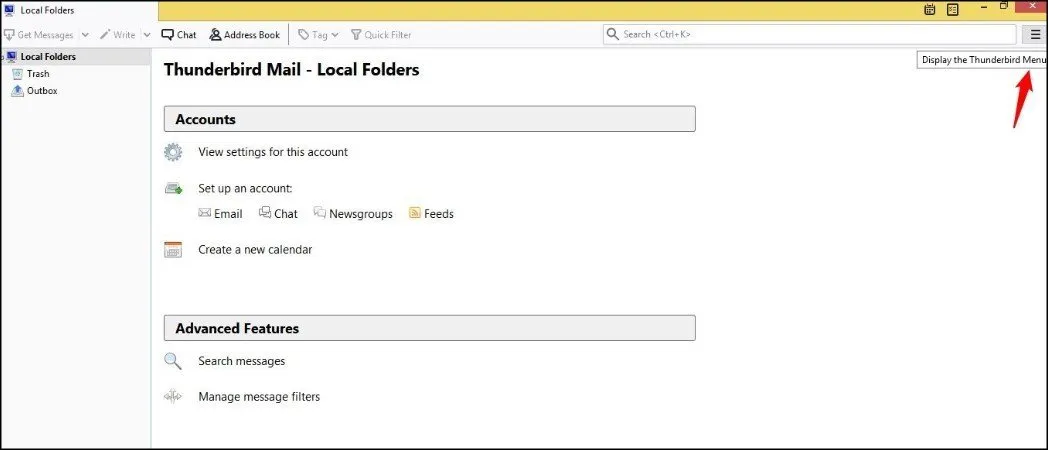
Buka Thunderbird. Klik butang Menu (≡) di sebelah kanan atas.
-
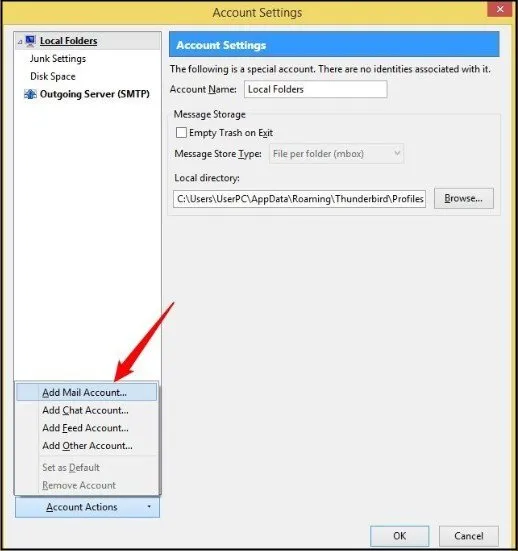
Klik Account Settings, kemudian Account Actions dan Add Mail Account.
-
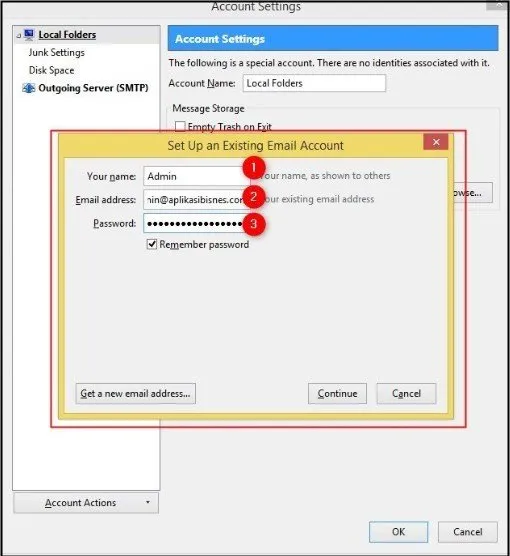
Masukkan Your full name, Email address dan Password, kemudian klik Continue.
-
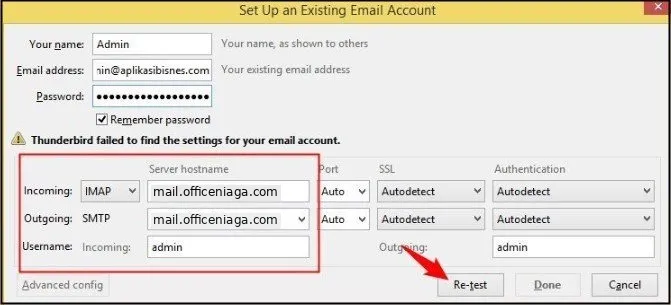
Jika Thunderbird tidak menemui tetapan, klik Configure manually dan isikan:
- Incoming: IMAP,
mail.officeniaga.com, port 993, SSL/TLS - Outgoing: SMTP,
mail.officeniaga.com, port 465, SSL/TLS - Username: alamat e-mel penuh anda
Klik Re-test, kemudian Done.
- Incoming: IMAP,
-
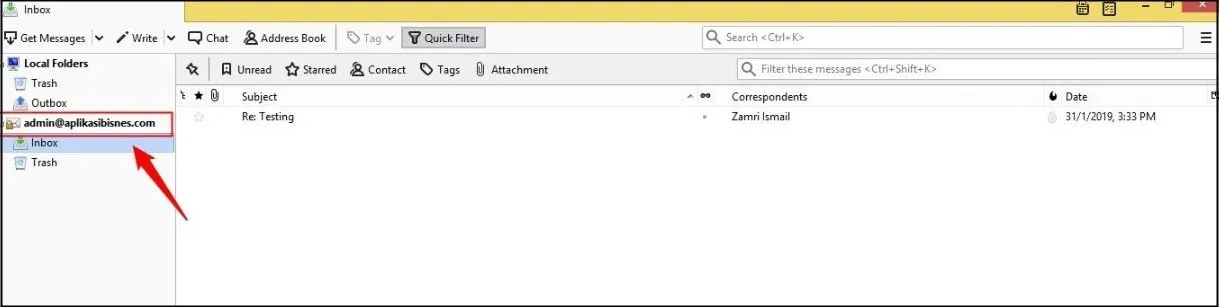
Akaun anda ditambah dan e-mel akan dipaparkan.
Masih ada masalah?
Section titled “Masih ada masalah?”Hubungi pasukan sokongan kami melalui WhatsApp di +60 16-916 3324.
Common issues
Thunderbird memaparkan "failed to find the settings".
Klik Configure manually dan masukkan tetapan sendiri - IMAP port 993 dan SMTP port 465, kedua-duanya SSL/TLS, server mail.officeniaga.com.
Was this article helpful?
Thanks for your feedback.
Sorry this didn't help. WhatsApp us and we'll sort it out with you.