
Gemini Notebook (formerly NotebookLM) for work
Updated For Google Workspace

Gemini Notebook, formerly NotebookLM, answers questions using only the files you give it, with citations back to the source. It is included with all Google Workspace Business and Enterprise plans, and higher plans get higher limits.
Create a notebook & add sources
Section titled “Create a notebook & add sources”A notebook holds the files for one project or topic.
-
Go to notebook.google.com and sign in with your work email. The first time, it opens straight into a new Untitled notebook with a Welcome to Gemini Notebook! box. Click Okay, and you can add sources to this notebook right away.
-
To start another notebook later, click Create notebook at the top right of any notebook.

-
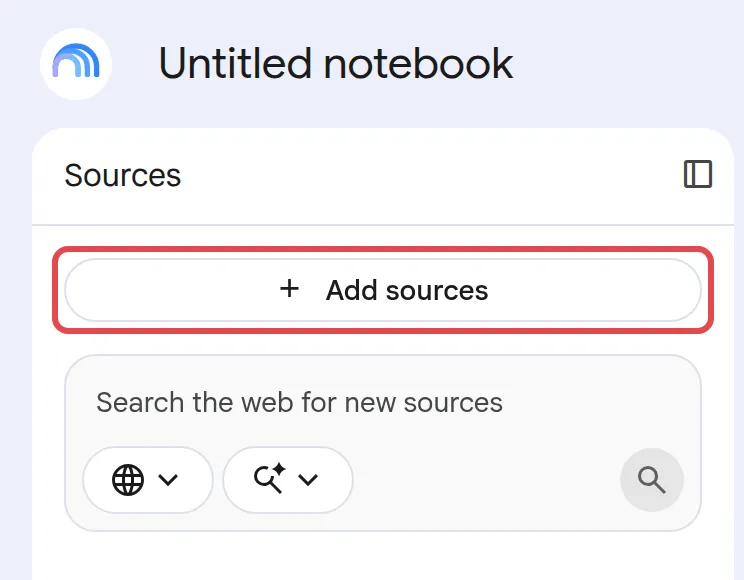
Click Add sources and add what you need: PDFs, Google Docs, Slides and Sheets from Drive, website links, YouTube videos or audio files.
-
Wait a moment while Gemini Notebook reads them.
Each notebook is separate. Gemini Notebook cannot combine information from two notebooks at once.
Ask questions about your sources
Section titled “Ask questions about your sources”The Chat panel in the middle shows a summary of your sources and a box for questions.
-
Type a question, such as “What are the payment terms in these three contracts?”

-
Read the answer. Click a numbered citation to see the exact part of the source it came from.
-
If Gemini Notebook cannot answer, try a more specific question or check that the information is really in your sources.
Save notes
Section titled “Save notes”Keep useful answers and your own thoughts in the Studio panel on the right.
-
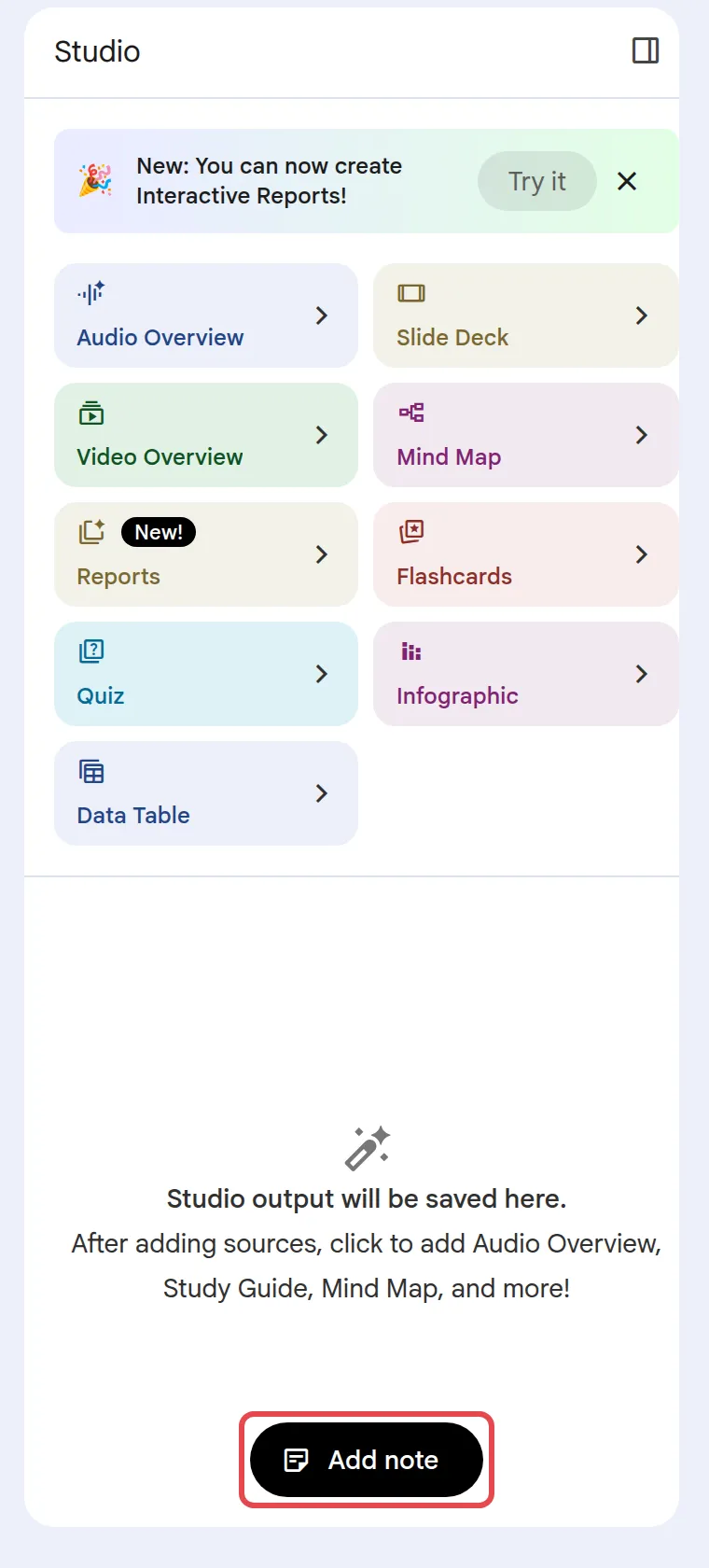
Under an answer you want to keep, click Save to Note, or click Add note to write your own.
-
To share notes outside the notebook, use the three-dot menu next to them to export to Google Docs or Sheets.
Create an Audio Overview & other outputs
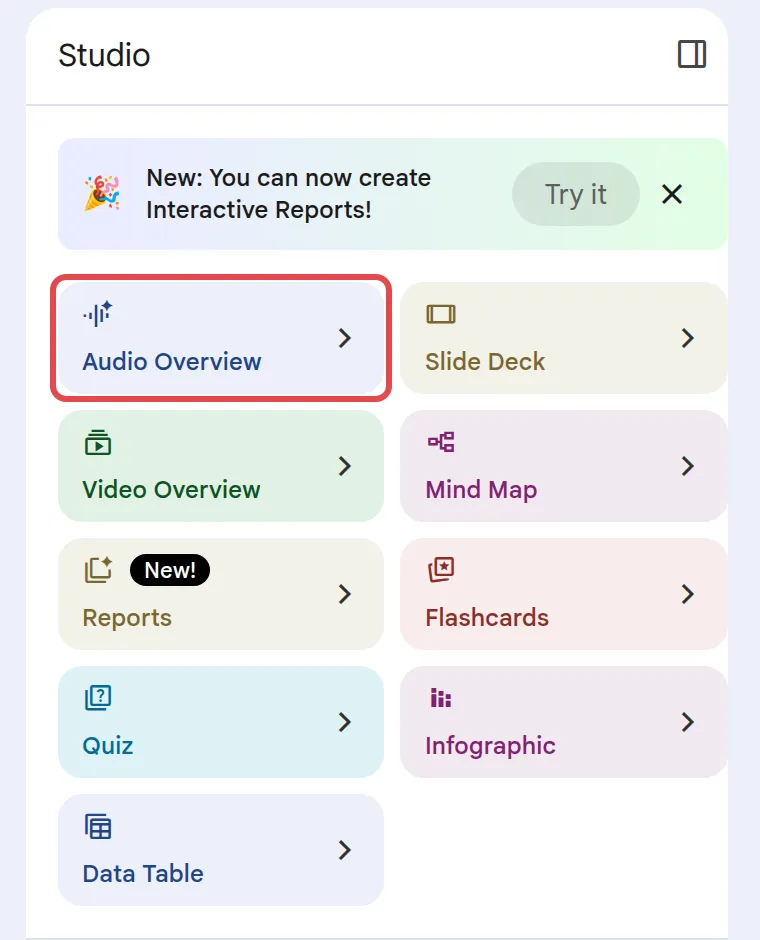
Section titled “Create an Audio Overview & other outputs”The Studio panel can turn your sources into other formats, including Audio Overview, Video Overview, Mind Map, Reports, Flashcards, Quiz, Infographic, Slide Deck and Data Table.
-
In the Studio panel, click Audio Overview.
-
Optional: choose a format such as Deep Dive or The Brief, a language and a length, or add instructions.
-
Wait a few minutes while it generates in the background, then press play.
Audio Overviews are available in more than 80 languages, including Malay. They are AI-generated, so check key facts against your sources.
Share a notebook with colleagues
Section titled “Share a notebook with colleagues”Share a notebook so your team can use the same sources.
-
Open the notebook and click Share.

-
Add your colleague’s email and choose Viewer or Editor.
Your admin decides whether notebooks can be shared with people outside your company, and can turn it off completely.
Limits by plan
Section titled “Limits by plan”Google sets limits per plan, and they may change. Business Starter gets standard limits (for example 100 notebooks, 50 sources per notebook and 3 Audio Overviews a day). Business Standard, Business Plus and Enterprise plans get higher limits, such as 300 sources per notebook and 20 Audio Overviews a day. To raise limits, upgrade your plan through Office Niaga; see our pricing page.
Still stuck
Section titled “Still stuck”WhatsApp our support team at +60 16-916 3324.
Common issues
Where did NotebookLM go?
Google renamed NotebookLM to Gemini Notebook in July 2026. It is the same tool. The old address notebooklm.google.com now takes you to notebook.google.com, and your notebooks are still there.
I cannot open Gemini Notebook with my work email. Why?
Your admin may have turned it off. Ask them to check Generative AI > Gemini Notebook in the Admin console. See turn Gemini on or off.
If I change the Google Doc I added, does the notebook update?
Yes. Drive files you add as sources sync automatically every few minutes. Files you upload from your computer do not change unless you upload them again.
Was this article helpful?
Thanks for your feedback.
Sorry this didn't help. WhatsApp us and we'll sort it out with you.