
Add an appointment to your webmail calendar
Updated For SmarterMail Build 7692

Webmail calls a calendar entry an appointment. Each appointment opens in its own window, where you fill in the subject, time, place and reminder.
Create an appointment
Section titled “Create an appointment”You can add an appointment from any calendar view.
-
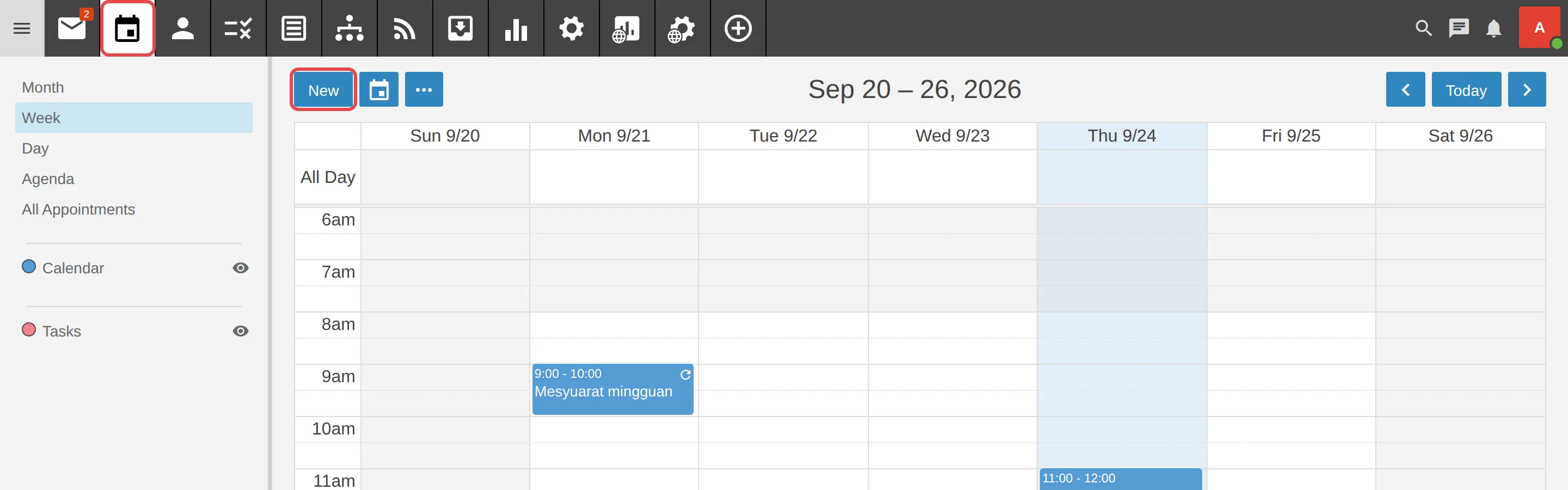
Log in to webmail, click the Calendar icon on the top bar, then click New. A new appointment window opens.
-
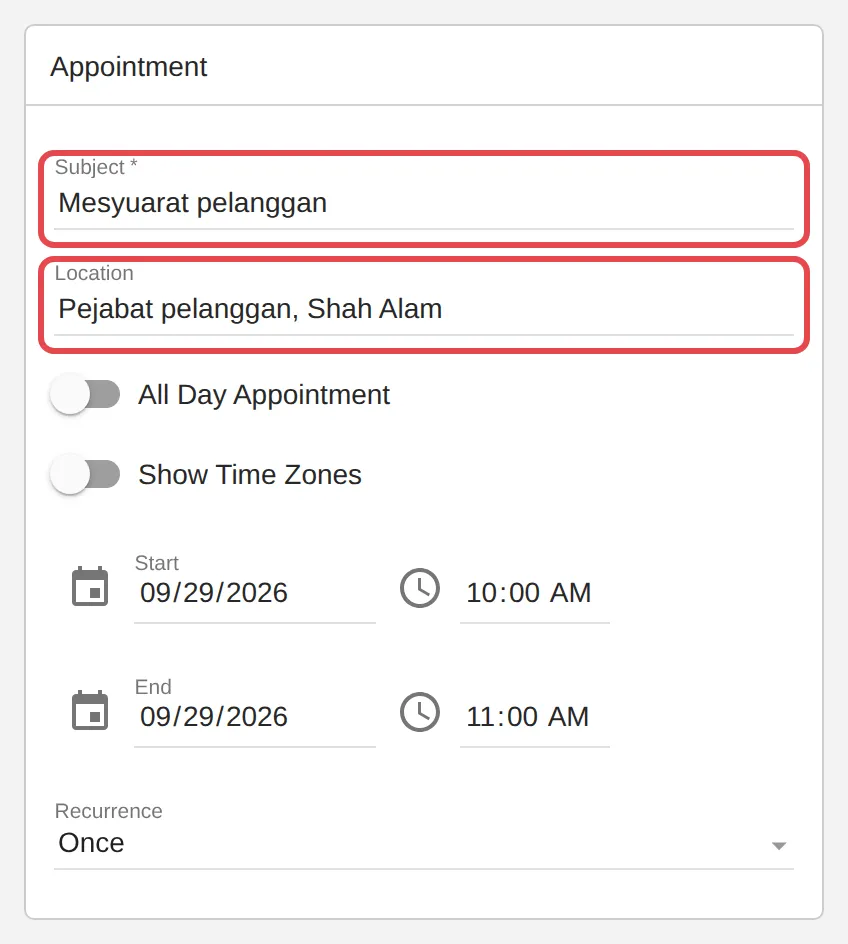
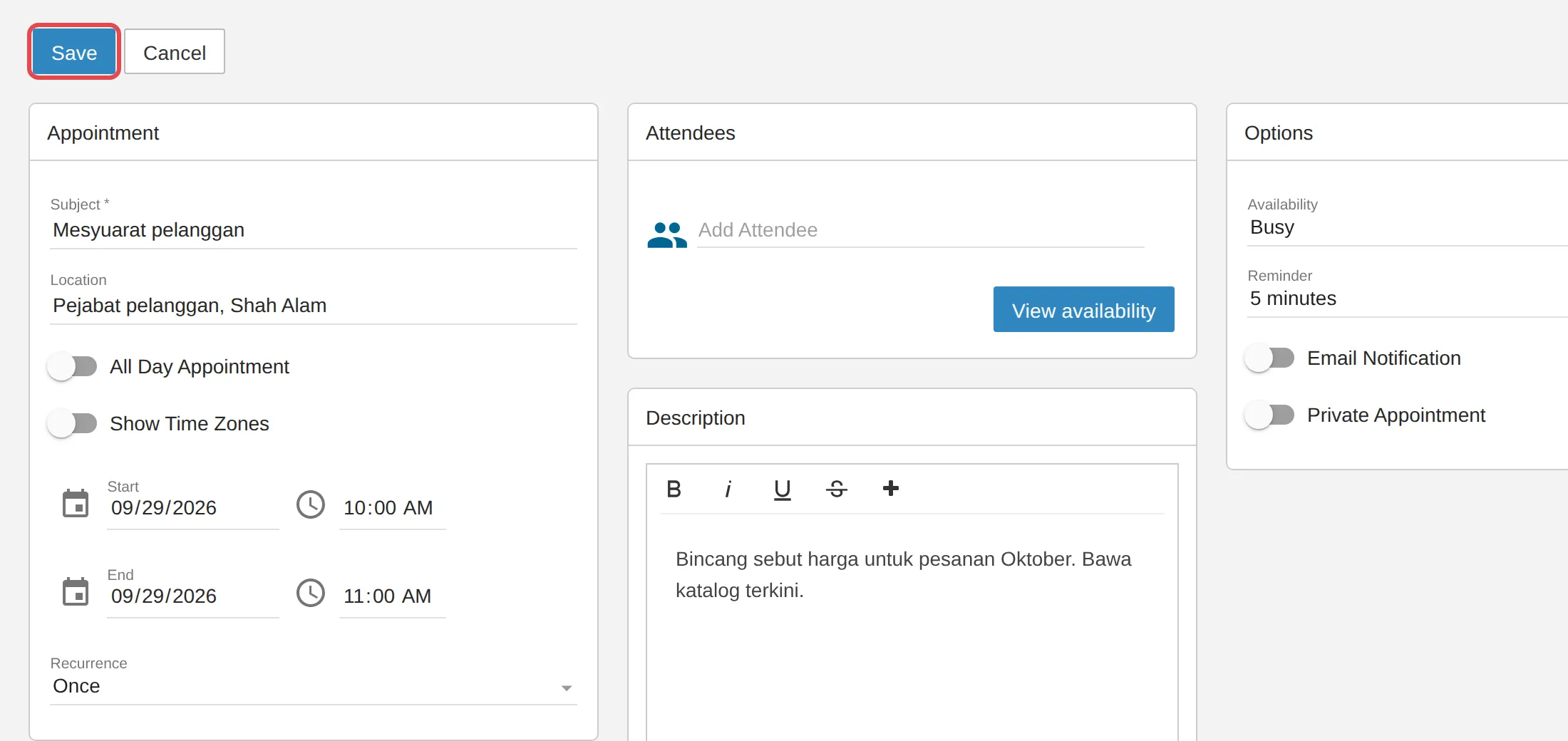
Type a Subject, for example “Mesyuarat pelanggan”. If the meeting is somewhere else, type the place in Location.
-
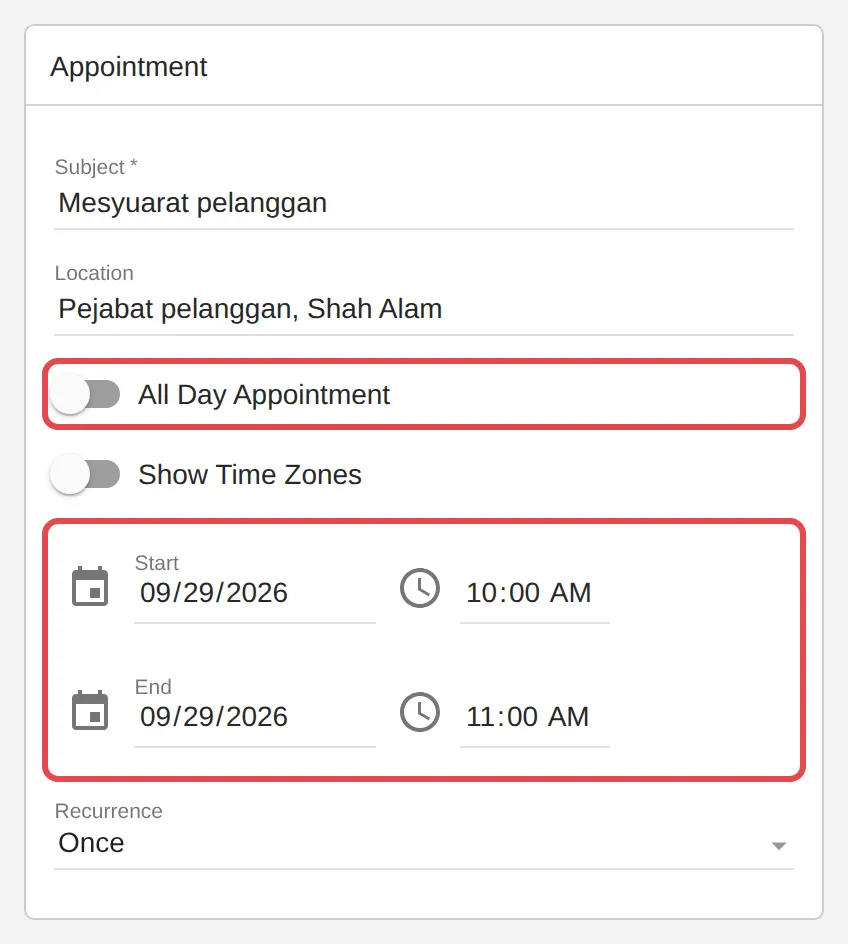
Set the Start and End date and time. For something that lasts all day, such as leave or a public holiday, turn on All Day Appointment instead.
-
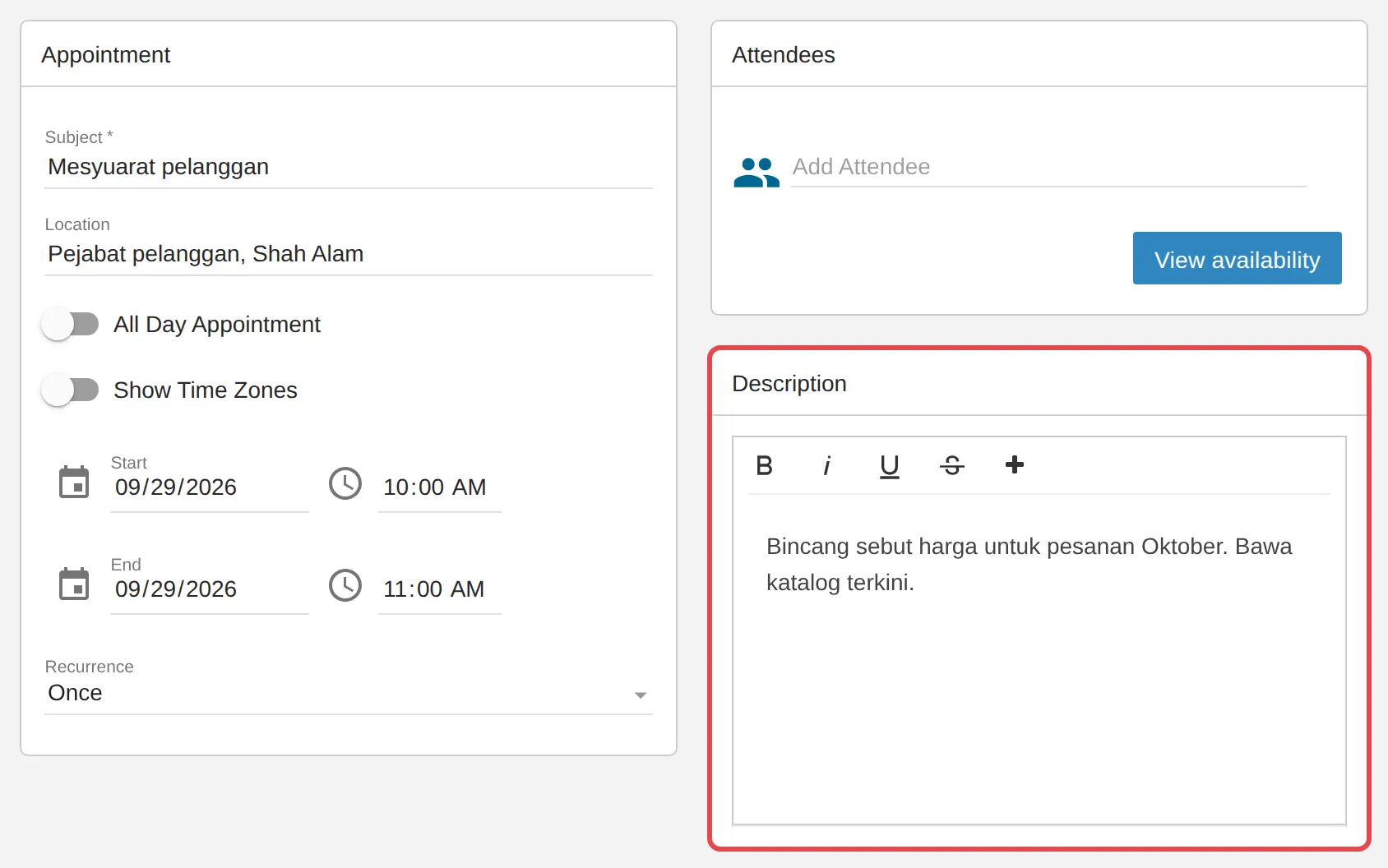
Add any notes in the Description box, for example an agenda or what to bring.
-
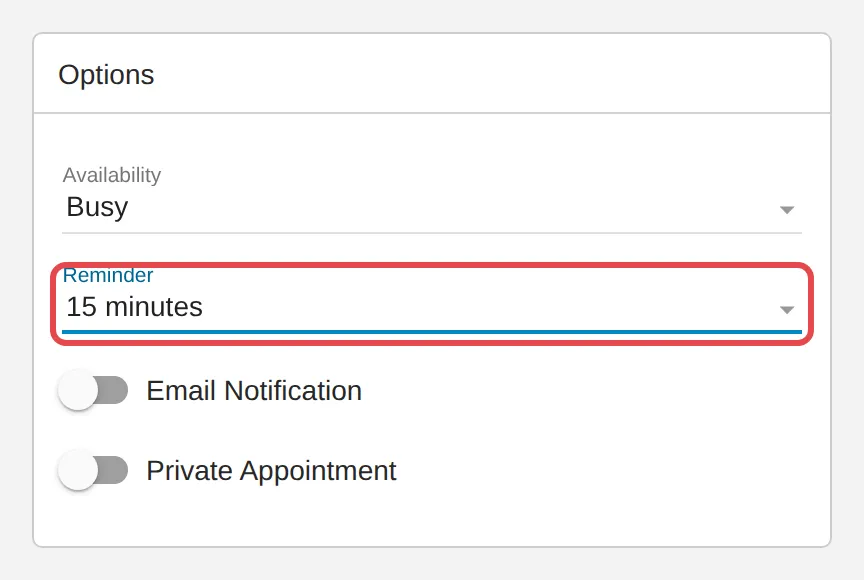
Under Options, choose when to be reminded in Reminder, from None up to 2 weeks before. New appointments start at 5 minutes.
-
Click Save at the top left of the window.
-
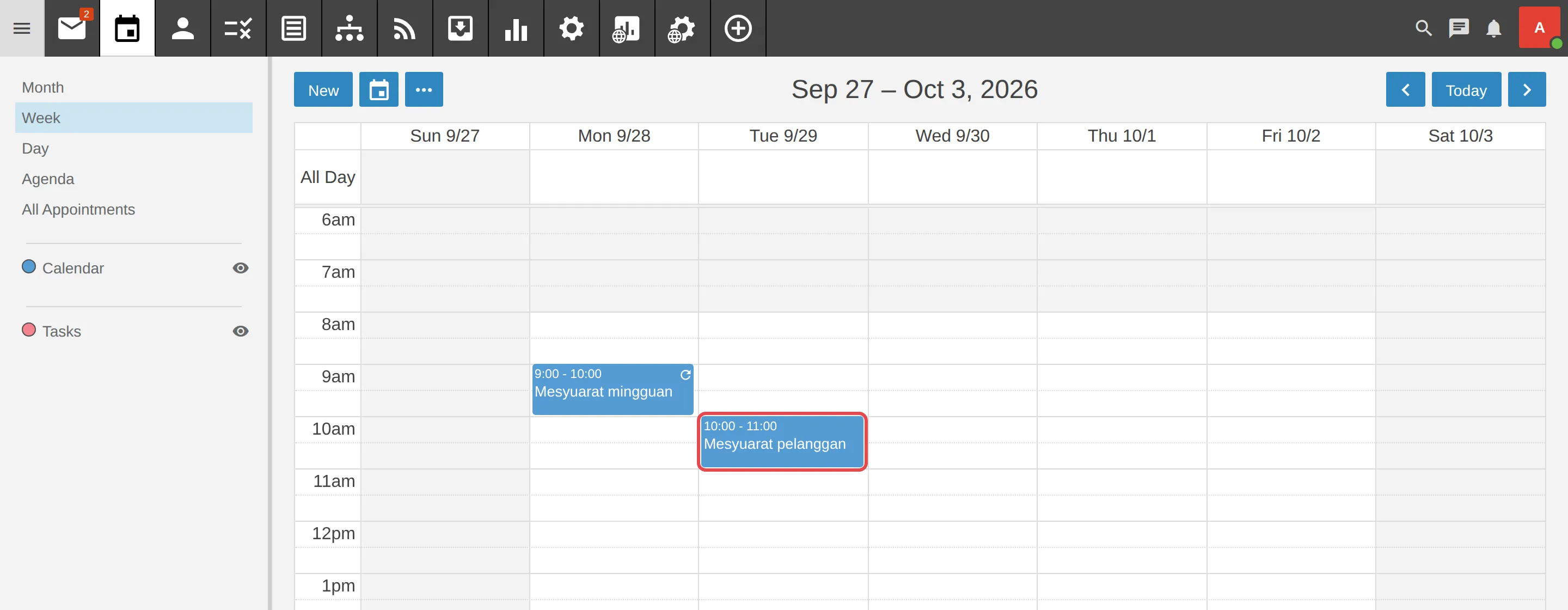
The appointment appears on your calendar at the time you chose.
Other options in the window
Section titled “Other options in the window”These options are on the same appointment window.
- Recurrence repeats the appointment every day, week, month or year. See Set up a repeating appointment.
- Attendees sends an invitation to other people. See Invite people to a meeting & reply to invitations.
- Availability shows you as Busy or Free to colleagues who check your calendar.
- Private Appointment hides the details from people you have shared your calendar with. They only see that the time is taken.
- Show Time Zones lets you set the start and end in another time zone, for example for a call with a client overseas.
To change an appointment later, click it on the calendar, make your changes and click Save. To remove it, open it and click Delete.
Still stuck
Section titled “Still stuck”WhatsApp our support team at +60 16-916 3324.
Common issues
The Save button is grey. Why can't I save?
Subject is the only required field. Type a subject and Save turns blue.
Why is my all-day appointment marked Free?
When you turn on All Day Appointment, Availability switches to Free so a whole-day item, such as a public holiday, does not block your time. Change it back to Busy if you want colleagues to see you as busy.
The times on my appointment look wrong.
Check the time zone on your account. See Set your time zone & business hours.
Was this article helpful?
Thanks for your feedback.
Sorry this didn't help. WhatsApp us and we'll sort it out with you.