
Set up a repeating appointment in webmail
Updated For SmarterMail Build 7692

A repeating (recurring) appointment is saved once and shows on every date it repeats, for example a weekly team meeting. In webmail, you change the whole series together, or delete one date of it.
Make an appointment repeat
Section titled “Make an appointment repeat”Set this when you create the appointment, or later by opening it and changing the series.
-
Log in to webmail, click the Calendar icon on the top bar and click New. Fill in the Subject and the Start and End of the first meeting, as in Add an appointment to your webmail calendar.
-
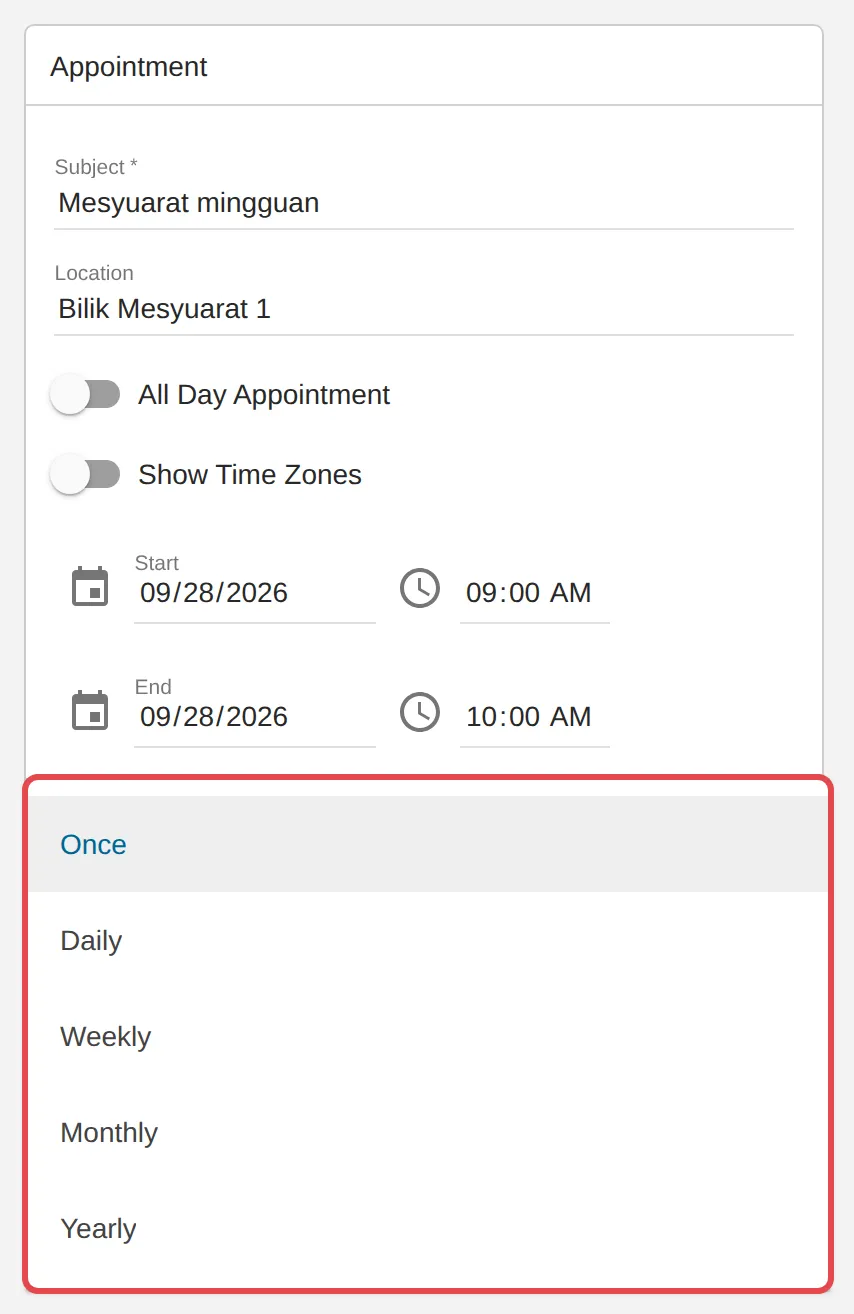
Open the Recurrence list and choose Daily, Weekly, Monthly or Yearly. The default, Once, means it does not repeat.
-
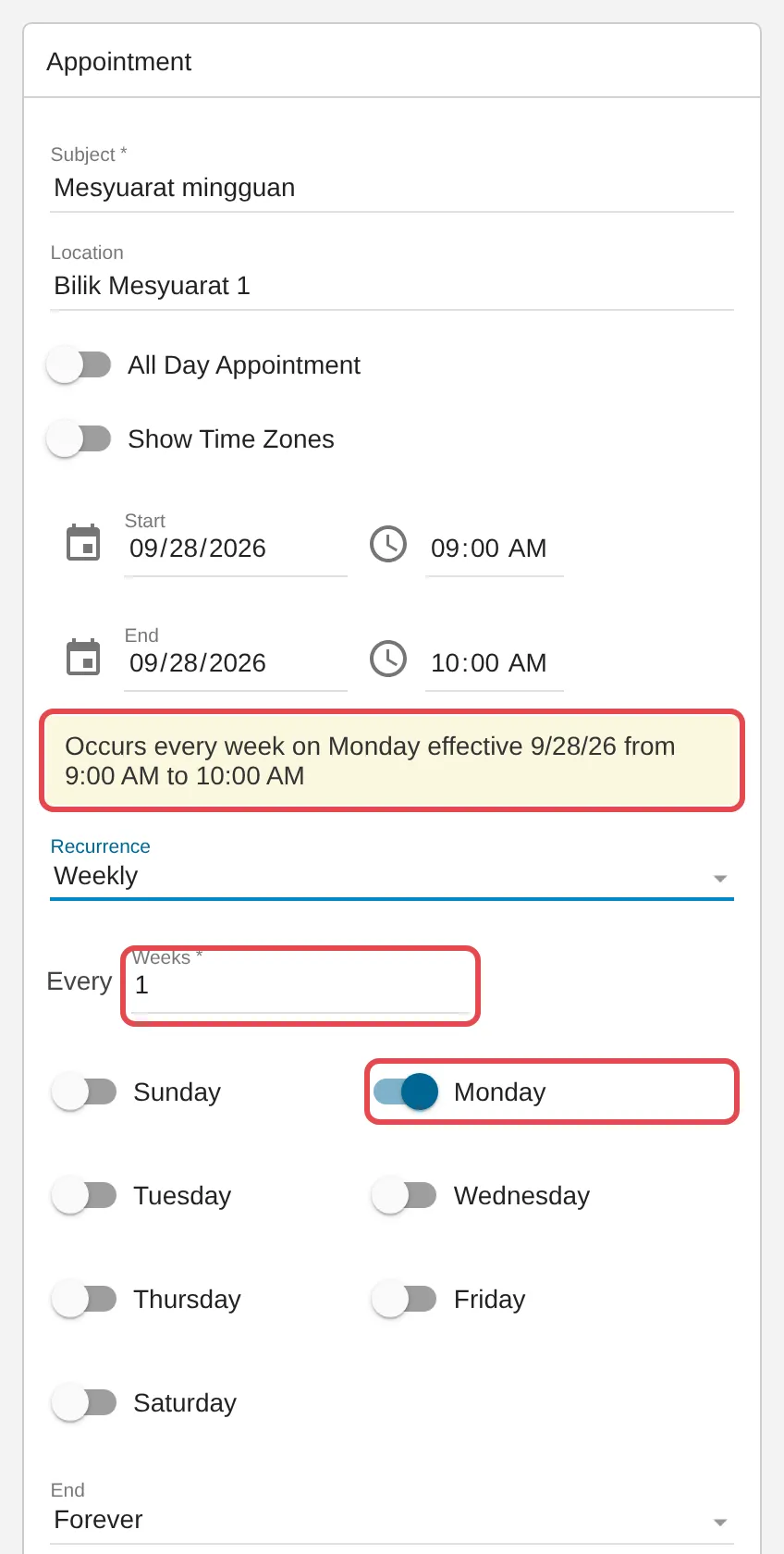
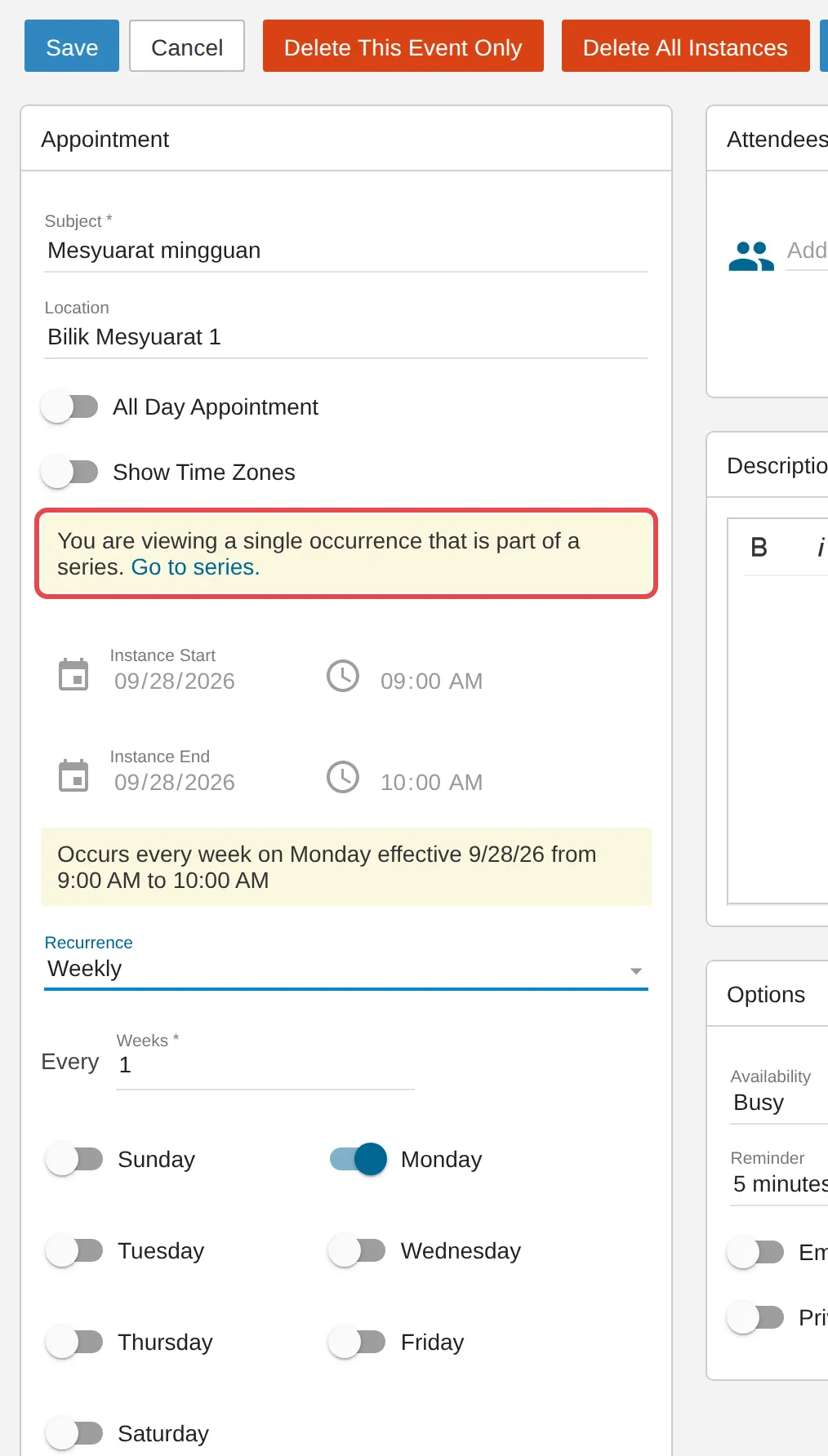
Set how often it repeats. For Weekly, type a number in Weeks (1 for every week, 2 for every other week) and turn on each day it happens, such as Monday. The yellow box above Recurrence sums it up, for example “Occurs every week on Monday”.
-
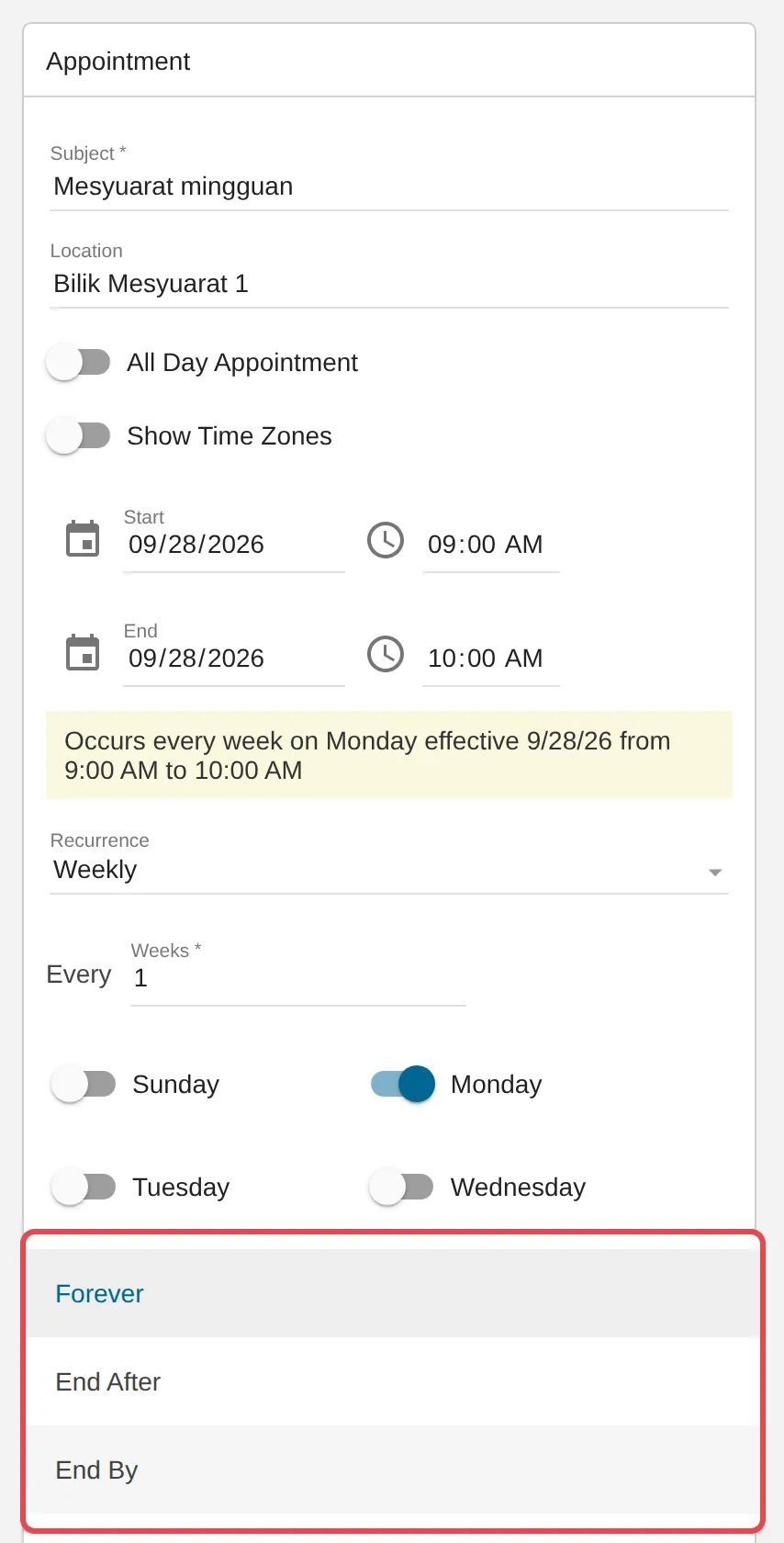
Open the End list and choose when the series stops: Forever, End After a number of Occurrences, or End By a date.
-
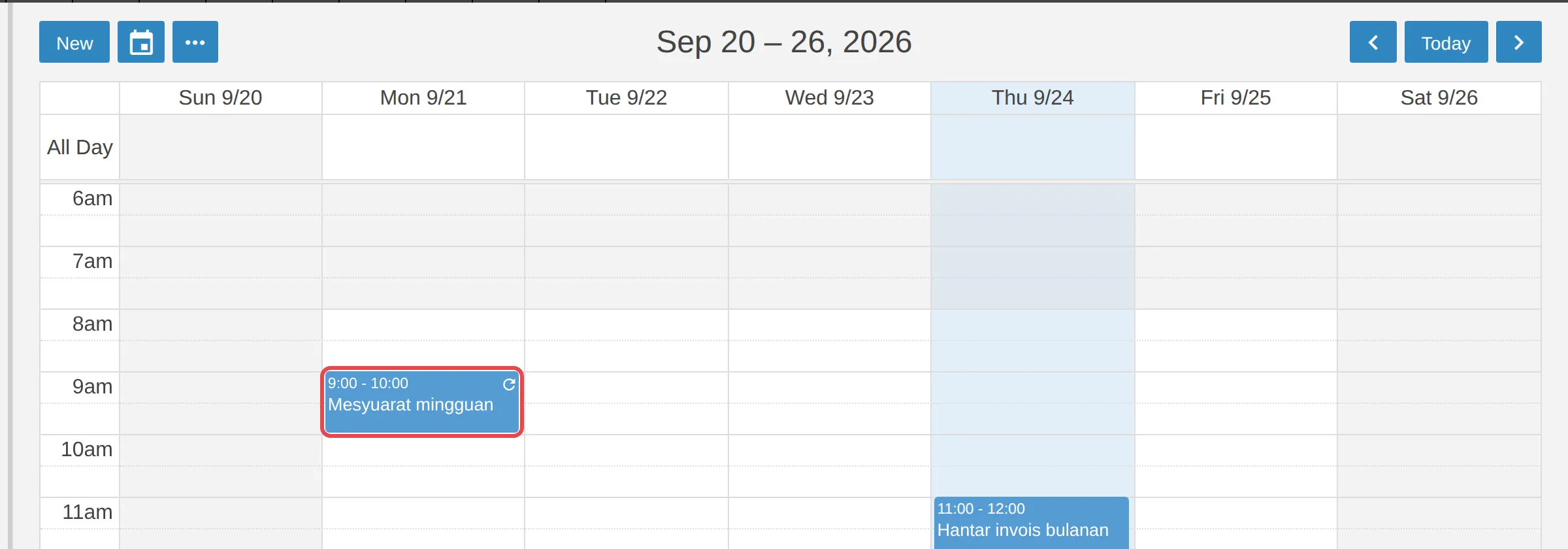
Click Save. Each date shows on the calendar with a circular-arrow icon.
Monthly and Yearly also have a Frequency list, where Specific Day repeats on the same date each time, for example the 24th.
Change the whole series
Section titled “Change the whole series”Changes to the time, the repeat pattern or the details of a series are made on the series, not on one date.
-
Click any date of the repeating appointment on the calendar. A yellow note says You are viewing a single occurrence that is part of a series. and the Instance Start and Instance End of that date are locked.
-
Click Go to series. in that note. The window reloads with the whole series.
-
Make your changes, for example a new start time or a different day, and click Save. Every date in the series changes.
If you invited attendees, they receive the updated invitation.
Remove one date or the whole series
Section titled “Remove one date or the whole series”You can delete a single date, for example a meeting that falls on a public holiday, without touching the rest.
-
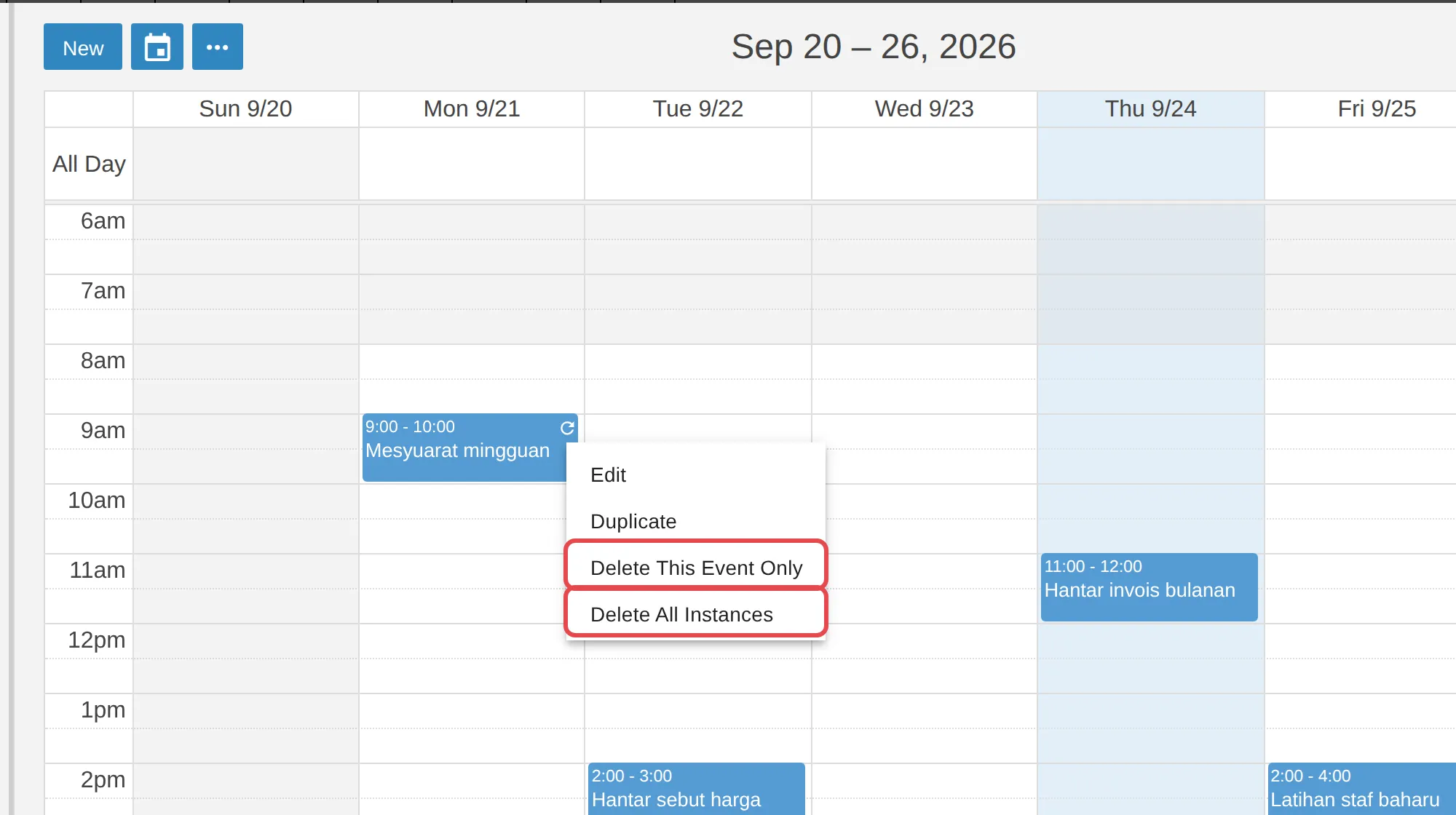
Right-click the date on the calendar.
-
Click Delete This Event Only to remove just that date, or Delete All Instances to remove the whole series.
-
Confirm with Delete. If you invited people, turn on Notify attendees to let them know.
The same two buttons are also at the top of the appointment window when you open a date of the series.
Still stuck
Section titled “Still stuck”WhatsApp our support team at +60 16-916 3324.
Common issues
Can I move just one meeting in a weekly series to another time?
Not in webmail. When you open one date of a series, its start and end are locked. You can delete that date with Delete This Event Only and create a one-off appointment at the new time, or change the whole series with Go to series.
How do I stop a repeating appointment after a certain date?
Open any date of the series, click Go to series., set End to End By and choose the last date, then click Save.
Was this article helpful?
Thanks for your feedback.
Sorry this didn't help. WhatsApp us and we'll sort it out with you.