
Set working hours, location & out of office in Calendar
Updated For Google Workspace

Working hours warn people who try to book you outside your hours. An out-of-office event blocks your leave and declines meetings for you.
Turn on working hours
Section titled “Turn on working hours”Do this once on a computer. Colleagues then see a warning if they invite you outside these hours.
-
Open Google Calendar and click the gear icon at the top right, then Settings.
-
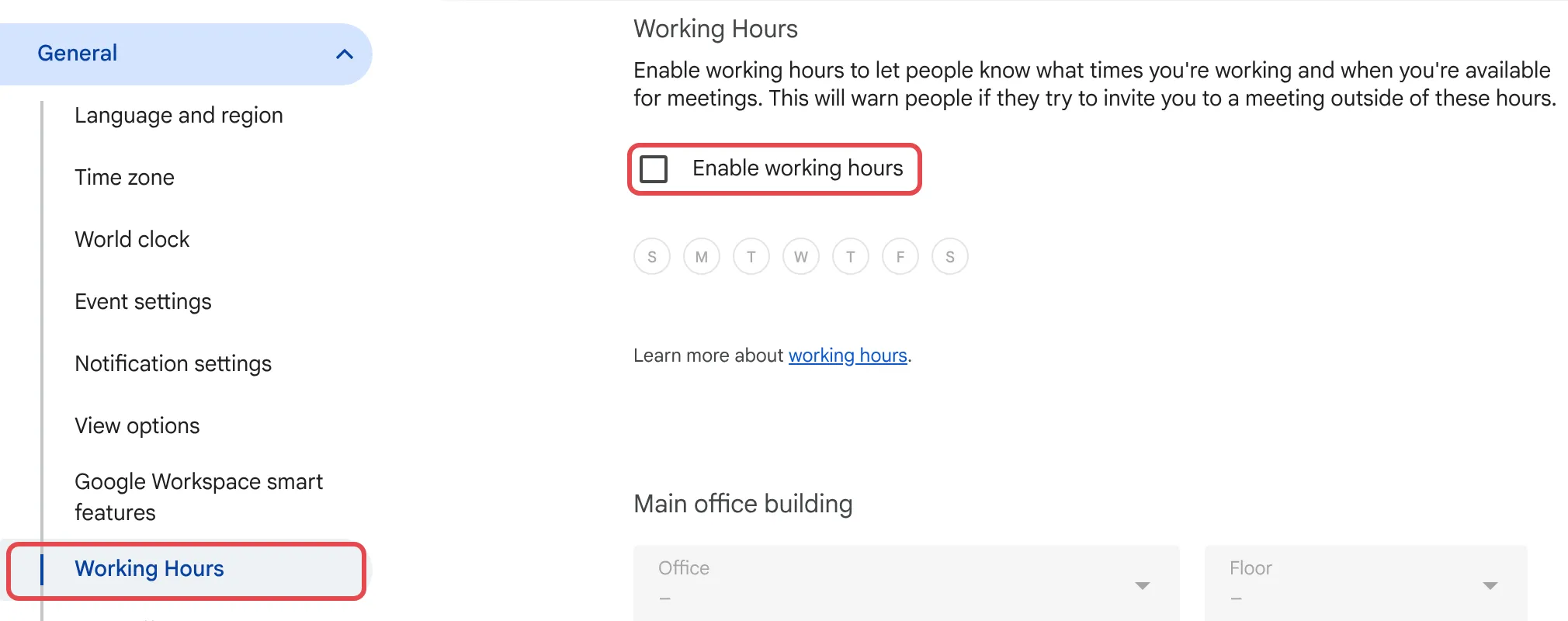
On the left, under General, click Working Hours. If your admin has turned on working location, it is called Working hours & location.
-
Tick Enable working hours.
-
Select the days you work and set the start and end times.
-
For a split day, such as a long lunch break, click + next to the day to add a second period.
Add your working location
Section titled “Add your working location”Working location may not appear on every plan or setup. If your admin has turned it on, colleagues can see whether you are in the office or working from home each day.
- In Settings, click Working hours & location. If you only see Working Hours, working location is not turned on for your account; ask your admin if you need it.
- Next to each working day, choose a location or create one, such as “Home” or “KL office”.
- To change one day only, point below that date on your calendar, click the location bar, pick a location and click Save.
Block out leave with out of office
Section titled “Block out leave with out of office”Use this for annual leave, medical leave or a day out of the office.
-
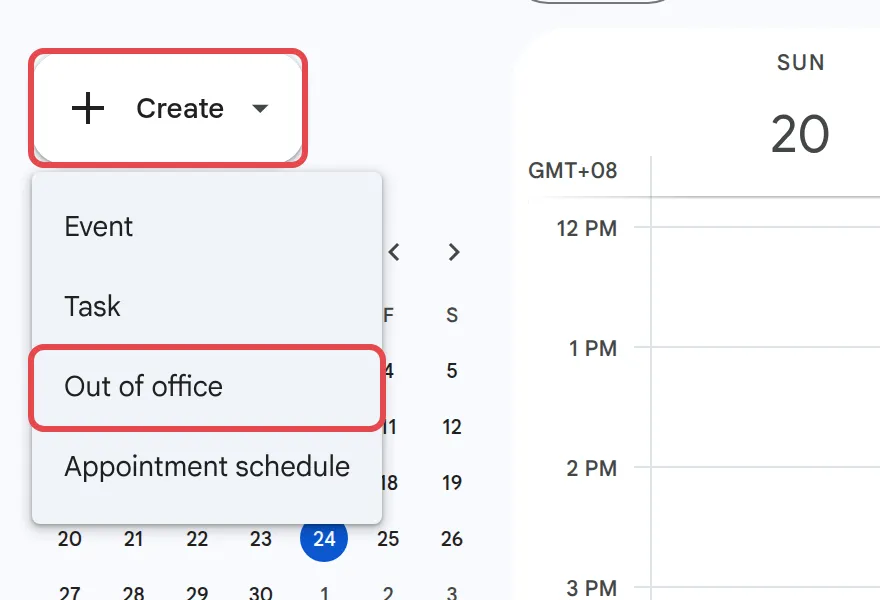
Click Create, then Out of office.
-
Set the dates, and a time if it is only part of a day.
-
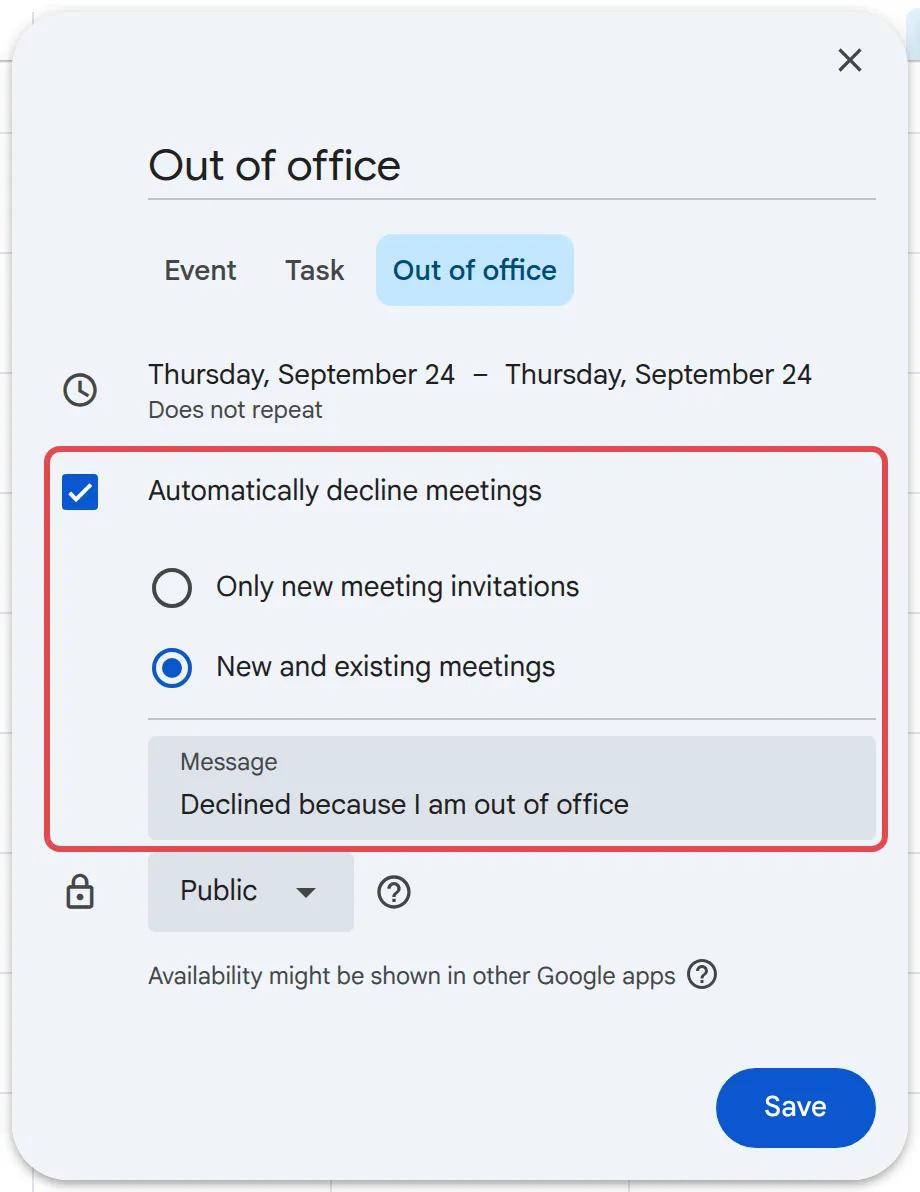
Under Automatically decline meetings, choose Only new meeting invitations or New and existing meetings.
-
Edit the decline Message if you like, for example who to contact instead.
-
Click Save.
If your calendar is shared with colleagues, Gmail can also show your out-of-office status to them when they write to you. It does not send an email reply; for that, turn on the Gmail vacation responder.
Still stuck
Section titled “Still stuck”WhatsApp our support team at +60 16-916 3324.
Common issues
Does an out-of-office event reply to my emails?
No. It only declines meetings. To auto-reply to emails while you are away, turn on the Gmail vacation responder too. See set up your out-of-office reply.
I can't find the working location option. Why?
It may not be available on every plan or setup, and your admin controls it. If it is off, Settings shows Working Hours only, not Working hours & location. Ask your Google Workspace admin if you need it.
Can I set working hours from my phone?
No. Turn on working hours in Google Calendar on a computer. You can add an out-of-office event from the phone app.
Was this article helpful?
Thanks for your feedback.
Sorry this didn't help. WhatsApp us and we'll sort it out with you.