
Find, recover & restore files in Google Drive
Updated For Google Workspace

Most “missing” files are only misplaced. Search first, then check Recent, then Trash.
Search for a file
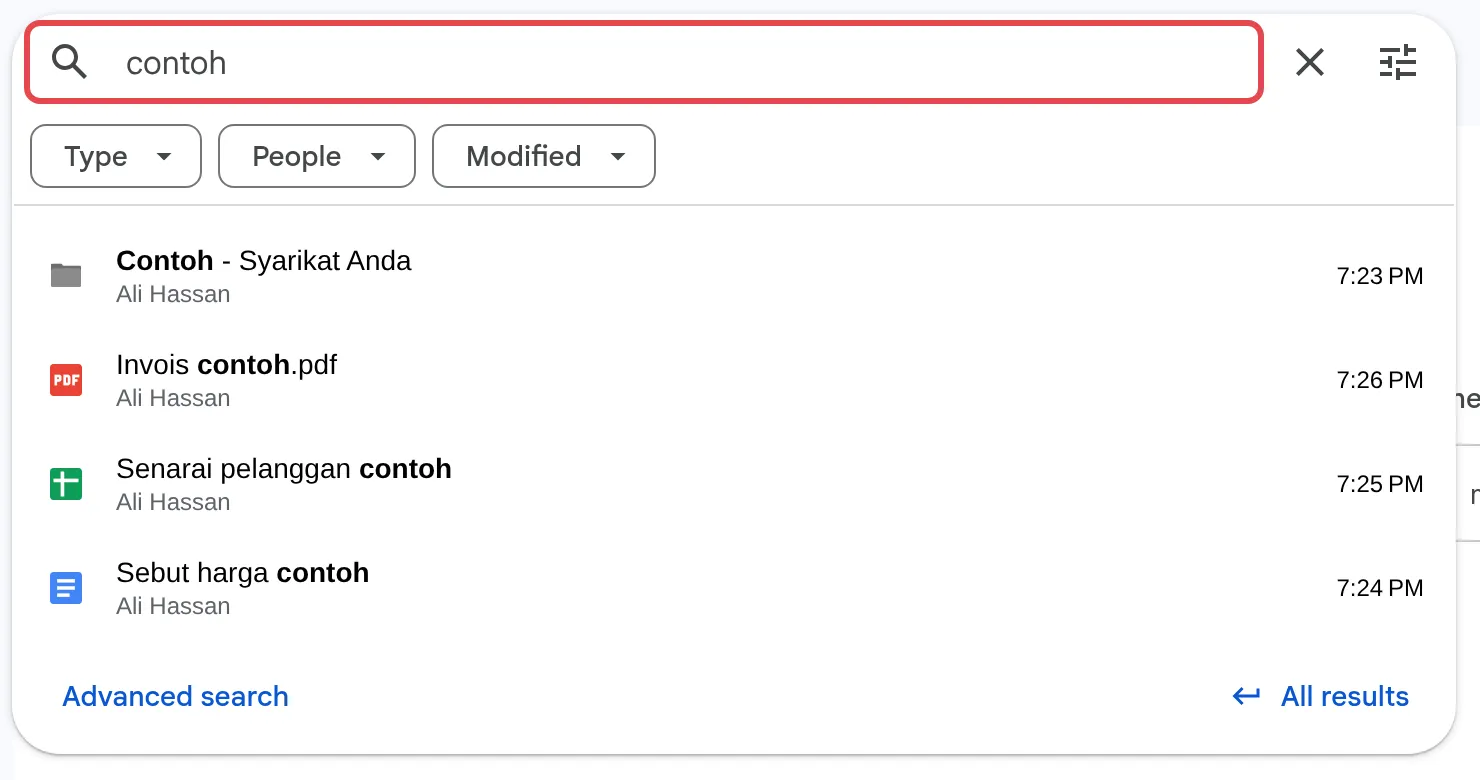
Section titled “Search for a file”The search box at the top of Google Drive looks in file names and inside the files.
-
Type a word from the file name or its content. Matching files appear as you type, and you can already narrow them with the Type, People and Modified chips.
-
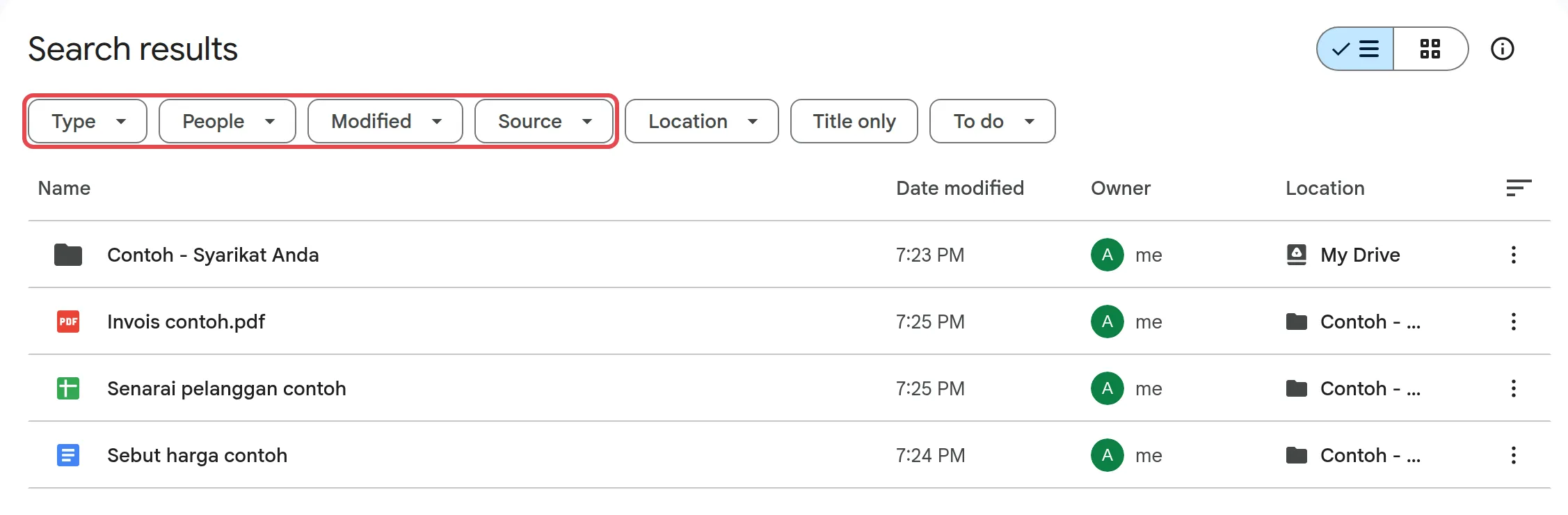
Press Enter to see all results. The results page has more filter chips: Type, People, Modified and Source, plus Location, Title only and To do.
These search terms help when you remember a detail:
"exact phrase"finds files containing those words in that order.owner:name@yourcompany.comfinds files owned by that person.type:spreadsheetortype:pdffinds only that kind of file.after:2026-09-01finds files changed after that date.is:starredfinds your starred files.
Check Recent, Starred & Shared with me
Section titled “Check Recent, Starred & Shared with me”The left menu has quick lists that often turn up a file faster than search.
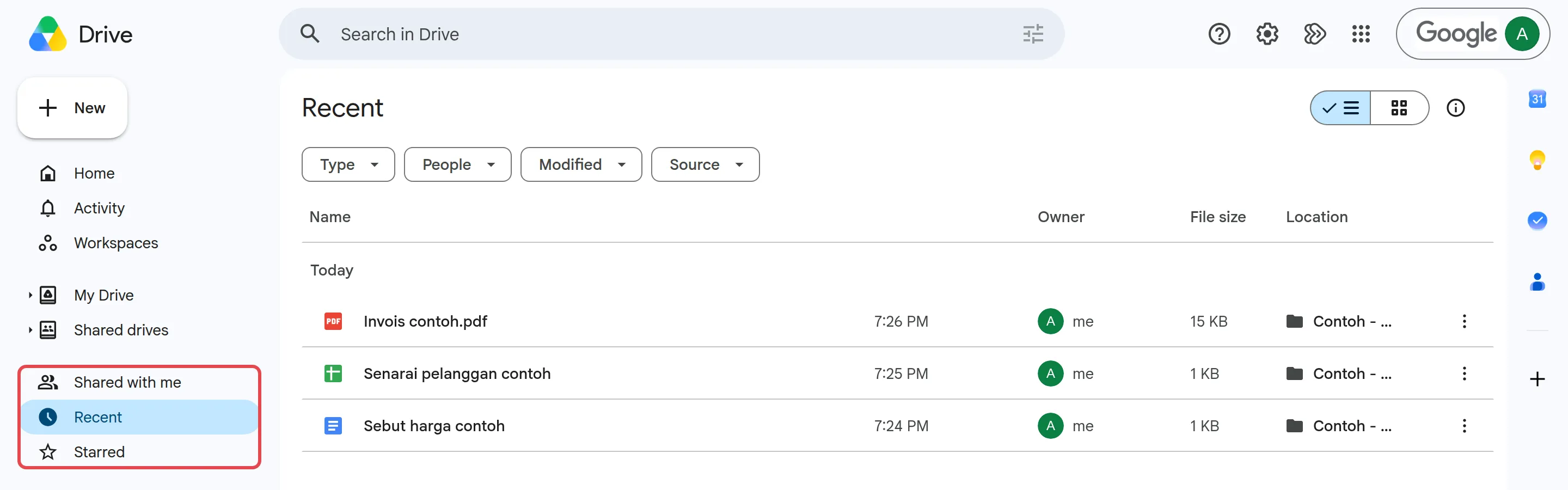
- Recent: files you recently opened or edited.
- Starred: files you marked with a star.
- Shared with me: files other people shared with you. These are not in My Drive unless you added them.
Also check you are signed in to your work account, not a personal Gmail account.
Restore a file from Trash
Section titled “Restore a file from Trash”Deleted files wait in Trash for 30 days before Drive deletes them for good.
-
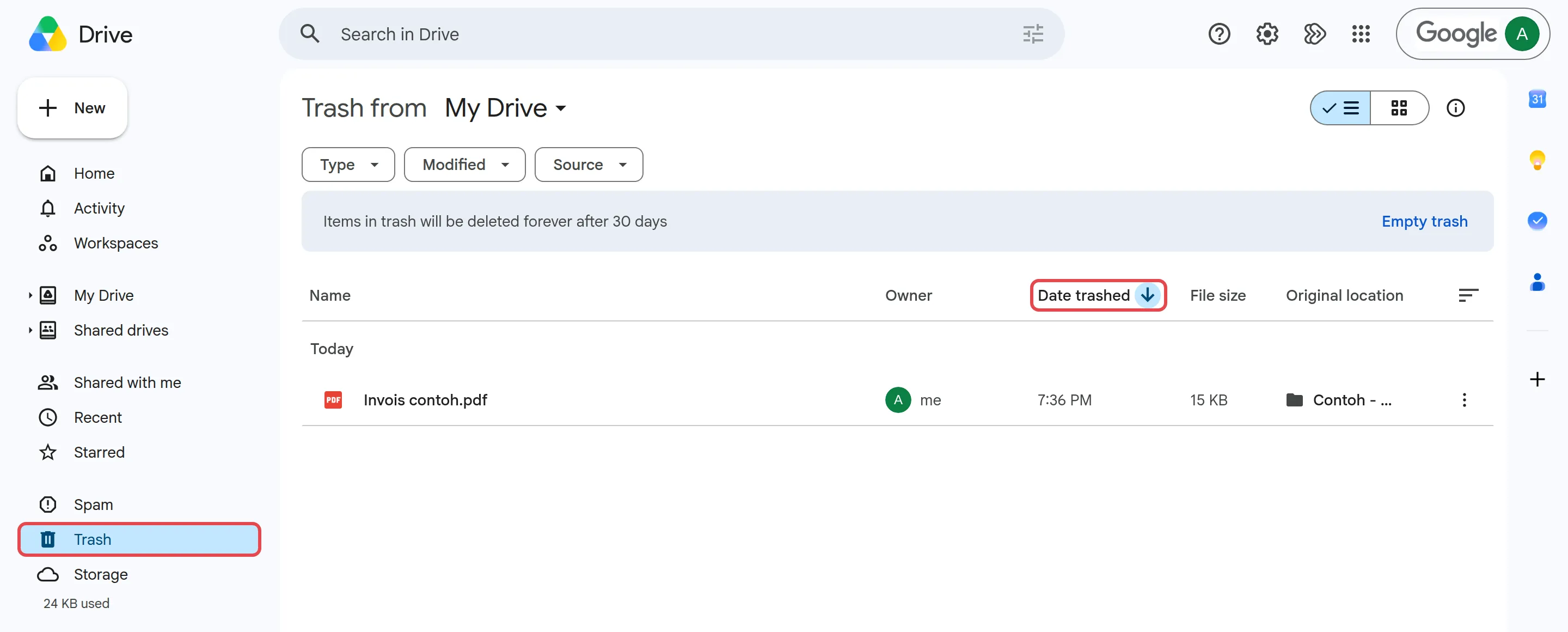
Click Trash in the left menu.
-
Look down the list. Trash is sorted by Date trashed, so the most recently deleted files are at the top.
-
Right-click the file or folder and click Restore.
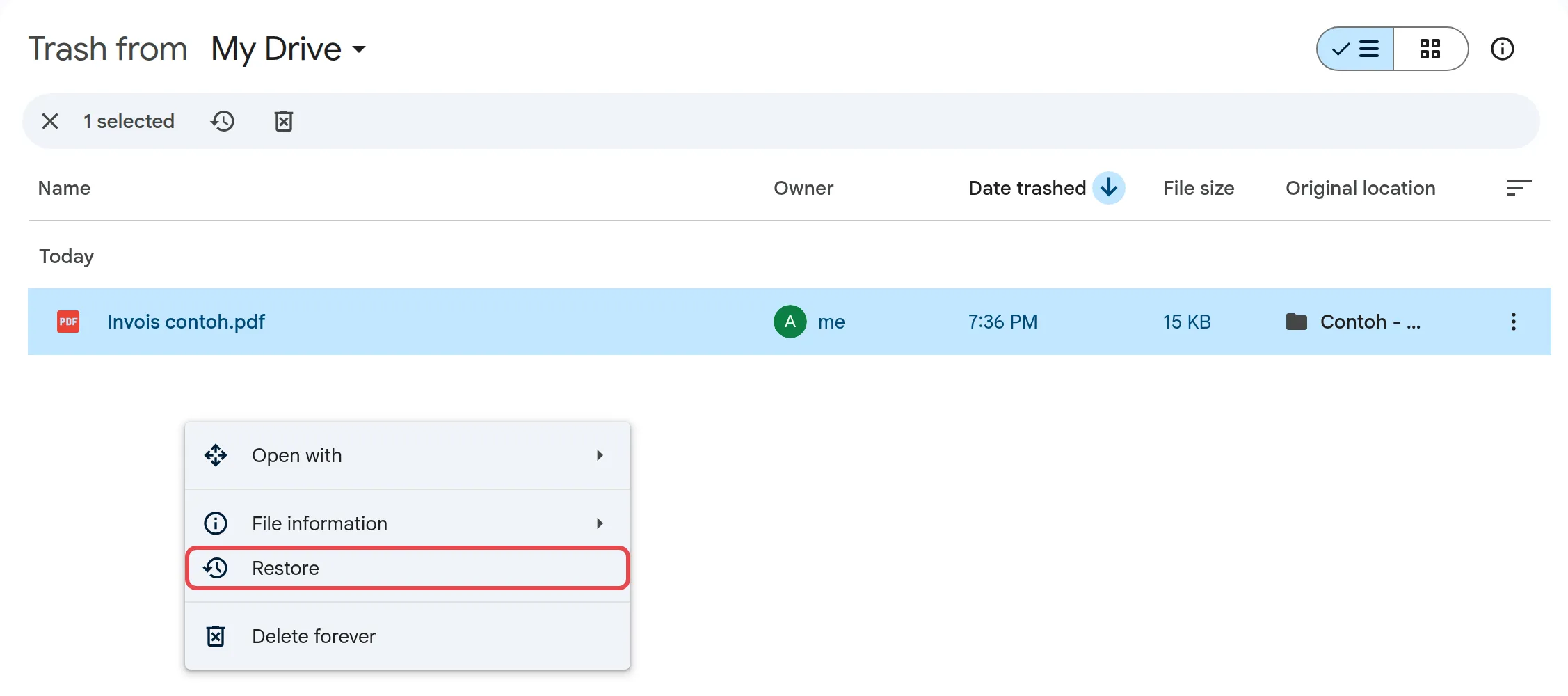
The file goes back to where it was. Anyone it was shared with gets access again.
See what happened to a file
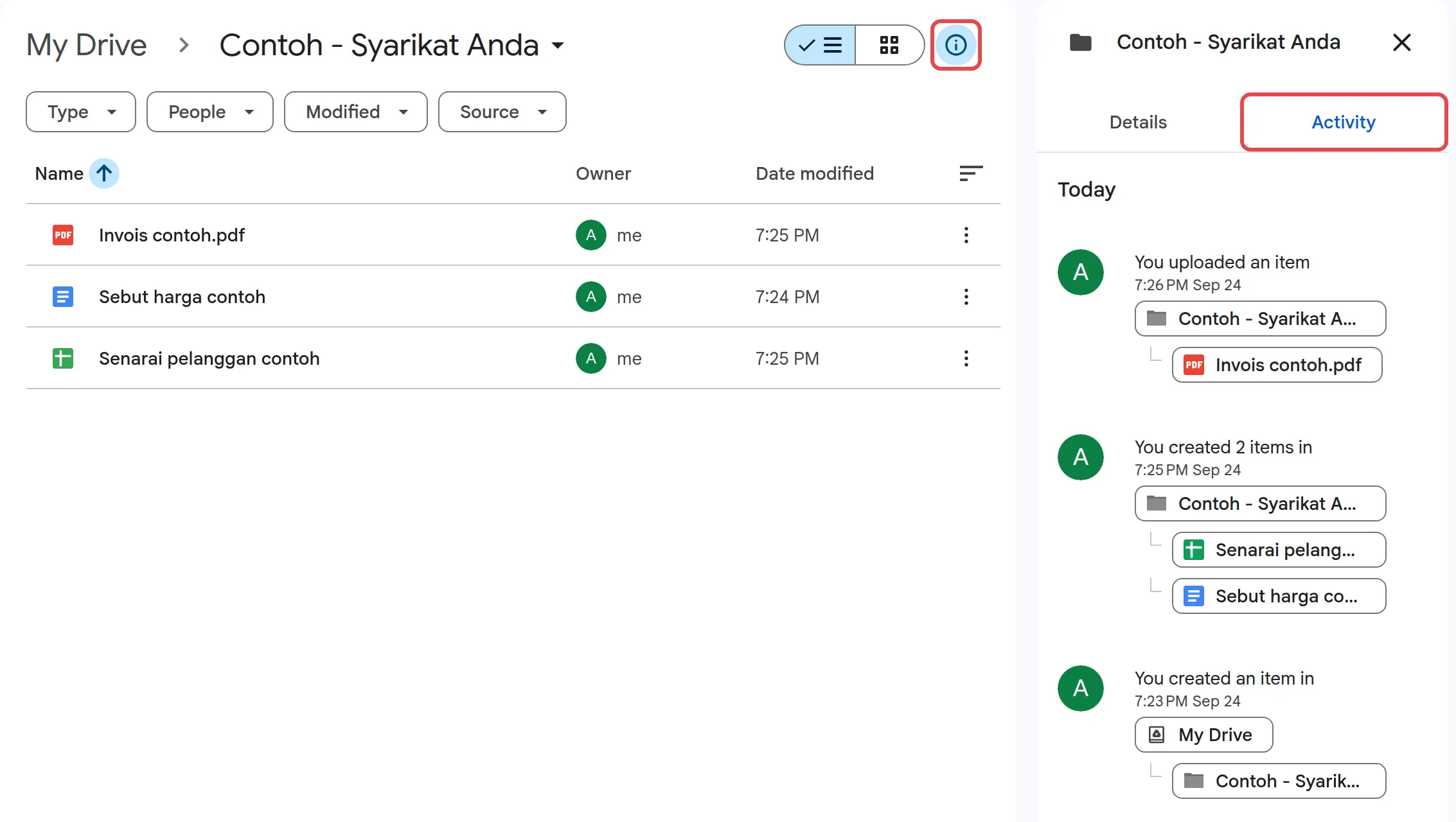
Section titled “See what happened to a file”If a file was moved or deleted and you are not sure by whom, the activity log can tell you.
-
Open My Drive, or the folder the file used to be in.
-
Click the info icon at the top right, then Activity.
-
Look for recent moves, renames or deletions.
After Trash is emptied
Section titled “After Trash is emptied”Once Trash is emptied, only your admin can help, and only for 25 more days. Read recover deleted emails or Drive files and contact your admin quickly.
Still stuck
Section titled “Still stuck”WhatsApp our support team at +60 16-916 3324.
Common issues
A file someone shared with me has disappeared. Where did it go?
The owner may have removed your access, moved it to a folder you cannot open, or deleted it. Ask the owner to check and share it again. If you only removed it from your own view, open the link again to get it back.
My Trash is empty but I need a file I deleted last week. Is it gone?
Not always. For 25 days after Trash is emptied, your Google Workspace admin can restore Drive data. See recover deleted emails or Drive files.
Can I find a file I made inside a folder that someone later deleted?
Yes. Your file is not deleted; it moves back to your My Drive. Search is:unorganized owner:me to list these files.
Was this article helpful?
Thanks for your feedback.
Sorry this didn't help. WhatsApp us and we'll sort it out with you.