
Invite people to a meeting & reply to invitations
Updated For SmarterMail Build 7692

Add attendees to an appointment and webmail emails each of them an invitation. They answer with Accept or Decline, and you see each reply in the Attendees card.
Invite people to an appointment
Section titled “Invite people to an appointment”You are the organiser, so only you can change the meeting later.
-
Log in to webmail, click the Calendar icon on the top bar and click New. Fill in the Subject, Start and End, as in Add an appointment to your webmail calendar.
-
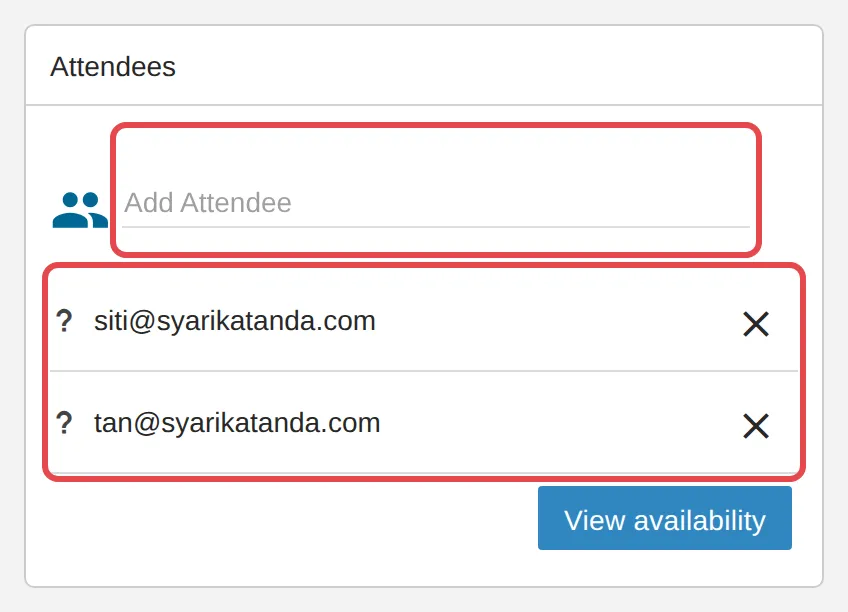
In the Attendees card, type an email address in Add Attendee and press Enter. Webmail suggests names from your contacts and the company directory as you type. Repeat for each person. To pick from your contacts instead, click the people icon on the left of the field.
-
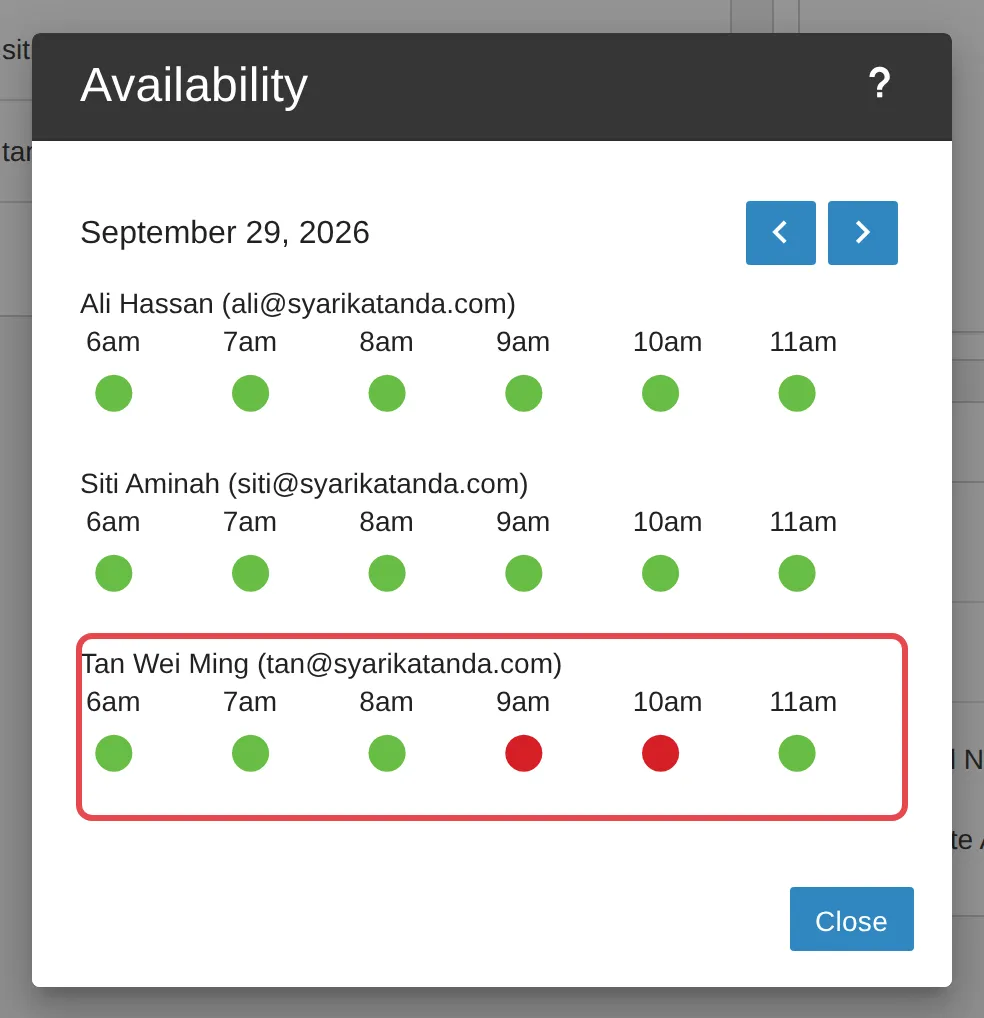
Click View availability to check that your colleagues are free. Each person gets a row of hours around your meeting time: a green dot means free and a red dot means busy. Use the arrows to see another day, then click Close.
-
Click Save. Webmail sends the invitation to every attendee.
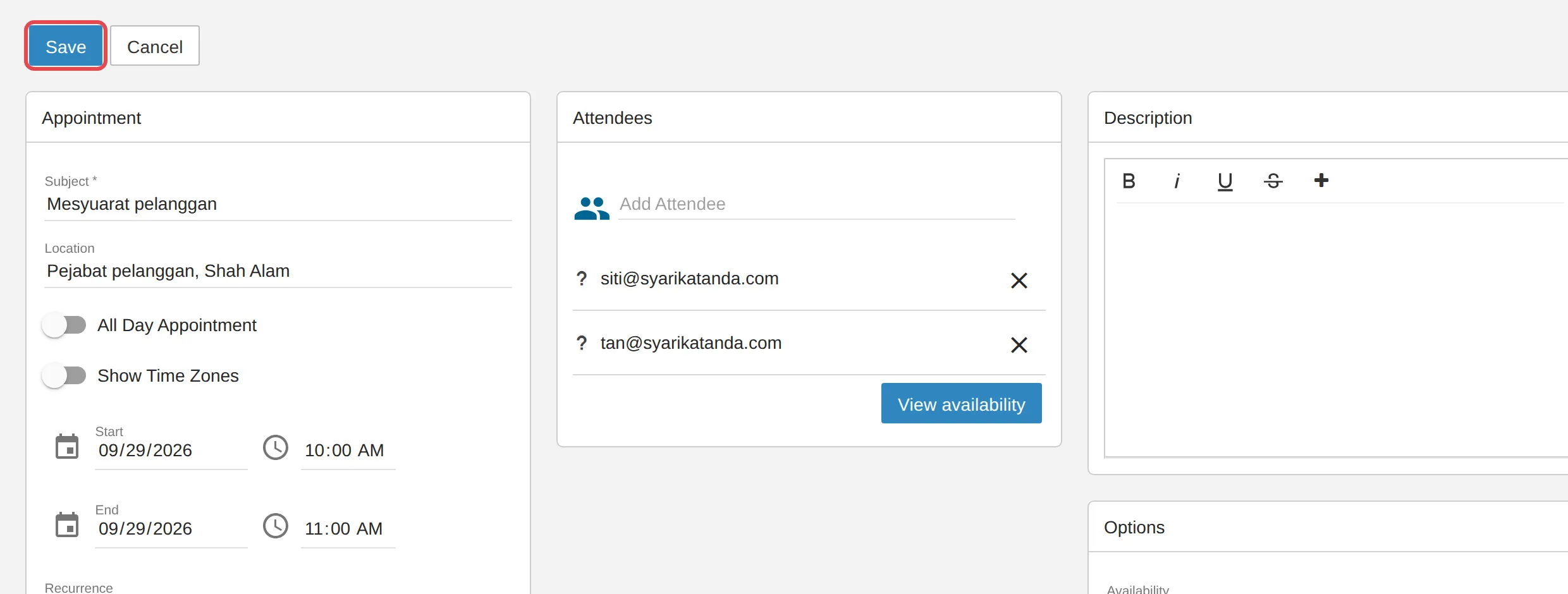
To remove someone, click the X beside their address before you save. If you change the time later and save, the attendees get an updated invitation.
Reply to an invitation
Section titled “Reply to an invitation”An invitation arrives in your Inbox like any other email.
-
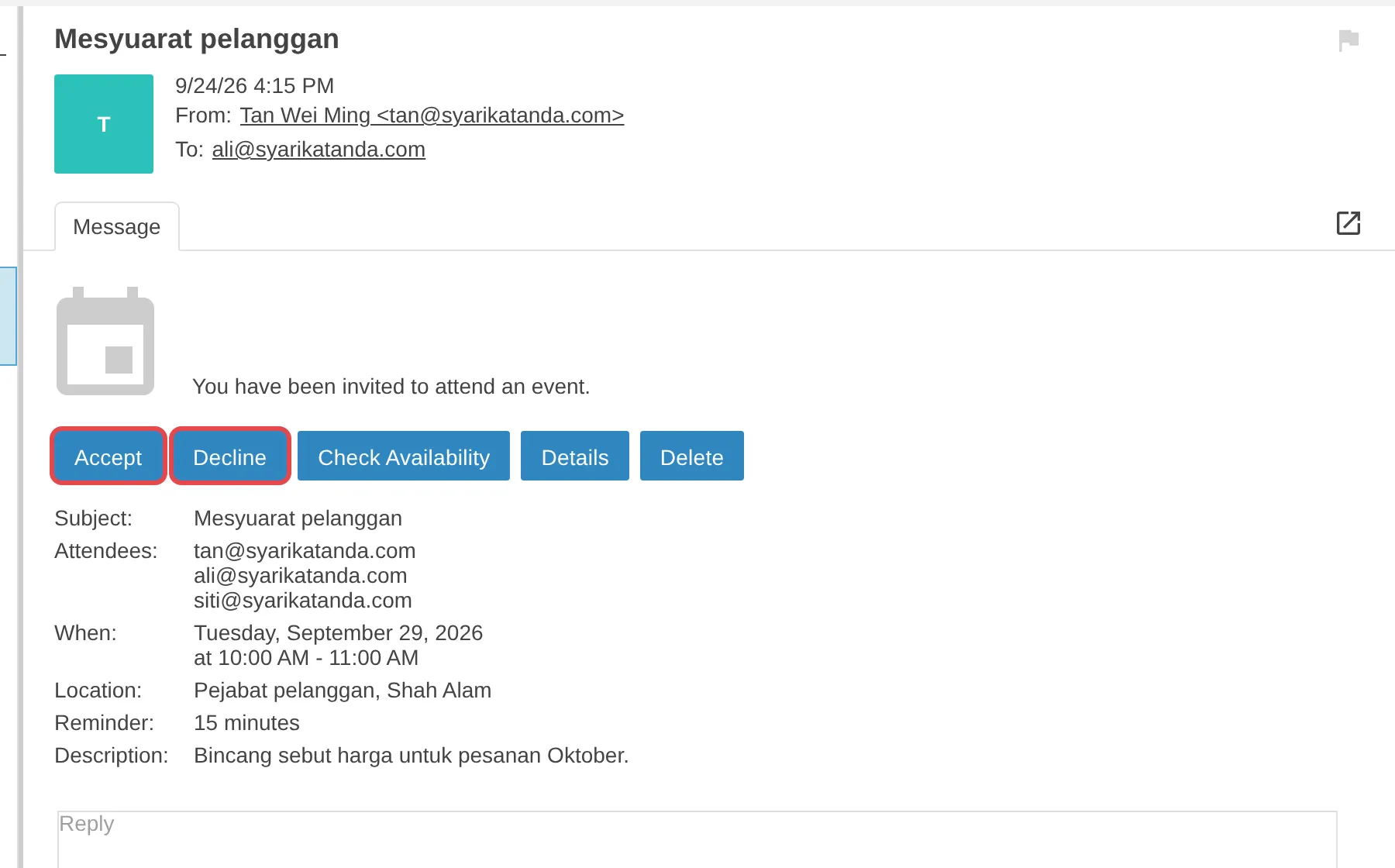
Open the email. It says You have been invited to attend an event. and shows the subject, attendees, time and location.
-
To add a note for the organiser, type it in the Reply box, for example “I will be 10 minutes late”.
-
Click Accept to add the meeting to your calendar, or Decline if you cannot go. Check Availability shows your own calendar for that time first, and Details opens the full appointment.
Until you answer, the meeting also shows on your calendar with a dashed border. You can open it there, or right-click it, and choose Accept or Decline instead.
See who has replied
Section titled “See who has replied”The organiser gets an email each time someone answers, and the replies are tracked in the appointment.
-
Click the meeting on your calendar to open it.
-
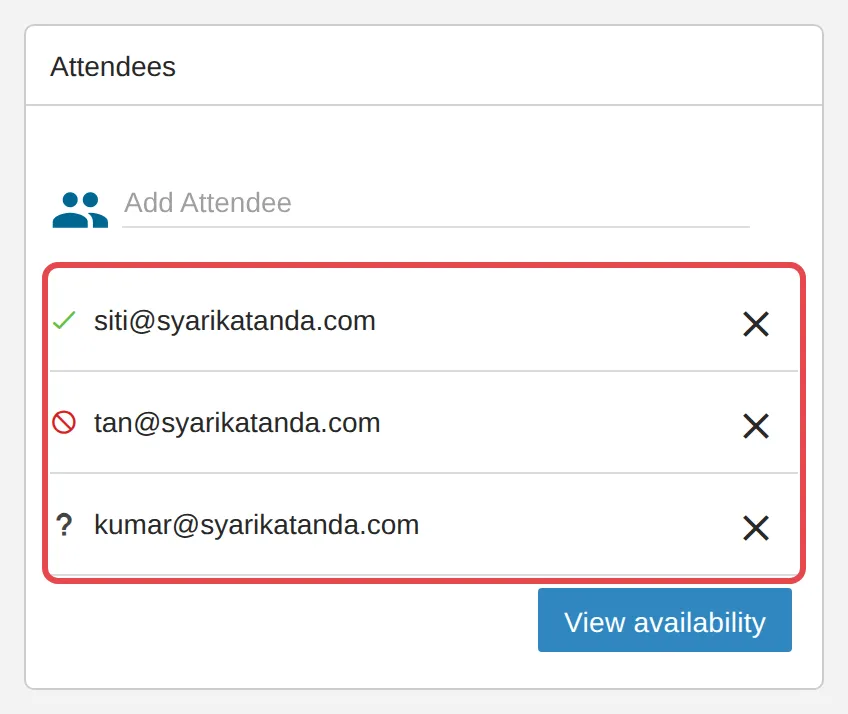
Look at the icon beside each address in the Attendees card: a green tick means accepted, a red no-entry sign means declined, and a question mark means no reply yet. Point at an icon to see its name.
Still stuck
Section titled “Still stuck”WhatsApp our support team at +60 16-916 3324.
Common issues
View availability shows Availability Unknown for someone.
Availability is only shown for colleagues with an Office Niaga Mail address on your own domain. For outside addresses, such as Gmail, webmail cannot see their calendar, so ask them directly.
Someone invited me but the meeting is not on my calendar.
Open the invitation email and click Accept. Until you answer, the meeting shows on your calendar with a dashed border and the note You have not responded to this event yet.
Can an attendee change the meeting time?
No. Only the organizer of an event can edit it. Attendees can accept or decline, and add a comment in the Reply box to suggest another time.
Was this article helpful?
Thanks for your feedback.
Sorry this didn't help. WhatsApp us and we'll sort it out with you.