
Share a Google Drive file or folder & stop sharing
Updated For Google Workspace

Share a file or folder with named people or by link, choose what they can do, and take access back at any time.
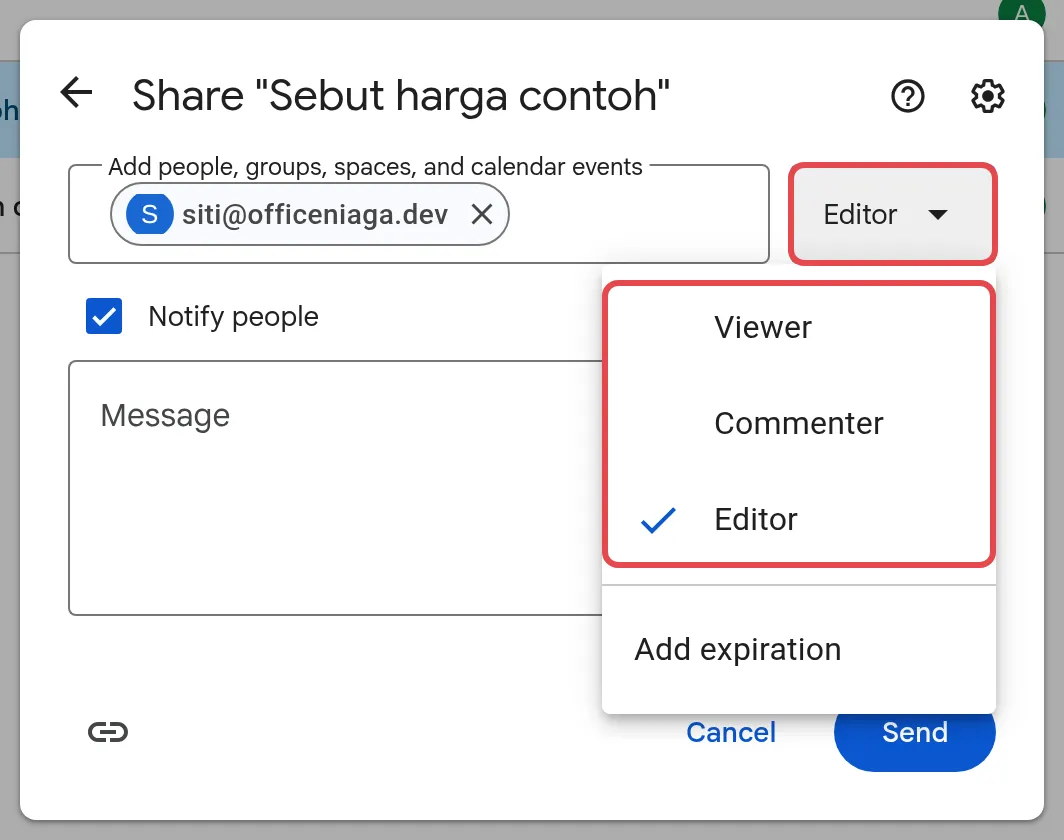
Choose what people can do
Section titled “Choose what people can do”Every person you share with gets one of three roles. Pick the lowest one that lets them do their job.
- Viewer: can open the file. By default they can also download it.
- Commenter: can open it and add comments, but cannot change the content.
- Editor: can change the content and, by default, share it with others.
The owner (usually the person who created or uploaded the file) keeps full control.
Share with specific people
Section titled “Share with specific people”This is the safest way to share, because only the people you add can open the file.
-
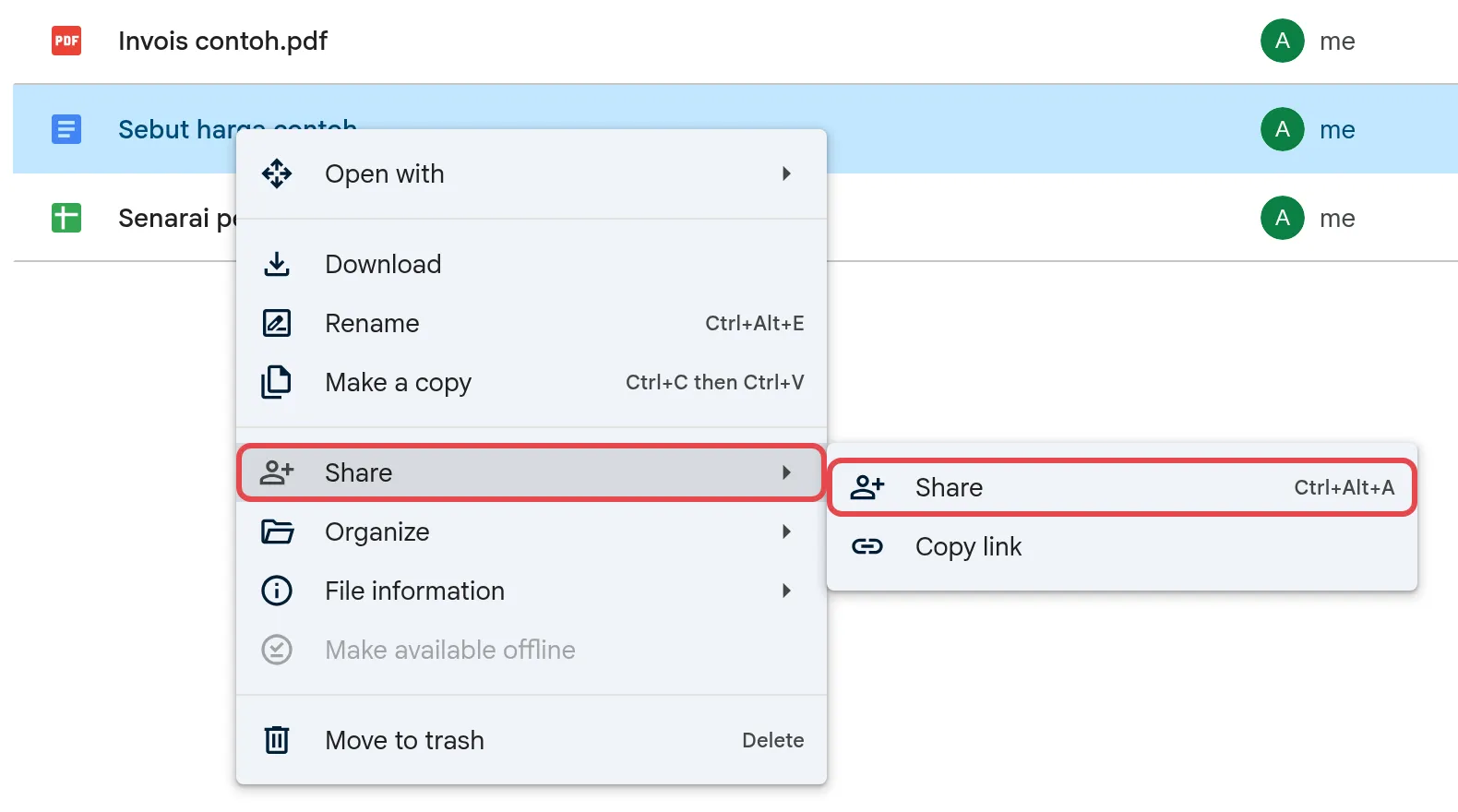
In Google Drive, right-click the file or folder and click Share > Share. The other option in that small menu, Copy link, only copies the link. Inside a Google Doc, Sheet or Slides file, click Share at the top right.
-
Type the email addresses of the people you want to share with.
-
Choose Viewer, Commenter or Editor from the list on the right. New people are added as Editor by default, so change it if they only need to view or comment.
-
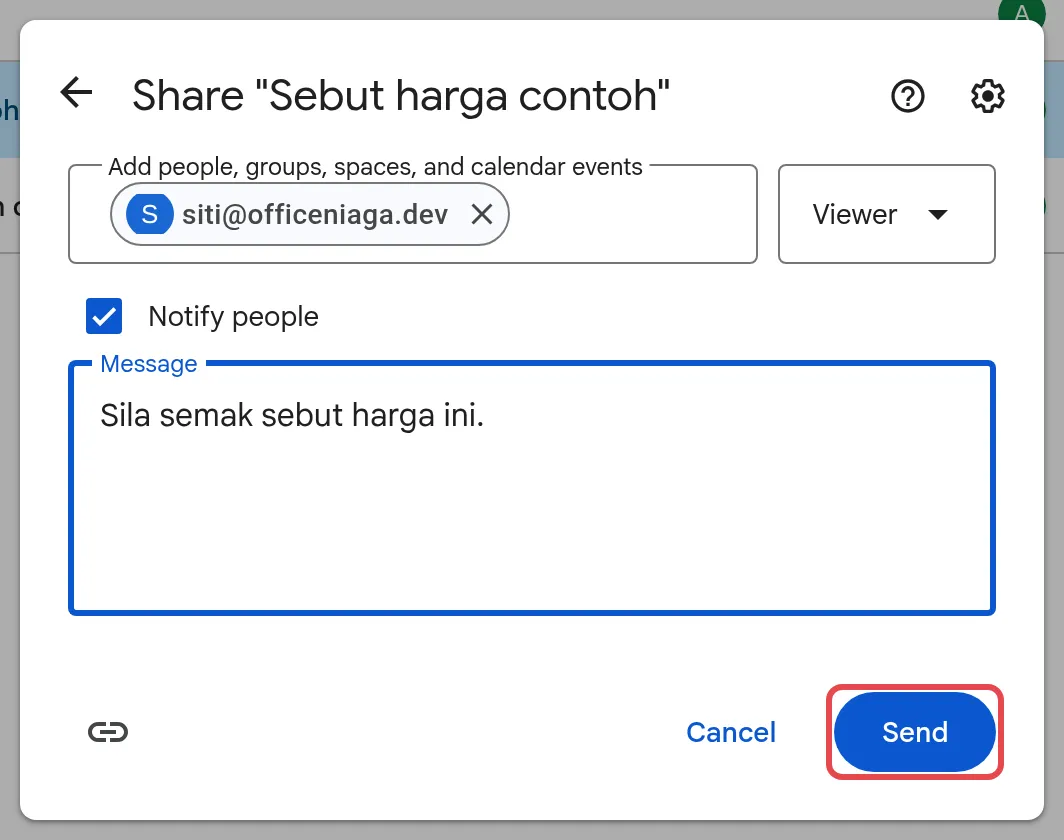
Add a short message if you like. Each person gets an email with the link.
-
Click Send.
Share with a link
Section titled “Share with a link”A link is handy when many people need the file, but anyone who gets the link can open it. Avoid it for payslips, contracts or customer data.
-
Open the Share box as above.
-
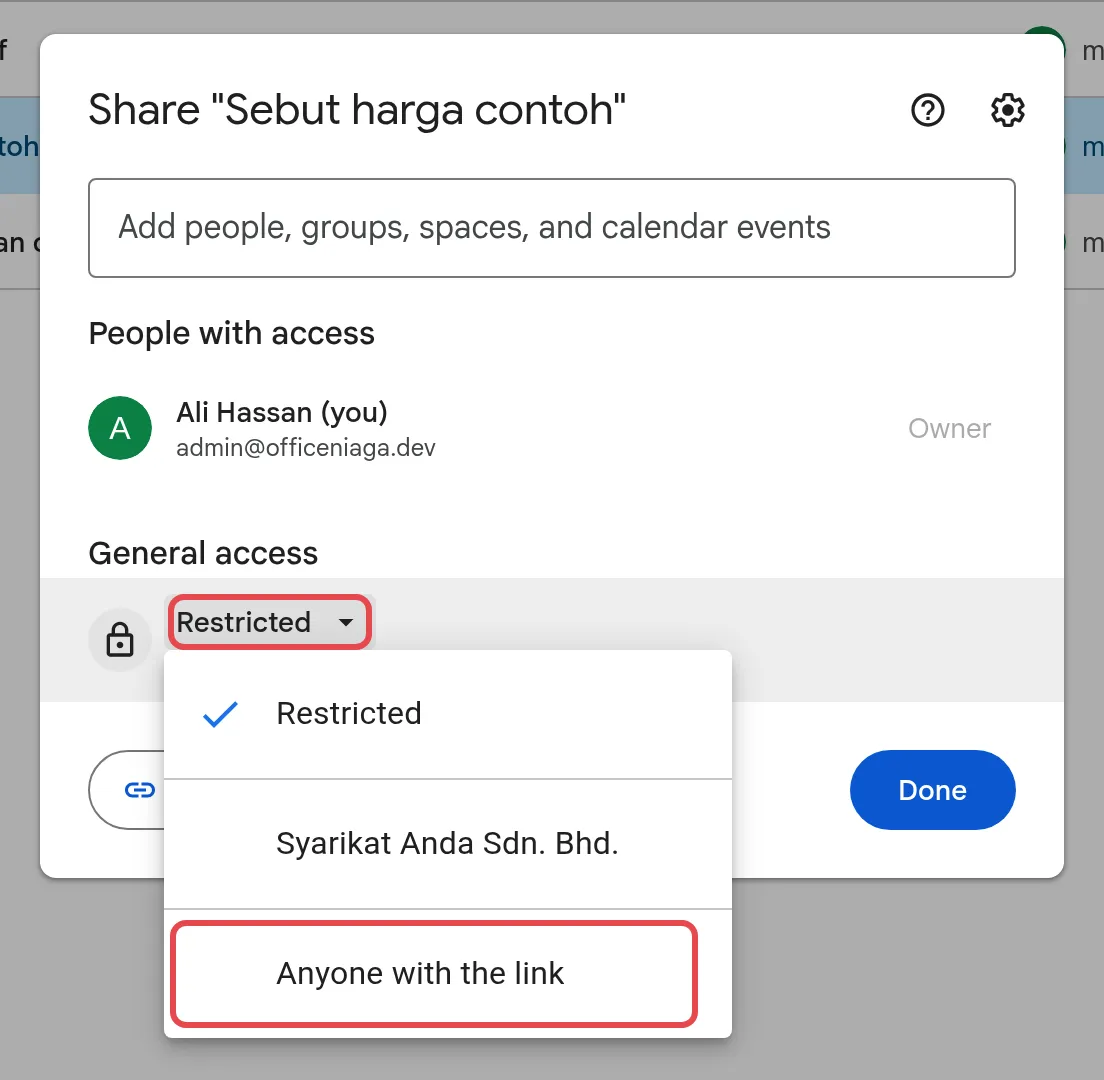
Under General access, click the down arrow.
-
Choose Anyone with the link. If your company name appears as an option, choosing it keeps the link inside your organisation.
-
Pick Viewer, Commenter or Editor next to it.
-
Click Copy link, then Done, and paste the link where you need it.
Stop sharing
Section titled “Stop sharing”You can remove one person or close the link without deleting the file.
-
Open the Share box for the file or folder.
-
To remove one person, click the down arrow next to their name and choose Remove access, then click Save.
-
To close a link, under General access choose Restricted, then click Done.
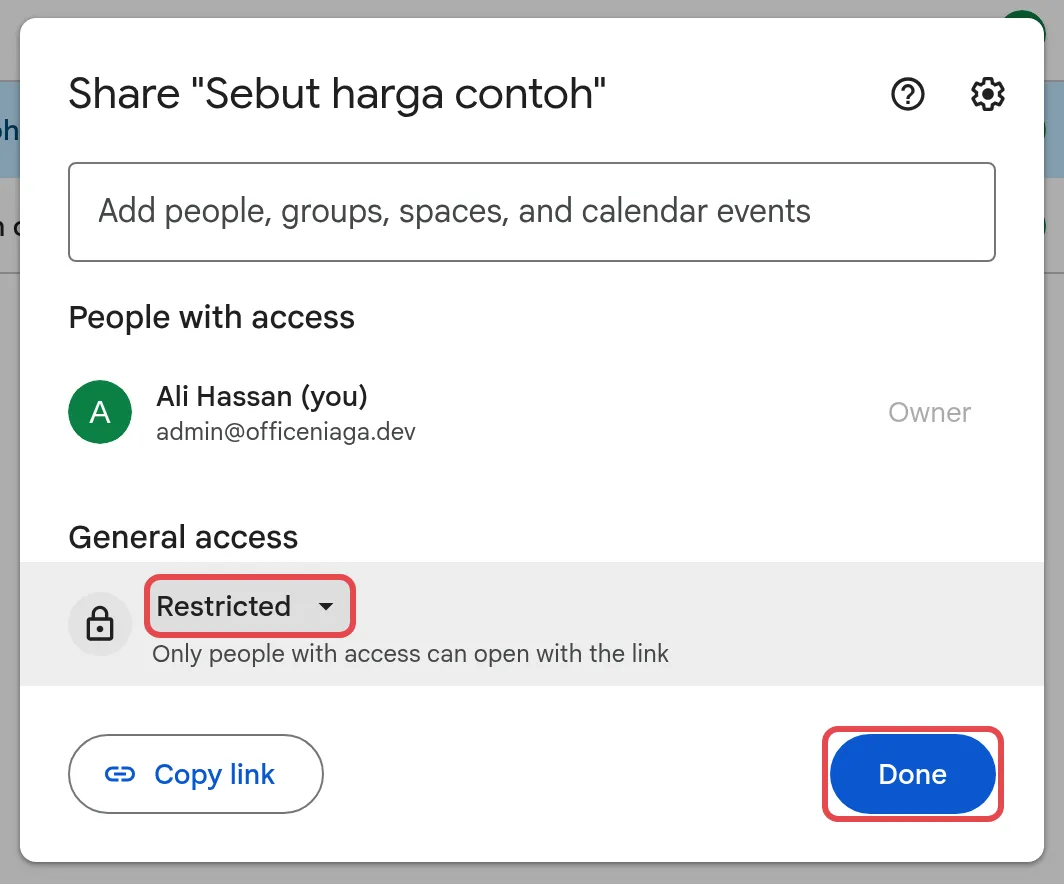
Removing someone from a folder also removes their access to everything inside it.
Give access for a limited time
Section titled “Give access for a limited time”For contractors or short projects, you can make access expire automatically, if your account supports it.
-
Share the file with the person first.
-
Open Share again and click the down arrow next to their name.
-
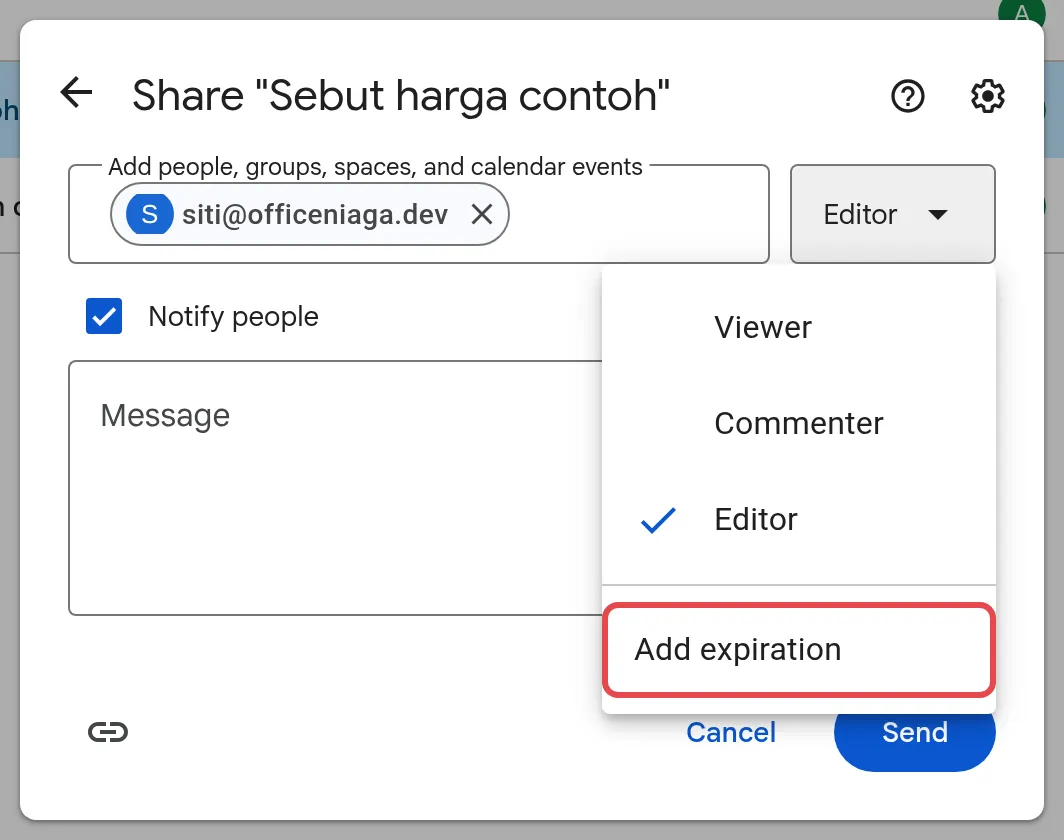
Choose Add expiration and pick a date within the next year.
-
Click Save.
For team files that should stay with the company when staff change, use shared drives. If someone is leaving, see what to do when staff leave.
Still stuck
Section titled “Still stuck”WhatsApp our support team at +60 16-916 3324.
Common issues
Why can't I share a file with someone outside the company?
Your admin can limit sharing outside your organisation, so the option may be blocked or show a warning. Ask your Google Workspace admin to check the Drive sharing settings.
Can I stop people downloading, printing or copying my file?
Yes, if you own it. Click Share, then the gear icon at the top right. Under People who can download, copy, and print, untick the roles you want to block. People can still take screenshots, so this is not full protection.
I shared a folder. Do people get the files inside too?
Yes. Everything in a folder follows the folder's sharing. For a file that should be more private, put it in a separate folder shared only with the right people.
Was this article helpful?
Thanks for your feedback.
Sorry this didn't help. WhatsApp us and we'll sort it out with you.