
Use shared drives for team files in Google Drive
Updated For Google Workspace

A shared drive is a team space in Google Drive. Files in it belong to the company, so they stay put when someone leaves.
Check that you have shared drives
Section titled “Check that you have shared drives”Shared drives depend on your Google Workspace plan and on your admin’s settings.
- Open Google Drive and look for Shared drives in the left menu.
- If you see it but cannot create one, your admin may have limited who can create shared drives.
- Business Starter includes shared drives, but some admin controls for them, such as default sharing rules, need a higher plan. Compare plans on our pricing page.
Create a shared drive
Section titled “Create a shared drive”Anyone allowed to create shared drives becomes its first Manager.
-
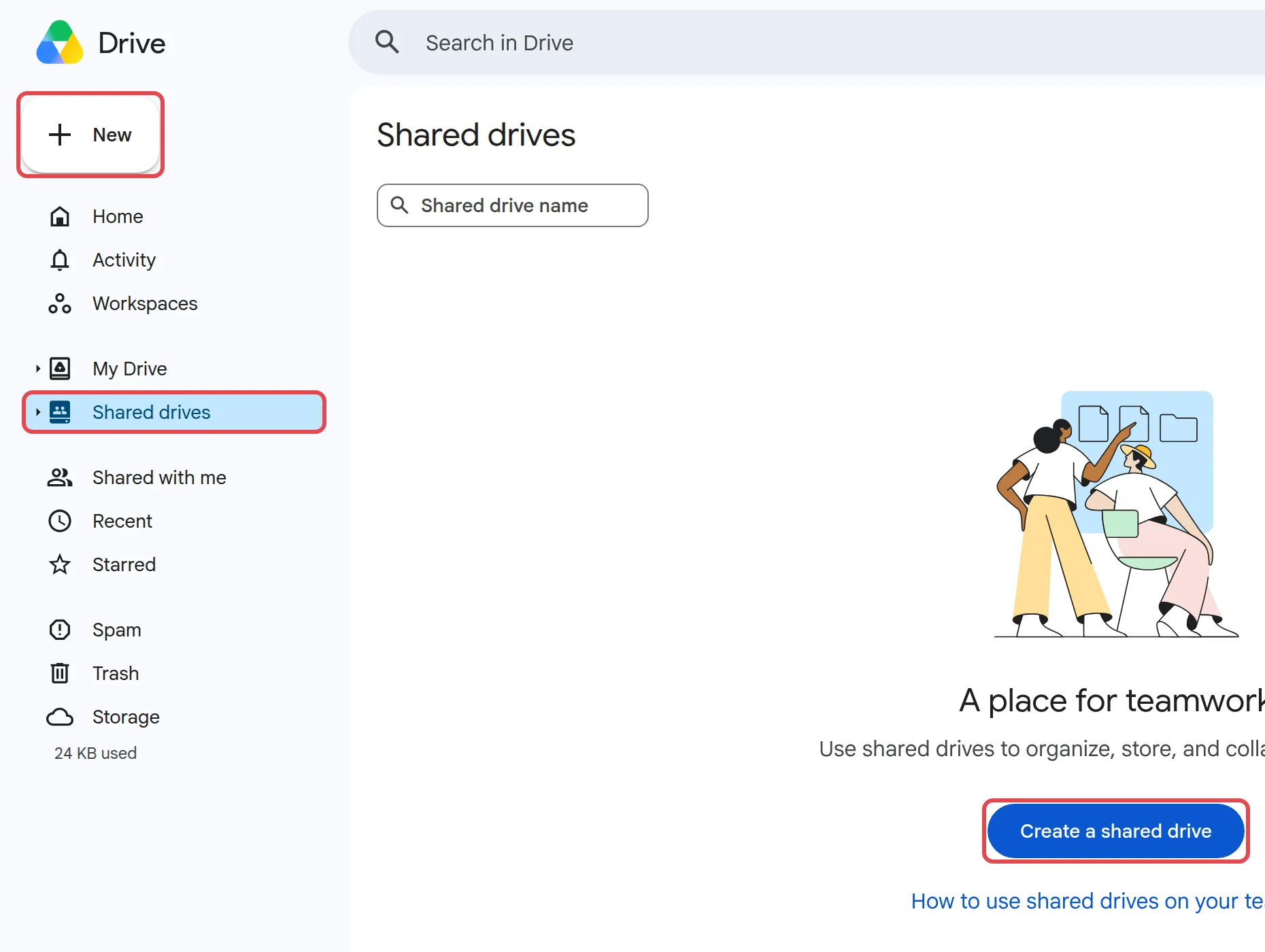
In Drive, click Shared drives on the left.
-
Click New at the top left. If you have no shared drives yet, click Create a shared drive.
-
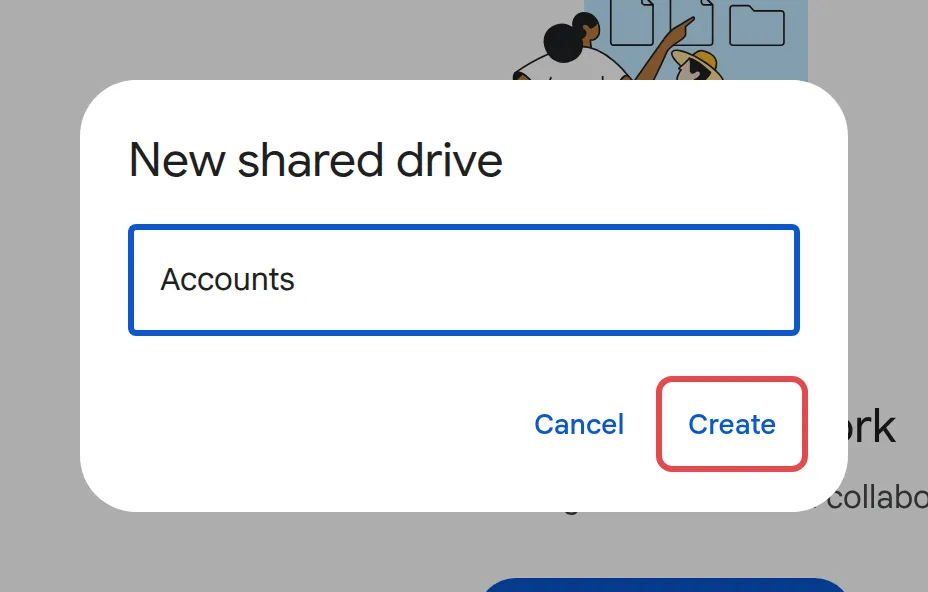
Enter a name, such as “Accounts” or “Sales team”.
-
Click Create.
Add members & choose their access
Section titled “Add members & choose their access”You need Manager access to add or remove members.
- Open the shared drive and click Manage members at the top.
- Add names, email addresses or a Google Group.
- Pick an access level from the dropdown. New members are Content manager by default.
- Click Send.
Pick the access level to match what each person needs:
- Manager: everything, including adding members and deleting the shared drive.
- Content manager: add, edit, move and delete files. Needed to edit files through Google Drive for desktop.
- Contributor: add and edit files, but cannot delete them.
- Commenter: view and comment only.
- Viewer: view only.
Worried about files being deleted by mistake? Give most people Contributor and keep Manager for one or two people.
Move files into a shared drive
Section titled “Move files into a shared drive”Moving files in hands them over to the company. Contributor access or higher can move files from My Drive; only a Manager can move whole folders.
-
In My Drive, right-click the file or folder.
-
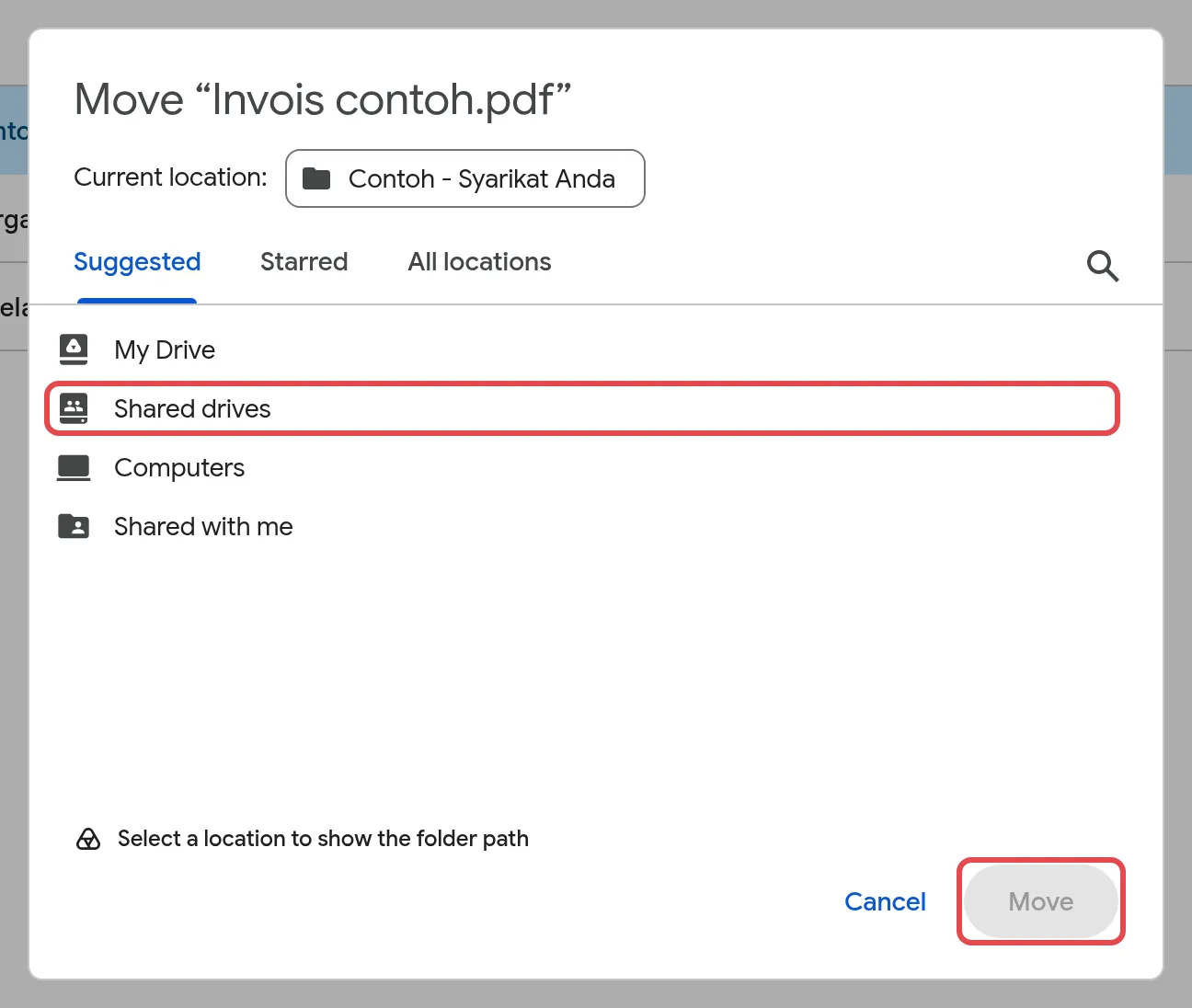
Click Organize > Move.
-
Choose the shared drive and folder, then click Move.
To share a single file instead, see share a Google Drive file or folder.
Still stuck
Section titled “Still stuck”WhatsApp our support team at +60 16-916 3324.
Common issues
What happens to shared drive files when a staff member leaves?
They stay. Files in a shared drive belong to the company, so removing or deleting the person's account does not remove them. See what to do when staff leave for their My Drive files.
Why can't I delete or move files in our shared drive?
Your access level is probably Contributor, Commenter or Viewer. Moving files to Trash needs Content manager or Manager. Ask a Manager of the shared drive to change your access.
Can I add a client or supplier from outside the company?
Only if your admin allows it, and they need a Google Account. Anything they add to your shared drive becomes owned by your company.
Was this article helpful?
Thanks for your feedback.
Sorry this didn't help. WhatsApp us and we'll sort it out with you.