
Ask an AI about this page
 ChatGPT
 Claude
 Perplexity
 Google AI Mode
 Microsoft Copilot
 Grok
 Mistral Le Chat
Change or reset a password
You can change your own password at any time. If you are a domain admin, you can also reset the passwords of other users in your company.
Change your own password
Section titled “Change your own password”You need your current password. Afterwards, update the new password on every phone and computer that has your email set up.
-
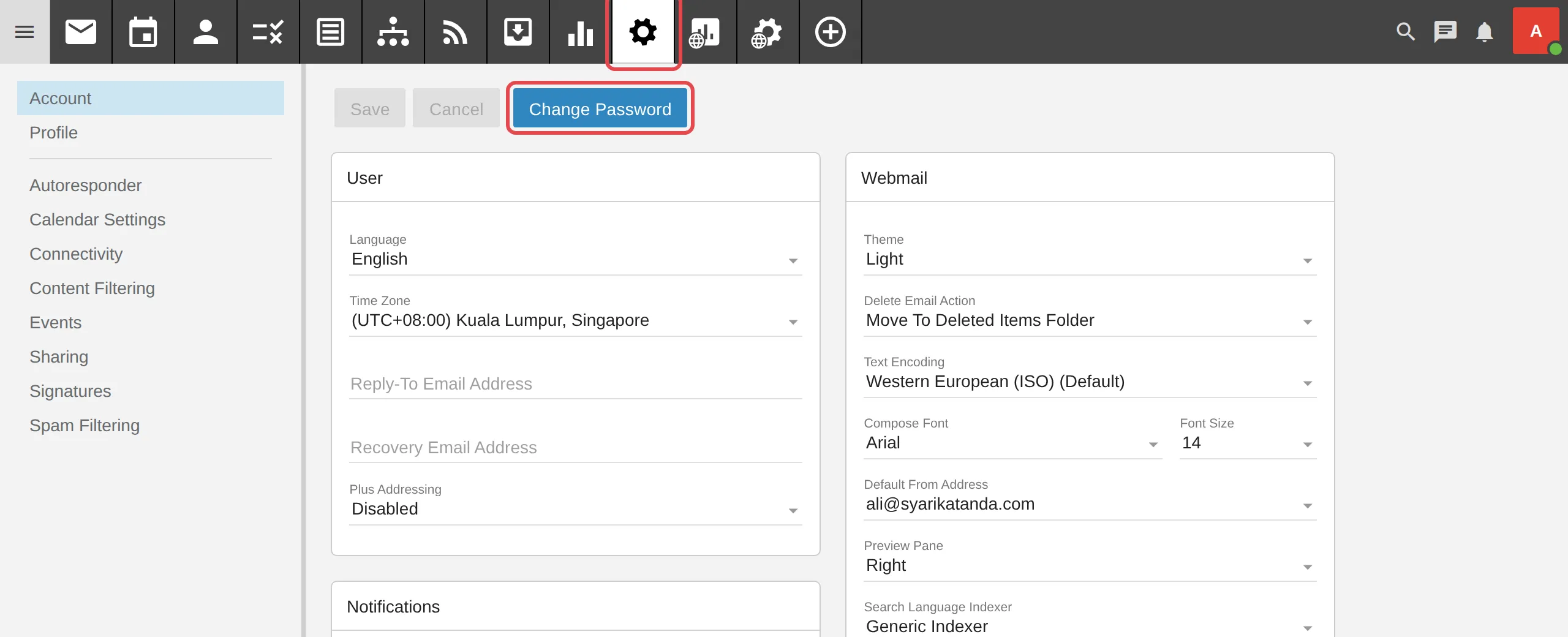
Click Settings.
-
Click Change Password.
-
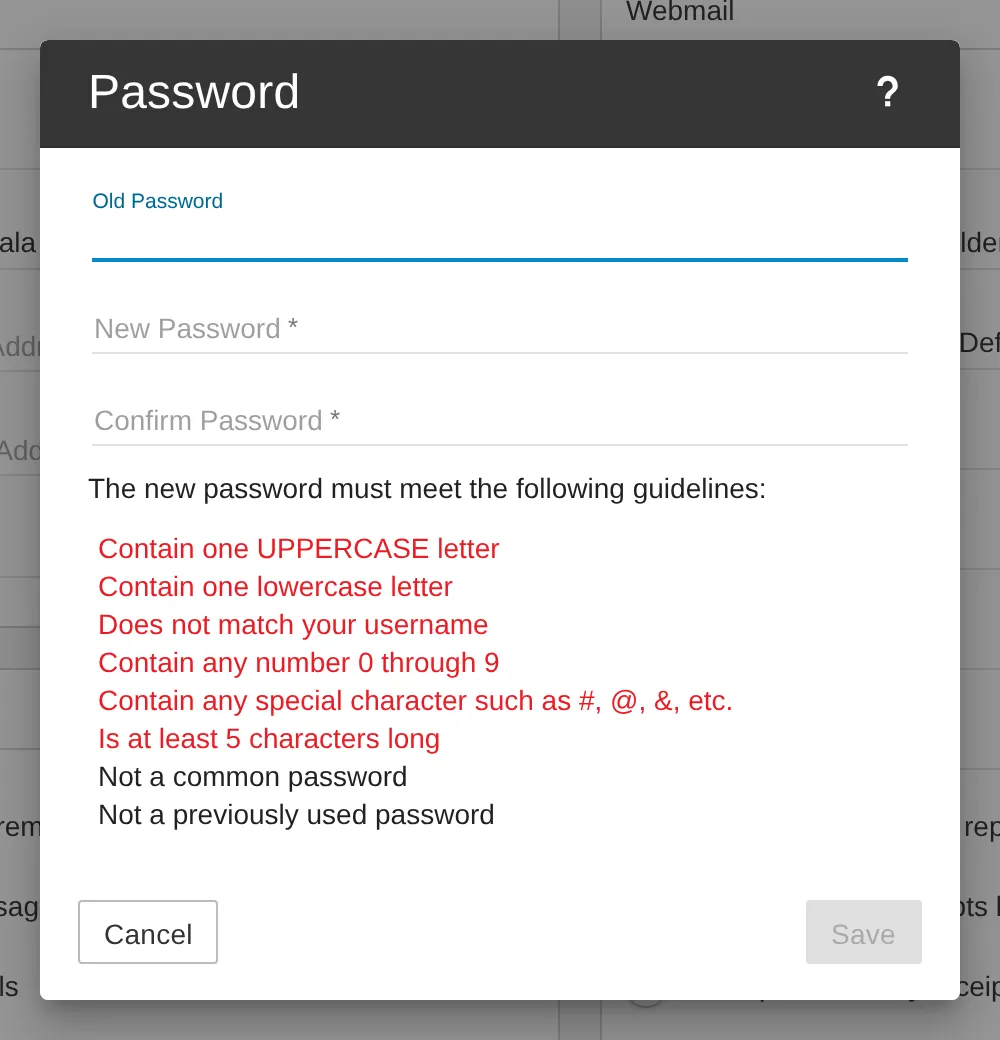
Enter your Old Password, New Password and Confirm Password, then click Save.
Reset another user’s password (domain admin)
Section titled “Reset another user’s password (domain admin)”You need to log in with a domain admin account.
-
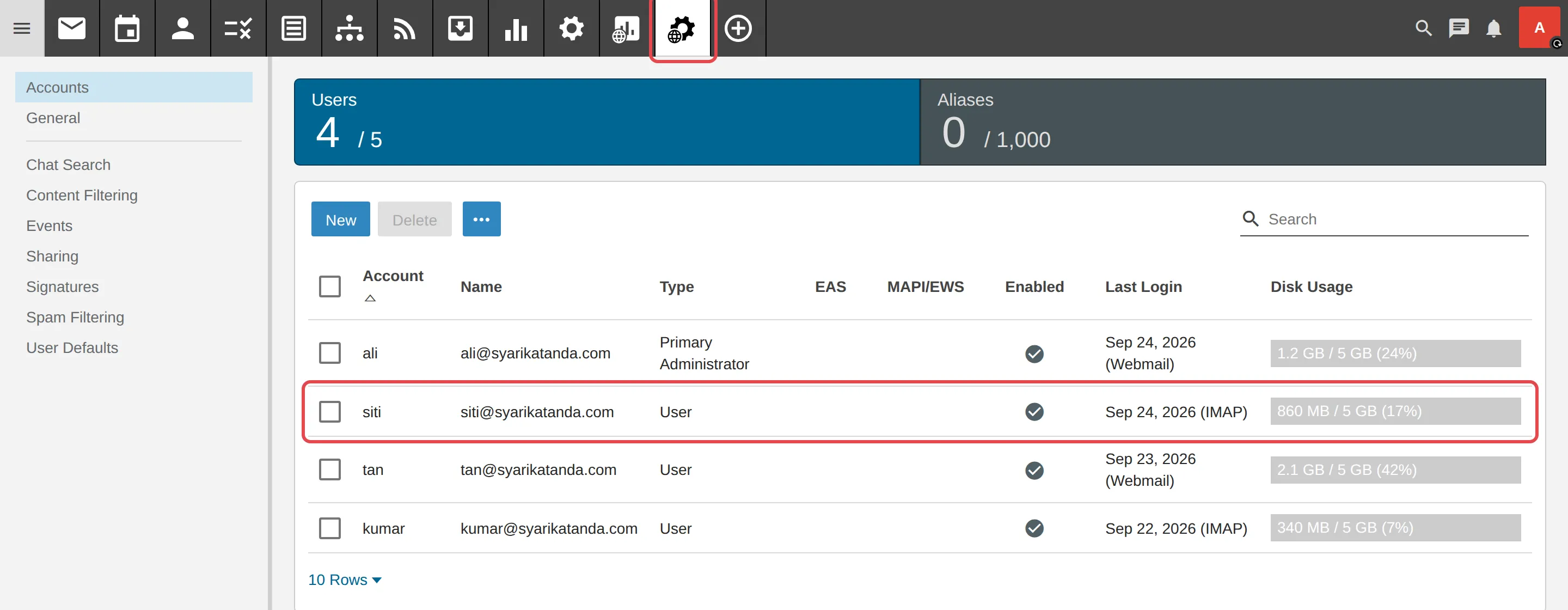
In the top menu, click the Domain Settings icon.
-
Click the name of the user whose password you want to reset.
-
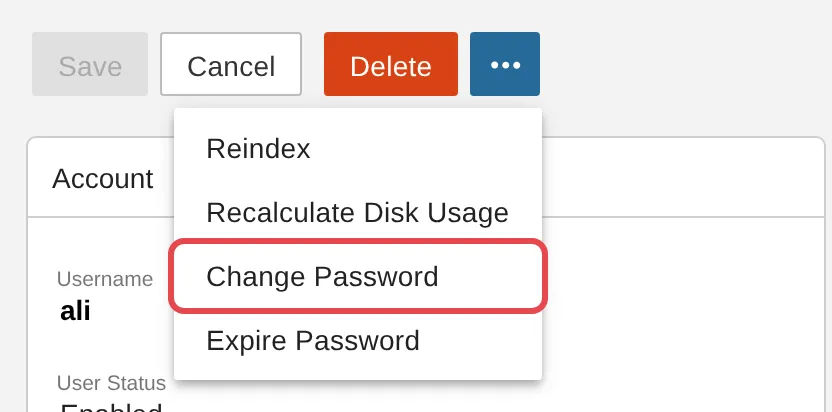
Click the three-dot icon, then click Change Password.
-
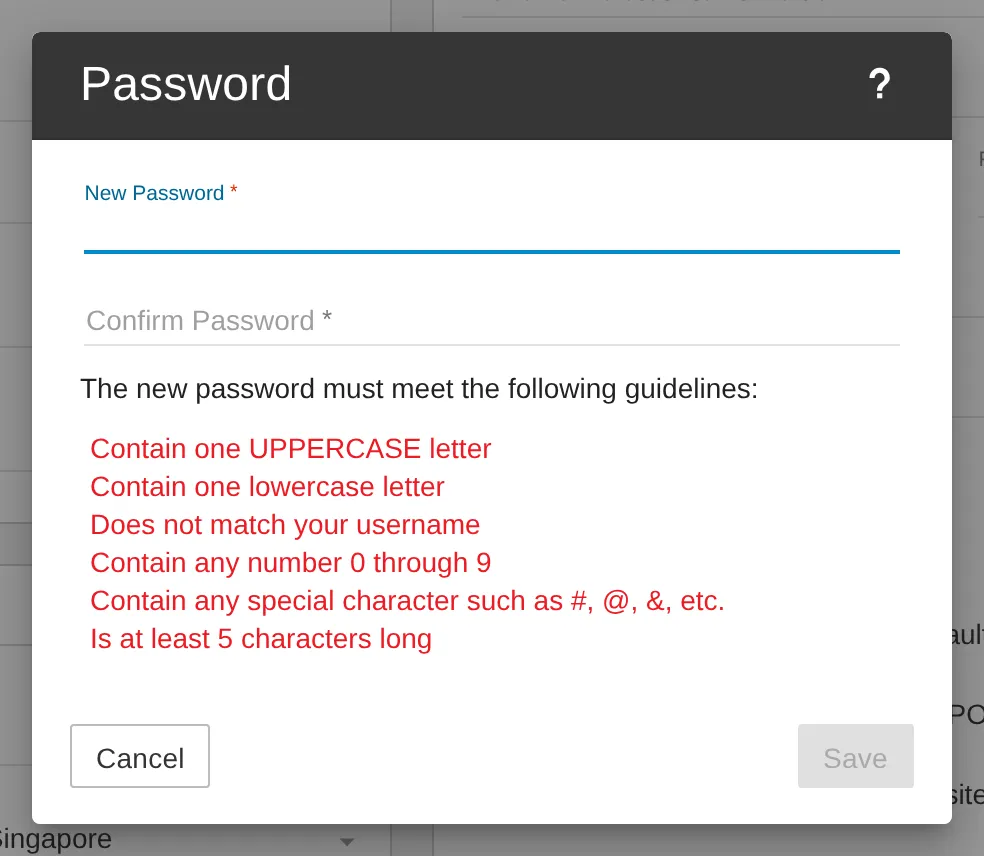
Enter the new password, then click Save. Keep the new password somewhere safe and give it to the user.
Still stuck
Section titled “Still stuck”WhatsApp our support team at +60 16-916 3324.
Common issues
My new password is not accepted.
The password must meet the rules shown on screen. Passwords are also case-sensitive, and spaces count.
I am asked to change my password again after logging in.
This is a security step. Enter your temporary password in the Old Password field, then enter New Password and Confirm Password, and click OK.
After changing my password, my phone or Outlook cannot receive email.
Your email app still has the old password saved. Update the password in every app you use - your phone, Outlook or Thunderbird.
Was this article helpful?
Thanks for your feedback.
Sorry this didn't help. WhatsApp us and we'll sort it out with you.