
Set up email on an Android phone
Updated For SmarterMail Build 7692

The easiest way on Android is the Gmail app, which is already on most phones. Your Office Niaga email then shows in Gmail alongside your other accounts.
Keep your full email address and password ready. You only need to type the server name, mail.officeniaga.com, because the Gmail app sets the ports for you.
-
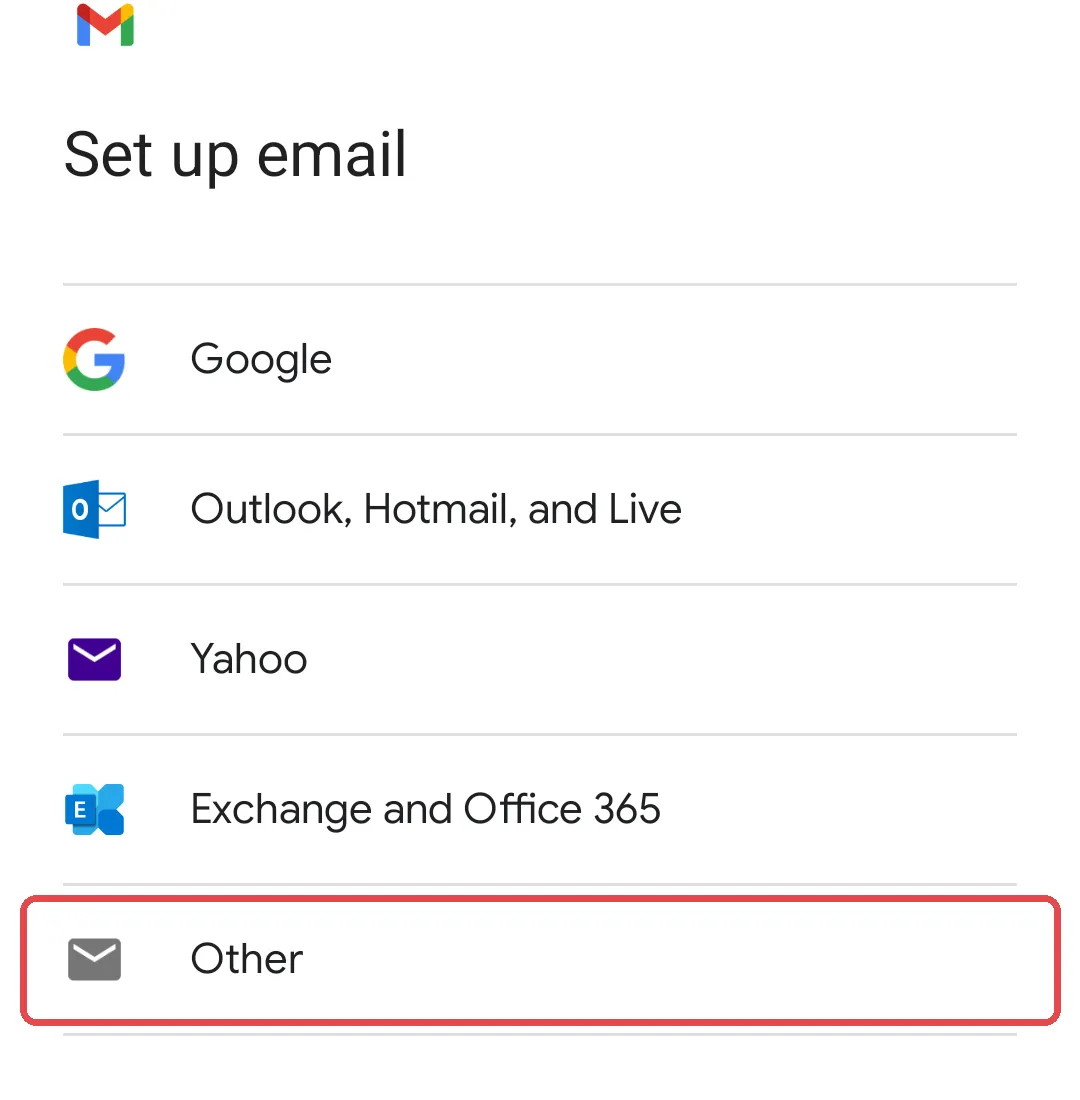
Open the Gmail app, tap your profile picture, then tap Add another account. If you are opening Gmail for the first time, tap Add an email address. Then choose Other.
-
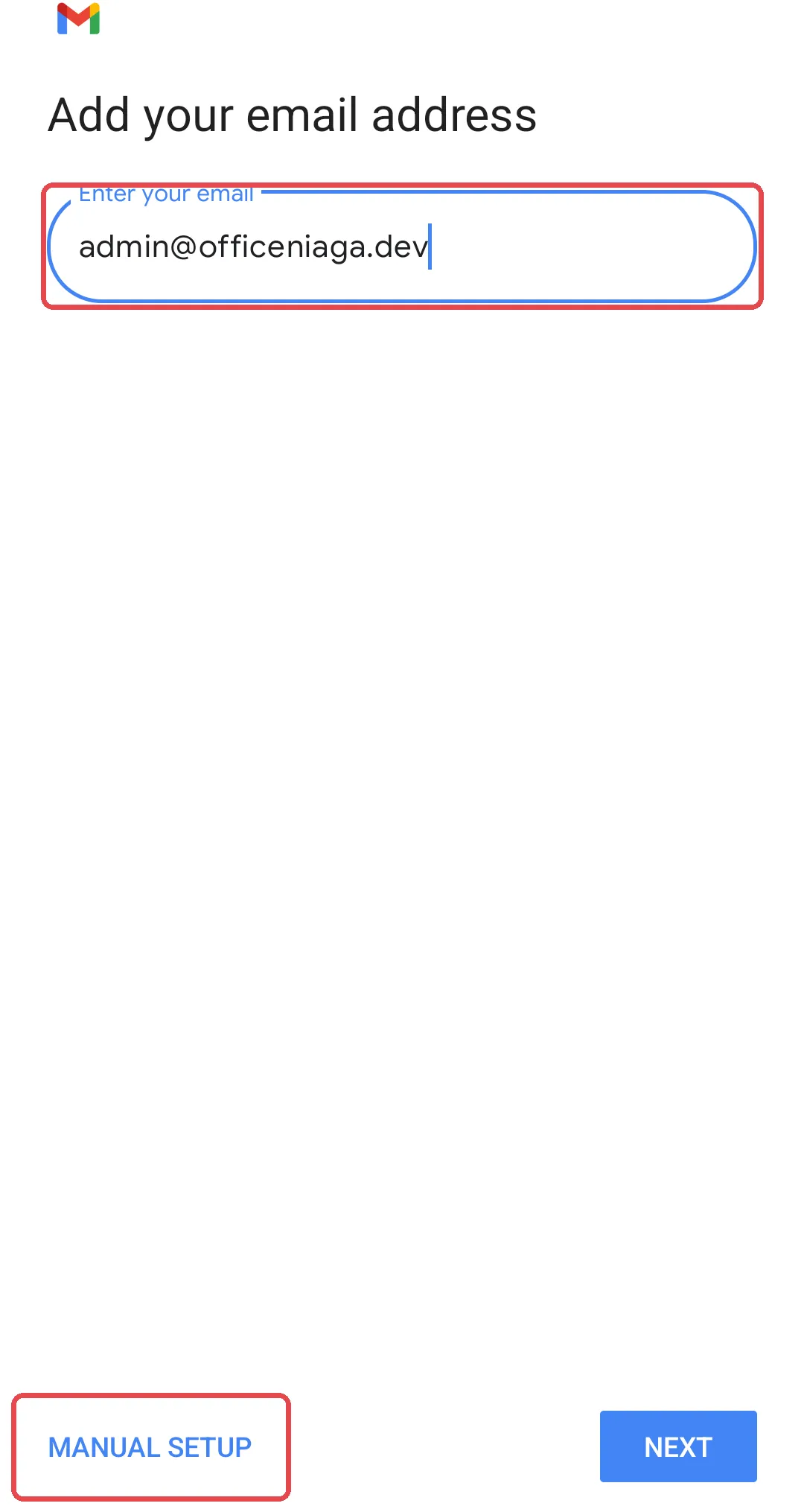
Enter your full email address, then tap MANUAL SETUP.
-
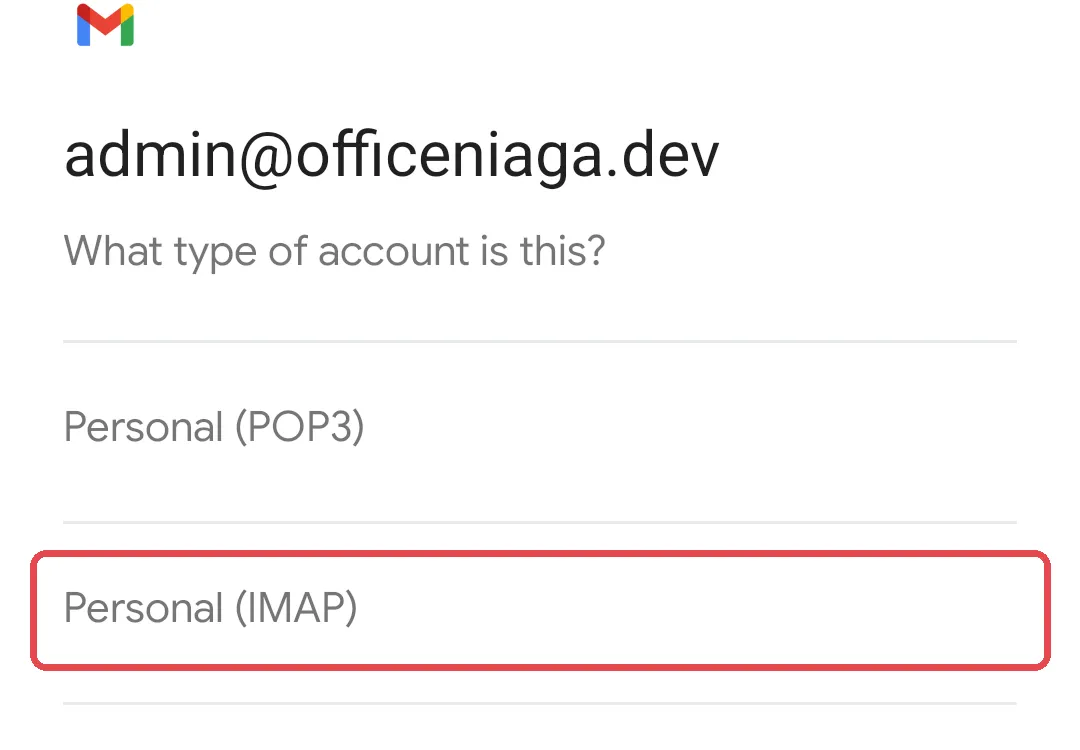
Choose Personal (IMAP).
-
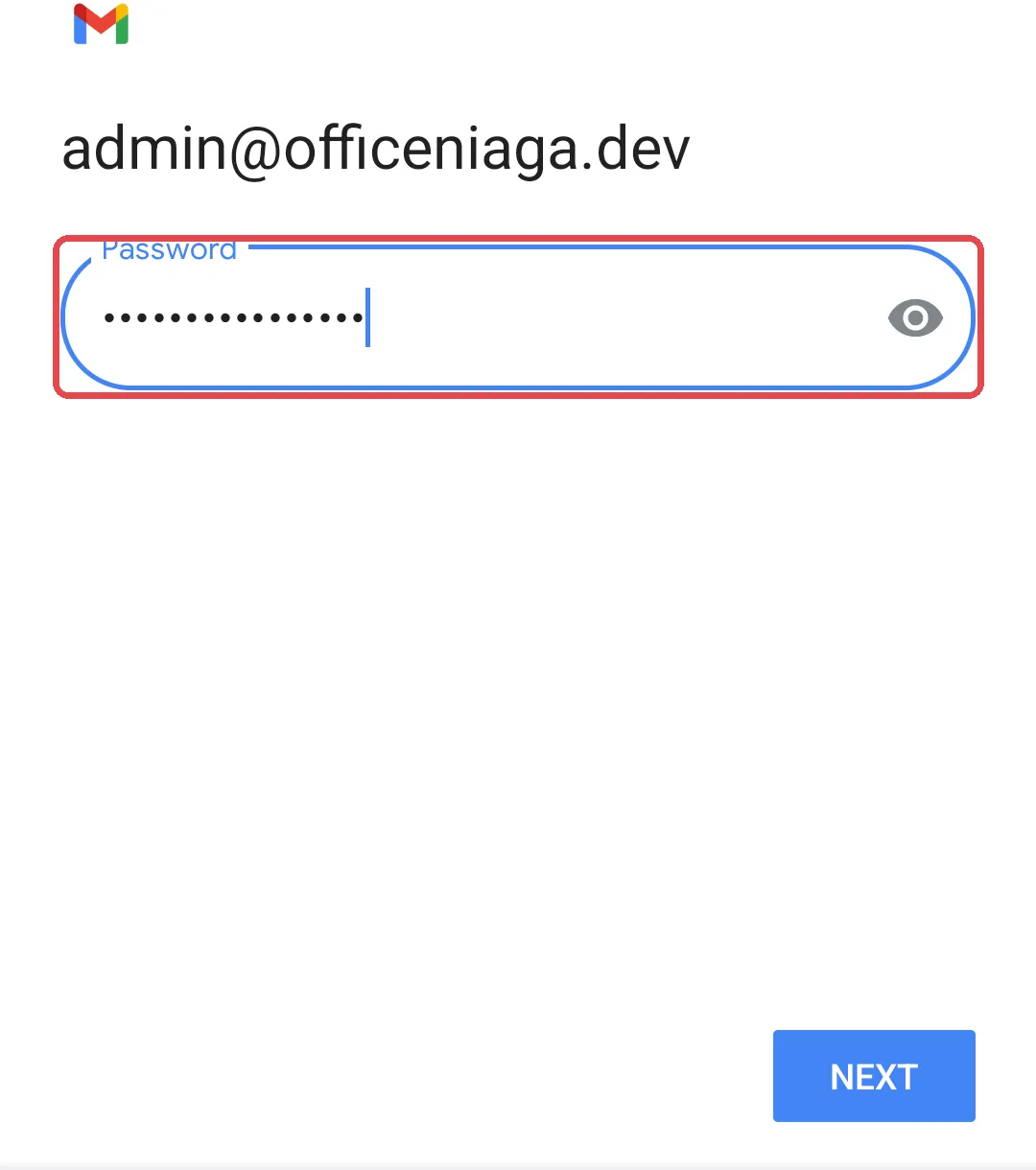
Enter your password, then tap NEXT.
-
Under Incoming server settings, check that Username is your full email address and Password is correct. Enter
mail.officeniaga.comin the Server field.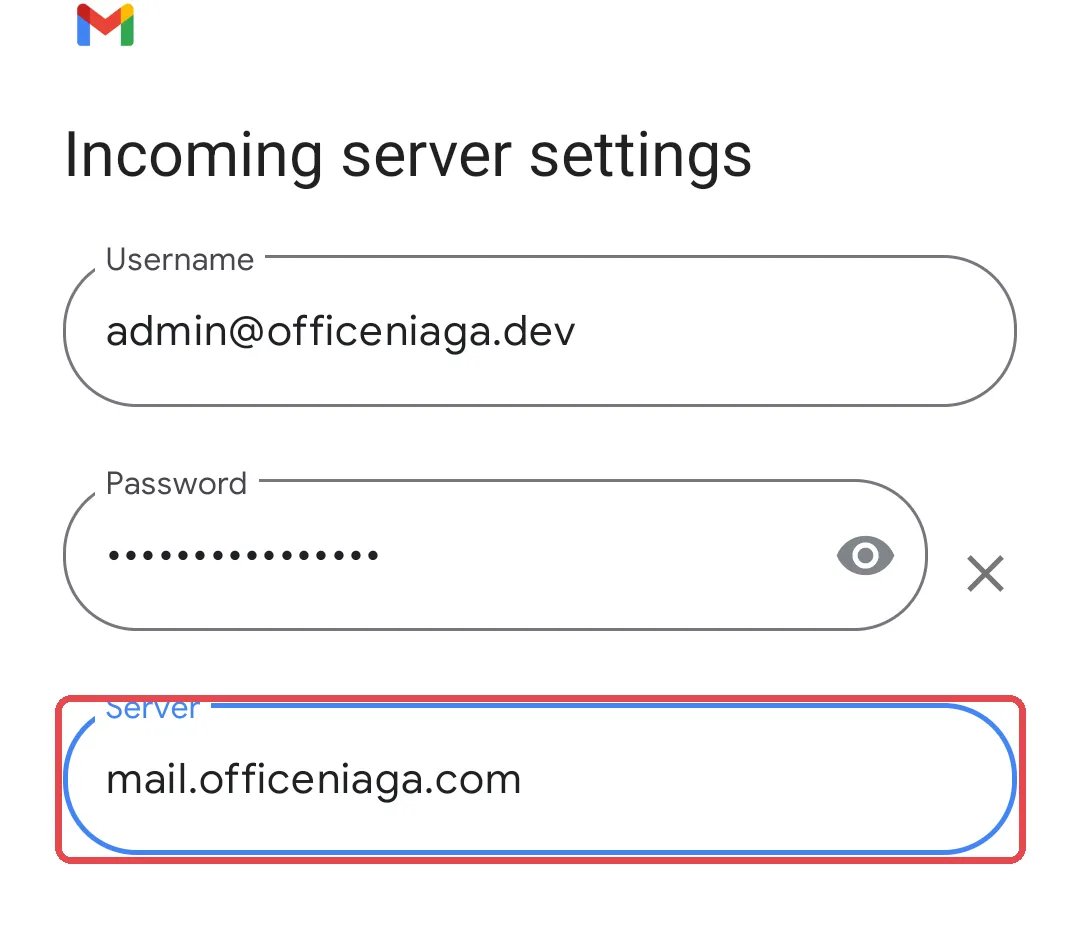
The Gmail app picks the port and SSL automatically, so this screen has no port field. If you use another email app that asks for a port, see Email server settings.
-
Under Outgoing server settings, make sure Require signin is turned on, then enter
mail.officeniaga.comin the SMTP server field.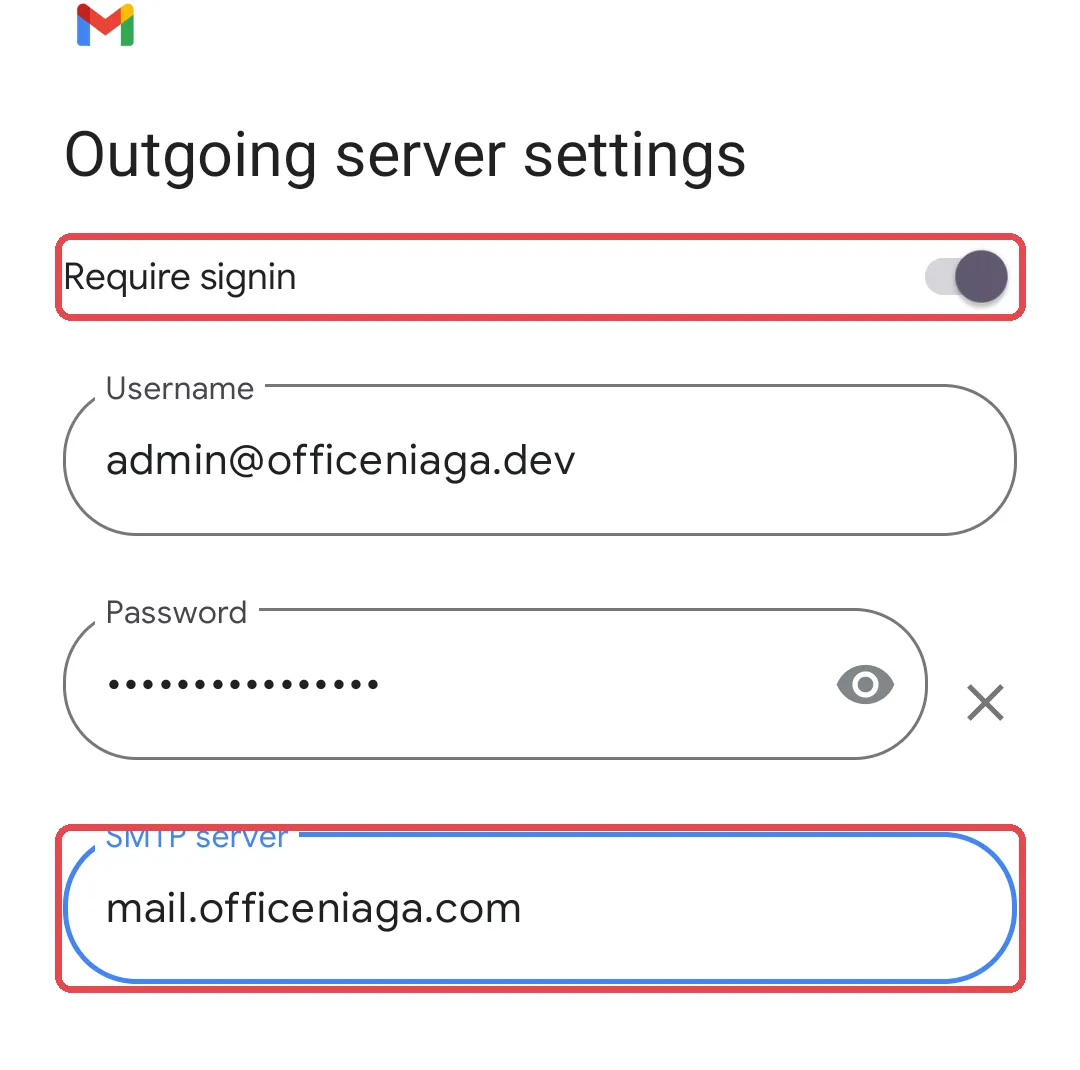
-
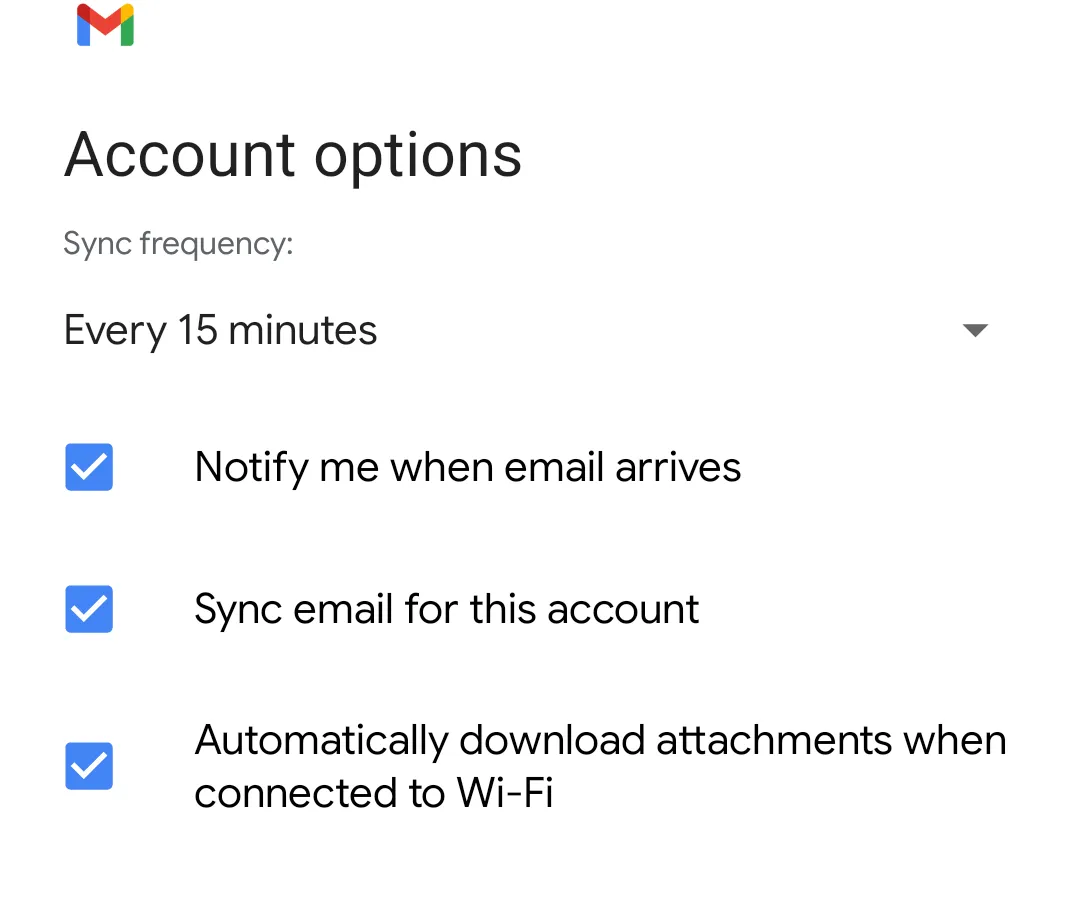
Choose the Account options you want, for example sync frequency, notifications, email sync and attachment downloads.
-
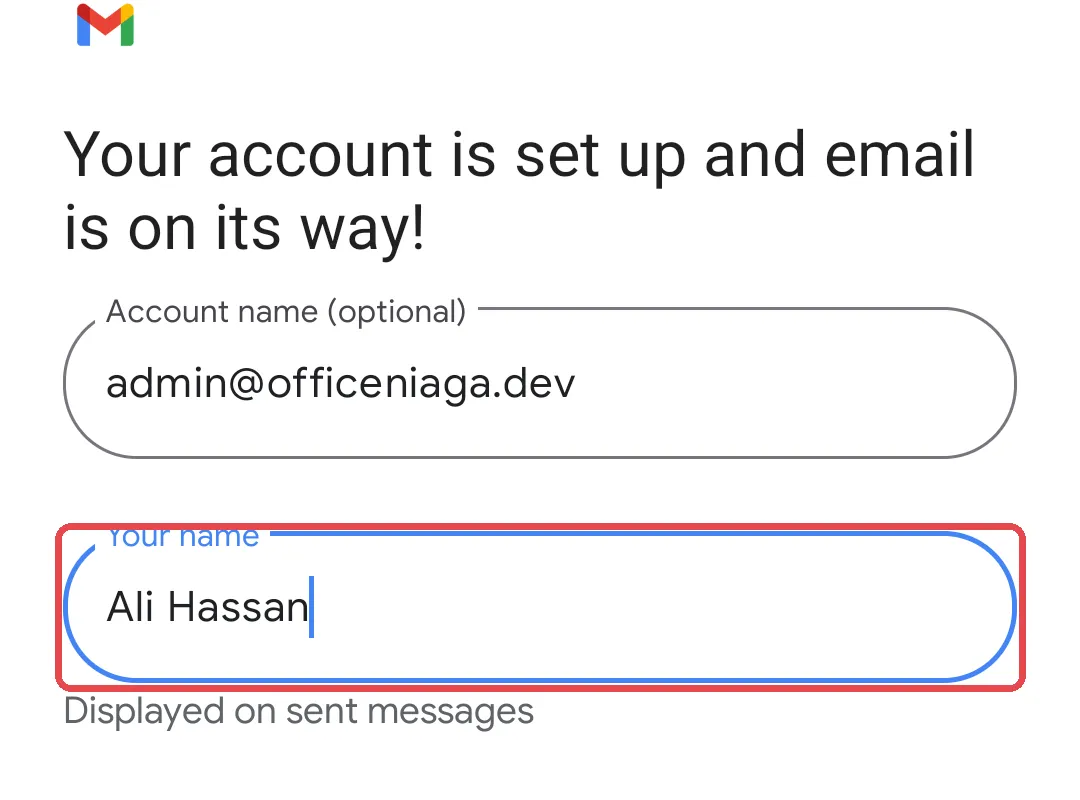
Enter your name in the Your name field. People you email see this name on your messages.
-
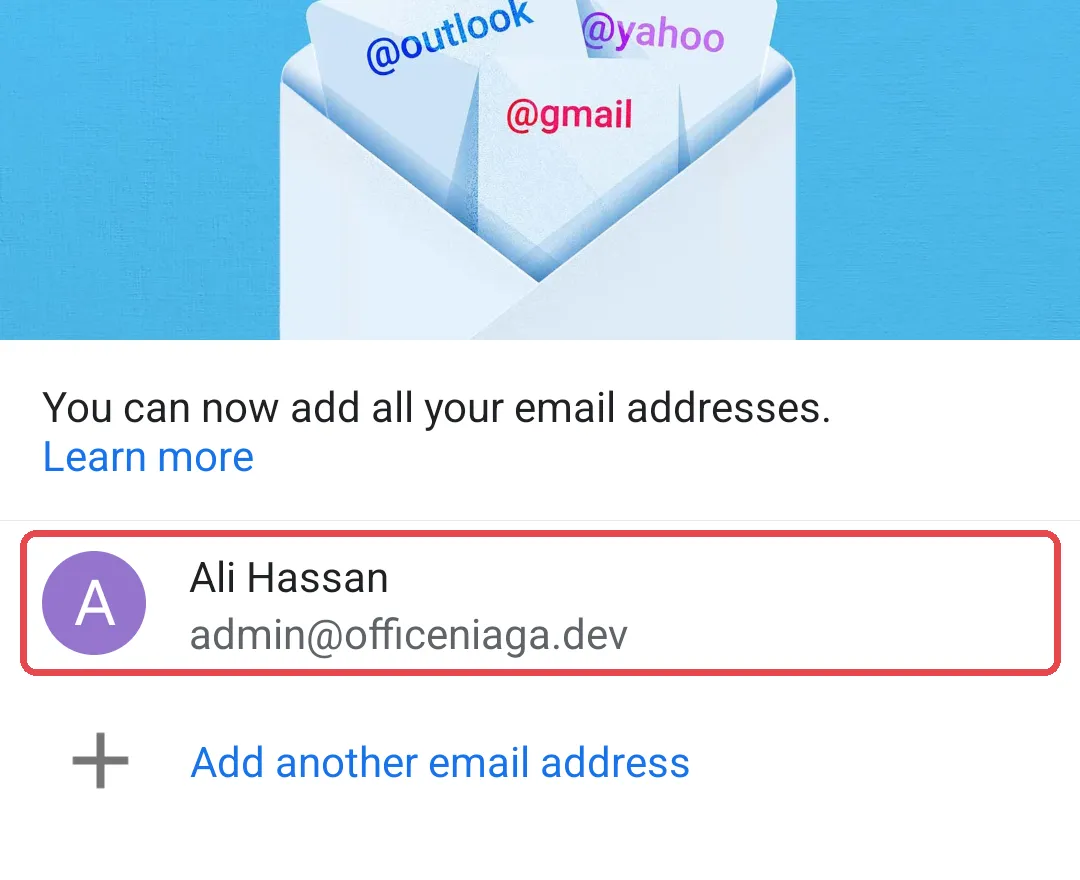
Check that your account now shows in the Gmail account list, with your name and email address.
Still stuck
Section titled “Still stuck”WhatsApp our support team at +60 16-916 3324.
Common issues
My phone has no "Personal (IMAP)" option.
In the Gmail app, choose Other, enter your email address, then tap MANUAL SETUP. The Personal (IMAP) option appears after that. In the Samsung Email app, choose Other and manual setup. The server details are the same - see Email server settings.
I can receive email but cannot send.
The Gmail app picks the outgoing server port automatically. Check that SMTP server is mail.officeniaga.com and Require signin is turned on. In other email apps, use port 465 with SSL/TLS, because port 587 is not open on our server.
Was this article helpful?
Thanks for your feedback.
Sorry this didn't help. WhatsApp us and we'll sort it out with you.