
Change display name & mailbox quota
Updated For SmarterMail Build 7692

Both settings are on the same screen. You need to log in with a domain admin account.
Open the user’s settings
Section titled “Open the user’s settings”Start here for both changes below.
-
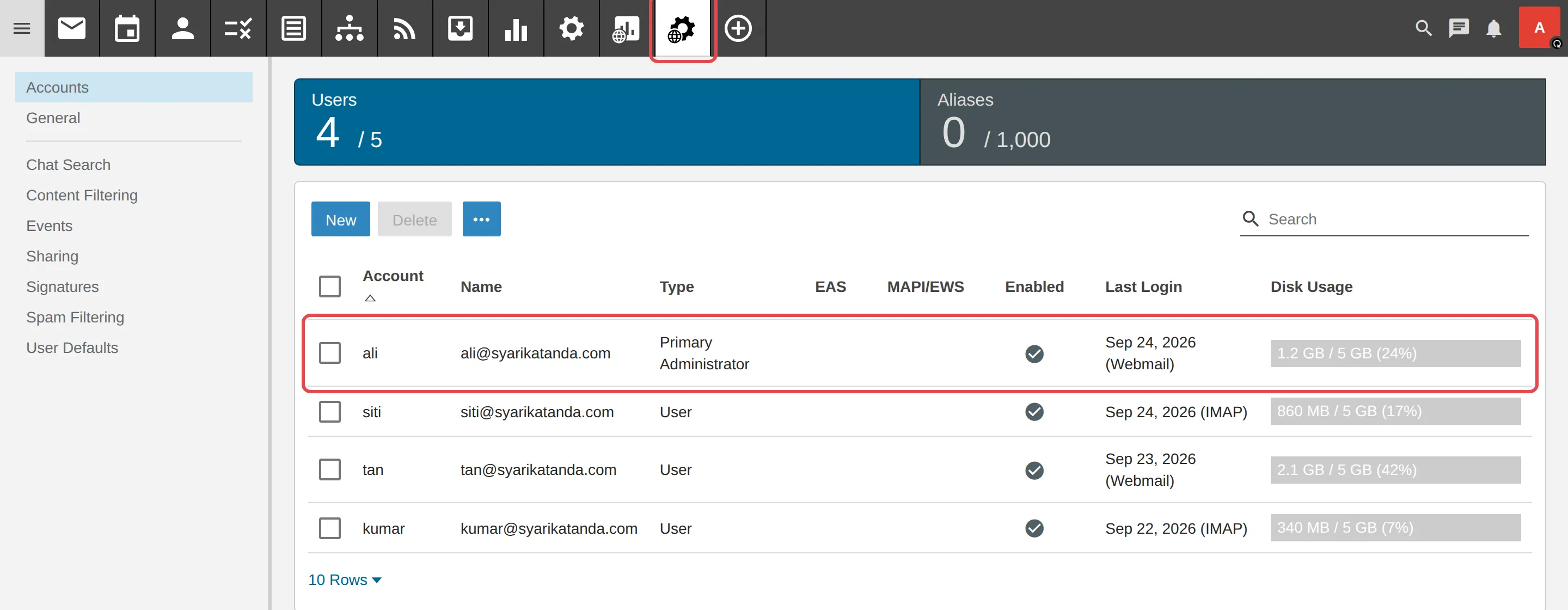
Click Domain Settings.
-
On the left, click Accounts, then click the user you want to change.
Change the display name
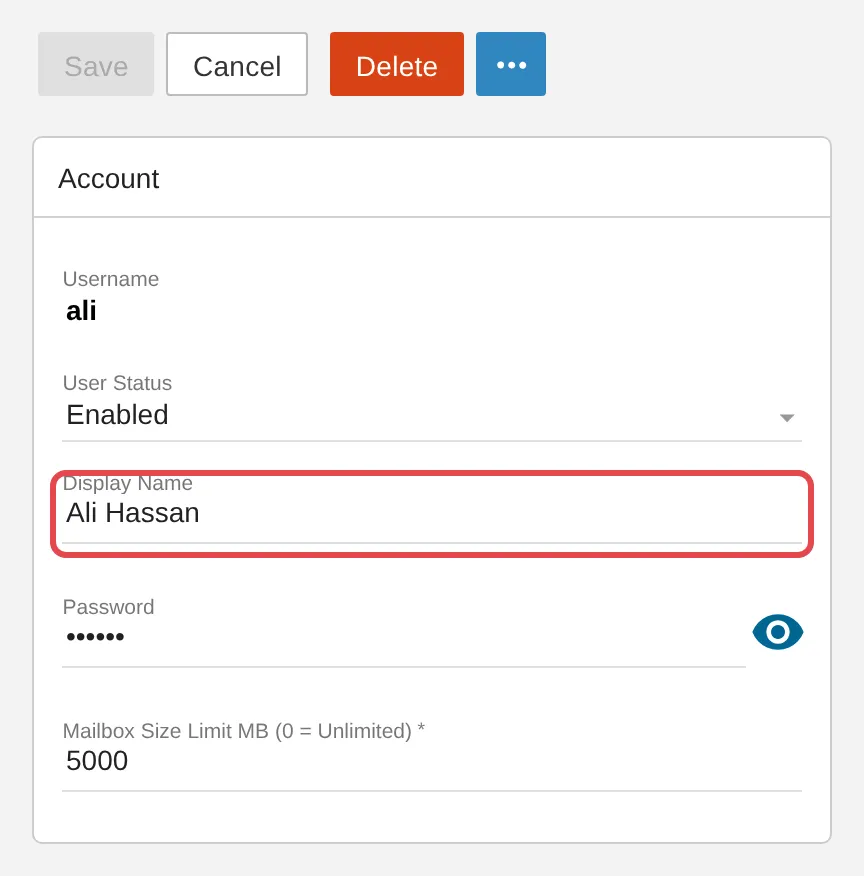
Section titled “Change the display name”Enter the new name in the Display Name field, then click Save.
Change the mailbox quota
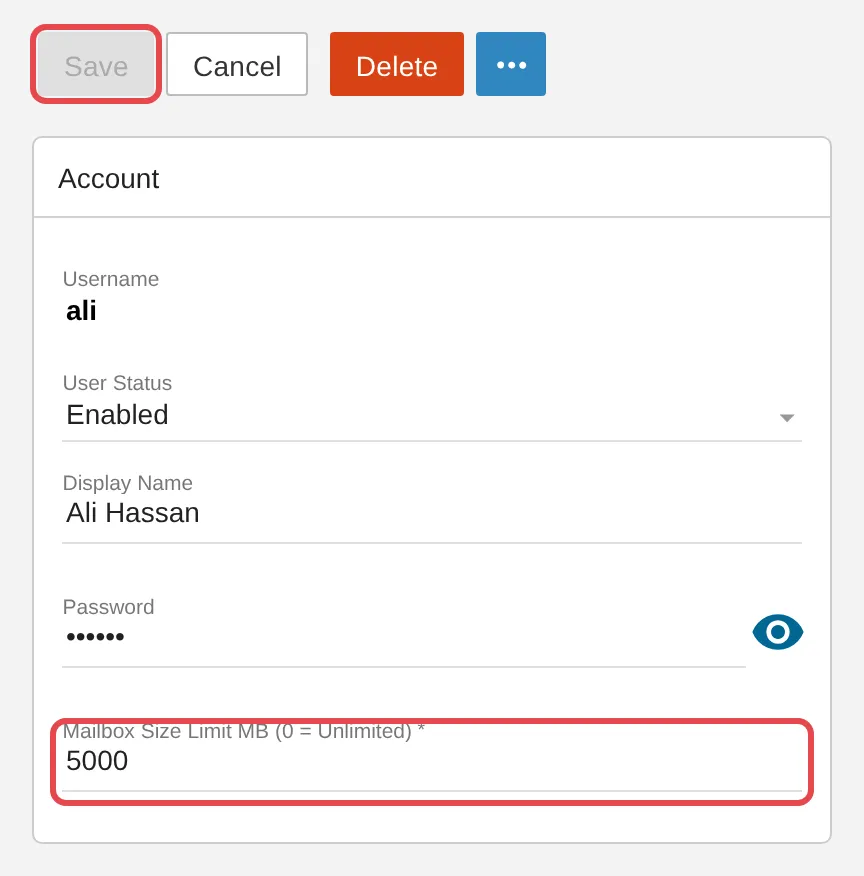
Section titled “Change the mailbox quota”Enter the new size in the Mailbox Size Limit field, then click Save.
Still stuck
Section titled “Still stuck”WhatsApp our support team at +60 16-916 3324.
Common issues
What is a display name?
The name recipients see in the sender field, for example Ali - Sales instead of just the email address. By default, the display name is the email address itself.
The mailbox is full and email cannot be received.
Raise that user's Mailbox Size Limit, or delete old emails and empty the Deleted Items folder. The total quota for all users is limited by your package.
Was this article helpful?
Thanks for your feedback.
Sorry this didn't help. WhatsApp us and we'll sort it out with you.