
Ask an AI about this page
 ChatGPT
 Claude
 Perplexity
 Google AI Mode
 Microsoft Copilot
 Grok
Grok Mistral Le Chat
Create & manage user groups
A user group makes it easy for users in the same domain to share calendars and tasks. For example, a sales team can plan their tasks together. You need to log in with the domain admin account.
Add a user group
Section titled “Add a user group”Use a group for a team that plans together, such as sales or accounts.
-
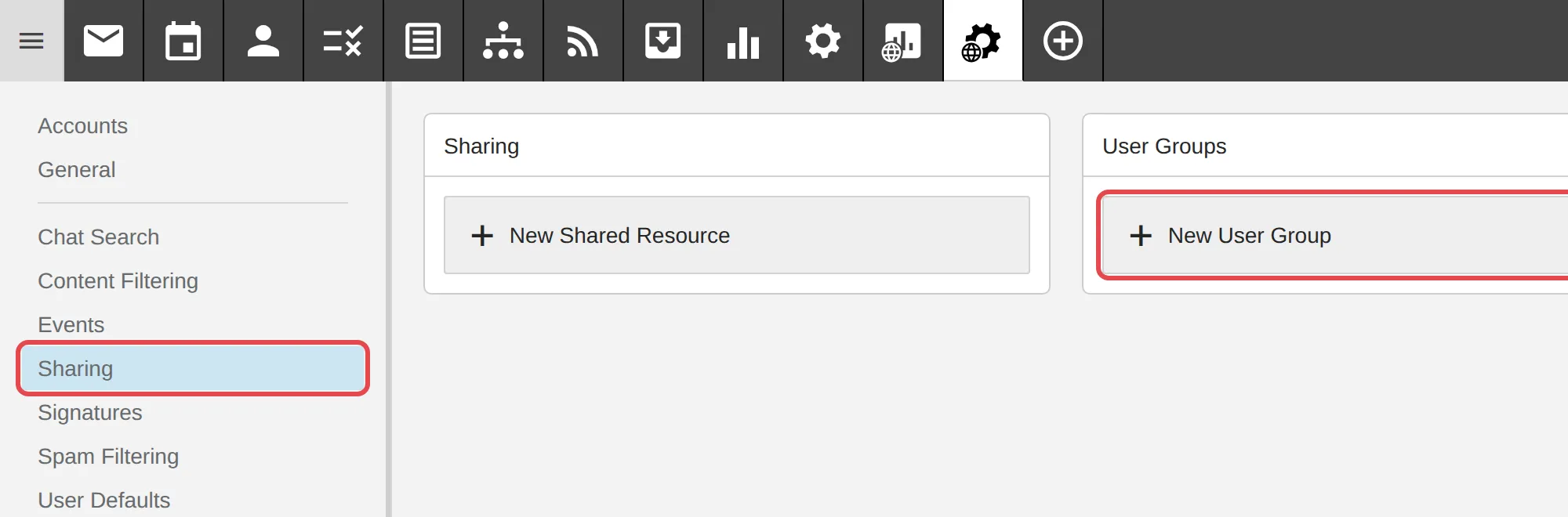
Click Domain Settings.

-
On the left, click Sharing. In the User Groups card, click New User Group.
-
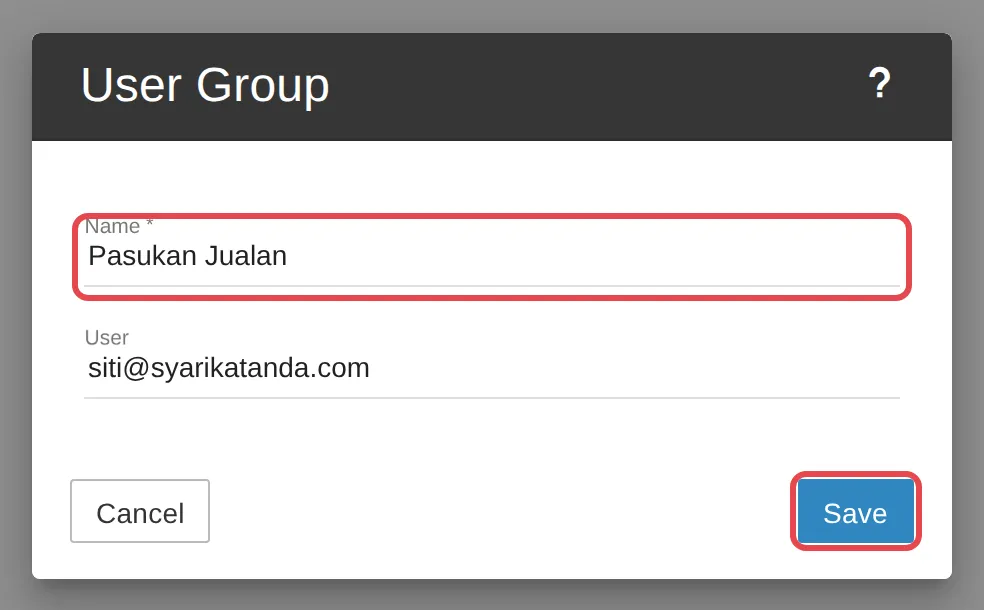
Enter the group name in the Name field. In the User field, type the first letters of a user’s name and choose them from the list. A new User field appears for the next member. Click Save.
Delete a user group
Section titled “Delete a user group”Deleting a group does not delete the users in it.
-
Click Domain Settings, then Sharing.
-
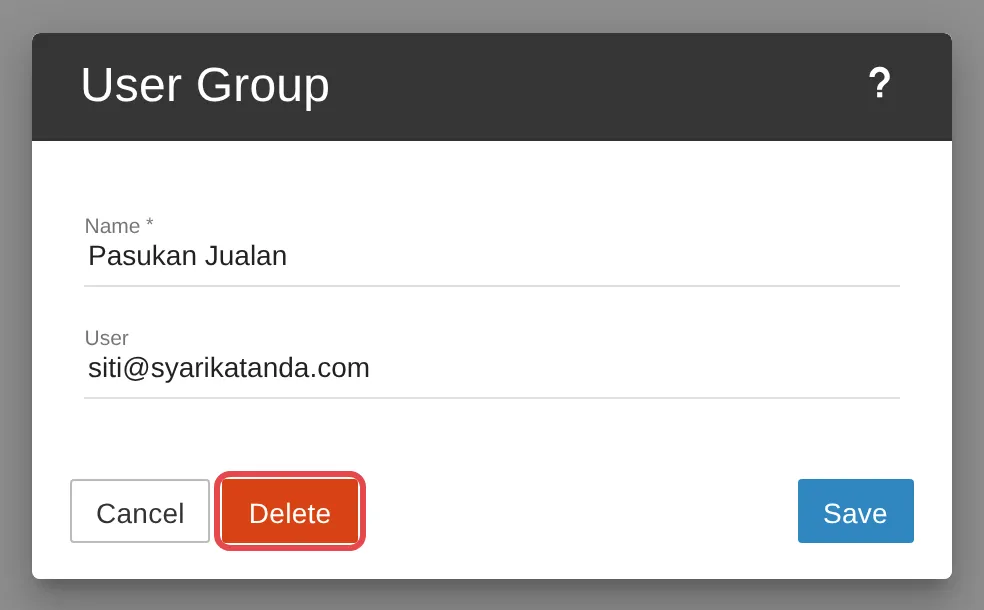
In the User Groups card, click the group you want to delete.
-
Click Delete.
Still stuck
Section titled “Still stuck”WhatsApp our support team at +60 16-916 3324.
Common issues
What is the difference between a user group and a mailing list?
A user group makes it easy for members to share calendars and tasks in Office Niaga Mail. A mailing list sends one email to many recipients - see Create an alias or mailing list.
Was this article helpful?
Thanks for your feedback.
Sorry this didn't help. WhatsApp us and we'll sort it out with you.