
Assign or remove Microsoft 365 licences for staff
Updated For Microsoft 365

Every staff member who needs email and the Microsoft 365 apps needs a licence. You assign licences from your company’s pool in the Microsoft 365 admin centre, and take them back when someone leaves so the next hire can use them.
See how many licences you have
Section titled “See how many licences you have”Go to Billing > Licenses to see each product with its Available licenses and Assigned licenses. In the example below, the one licence is already in use, so Available licenses shows 0.
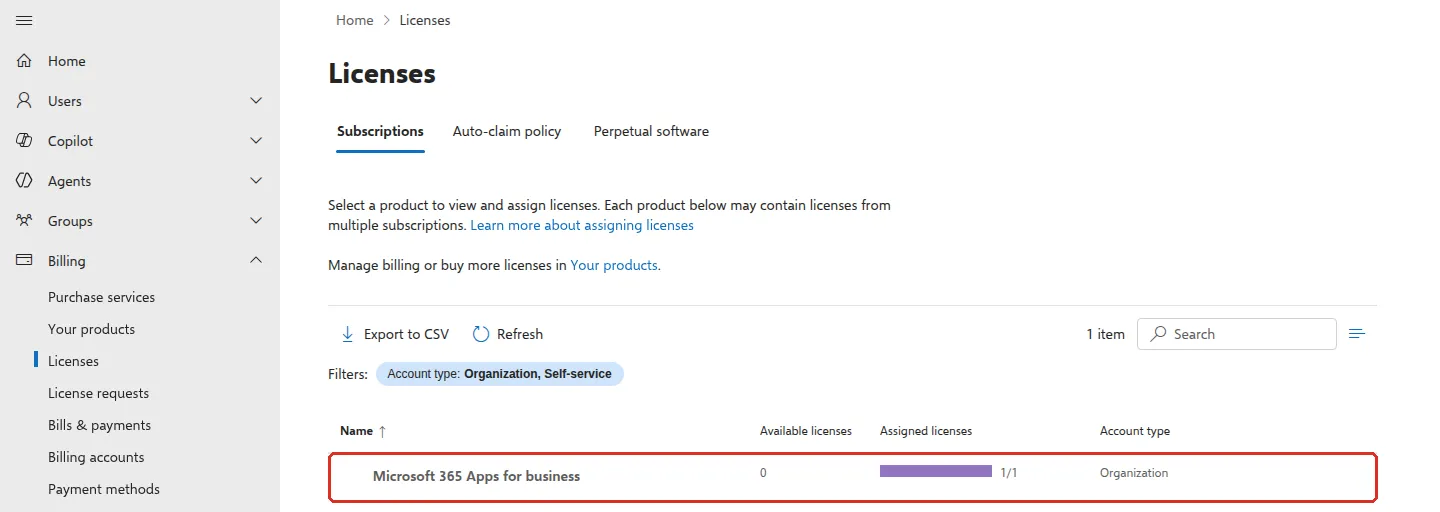
Billing > Your products lists each subscription. Select one to see its details: subscriptions bought through Office Niaga show Reseller under Purchase channel.
If every licence is in use, ask Office Niaga for more. You cannot buy them in the admin centre, because the subscription is managed through us. See licences and renewal.
Give a licence to one person
Section titled “Give a licence to one person”You need an admin role such as License Administrator or User Administrator.
-
Sign in to admin.microsoft.com.
-
Go to Users > Active users and select the person’s name.
-
Open the Licenses and apps tab. Check Select location shows Malaysia.
-
Under Licenses, tick the licence to give them. If Microsoft says You don’t have any licenses available, every licence is in use; ask Office Niaga for another one.
-
Select Save changes.
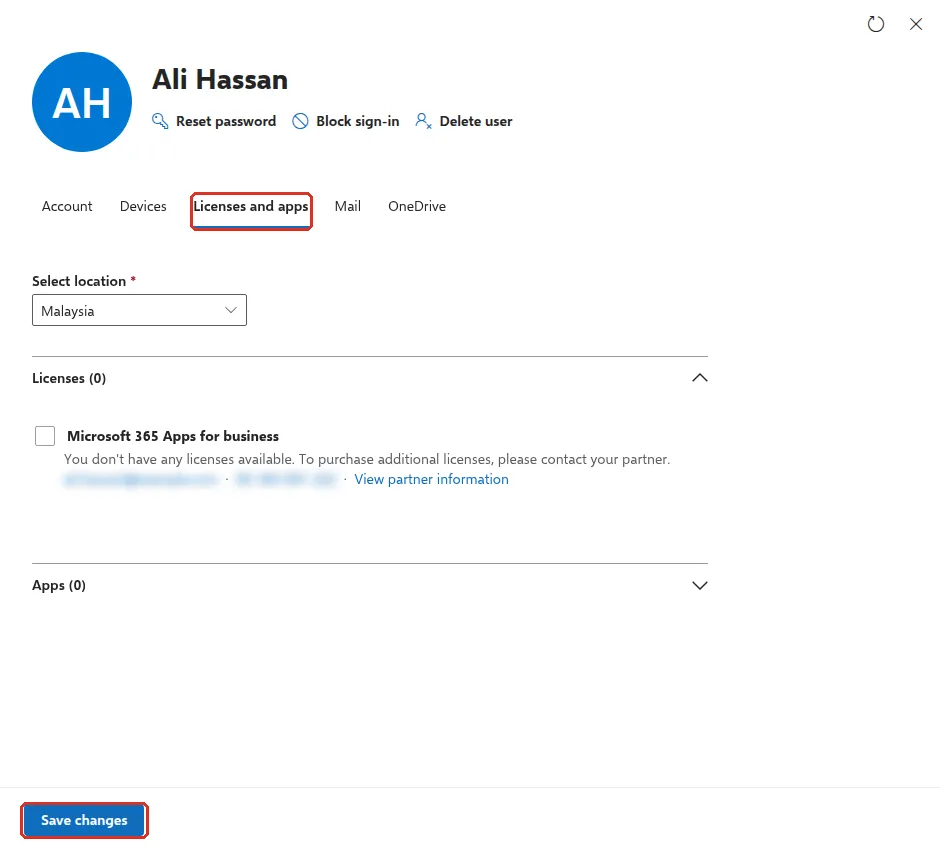
The person’s mailbox and apps are usually ready within a few minutes. They can then install the apps if their plan includes the desktop apps.
Take a licence back
Section titled “Take a licence back”Before you remove a licence from someone who has left, save their emails and files first. Follow when a staff member leaves.
- Go to Users > Active users and select the person.
- On the Licenses and apps tab, untick the licence.
- Select Save changes.
Microsoft holds the person’s mailbox data for 30 days, then deletes it. Microsoft 365 apps already installed on their computer start showing Unlicensed Product messages.
Assign licences to several people
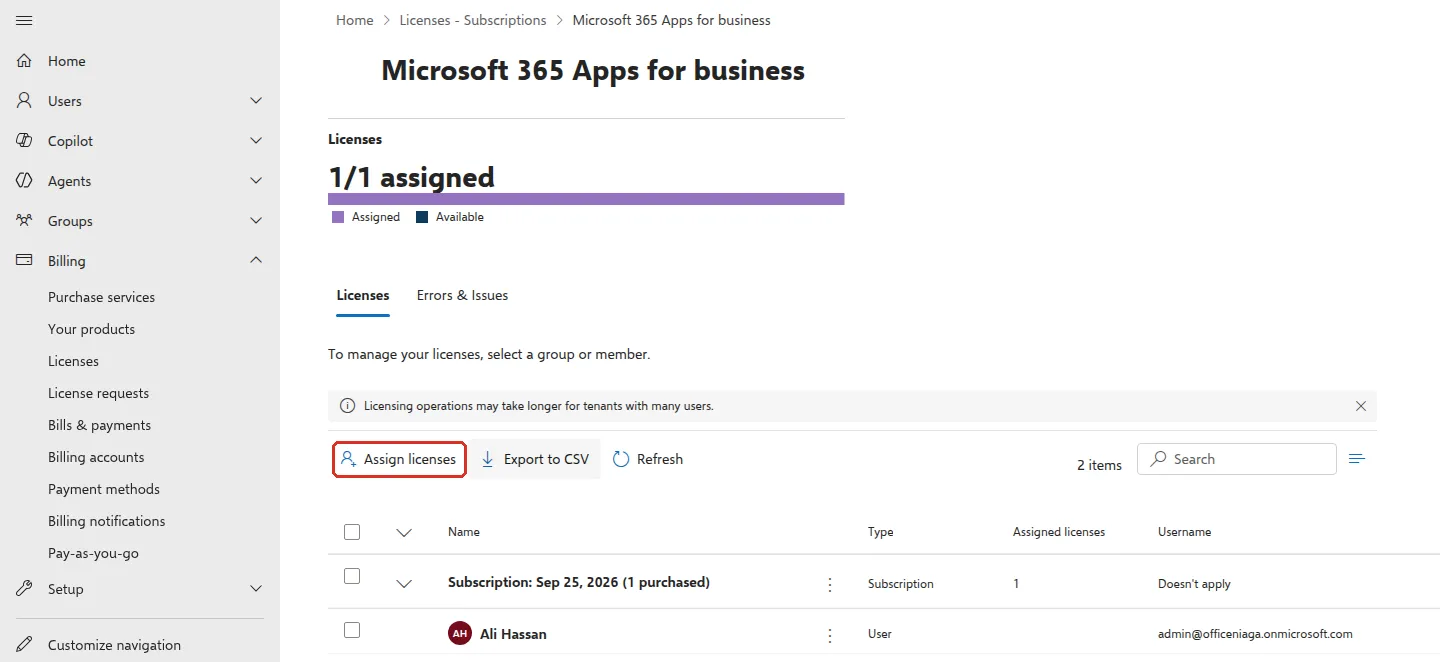
Section titled “Assign licences to several people”To give a licence to a group of staff at once, go to Billing > Licenses, select the product and choose Assign licenses. Type the names (up to 20 at a time) and select Assign licenses at the bottom. To take licences back from several people, tick them on the same page and select Unassign licenses.
Still stuck
Section titled “Still stuck”WhatsApp our support team at +60 16-916 3324.
Common issues
Why can't I buy or remove licences in the admin centre?
Your subscription is managed by Office Niaga, so Microsoft shows it as bought through a reseller. The product page says Your read permissions limit the changes you can make on this page and asks you to contact your partner to add or remove licences. Ask Office Niaga for more or fewer licences. See licences and renewal.
What happens to a person's emails when I remove their licence?
Microsoft keeps the mailbox for 30 days, then deletes it. To keep the emails, convert the mailbox to a shared mailbox before you remove the licence.
I removed a licence. Why is my bill the same?
Removing a licence from a person makes it free to reuse, but it is still part of your subscription. To pay for fewer licences, tell Office Niaga before your renewal date.
Was this article helpful?
Thanks for your feedback.
Sorry this didn't help. WhatsApp us and we'll sort it out with you.