
Install Word, Excel, Outlook and the other Microsoft 365 apps
Updated For Microsoft 365

To install the desktop apps, sign in at m365.cloud.microsoft, select Apps on the left, then Install apps > Microsoft 365 apps, and run the file that downloads. Each licence lets you install on up to five PCs or Macs, five tablets and five phones.
Check your plan includes the desktop apps
Section titled “Check your plan includes the desktop apps”Not every Microsoft 365 plan comes with the apps you install on a computer. Microsoft’s service description says:
- Business Standard, Business Premium and Apps for business: include the desktop apps (Word, Excel, PowerPoint, Outlook, OneNote), with 5 installs per user on PC or Mac.
- Business Basic: does not include the desktop apps. You use Word, Excel, PowerPoint and Outlook in the browser and in the phone apps instead.
Not sure which plan you have? Ask your admin, or WhatsApp Office Niaga. To move to a plan with desktop apps, see licences and renewal.
Install on Windows
Section titled “Install on Windows”You need to be an administrator on the computer to install software. On a company laptop, your IT person may need to do this for you.
-
Go to m365.cloud.microsoft and sign in with your work account.
-
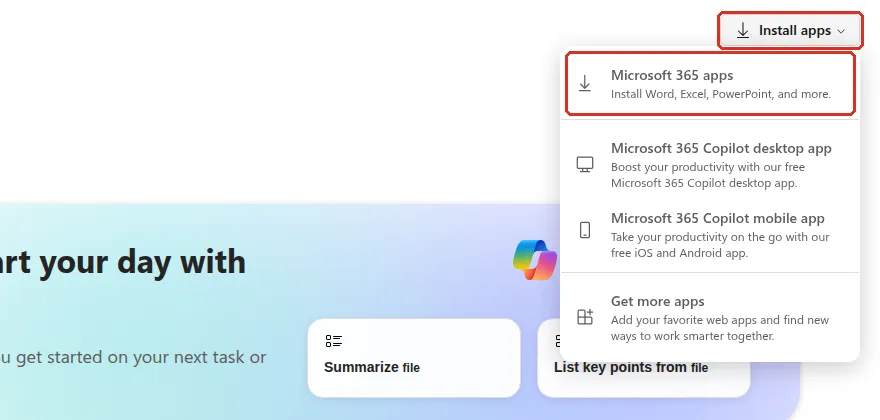
Select Apps in the menu on the left. At the top right of the Apps page, select Install apps, then Microsoft 365 apps.
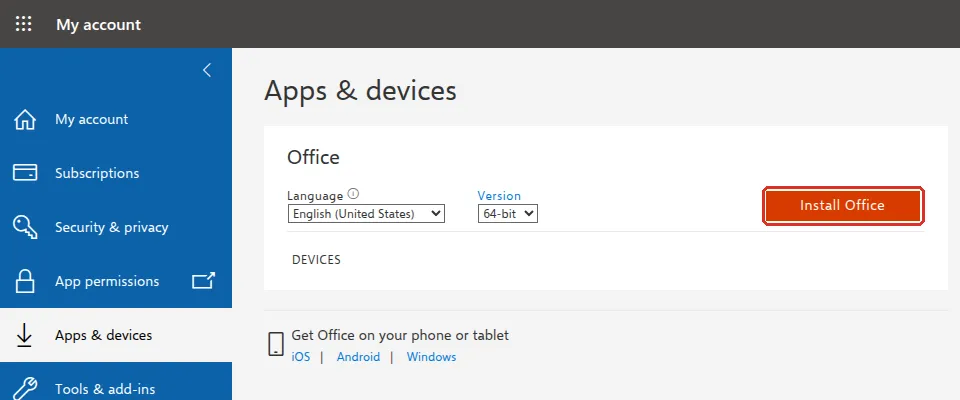
If Microsoft opens the My account page instead, go to Apps & devices and select Install Office.
-
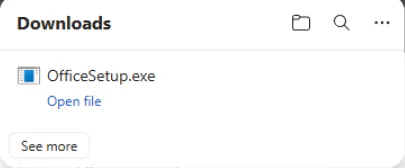
Your browser downloads OfficeSetup.exe. In Microsoft Edge, select Open file under it in the Downloads panel. In other browsers, open it from your Downloads folder.
-
Windows may ask Do you want to allow this app to make changes to your device?. If it does, select Yes.
-
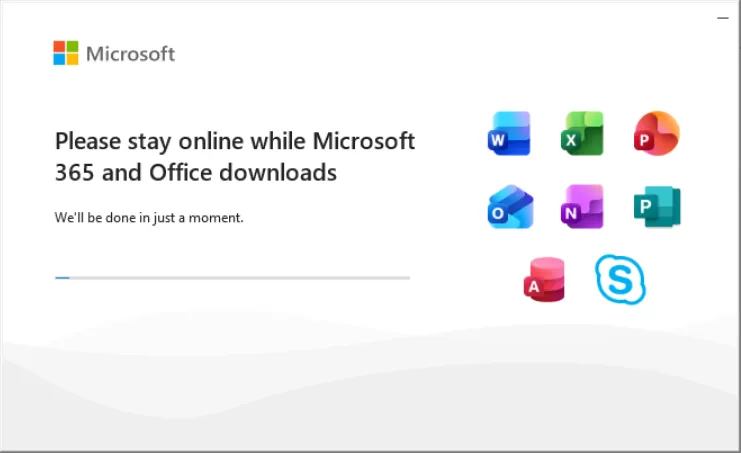
The installer shows Please stay online while Microsoft 365 and Office downloads. Keep the computer connected until it finishes. It can take a while on a slow connection.
-
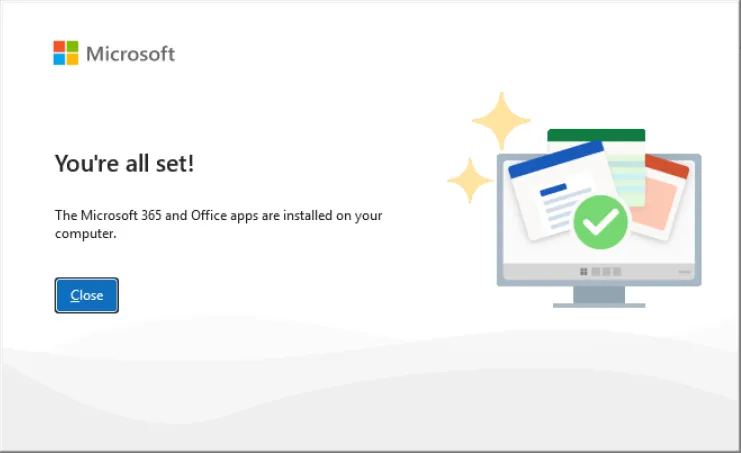
When you see You’re all set!, select Close.
Open Word for the first time
Section titled “Open Word for the first time”The first app you open asks you to sign in and accept a few things. You usually only do this once, and the other apps then use the same sign-in.
-
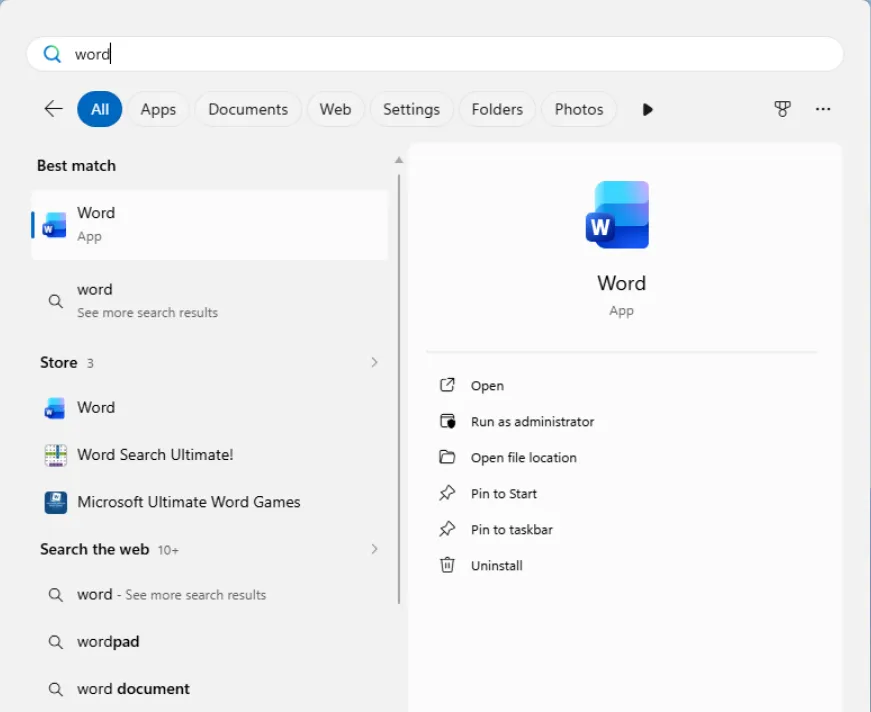
Select the Start button, type word, and open Word.
-
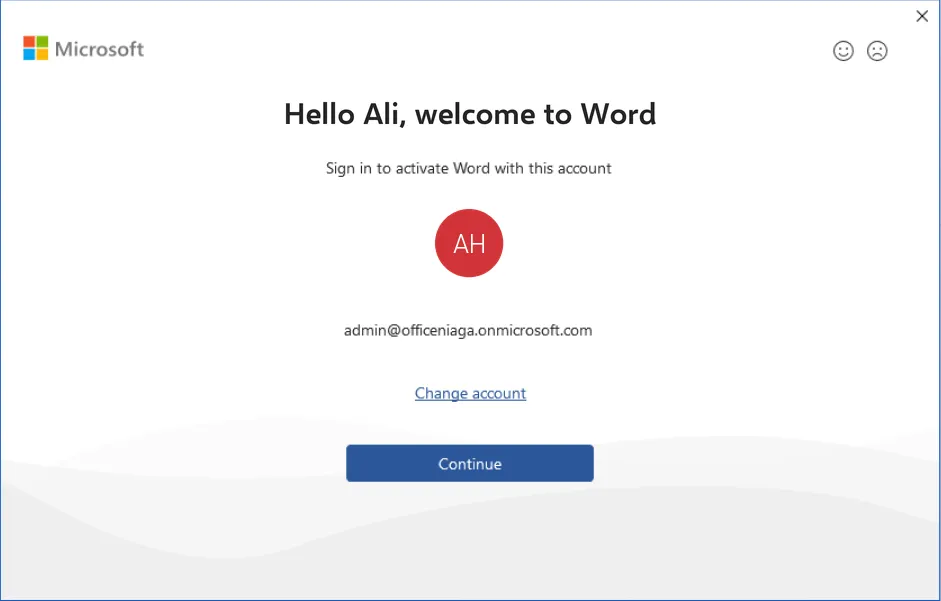
On Hello …, welcome to Word, check that the email address is your work account and select Continue. If it shows a different account, select Change account.
-
If Microsoft asks you to sign in, enter your work email address and password.
-
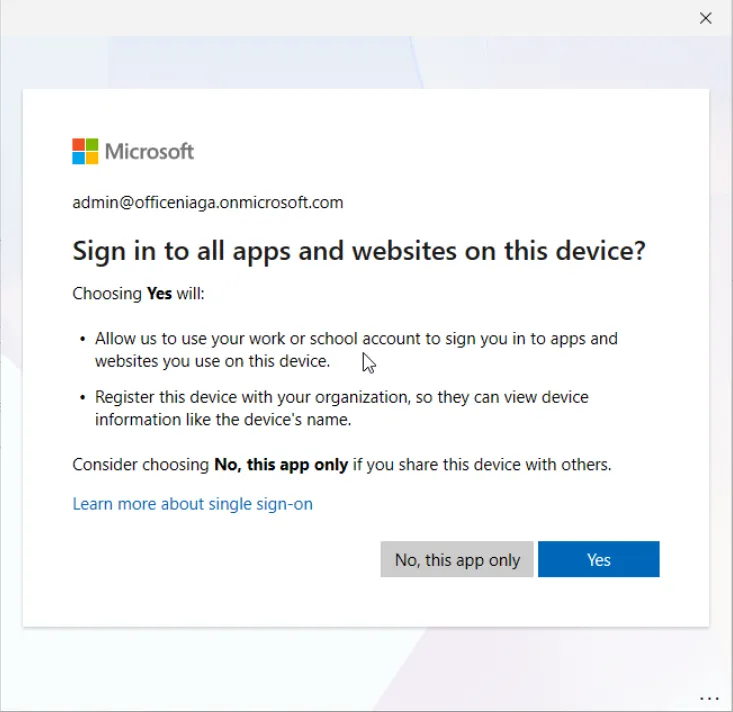
Microsoft then asks Sign in to all apps and websites on this device?. On a shared or personal PC, select No, this app only. On a company PC, select Yes.
-
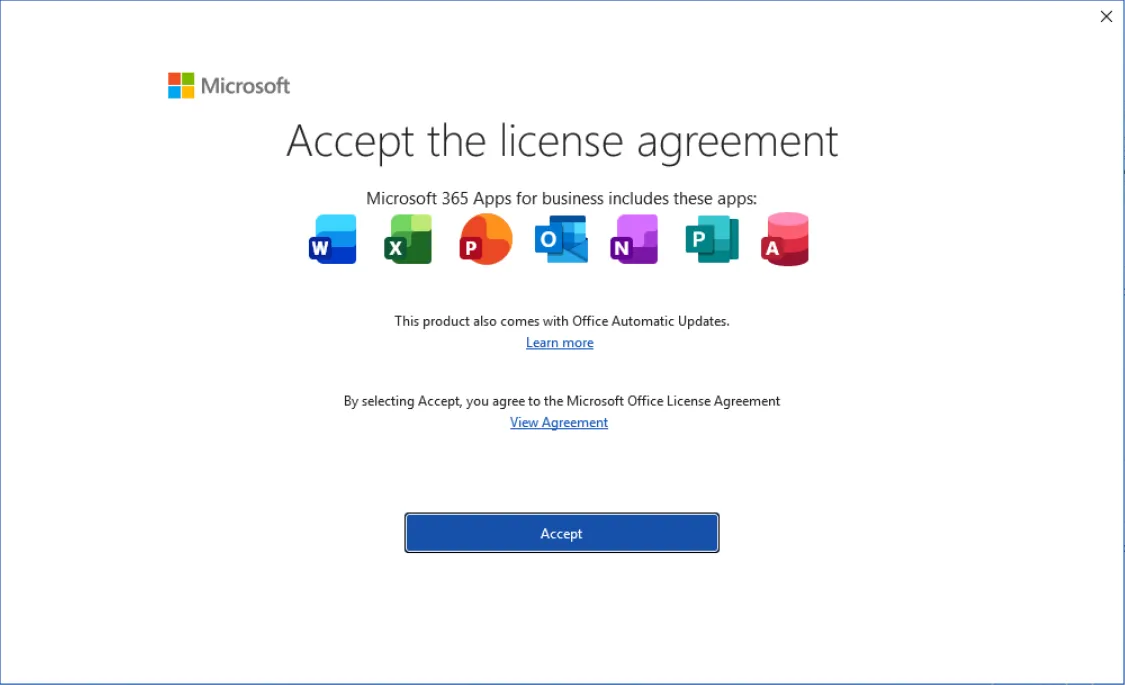
On Accept the license agreement, select Accept.
-
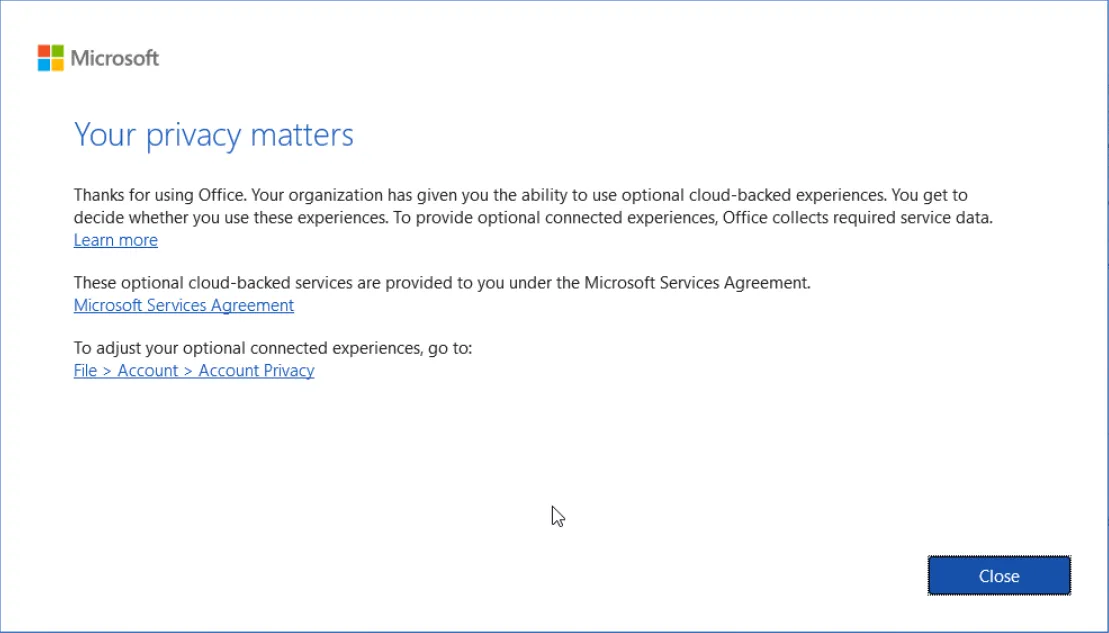
On Your privacy matters, select Close.
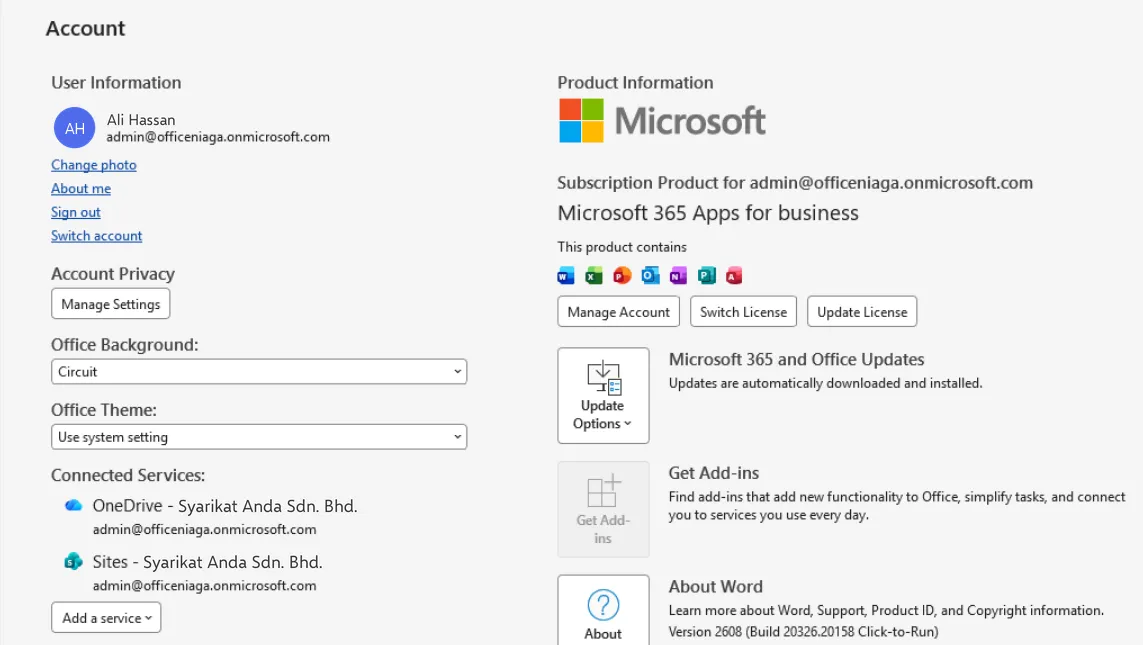
To check that the apps are activated, go to File > Account in Word. Your work email appears under User Information, and your subscription, such as Microsoft 365 Apps for business, appears under Product Information.
Install on a Mac
Section titled “Install on a Mac”The Mac install uses a standard package file.
- Sign in at m365.cloud.microsoft, select Apps on the left, then Install apps > Microsoft 365 apps.
- Open the downloaded
.pkgfile from your Downloads folder and follow the installer. - Open Word from Launchpad, select Get Started, and sign in with your work account.
Publisher and Access are not available on Mac.
Phones and tablets
Section titled “Phones and tablets”On iPhone, iPad and Android, install the apps you need from the App Store or Google Play, such as Microsoft Outlook, Microsoft Teams, Microsoft OneDrive, Microsoft Word or Microsoft Copilot (formerly the Microsoft 365 Copilot app), and sign in with your work account. See Outlook on your phone.
On an Android phone, the steps look like this:
-
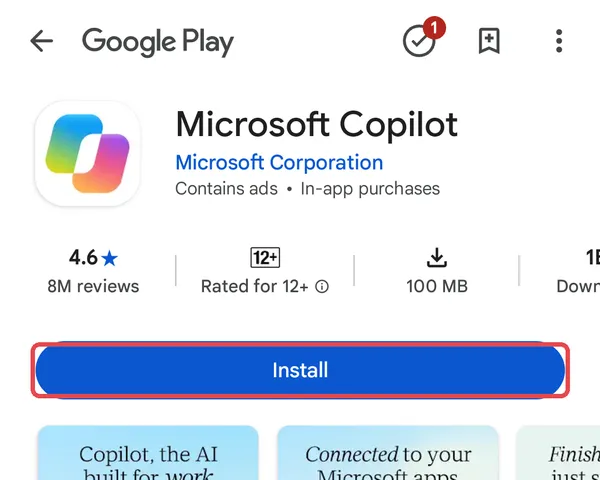
Open Google Play, search for the app, for example Microsoft Copilot, and check that the publisher is Microsoft Corporation. Tap Install.
-
Open the app and tap Sign in. Type your full work email address and tap the arrow, then enter your password and complete the extra check, such as approving the sign-in in Microsoft Authenticator.
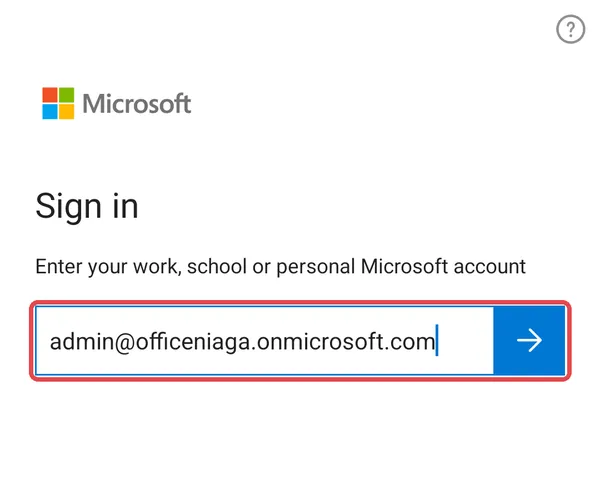
After you sign in to one Microsoft app, the others on the same phone usually find your work account by themselves. The Microsoft Copilot app opens Word, Excel and PowerPoint files to read. To edit a file on your phone, tap Edit, and Google Play offers the Microsoft Word (or Excel, or PowerPoint) app if it is not installed yet.
Remove the apps from an old computer
Section titled “Remove the apps from an old computer”Before you give away or reset an old computer, open Word, go to File > Account and select Sign out under User Information. On Windows you can then uninstall from Control Panel > Programs and Features. Uninstalling does not delete your files.
Still stuck
Section titled “Still stuck”WhatsApp our support team at +60 16-916 3324.
Common issues
I cannot find the Install button.
The Install apps button is on the Apps page, not the home page, so select Apps on the left first. If it is still missing, either your plan does not include the desktop apps (Business Basic is web and mobile only), or your admin has not given you a licence yet. Ask your admin to check your licence under Licenses and apps. See assign licences.
Word says Unlicensed Product or only lets me read files.
The apps check your licence online. Connect to the internet and sign in under File > Account. Microsoft says the apps need to go online at least once every 30 days, and they also stop editing if your licence was removed.
I already have five computers with the apps. Can I install on a sixth?
Sign out of the apps on a computer you no longer use. Your five installs are counted by signed-in devices, so signing out of an old one frees a place.
Was this article helpful?
Thanks for your feedback.
Sorry this didn't help. WhatsApp us and we'll sort it out with you.