
Ask an AI about this page
 ChatGPT
 Claude
 Perplexity
 Google AI Mode
 Microsoft Copilot
 Grok
Grok Mistral Le Chat
Assign a Power BI Pro licence to a staff member
Updated For Microsoft 365

To give someone Power BI Pro, sign in to the Microsoft 365 admin centre, go to Users > Active users, select the person, and tick Power BI Pro on the Licenses and apps tab. First, your company needs Power BI Pro licences in its subscription. Office Niaga adds them for you, the same way as your other Microsoft 365 licences.
Before you start
Section titled “Before you start”Check these three things before you assign a licence:
- You have the right admin role. Microsoft says you must be at least a License Administrator or User Administrator to assign licences.
- Your company has Power BI Pro licences to give. Go to Billing > Licenses to see each product with its Available licenses. If Power BI Pro is not listed, or shows 0 available, ask Office Niaga for more. You cannot buy them in the admin centre, because your subscription is managed through us.
- You know who needs it. Everyone who shares reports, and everyone who views shared reports, needs Pro. See which licence you need.
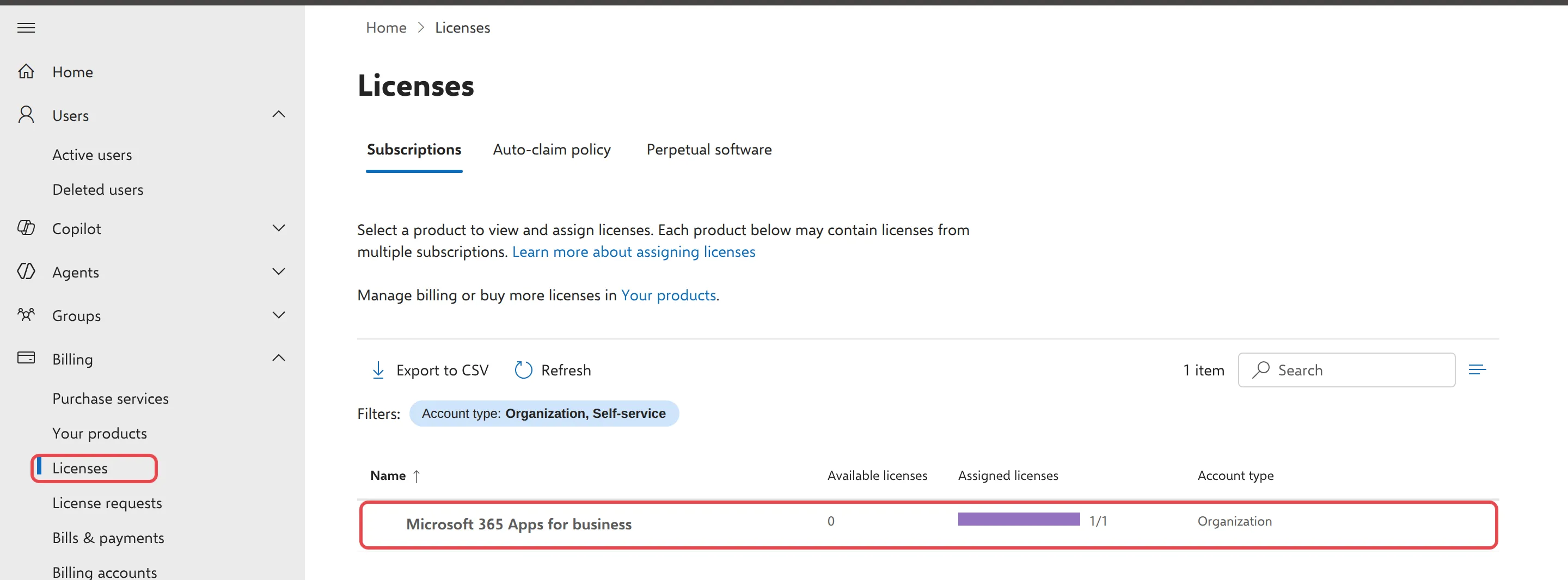
In our test account, only Microsoft 365 Apps for business is listed, because we have not bought Power BI Pro. Once you buy Pro through Office Niaga, Power BI Pro appears as its own row on this page.
Give Pro to one person
Section titled “Give Pro to one person”This is the quickest way when one staff member needs Power BI.
-
Sign in to admin.microsoft.com.
-
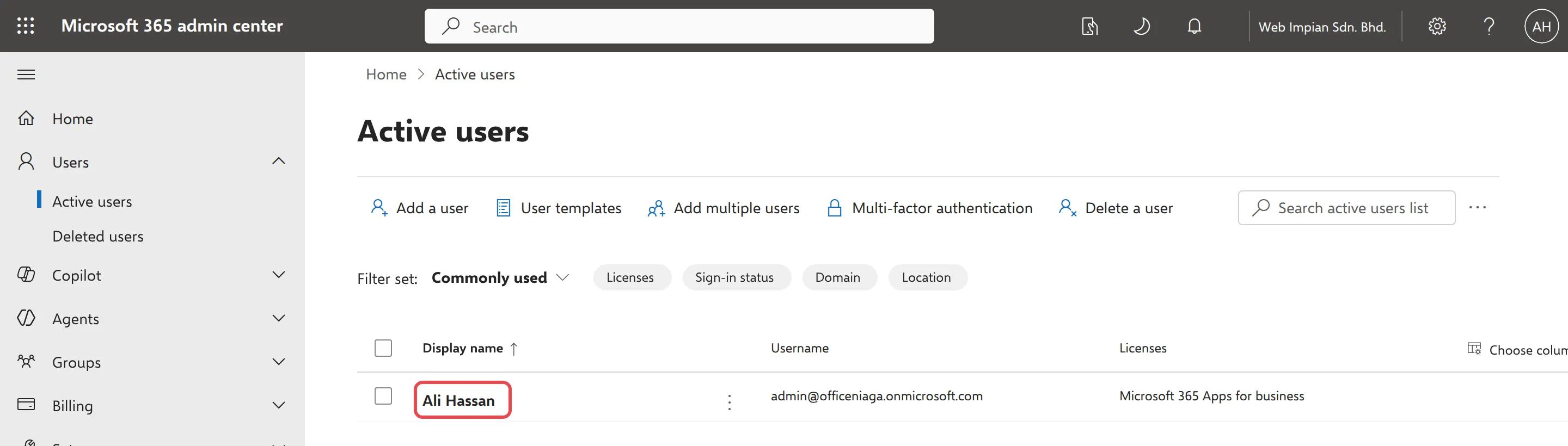
Go to Users > Active users and select the person’s name.
-
Open the Licenses and apps tab. Check Select location shows Malaysia.
-
Under Licenses, tick Power BI Pro. Leave their other licences ticked.
-
Select Save changes.
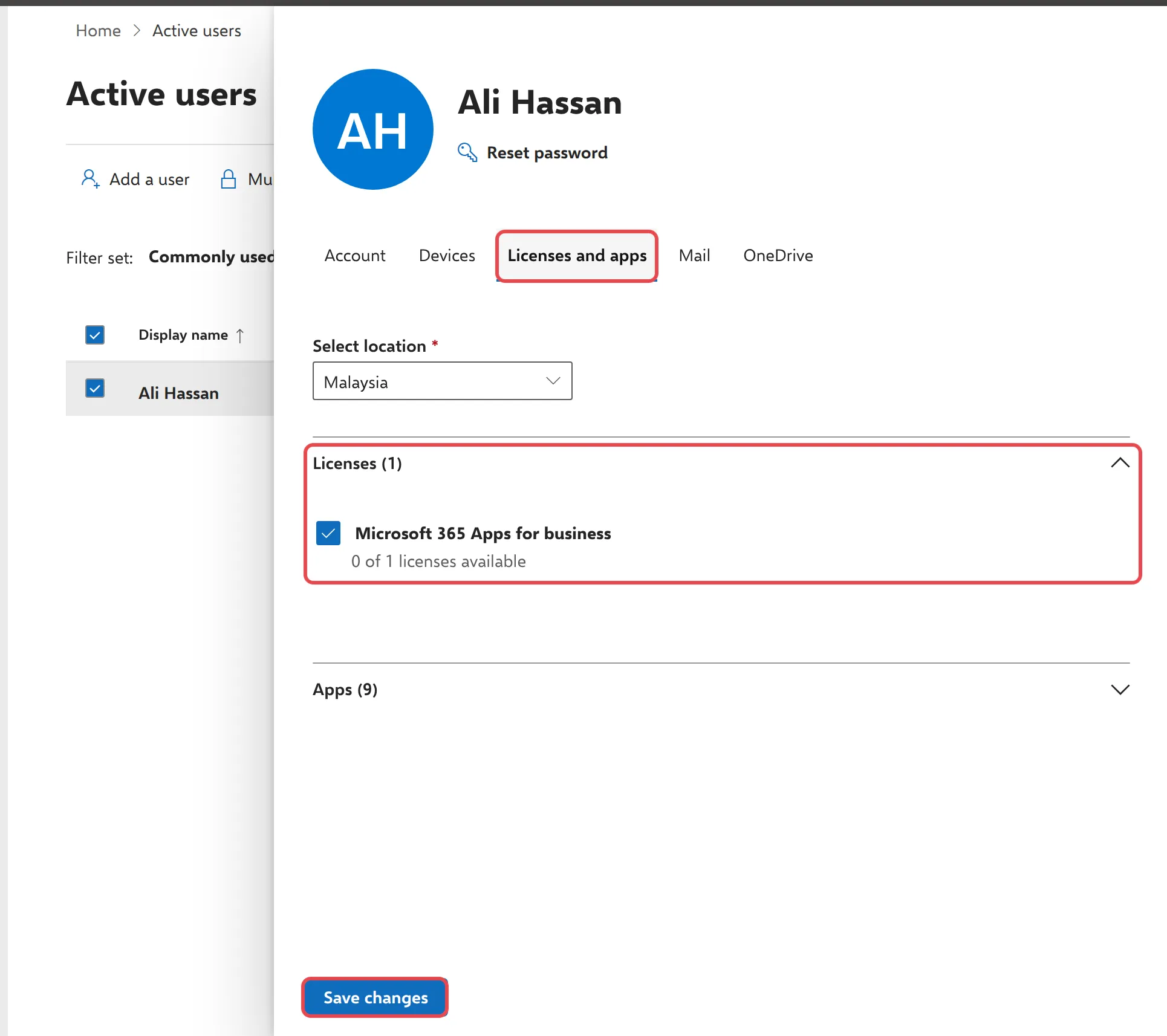
Our screenshot shows the Licenses list for a company without Power BI Pro. After Office Niaga adds Pro to your subscription, a Power BI Pro checkbox appears in this list, with the number of licences still available under it. If Microsoft says You don’t have any licenses available, every Pro licence is in use; ask Office Niaga for another one.
The person can start publishing and sharing reports a few minutes later. Ask them to sign out of Power BI and sign in again if they were already signed in.
Give Pro to several people
Section titled “Give Pro to several people”When several staff need Pro, assign it from the product page instead of one person at a time.
- Go to Billing > Licenses and select Power BI Pro.
- Select Assign licenses.
- Type the names of the people who need it, and select Assign licenses at the bottom.
To take Pro back, for example when someone no longer needs it, untick Power BI Pro on their Licenses and apps tab and select Save changes. The licence stays in your subscription and you can give it to someone else. To pay for fewer licences, tell Office Niaga before your renewal date.
Check which licence someone has
Section titled “Check which licence someone has”You can check a licence from the admin centre, or the person can check it themselves in Power BI.
- In the admin centre: go to Users > Active users, select the person, and open Licenses and apps. The ticked items are their licences. A licence named Microsoft Fabric (Free) (on older accounts, Power BI (free)) is the free Power BI licence.
- In Power BI: the person goes to app.powerbi.com, selects their profile picture at the top right, then View account > Subscriptions. Microsoft shows the licence name there, such as Fabric (Free) or Power BI Pro.
Microsoft describes these steps in assign licences to users and Power BI licences for business users.
Still stuck
Section titled “Still stuck”WhatsApp our support team at +60 16-916 3324.
Common issues
I don't see Power BI Pro in the list of licences.
Your company has not bought any Power BI Pro licences yet. Ask Office Niaga for the number you need. Once they are added to your subscription, Power BI Pro appears under Licenses for every user.
What is the free Fabric or Power BI licence I see in the list?
It is the free Power BI licence. Microsoft gives it when a staff member signs up for Power BI themselves. It shows with the account type Self-service. It is free, but it does not let people share reports.
I assigned Pro but Power BI still says Free.
Ask the person to sign out of Power BI and sign in again, in both the browser and Power BI Desktop. Then check View account again.
Was this article helpful?
Thanks for your feedback.
Sorry this didn't help. WhatsApp us and we'll sort it out with you.