
Add a new staff member to Microsoft 365
Updated For Microsoft 365

To add a new staff member, sign in to the Microsoft 365 admin centre as an admin, go to Users > Active users and select Add a user. Give the new account one of your company’s free licences so it gets a mailbox and the Microsoft 365 apps.
Before you start
Section titled “Before you start”You need an admin account with the right role, such as User Administrator or License Administrator. Check two things first:
- A spare licence. Go to Billing > Licenses to see how many licences each product has and how many are assigned. Extra licences are ordered through Office Niaga, not bought in the admin centre. See licences and renewal.
- The details. Have the person’s first name, last name and the email address you want to give them.
Add the user
Section titled “Add the user”The admin centre walks you through four short pages: Basics, Product licenses, Optional settings and Finish. Small companies often see the admin centre in Simplified view; the menu on the left still has Users > Active users, so these steps work in either view.
-
Sign in to admin.microsoft.com with your admin account.
-
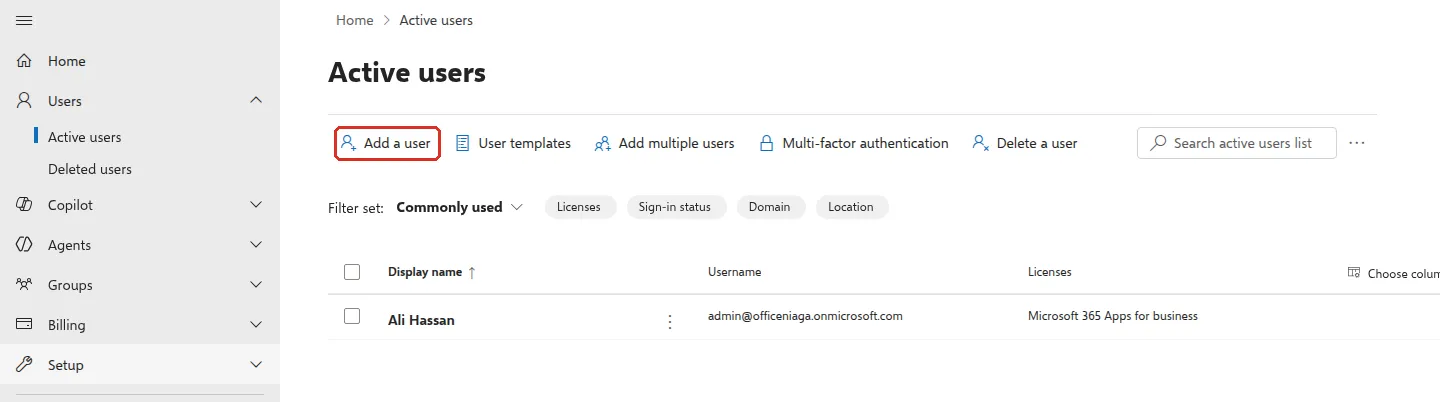
In the left menu, go to Users > Active users. If you cannot see Users, select Show all first.
-
Select Add a user. The Set up the basics page opens.
-
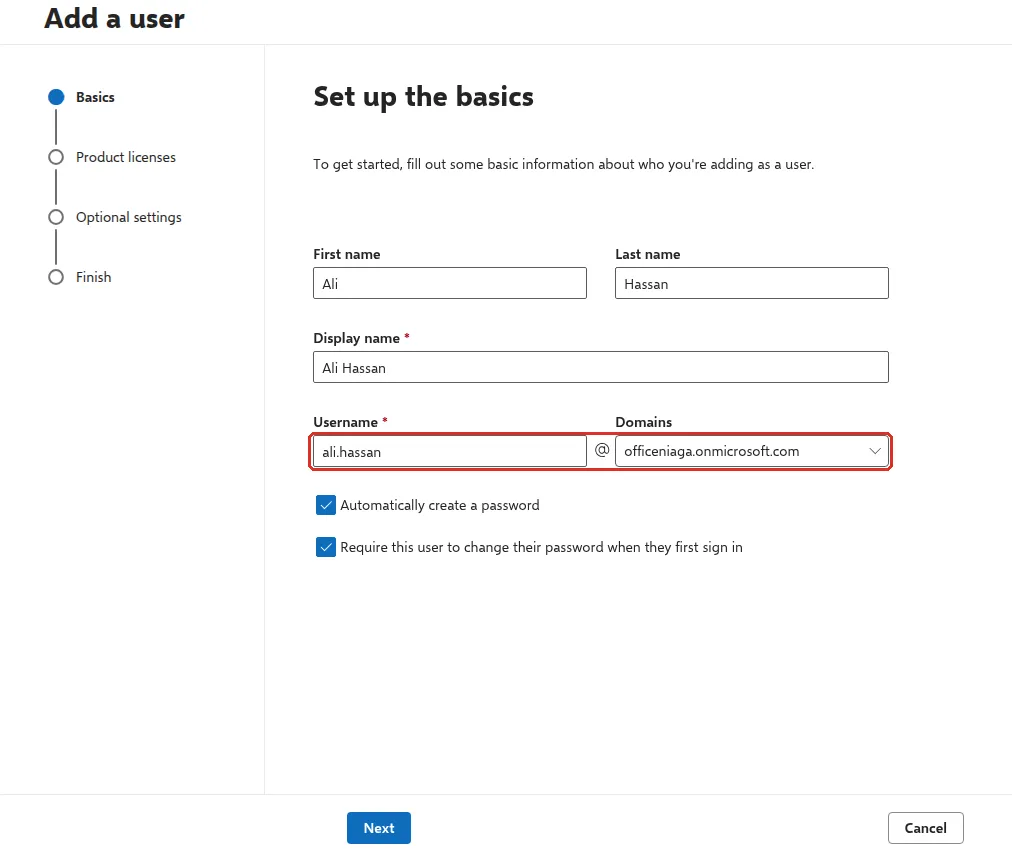
Type the First name and Last name. The Display name fills in by itself; check it. Then type the Username and pick your company domain in Domains next to it (for example
aina@yourcompany.com). -
Leave Automatically create a password ticked, or untick it to type a password yourself. Keep Require this user to change their password when they first sign in ticked, so only the staff member knows their final password. Select Next.
-
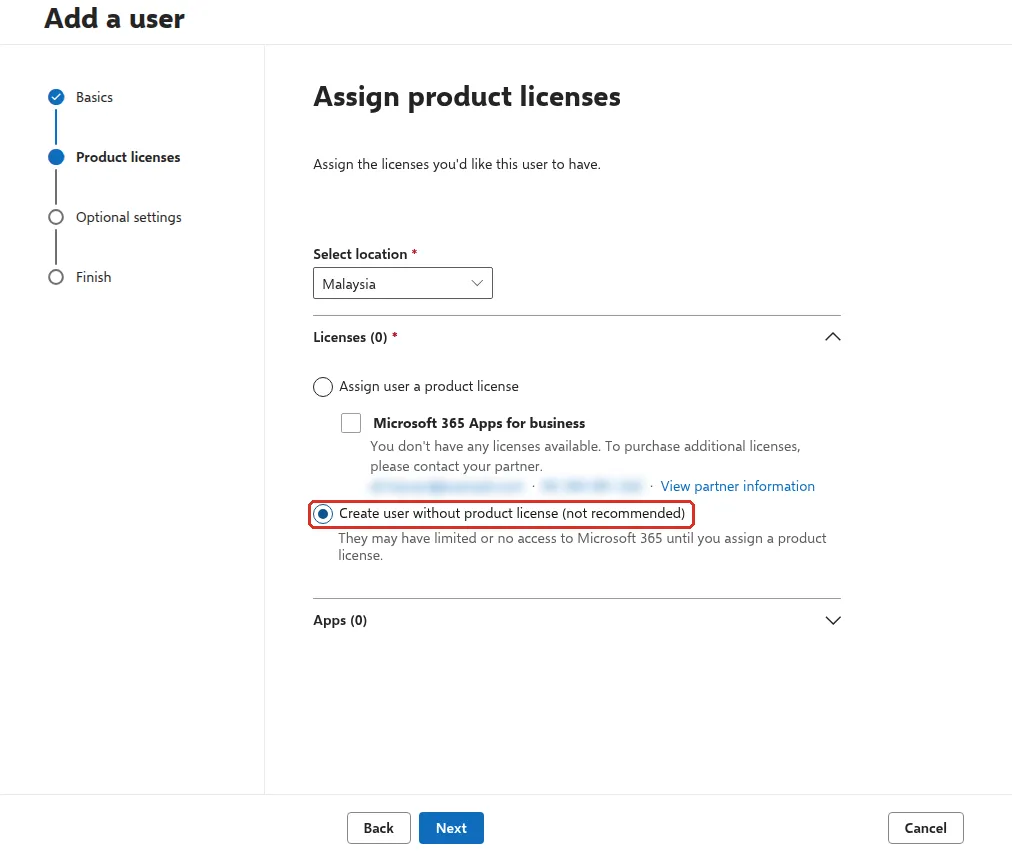
On Assign product licenses, check Select location shows Malaysia and tick the licence this person should have. Select Next. If every licence is in use, Microsoft says You don’t have any licenses available and asks you to contact your partner (Office Niaga). You can still choose Create user without product license (not recommended) and give the licence later.
-
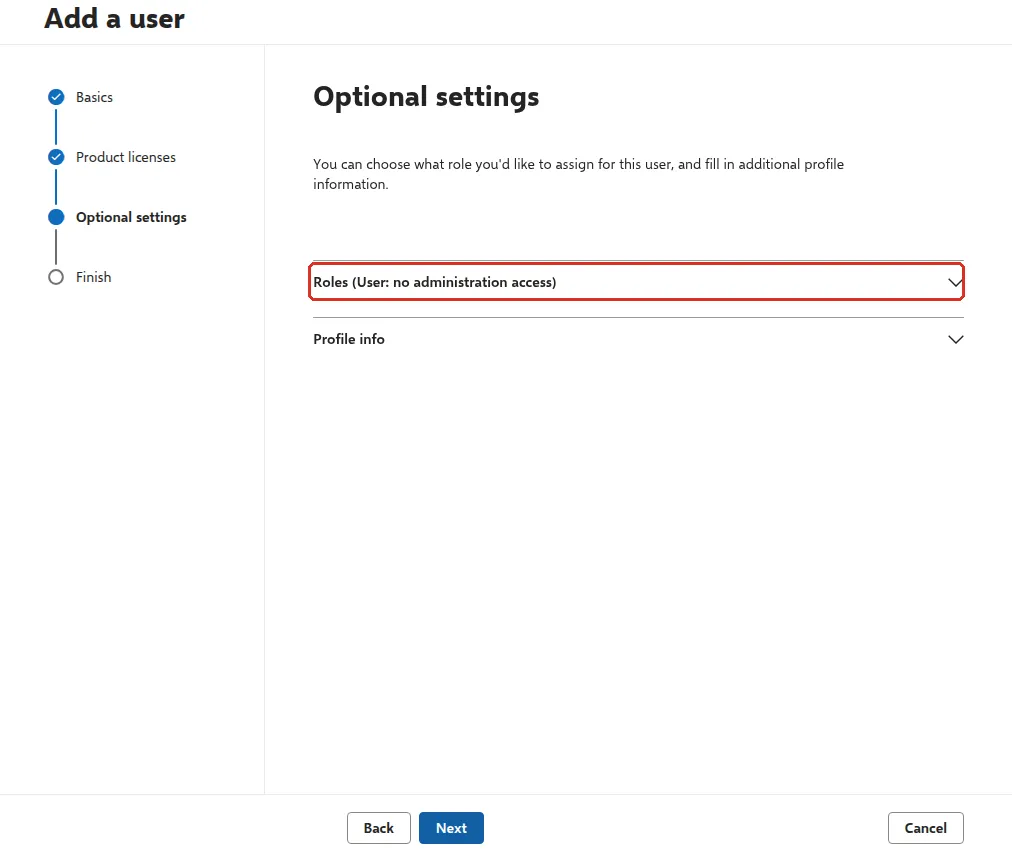
On Optional settings, leave Roles as User: no administration access for normal staff. Only give admin roles to people who manage the account. Profile info is optional. Select Next.
-
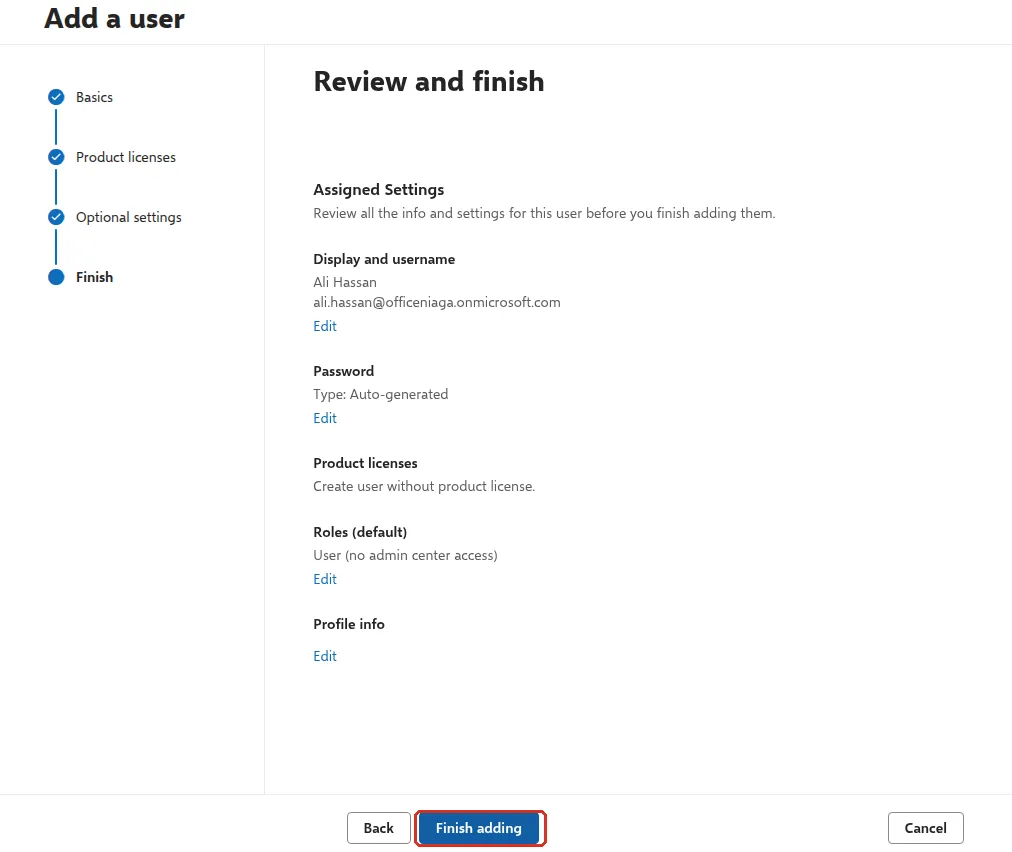
Check the summary on Review and finish, then select Finish adding.
-
The last page confirms the user was added and shows the username with the password hidden. Select Print to save the username and temporary password as a PDF, then Close. You can skip Save these user settings as a template? unless you add many similar staff.
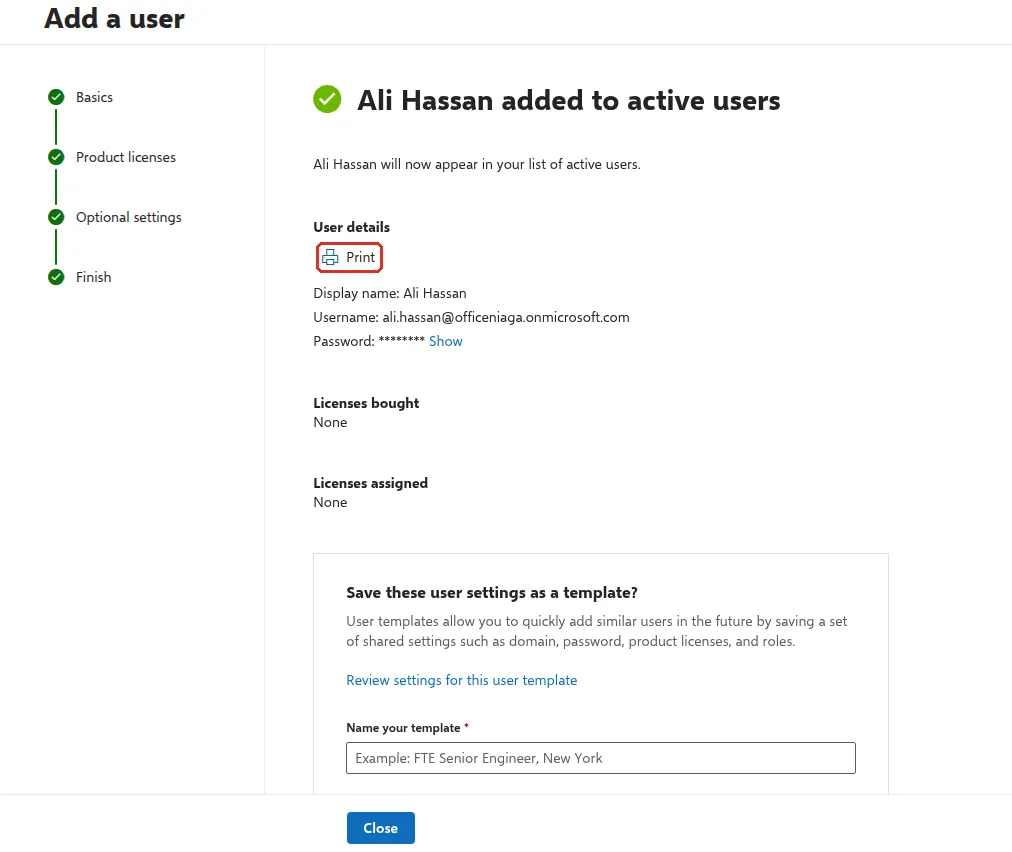
Give the temporary password to the staff member in person or through a secure channel, never in a group chat. Then send them our guide to signing in to Microsoft 365 for the first time.
Add several people at once
Section titled “Add several people at once”For a group of new hires, Users > Active users > Add multiple users lets you type up to a few rows on screen or upload a CSV file from Microsoft’s template. Do not change the column headings or their order in the template, or the upload fails.
Shared addresses like sales@
Section titled “Shared addresses like sales@”Do not use a paid licence for a shared address. A shared mailbox lets several staff read and reply from sales@ without a licence of its own. To send sales@ to one person only, add it as an alias on their account.
Still stuck
Section titled “Still stuck”WhatsApp our support team at +60 16-916 3324.
Common issues
Can I add a user when every licence is already in use?
You can create the account, but without a licence the person gets no mailbox and no apps. Ask Office Niaga for another licence, or free one up from a staff member who has left, then assign it.
Why is there no option to email the password to the new user?
Microsoft removed the option to send account details and passwords by email from the admin centre in 2024. Use Print on the last page, save it as a PDF and hand it over in person or through a secure channel.
Do I need a new user for sales@ or info@?
Usually not. A shared mailbox needs no licence and several staff can open it. If only one person needs the address, add it as an email alias.
Was this article helpful?
Thanks for your feedback.
Sorry this didn't help. WhatsApp us and we'll sort it out with you.