
Upload & organise files in OneDrive on the web
Updated For Microsoft 365

In OneDrive on the web, select Create or upload to add files or whole folders, or drag them into the window. Then use folders, Move to, Copy to and Rename to keep things tidy.
Open OneDrive
Section titled “Open OneDrive”Sign in at m365.cloud.microsoft and select OneDrive on the left. OneDrive opens in a new tab. Your own files are under My files. See the Microsoft 365 web home if you are new to it.
Upload files or a folder
Section titled “Upload files or a folder”Open the folder you want to upload into first, or stay in My files.
-
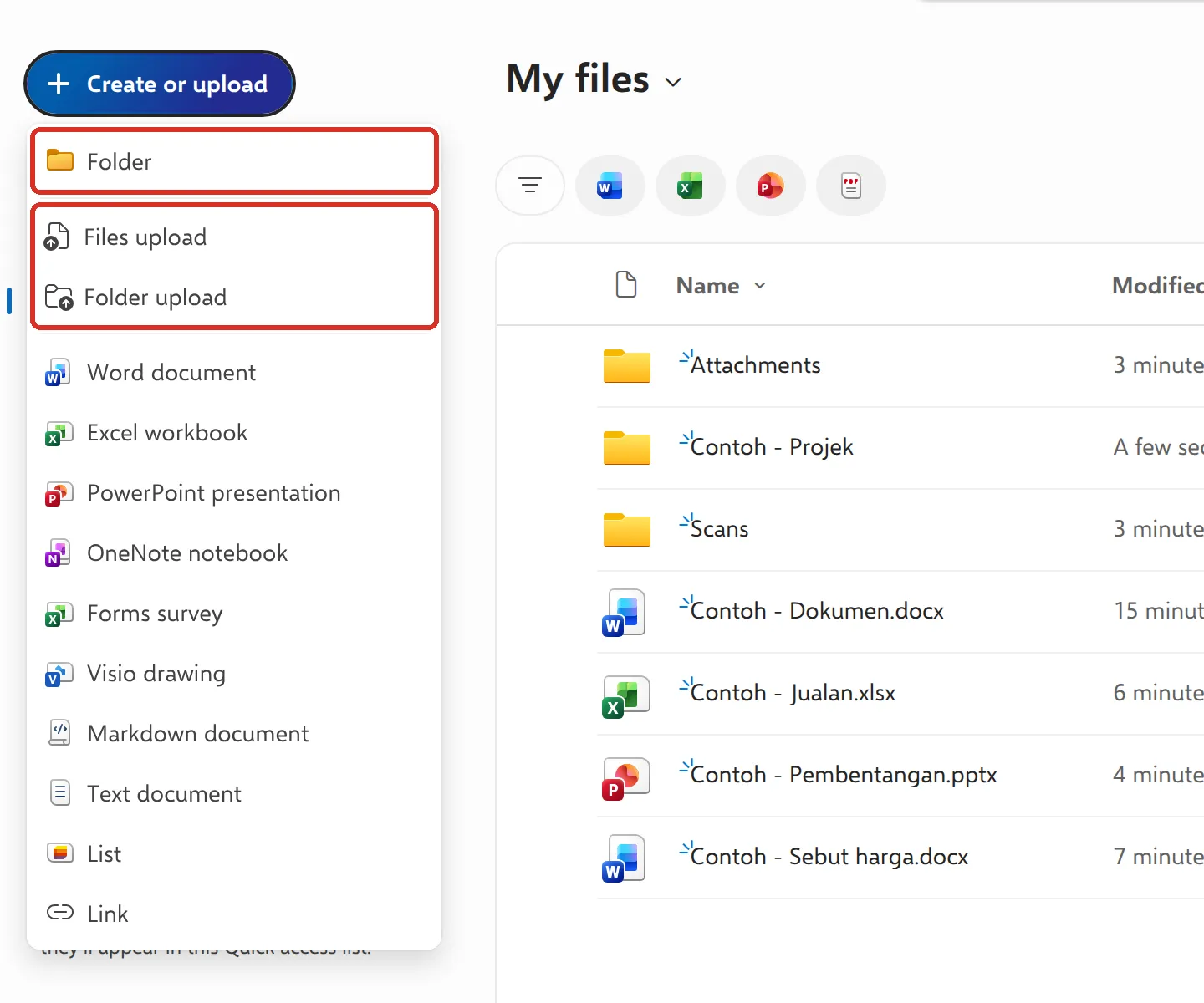
Select Create or upload at the top left.
-
Choose Files upload for single files, or Folder upload to upload a folder with everything in it.
-
Pick the files or folder on your computer and select Open (or Upload). A message at the bottom tells you when the upload is done.
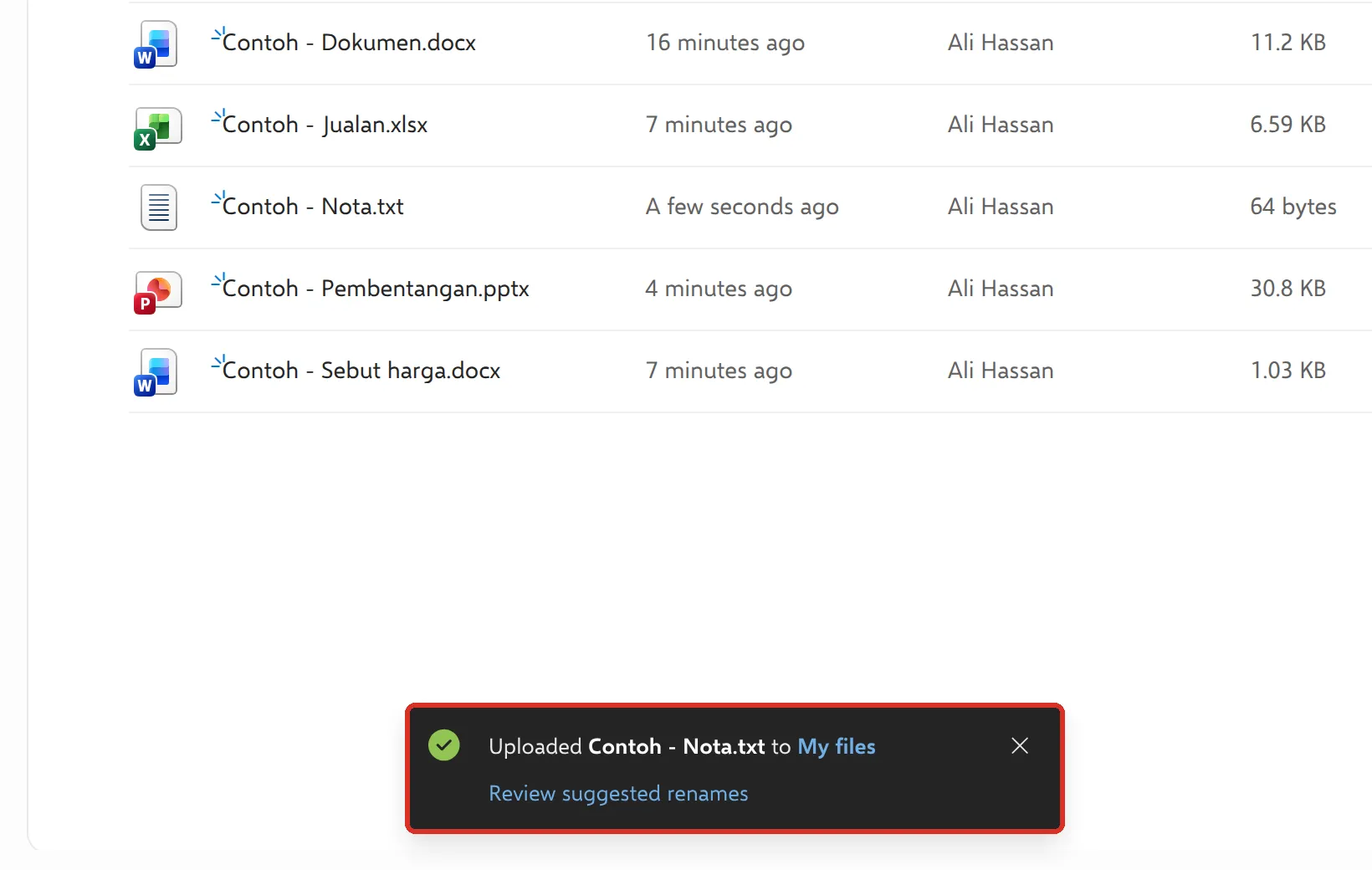
You can also drag files from File Explorer or Finder straight into the OneDrive window. Microsoft supports dragging folders in Edge and Chrome.
The same Create or upload menu also creates new files, such as a Word document, Excel workbook or PowerPoint presentation, in the folder you are in. See use Word, Excel and PowerPoint in your browser.
Create a folder
Section titled “Create a folder”Set up folders before you upload, for example one per client, project or month.
-
Select Create or upload, then Folder.
-
Type a name under Name, such as “2026-09 Invois”.
-
Pick a Folder color if you like, then select Create.
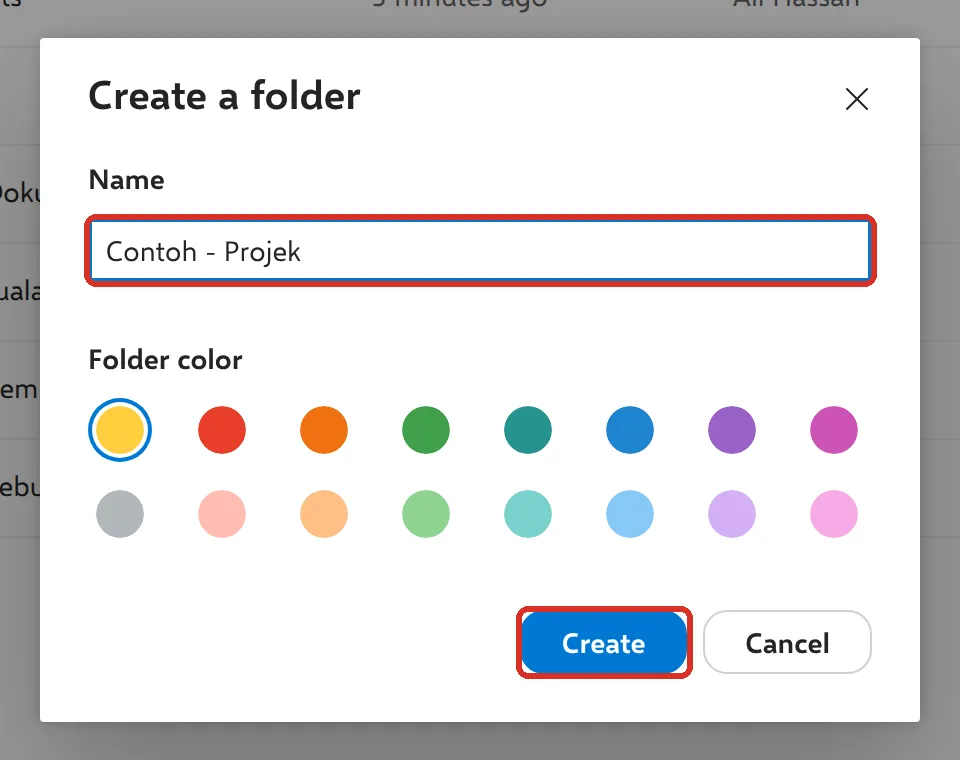
Folders can go inside folders. Short names with a client name or date make searching easier later.
Move, copy or rename
Section titled “Move, copy or rename”Right-click a file or folder, or select the circle next to it and use the bar at the top. These are the options you use most:
- Rename: type the new name and select Update. OneDrive keeps the file extension, such as
.docx, for you. - Move to: moves the item to another folder.
- Copy to: puts a copy in another folder and leaves the original where it is.
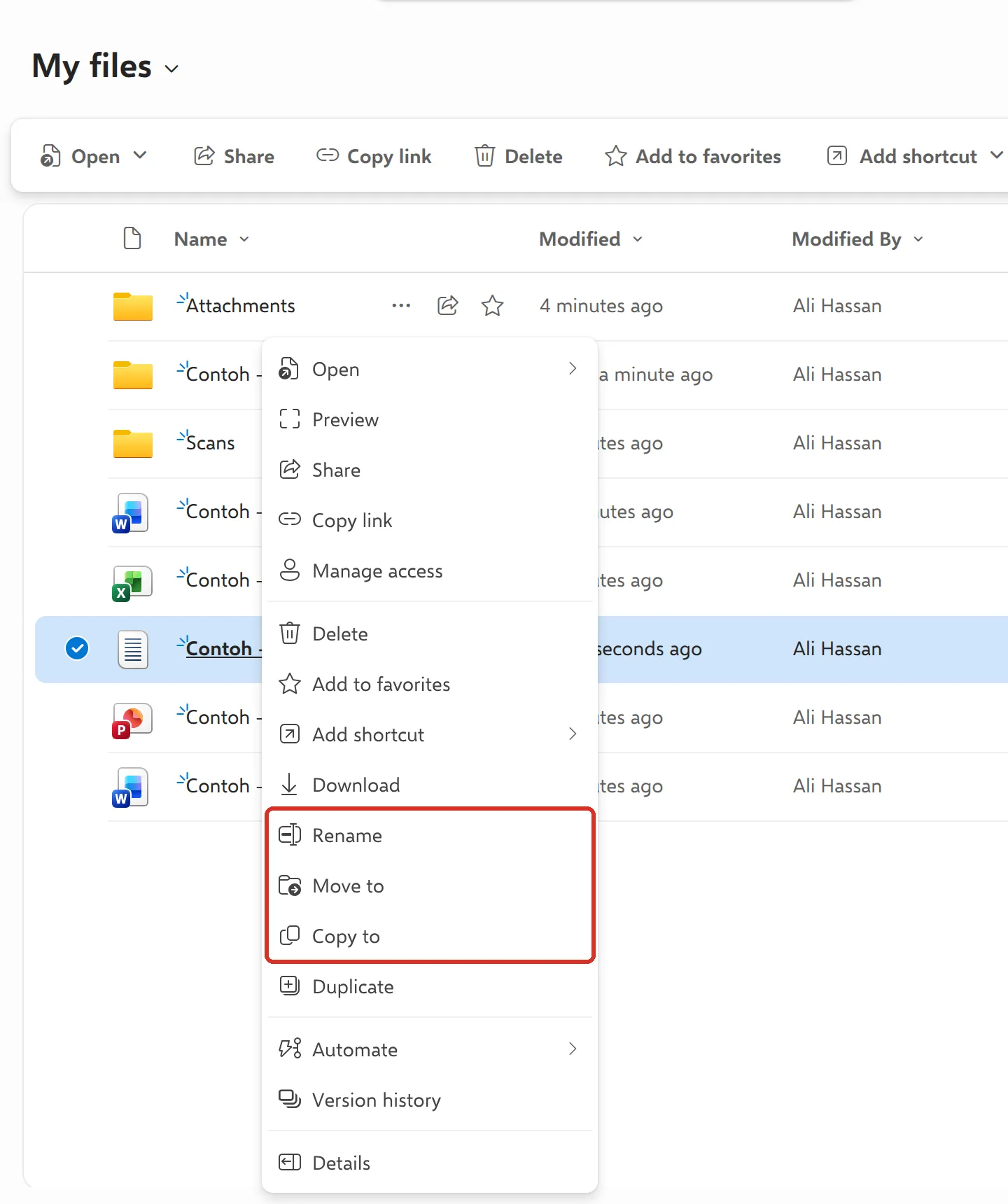
To move a file, follow these steps:
-
Right-click the file and select Move to.
-
Select the folder you want. To go inside it, select its name. New folder at the top creates one on the spot.
-
Select Move here.
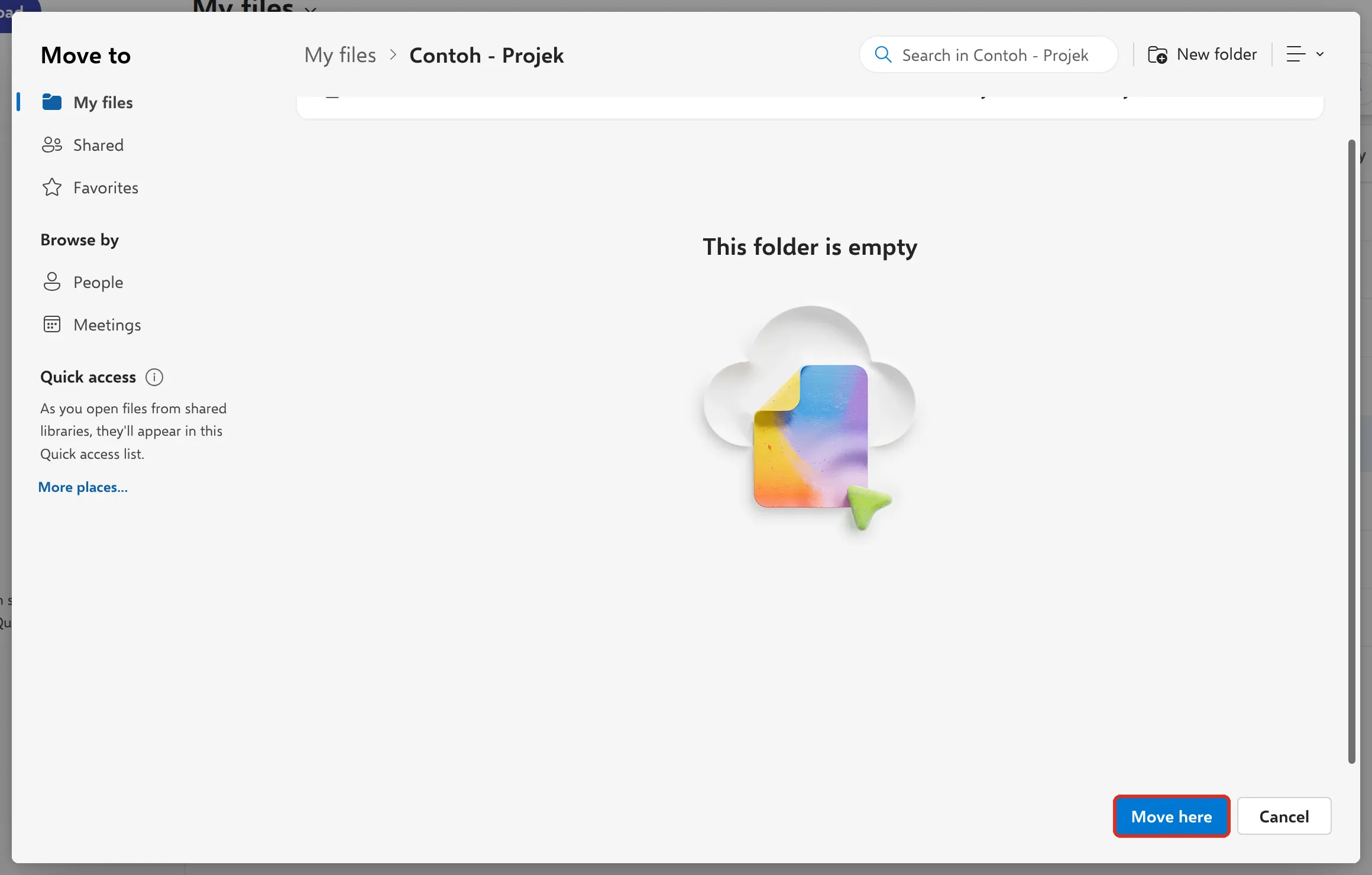
Copy to works the same way. You can also drag a file onto a folder in the list to move it.
Moving a file can stop links you shared earlier from working. If you shared the file with a link, check it still opens after the move. See share a OneDrive file or folder.
Change how the list looks
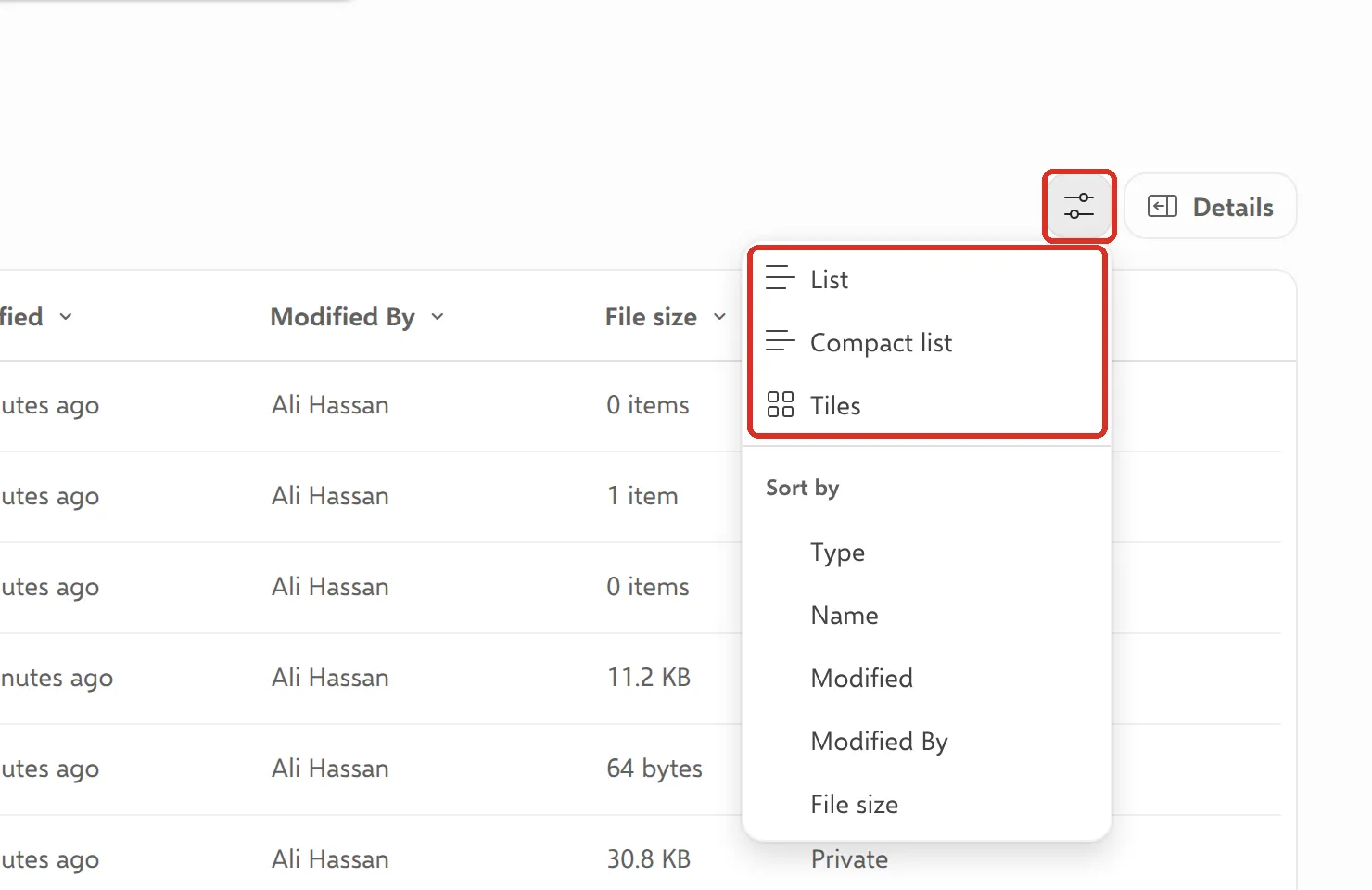
Section titled “Change how the list looks”Select the view options button next to Details at the top right to change the layout. The menu has three views and a sort order:
- List: one file per line with the modified date, size and sharing. This is the default.
- Compact list: the same, with more files on the screen.
- Tiles: large icons and previews, handy for photos.
- Sort by: order the list by Type, Name, Modified, Modified By or File size.
The round buttons under the folder name filter the list to Word, Excel, PowerPoint or PDF files only.
My files and Shared
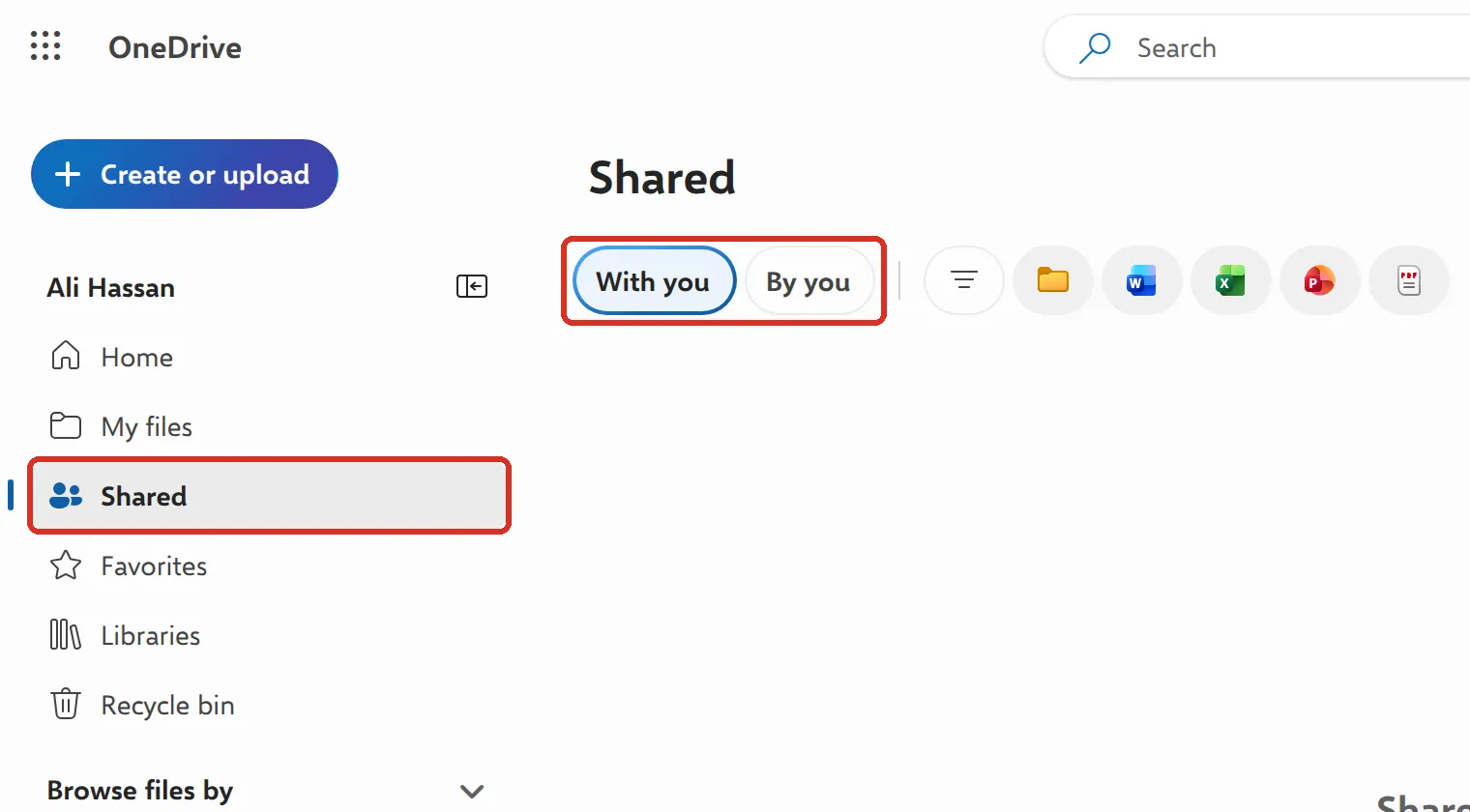
Section titled “My files and Shared”The left menu separates your own files from files other people share with you. Use the right one when you look for something:
- My files: everything you created or uploaded. Only you can see these files until you share them.
- Shared: files shared with you, on the With you tab, and files you shared with others, on the By you tab. Files shared with you stay in the owner’s OneDrive, not in My files.
If a file seems to be missing, see find and restore files in OneDrive.
Still stuck
Section titled “Still stuck”WhatsApp our support team at +60 16-916 3324.
Common issues
Folder upload is missing or does nothing.
Microsoft supports uploading whole folders in Microsoft Edge and Google Chrome. In other browsers, create the folder in OneDrive first and upload the files into it, or drag the folder in from File Explorer or Finder.
Is there a size limit for uploads?
Microsoft says you can upload files of up to 250 GB each, depending on your browser. Very large files upload faster with OneDrive sync on your computer.
My colleagues cannot see the files I uploaded.
Files in My files are private until you share them. See share a OneDrive file or folder. For files the whole team owns, use a SharePoint site instead. See SharePoint basics.
Was this article helpful?
Thanks for your feedback.
Sorry this didn't help. WhatsApp us and we'll sort it out with you.