
Share a OneDrive file or folder & stop sharing
Updated For Microsoft 365

To share a file, select it in OneDrive and choose Share, then either type the people’s email addresses or copy a link. You decide whether they can edit or only view, and you can take access back at any time.
Choose what people can do
Section titled “Choose what people can do”Each share gives people one of these permissions. Pick the lowest one that lets them do their job:
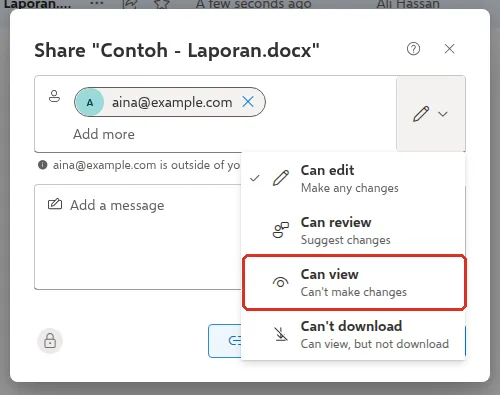
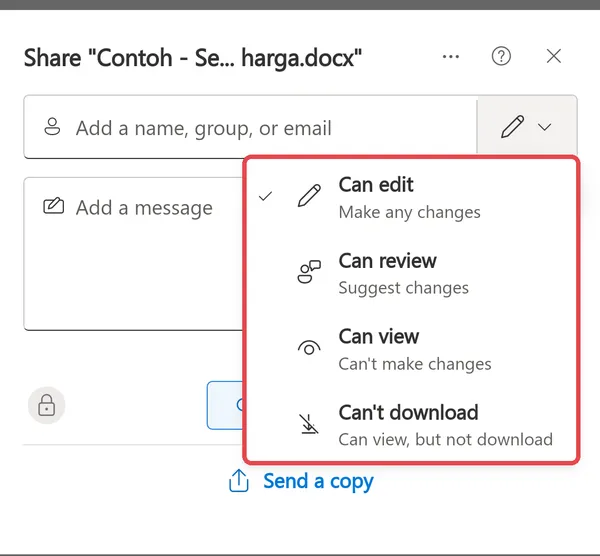
- Can edit: they can make any changes and share the file. This is the default when you share with people, so check it every time.
- Can review: they can only suggest changes and add comments. This works for Word files.
- Can view: they can open and read the file, but cannot change it.
- Can’t download: they can view the file in the browser, but not download it. People can still take screenshots.
Share with specific people
Section titled “Share with specific people”This is the safest way to share, because only the people you name can open the file.
-
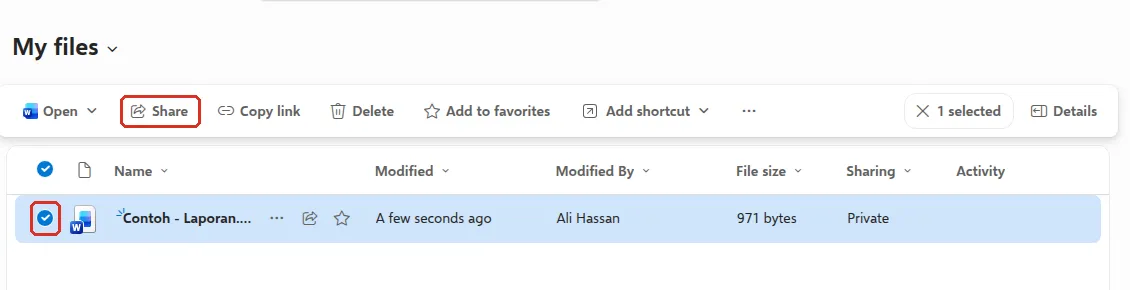
In OneDrive on the web, go to My files. Select the circle next to the file or folder, then select Share in the bar at the top. In File Explorer, right-click the file and choose Share.
-
Type the names or email addresses in Add a name, group, or email. If the person is outside your company, OneDrive shows a note under the box.
-
Select the pencil icon on the right and choose Can edit, Can review, Can view or Can’t download.
-
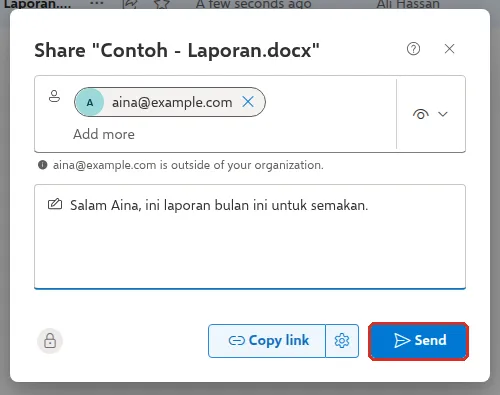
Type a note in Add a message if you like, then select Send. Each person gets an email with the link.
Share from your phone
Section titled “Share from your phone”The OneDrive app on your phone uses the same share box as the web. Follow these steps:
-
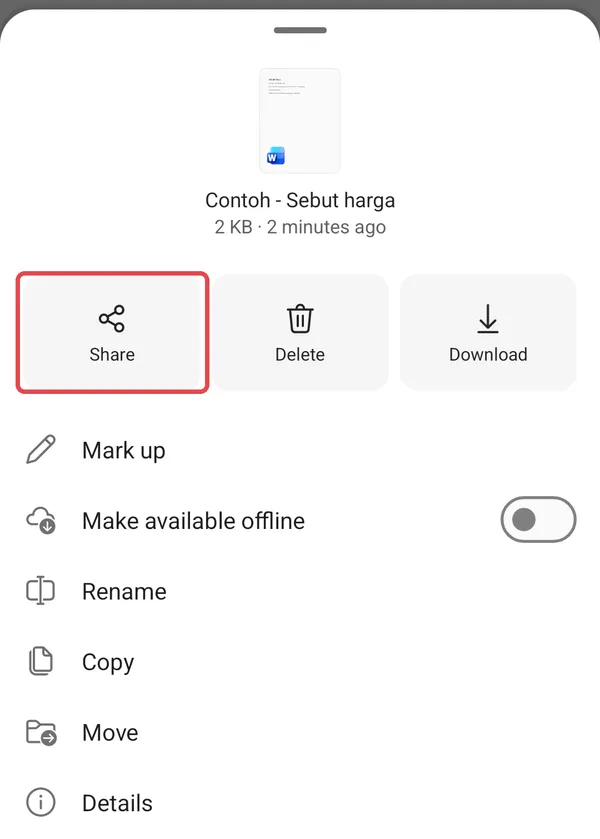
In the OneDrive app, open My files and tap … next to the file, then tap Share.
-
Type the names or email addresses in Add a name, group, or email.
-
Tap the pencil next to the box and choose Can edit, Can review, Can view or Can’t download.
-
Tap Send, or Copy link to paste the link into a chat.
Share with a link
Section titled “Share with a link”A link is handy when many people need the file, but anyone who gets it may be able to open it. Choose carefully who the link works for.
-
Open Share as above and select the gear next to Copy link to open Link settings.
-
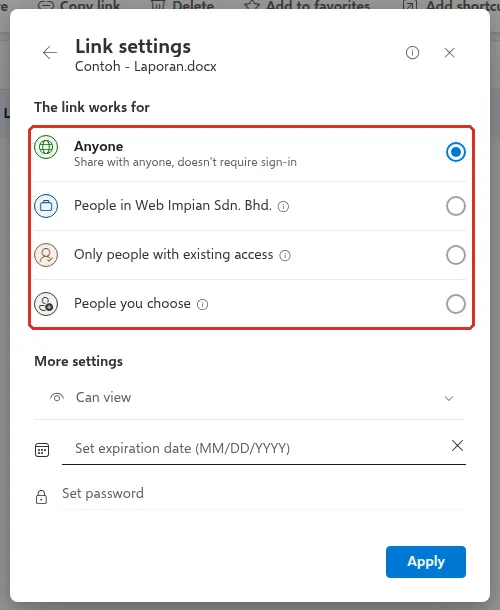
Under The link works for, choose Anyone (no sign-in needed), People in your company, Only people with existing access, or People you choose.
-
Under More settings, choose Can edit, Can review, Can view or Can’t download. For Anyone links you can also Set expiration date and Set password.
-
Select Apply, then Copy link, and paste it where you need it.
Avoid Anyone links for payslips, contracts or customer data.
Stop sharing
Section titled “Stop sharing”You can remove one person, delete a link, or stop all sharing without deleting the file.
-
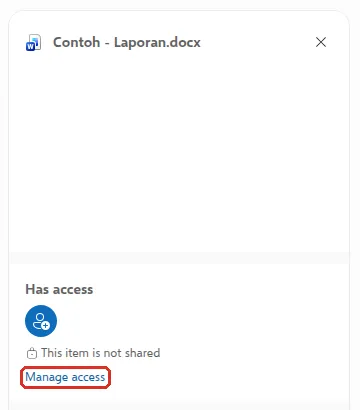
Select the file, then select Details at the top right. Under Has access, select Manage access.
-
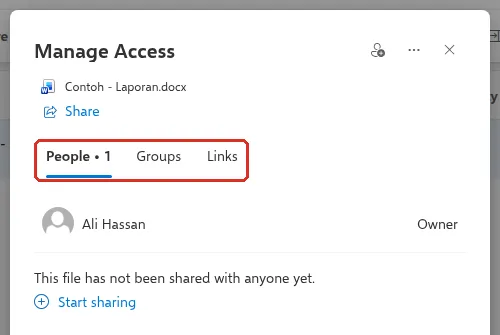
Manage Access has three tabs: People, Groups and Links. Open the tab for the access you want to remove.
-
On People, change the permission next to a person to remove their access. On Links, remove the link you no longer want.
-
To remove everyone at once, select Stop sharing if OneDrive offers it.
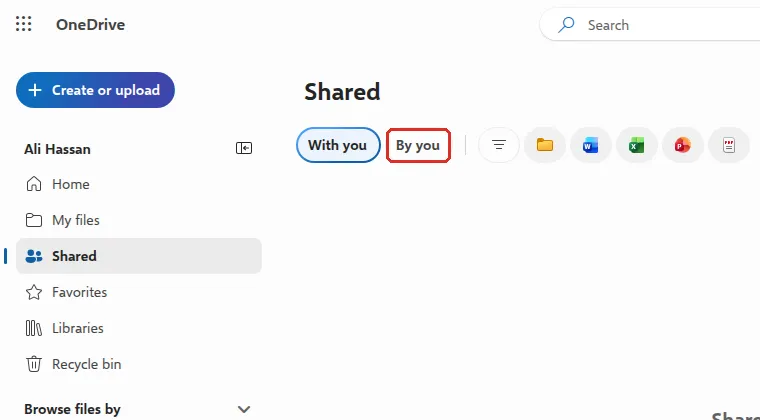
To see everything you have shared, go to Shared > By you in OneDrive.
Team files
Section titled “Team files”OneDrive is for your own work files. For files the whole team owns, use a team’s SharePoint site or the files in a Teams channel, so the files stay with the company when staff change. See SharePoint basics.
Still stuck
Section titled “Still stuck”WhatsApp our support team at +60 16-916 3324.
Common issues
The Anyone option is greyed out.
Your admin can turn off links that work for anyone, or limit sharing outside the company. Share with the person's email address instead, or ask your admin.
I sent an edit link but meant view only. Can I change it?
Not on the same link. Remove the link under Manage access on the Links tab, then create a new one with Can view.
My link stopped working after I moved the file.
Moving a file inside OneDrive can break links you shared earlier. Share the file again from its new place.
Was this article helpful?
Thanks for your feedback.
Sorry this didn't help. WhatsApp us and we'll sort it out with you.