
Ask an AI about this page
 ChatGPT
 Claude
 Perplexity
 Google AI Mode
 Microsoft Copilot
 Grok
Grok Mistral Le Chat
Turn off, edit or delete a flow, and fix a failed run
To manage a flow, go to My flows in Power Automate. Point at a flow and select the three dots (More commands) to Edit, Turn off or Delete it, or select its name to see its details and 28-day run history. When a run fails, open it to see which step failed and why, fix the cause, and select Resubmit to run it again with the same data.
We tested these steps on 27 September 2026 with the sample flows from the other guides in this category.
The flow menu
Section titled “The flow menu”Every flow in My flows has a menu with the same commands:
- Edit opens the flow in the designer.
- Run history shows its runs.
- Turn off stops the flow without deleting it. The command then reads Turn on.
- Delete removes the flow permanently.
- Details opens the details page.
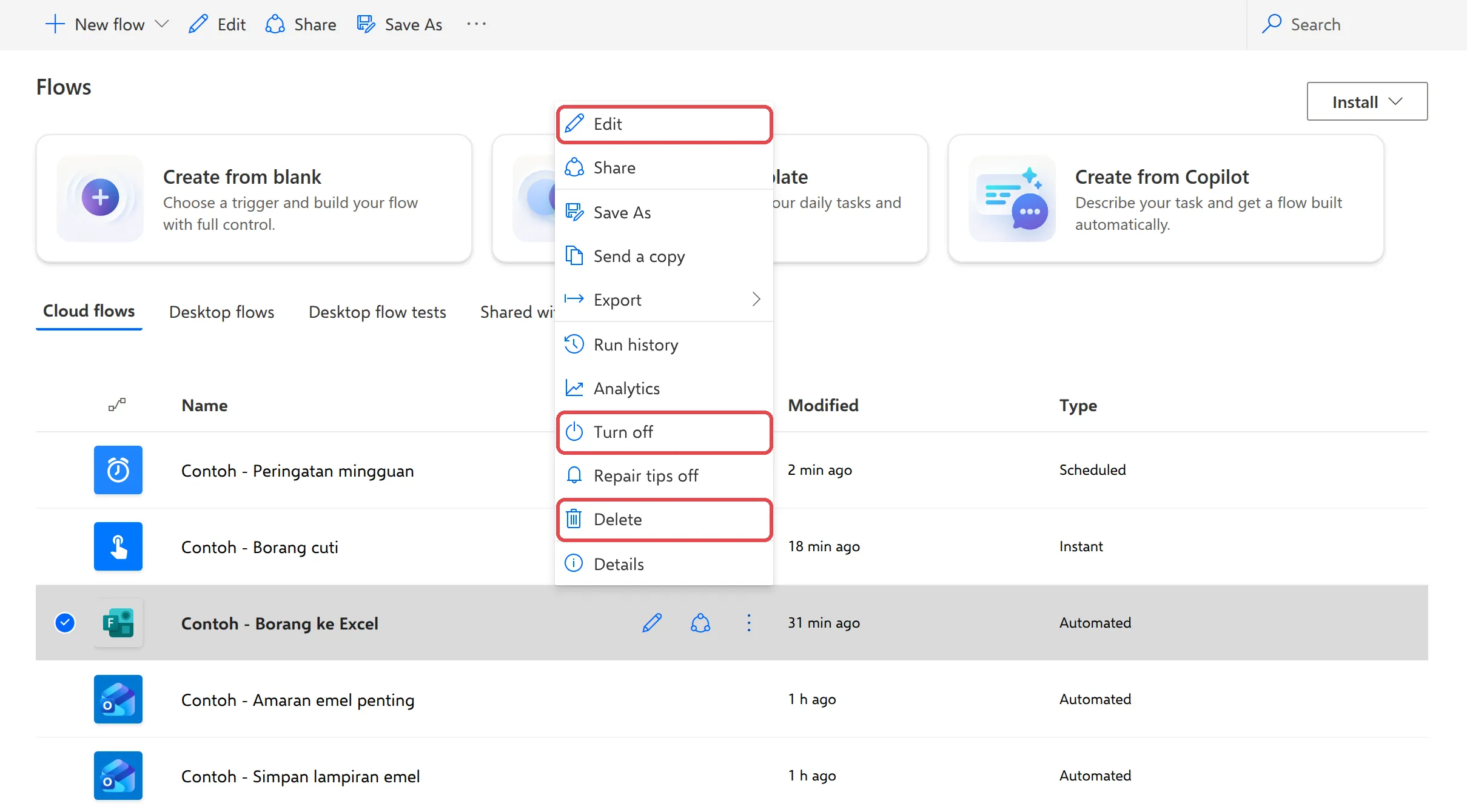
Edit a flow
Section titled “Edit a flow”Changes you make in the designer apply to future runs only.
- In My flows, select the three dots next to the flow → Edit.
- Select the step you want to change and edit its settings.
- Select Save. Until you save, the old version keeps running.
Turn a flow off or on
Section titled “Turn a flow off or on”Turning off is the safe way to pause a flow, for example over the holidays.
-
Select the flow’s name to open its details page.
-
Select Turn off at the top. Status changes to Off and the button changes to Turn on.
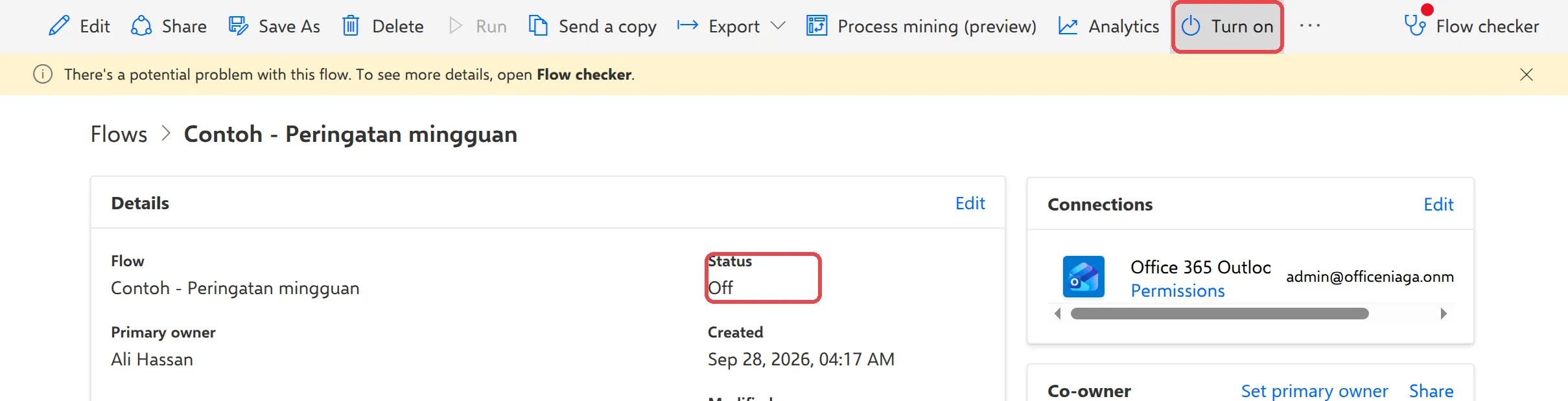
-
To start it again, select Turn on.
While a flow is off, nothing triggers it. Emails or form responses that arrive meanwhile aren’t picked up later.
Delete a flow
Section titled “Delete a flow”Deleting can’t be undone, so turn the flow off first if you’re not sure.
- In My flows, select the three dots next to the flow → Delete.
- Confirm with Delete.
Read the run history
Section titled “Read the run history”The details page shows every run from the last 28 days, with when it started, how long it took and whether it succeeded.
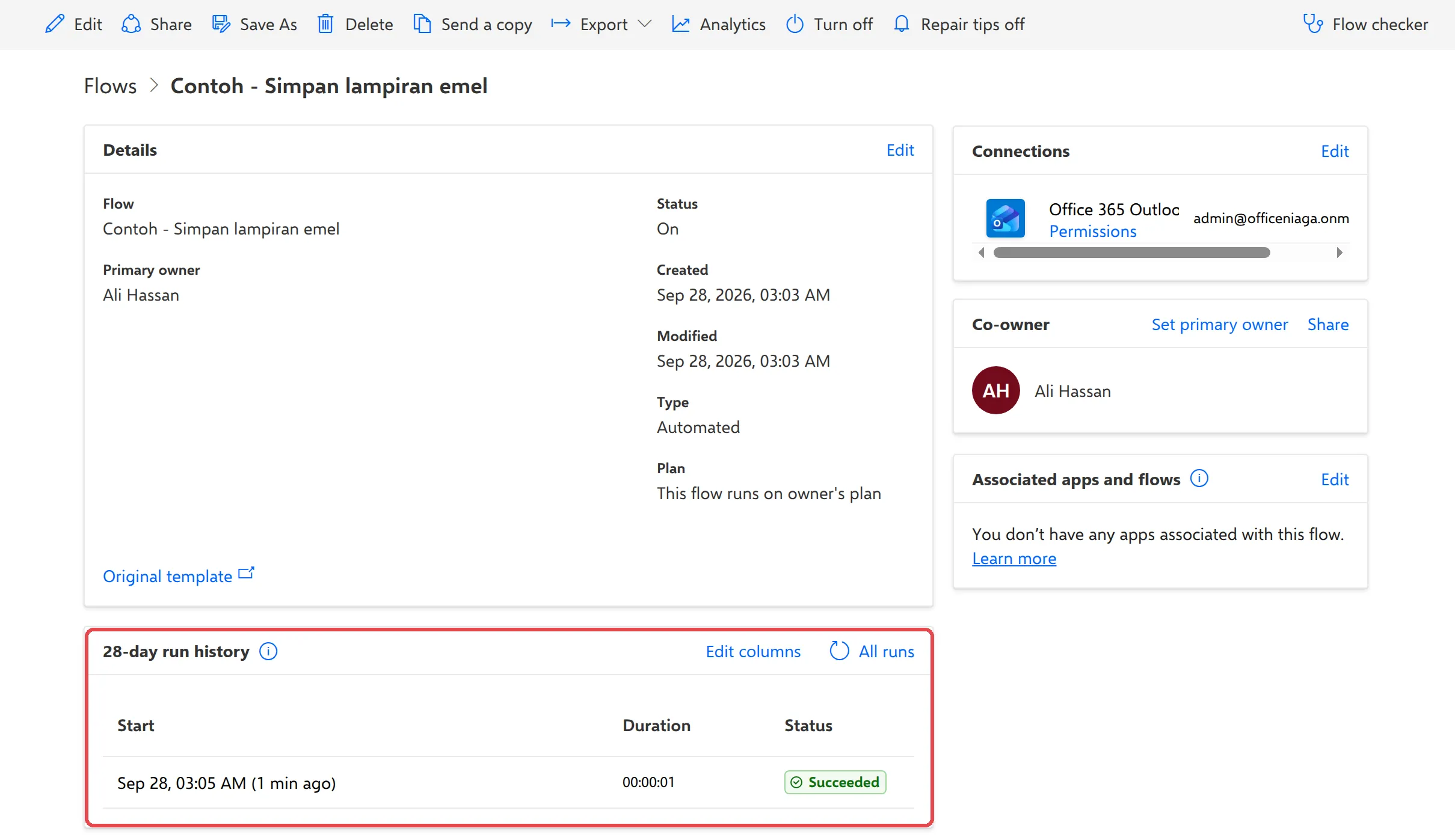
Select a run to see each step with a green tick or a red mark. Select a step to see what went in and what came out. All runs shows the full list.
When a flow fails
Section titled “When a flow fails”A failed run shows Failed in the run history. Power Automate also emails the owner about flows that keep failing.
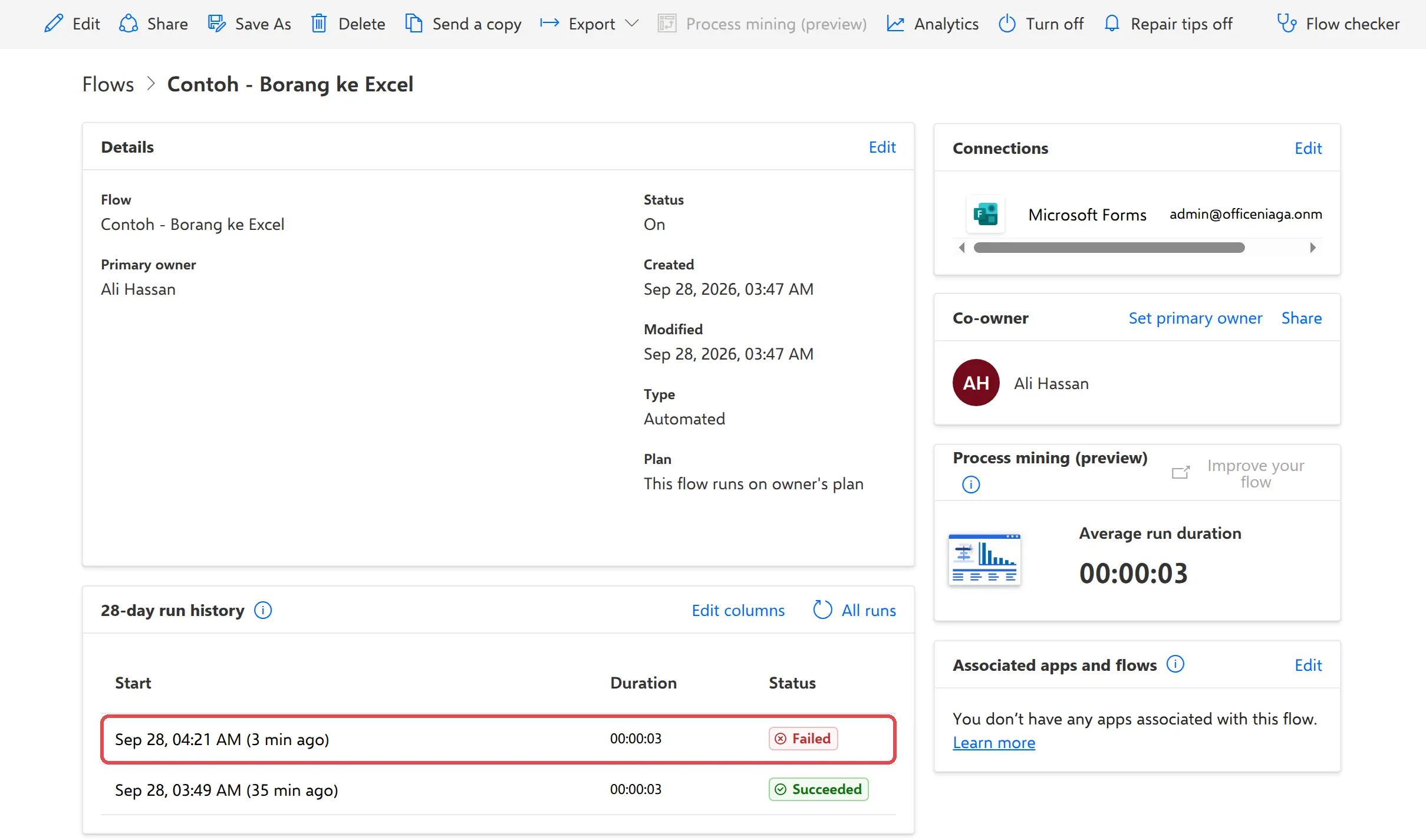
To find the cause and fix it:
-
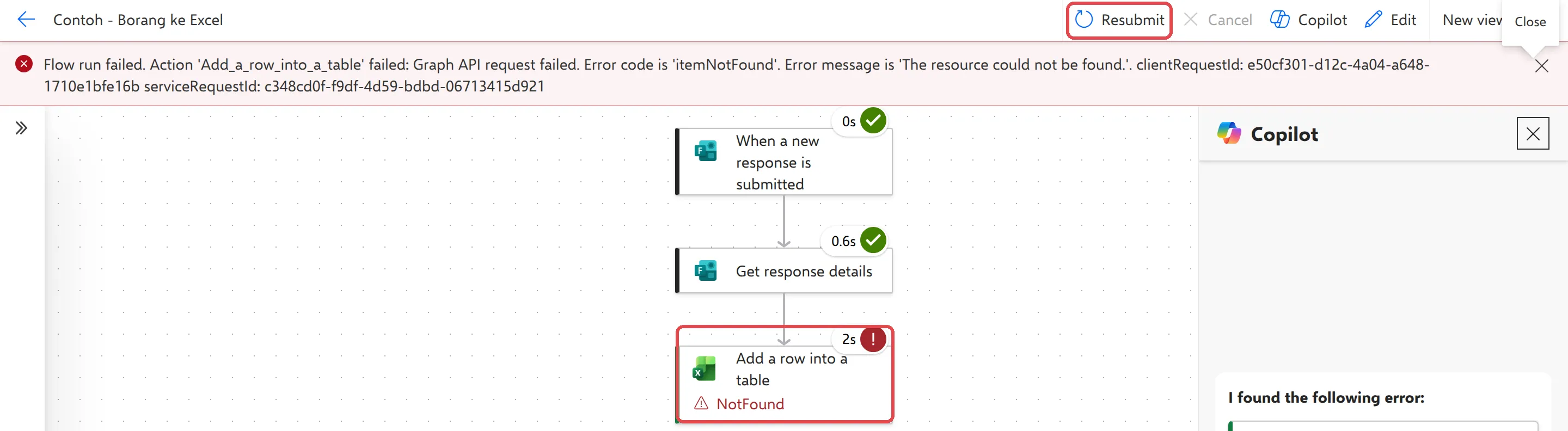
Select the Failed run. The banner at the top says which step failed, and that step has a red mark. In our example, Add a row into a table failed with NotFound because the Excel file had been deleted.
-
Fix the cause. Here, that means restoring the Excel file from the OneDrive recycle bin, or picking the file again in the flow.
-
Go back to the failed run and select Resubmit. Power Automate runs the flow again with the same trigger data, so the missing row is added.
To resubmit several runs at once, open All runs, tick the failed runs and select Resubmit flow run(s).
Microsoft describes these steps in manage cloud flows and troubleshoot a cloud flow.
Still stuck
Section titled “Still stuck”WhatsApp our support team at +60 16-916 3324.
Common issues
Power Automate emailed me that my flow is failing.
Open the link in the email, or go to My flows, select the flow and look at 28-day run history. Select a Failed run to see which step went wrong and why, fix it, then resubmit the run. See when a flow fails.
My flow was turned off by itself.
Microsoft turns off flows that keep failing, and flows on Microsoft 365 plans that haven't run for 90 days. You get an email first. Fix the problem if there is one, then select Turn on.
I deleted a flow by mistake.
There is no recycle bin in My flows. Your admin may be able to restore a flow deleted in the last 20 days from the Power Platform admin centre; otherwise build it again. Next time, use Turn off instead of Delete if you might need it.
Resubmit does nothing.
Resubmit reuses the same trigger data, so it only helps after you fixed the cause. Refresh the run history after a minute. If the run still doesn't appear, open the flow's All runs, tick the failed run and select Resubmit flow run(s).
A staff member who owned a flow has left.
Flows belong to their owner. Before you remove the account, have them add a co-owner with Share on the flow's details page, or ask your admin to reassign it. See when staff leave.
Was this article helpful?
Thanks for your feedback.
Sorry this didn't help. WhatsApp us and we'll sort it out with you.