
Work on the same Word, Excel or PowerPoint file together
Updated For Microsoft 365

To work on a file with colleagues at the same time, save it in OneDrive or on a SharePoint team site, then share it with Can edit access. Everyone who opens it sees each other’s changes within seconds, with no need to email copies back and forth.
What you need
Section titled “What you need”Co-authoring works when these are true:
- The file is in the cloud: saved in OneDrive or on a SharePoint site, not on your computer’s hard disk or a USB drive.
- The file is in a modern format:
.docx,.xlsxor.pptx. Older formats such as.docand.xlsdo not support it; open the file and save it in the newer format first. - Everyone has edit permission to the file.
- AutoSave is on in the desktop apps. See AutoSave and version history.
Share the file for editing
Section titled “Share the file for editing”You can share straight from Word, Excel or PowerPoint.
-
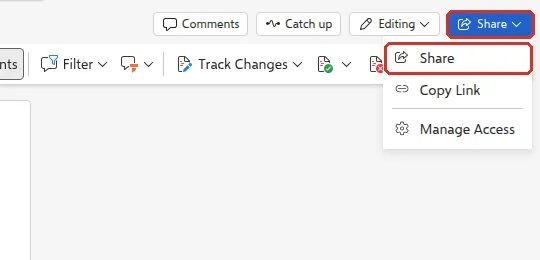
Open the file and select Share at the top right. In the web apps, Share opens a small menu: select Share again.
-
Type the names or email addresses of your colleagues in Add a name, group, or email.
-
Check the permission next to the box is Can edit (the pencil icon).
-
Select Send. Or select Copy link to paste the link into a Teams chat.
The share box works the same as in OneDrive. See share a OneDrive file for the permission and link options.
Work together
Section titled “Work together”Each person can open the file in the desktop app, the web app or the phone app. Pictures or initials at the top right show who else is in the file, and a coloured marker shows where each person is working. Changes appear as people type.
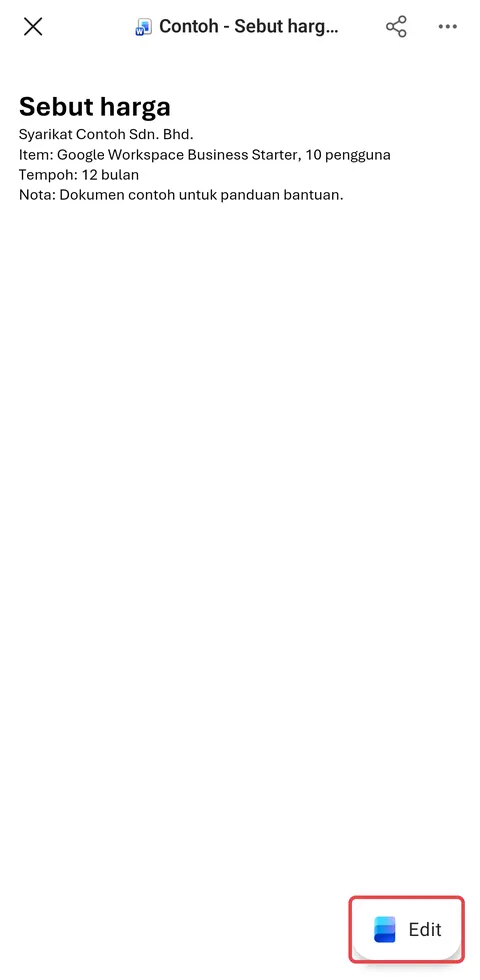
On a phone, open the file from the OneDrive or Microsoft Copilot app. It opens to read first; tap Edit at the bottom right to change it. On Android, if the Word, Excel or PowerPoint app is not on your phone yet, Google Play opens so you can install it.
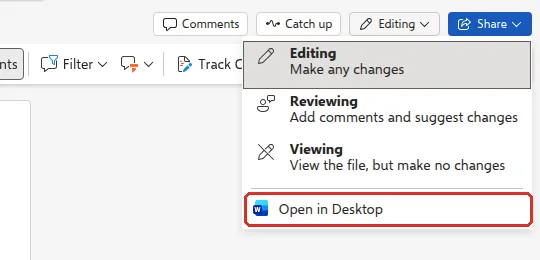
If you open the file in the browser and want the full desktop features, select Editing at the top right, then Open in Desktop. The same menu switches between Editing, Reviewing (suggest changes only) and Viewing.
Leave comments and @mention people
Section titled “Leave comments and @mention people”Comments are a tidy way to ask questions without changing the text.
-
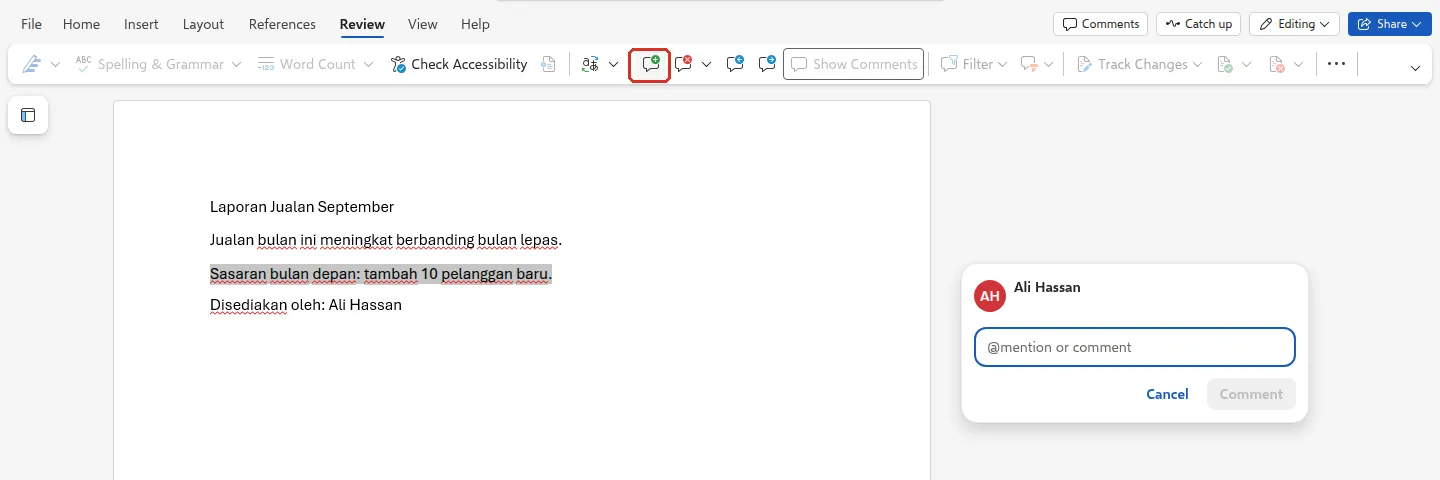
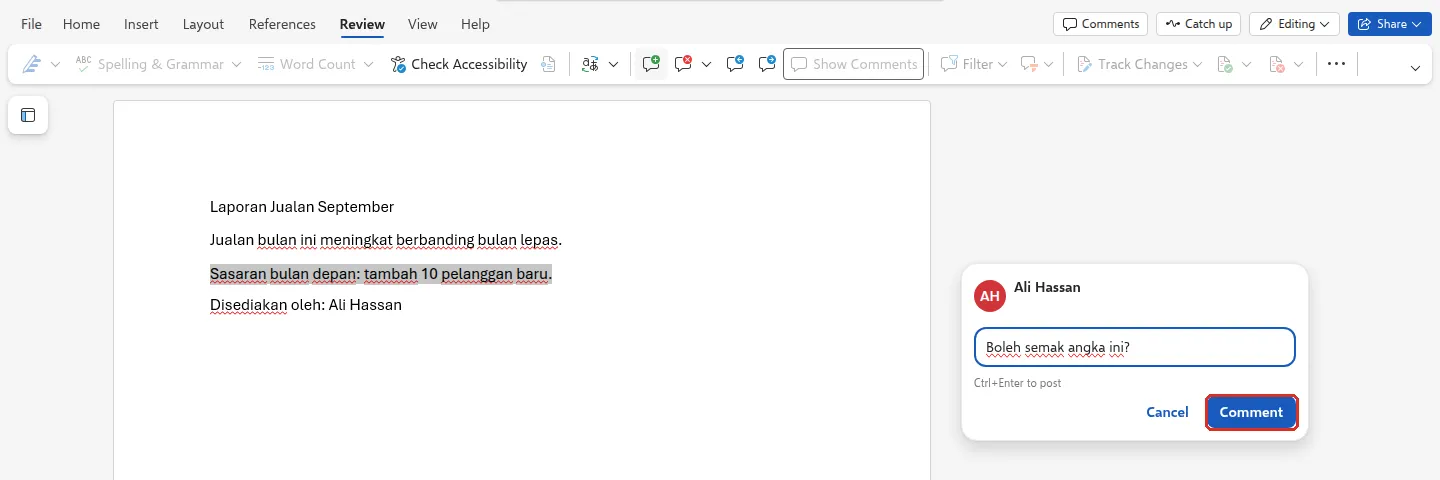
Select the text or cell, then go to Review > New Comment. A comment box opens on the right.
-
Type your comment. To notify someone, type @ and start typing their name, then pick them from the list; they get an email with a link to the comment.
-
Select Comment, or press Ctrl+Enter. In the desktop apps, the button is the Post comment arrow.
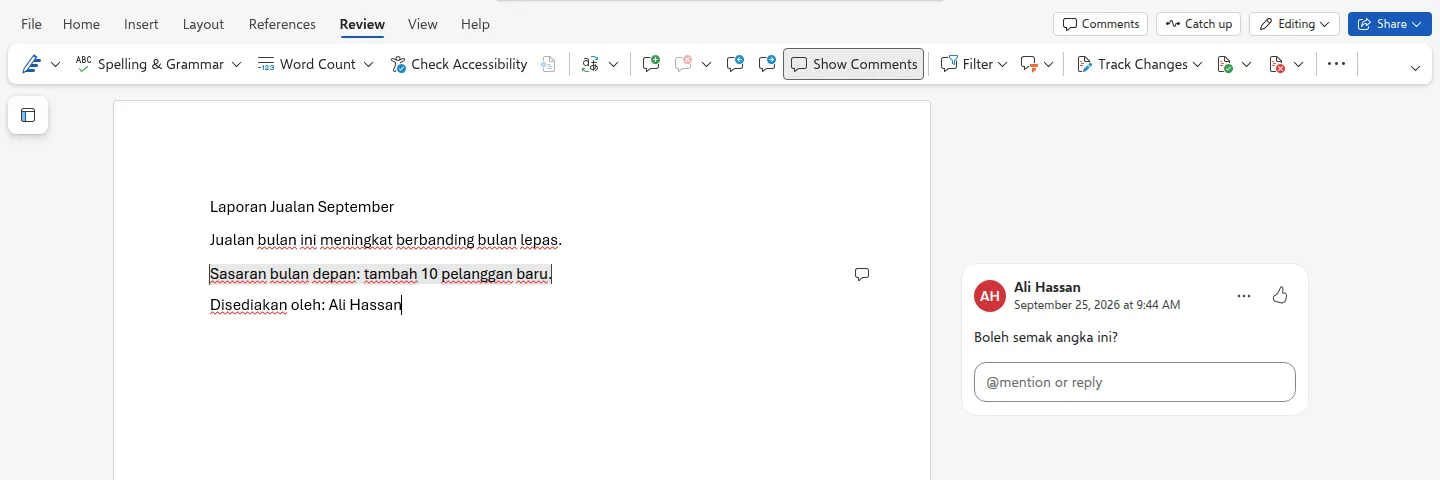
The comment then shows next to the text with your name and the time. Colleagues can answer in @mention or reply under it.
In Word and Excel you can also tick Assign to under an @mention to give the person a task.
If two people change the same thing
Section titled “If two people change the same thing”When two people edit the same sentence or cell at the same moment, the last change saved is the one kept. For important sections, agree who edits what, or use comments. You can always get an earlier version back from version history.
Still stuck
Section titled “Still stuck”WhatsApp our support team at +60 16-916 3324.
Common issues
Excel says the file is locked for editing by another user.
Someone has the file open in an app or version that cannot co-author, or the file is in an old format such as .xls. Ask them to close it, and save the file as .xlsx in OneDrive or SharePoint.
I cannot see my colleague's changes.
Check that AutoSave is on at the top left, select Enable Editing if you see a yellow bar, and make sure OneDrive sync is not paused.
Can I co-author a file sent to me as an email attachment?
No. An attachment is a separate copy. Save the file to OneDrive or a team site and share a link instead.
Was this article helpful?
Thanks for your feedback.
Sorry this didn't help. WhatsApp us and we'll sort it out with you.