
What to do with a Microsoft 365 account when staff leave
Updated For Microsoft 365

When a staff member leaves, block their sign-in first, then keep their emails and files for the company, and only then free the licence. Do it in this order so nothing is lost. All steps are in the Microsoft 365 admin centre at admin.microsoft.com, under Users > Active users.
1. Stop them signing in
Section titled “1. Stop them signing in”Do this on their last day, or straight away if they left on bad terms.
-
Select the person’s name, then Reset password. Set a new password that only you know and select Reset password. This is the fastest way to lock them out.
-
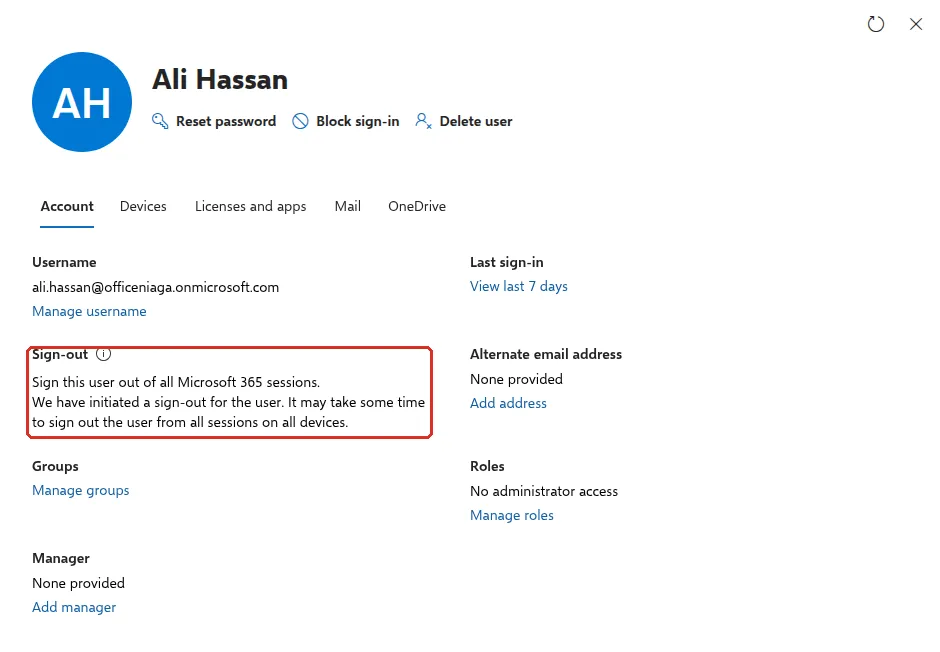
Open the person again. On the Account tab, under Sign-out, select Sign out of all sessions. There is no extra confirmation: Microsoft shows We have initiated a sign-out for the user and warns it may take some time to reach every device.
-
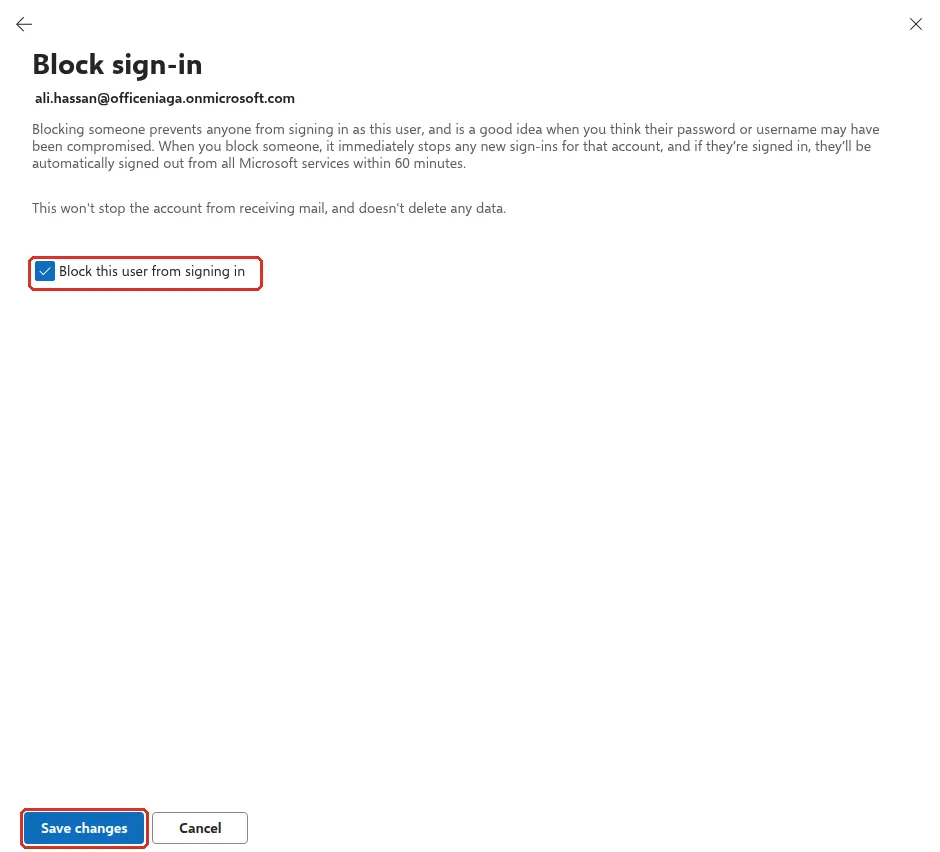
Select Block sign-in under their name, tick Block this user from signing in and select Save changes. Microsoft stops new sign-ins straight away and signs the person out of Microsoft services within 60 minutes. Apps that are already signed in can keep working until then, which is why you reset the password first.
If the person used a company phone or laptop, collect it. Files they synced to a personal computer cannot be wiped from the admin centre.
2. Keep their emails
Section titled “2. Keep their emails”Customers will keep writing to the old address. Pick one of two options:
- Convert to a shared mailbox (usually best). Open the person, go to the Mail tab and select Convert to shared mailbox, then Convert. The mailbox must still have its licence when you do this. Then add the manager as a member so they can read old and new emails. A shared mailbox under 50 GB needs no licence.
- Forward new emails. On the Mail tab, select Manage email forwarding, tick Forward all emails sent to this mailbox, enter the manager’s address and select Save changes. Only new emails are forwarded, and the licence must stay on the account.
3. Give a manager their files
Section titled “3. Give a manager their files”Save the leaver’s OneDrive files before the licence goes. Open the person, go to the OneDrive tab and, under Get access to files, select Create link to files. Open the link and move or copy what the team needs into a shared location, such as a SharePoint site.
Cancel any meetings the leaver organised, so booked rooms and invitations are cleared.
4. Free the licence
Section titled “4. Free the licence”Once emails and files are safe, you can reuse the licence for a new hire.
- Open the person and go to the Licenses and apps tab.
- Untick the licence and select Save changes.
Microsoft keeps the user’s mailbox data for 30 days after the licence is removed, then deletes it. If you converted the mailbox to a shared mailbox first, its emails stay. The free licence can now go to the next staff member. If you want fewer licences on your bill instead, tell Office Niaga before your renewal. See licences and renewal.
5. Delete the account (optional)
Section titled “5. Delete the account (optional)”Deleting is only needed if you did not convert or forward the mailbox. Follow these steps:
-
Select the person, then Delete user under their name. If the account still has a licence or files, Microsoft may show extra options first, such as giving another person access to their OneDrive.
-
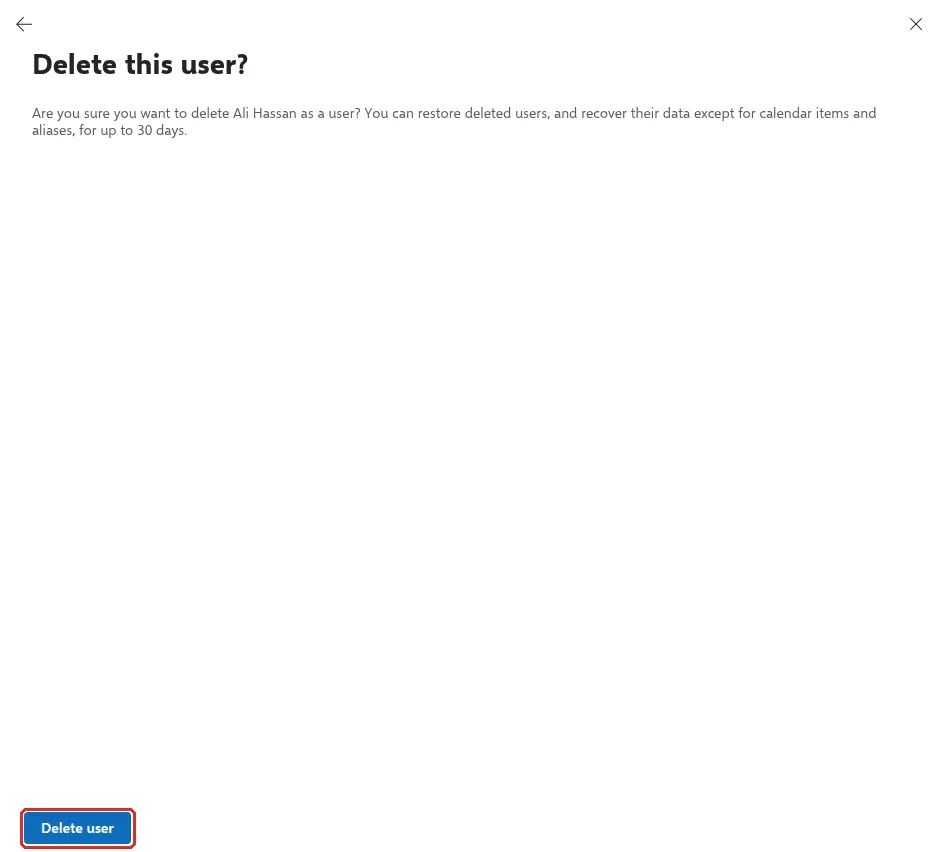
On Delete this user?, select Delete user.
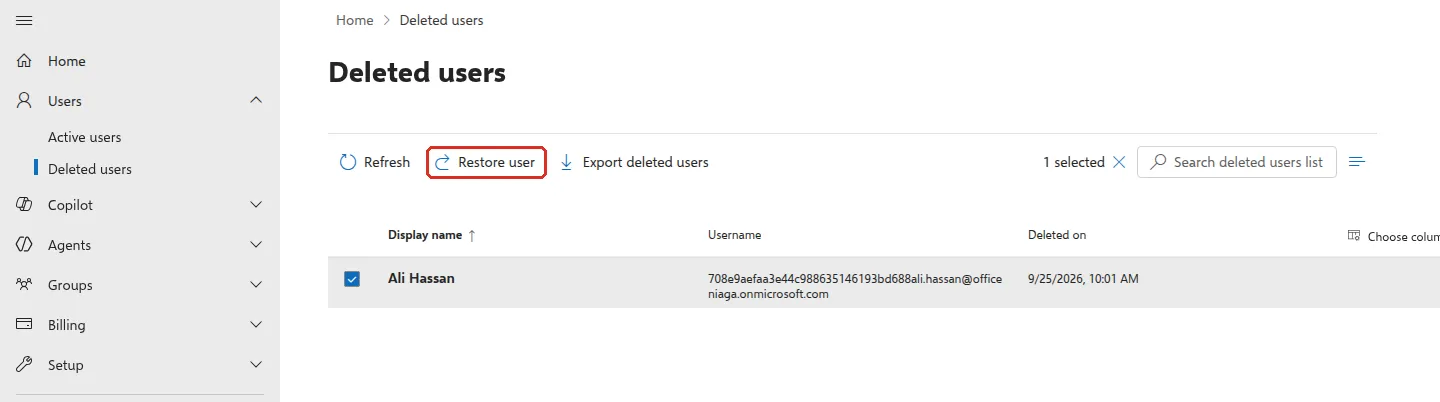
Microsoft keeps a deleted account for 30 days. To bring it back, go to Users > Deleted users, tick the person and select Restore user. Calendar items and aliases are not restored.
Still stuck
Section titled “Still stuck”WhatsApp our support team at +60 16-916 3324.
Common issues
Does a blocked account still use a licence?
Yes. Blocking sign-in does not free the licence. It is only freed when you remove the licence from the user or delete the user. After that, tell Office Niaga if you want fewer licences, because the licence stays on your subscription until the count is reduced.
I deleted the user by mistake. Can I get the account back?
Yes, within 30 days. Go to Users > Deleted users, tick the person and select Restore user. Microsoft says calendar items and aliases cannot be recovered. You need a free licence to give back to them.
Why can't I delete the user?
If you set up email forwarding on the account, or converted the mailbox to a shared mailbox, keep the account. Deleting it would stop the forwarding or remove the shared mailbox, and Microsoft may show User cannot be deleted.
Was this article helpful?
Thanks for your feedback.
Sorry this didn't help. WhatsApp us and we'll sort it out with you.