
Ask an AI about this page
 ChatGPT
 Claude
 Perplexity
 Google AI Mode
 Microsoft Copilot
 Grok
Grok Mistral Le Chat
Send Microsoft Forms responses to an Excel table
To send Microsoft Forms responses to Excel, build an automated cloud flow with three steps: the Forms trigger When a new response is submitted, the Forms action Get response details, and the Excel action Add a row into a table. Each new response then appears as a row in your Excel table in OneDrive, a few seconds after someone selects Submit.
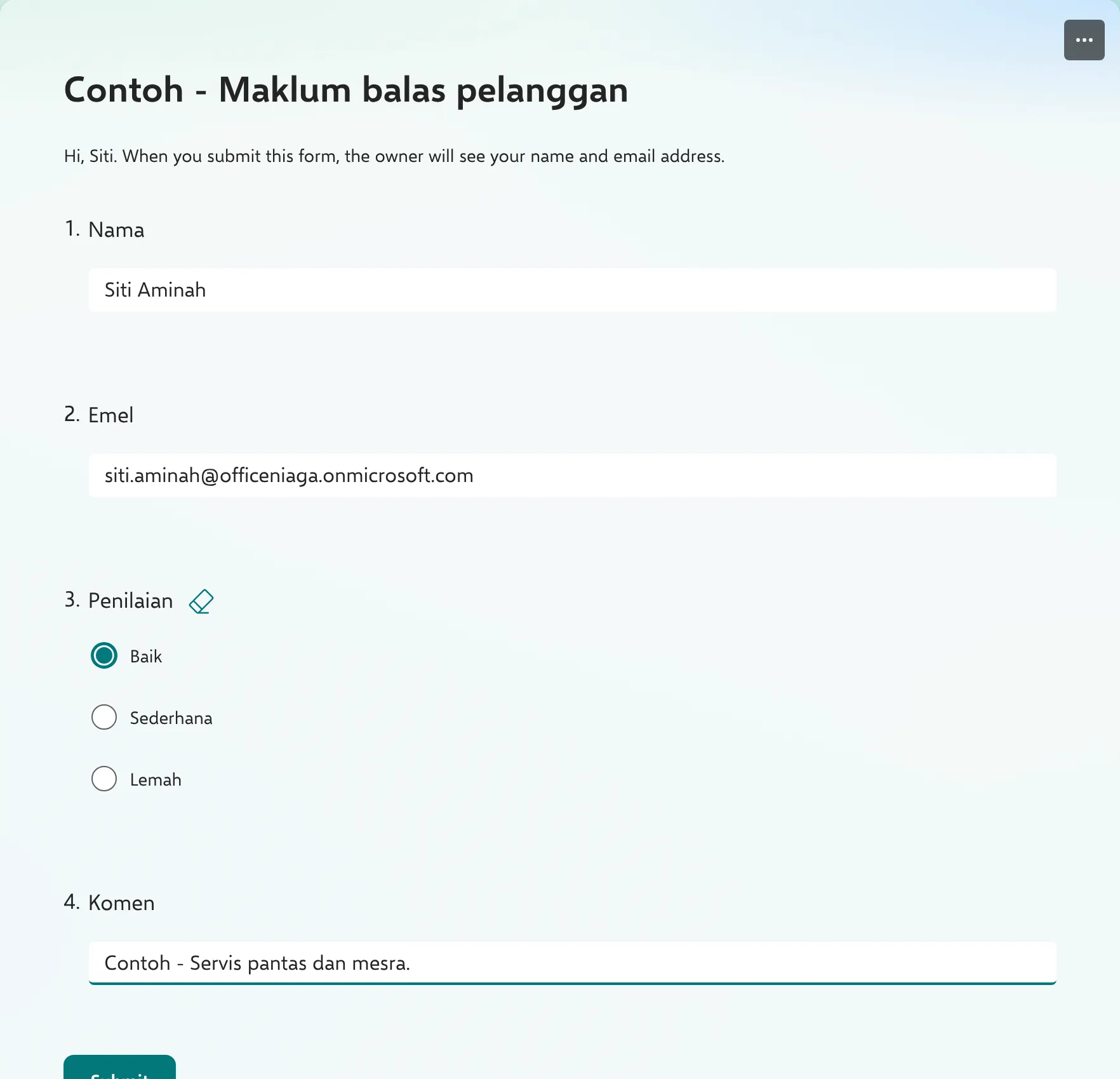
We tested these steps on 27 September 2026 with the sample form “Contoh - Maklum balas pelanggan” (questions Nama, Emel, Penilaian and Komen), a response from Siti Aminah, and an Excel file in Ali Hassan’s OneDrive.
Before you start
Section titled “Before you start”You need a form and an Excel file:
- A form in Microsoft Forms that you own.
- An Excel file in OneDrive or SharePoint, with a table whose headers match your questions. Power Automate can only add rows to a table.
Prepare the Excel file
Section titled “Prepare the Excel file”The flow writes into a table, so set one up first.
-
Create an Excel workbook in OneDrive, for example
Contoh - Maklum balas pelanggan.xlsx. -
In row 1, type one header per column: we used
Tarikh,Nama,Emel,PenilaianandKomen. -
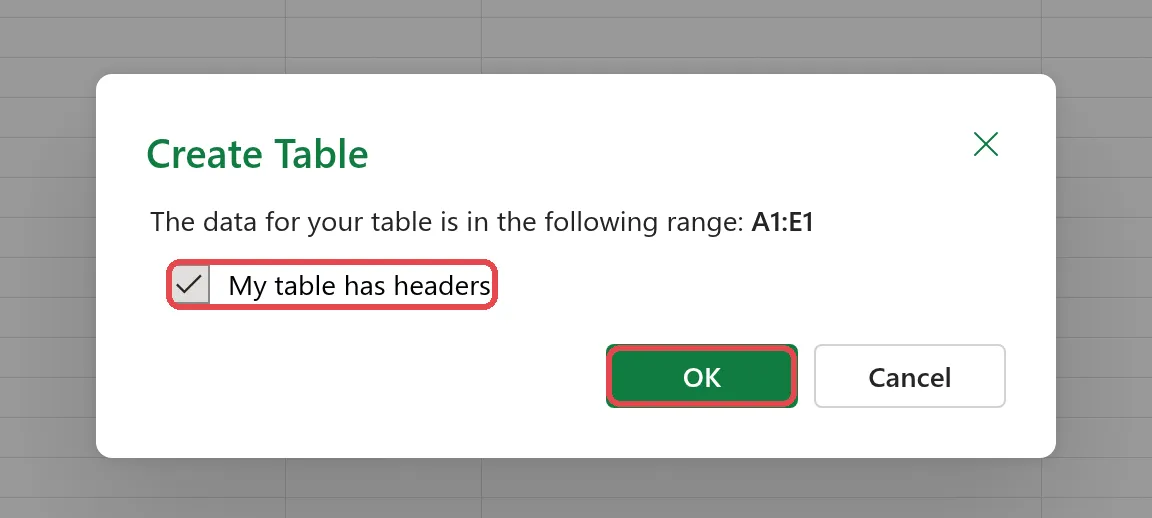
Select the header cells, then Insert → Table. Tick My table has headers and select OK.
Here is the sample form that people fill in:
Create the flow
Section titled “Create the flow”Start with the Forms trigger.
-
In Power Automate, select Create → Automated cloud flow.
-
Name the flow, for example
Contoh - Borang ke Excel. -
Search for
new response is submittedand select When a new response is submitted (Microsoft Forms). Select Create.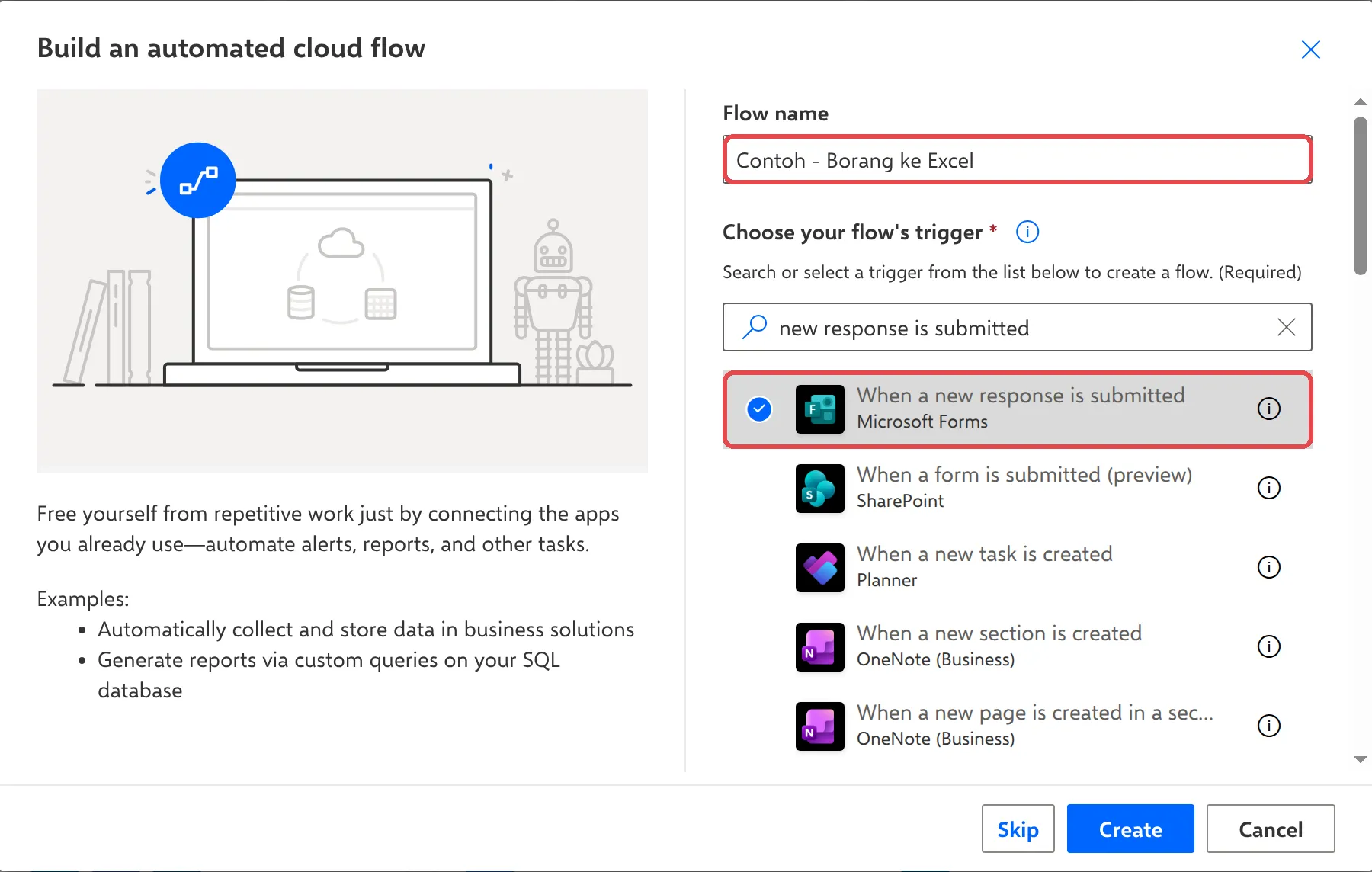
-
In the trigger, open Form Id and pick your form. If the list says No items, select Change connection → Add a new connection → Sign in to connector first, then open the list again.
Get the answers
Section titled “Get the answers”The trigger only tells the flow that a response arrived. A second Forms step fetches the answers.
-
Under the trigger, select + → Add an action, search for
Get response detailsand select it. -
In Form Id, pick the same form.
-
Select Response Id, then the lightning icon (or type
/→ Insert dynamic content), and choose Response Id.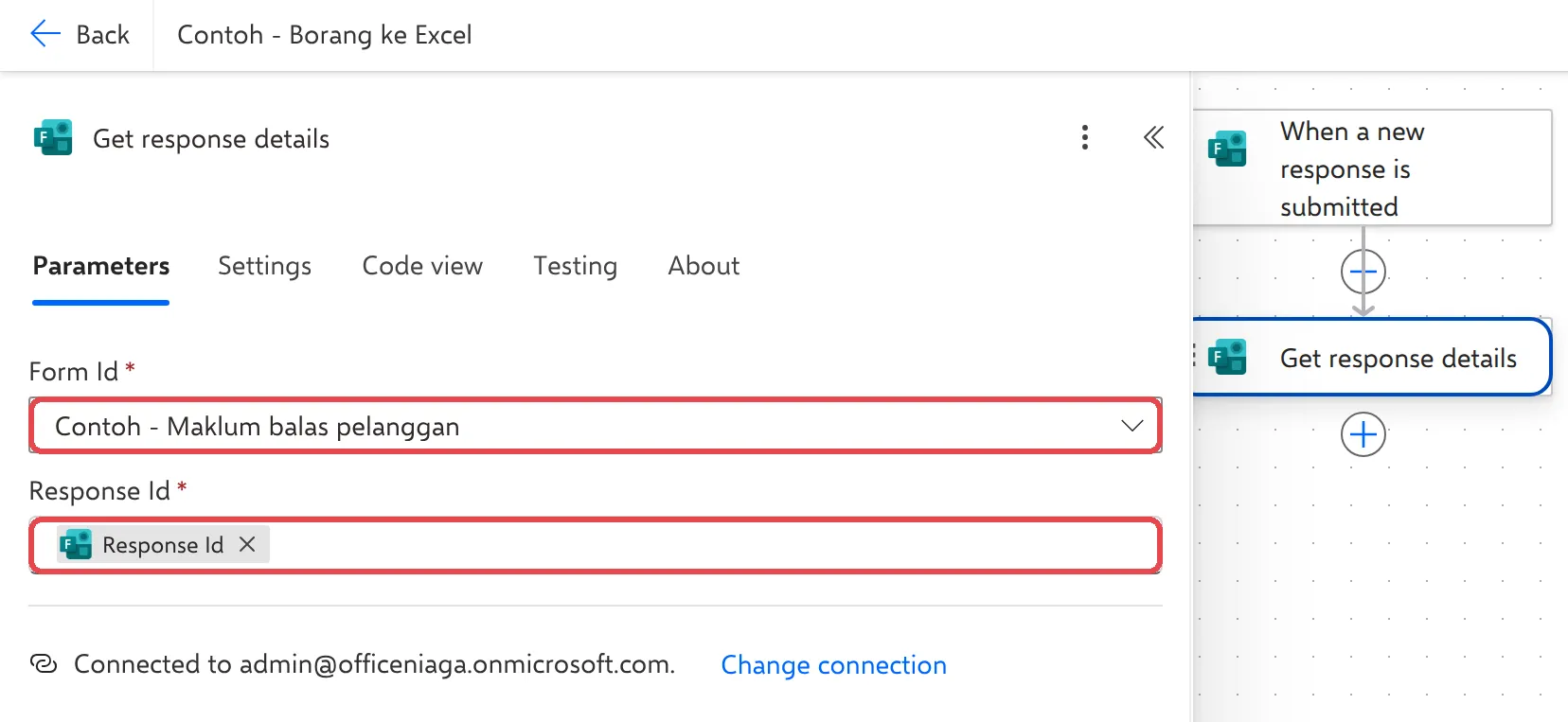
Add a row in Excel
Section titled “Add a row in Excel”The last step writes the answers into your table.
-
Select + → Add an action, search for
Add a row into a tableand select it (Excel Online (Business)). -
Set Location to OneDrive for Business and Document Library to OneDrive.
-
In File, select the folder icon and pick your workbook. In Table, pick the table (Excel names the first one Table1).
-
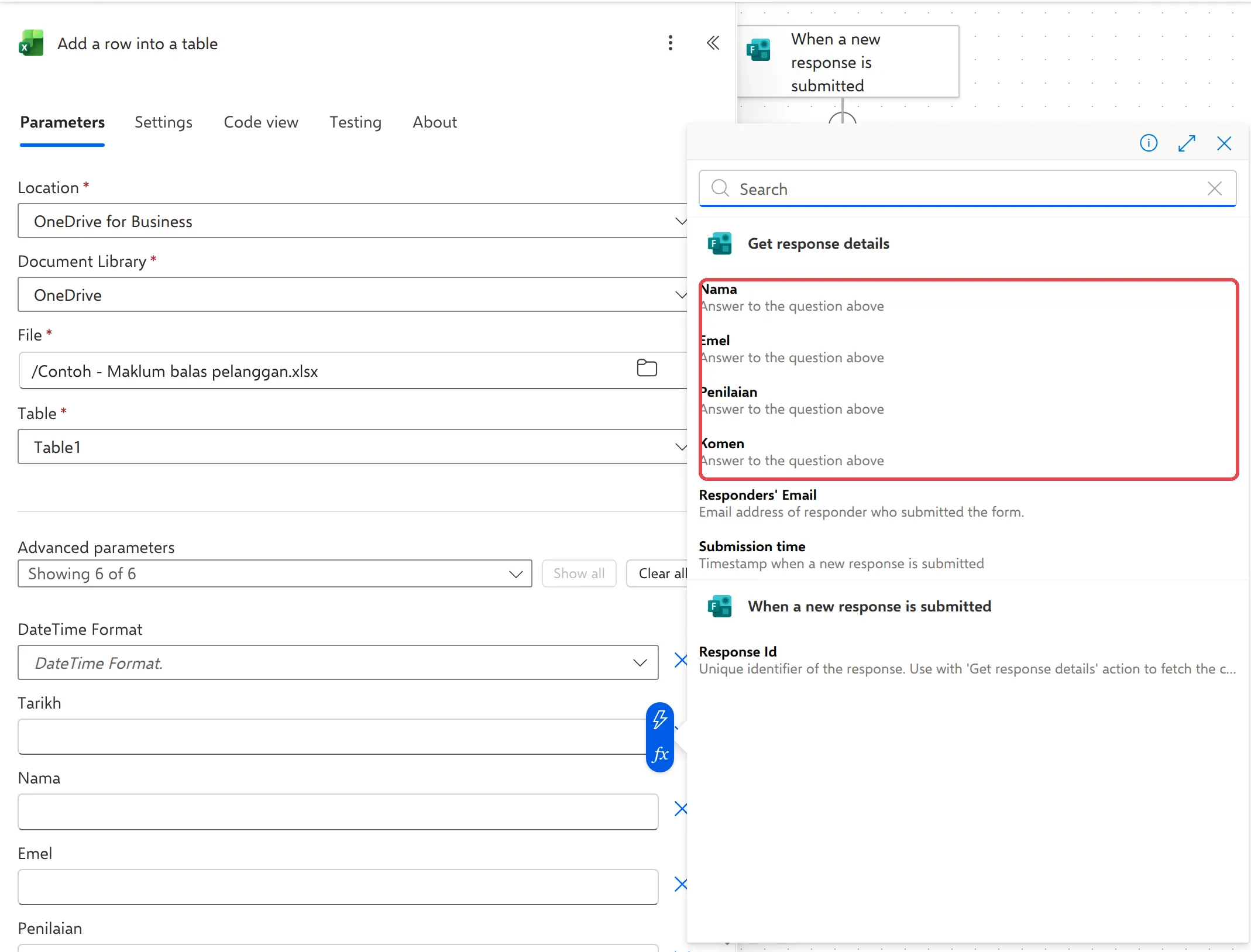
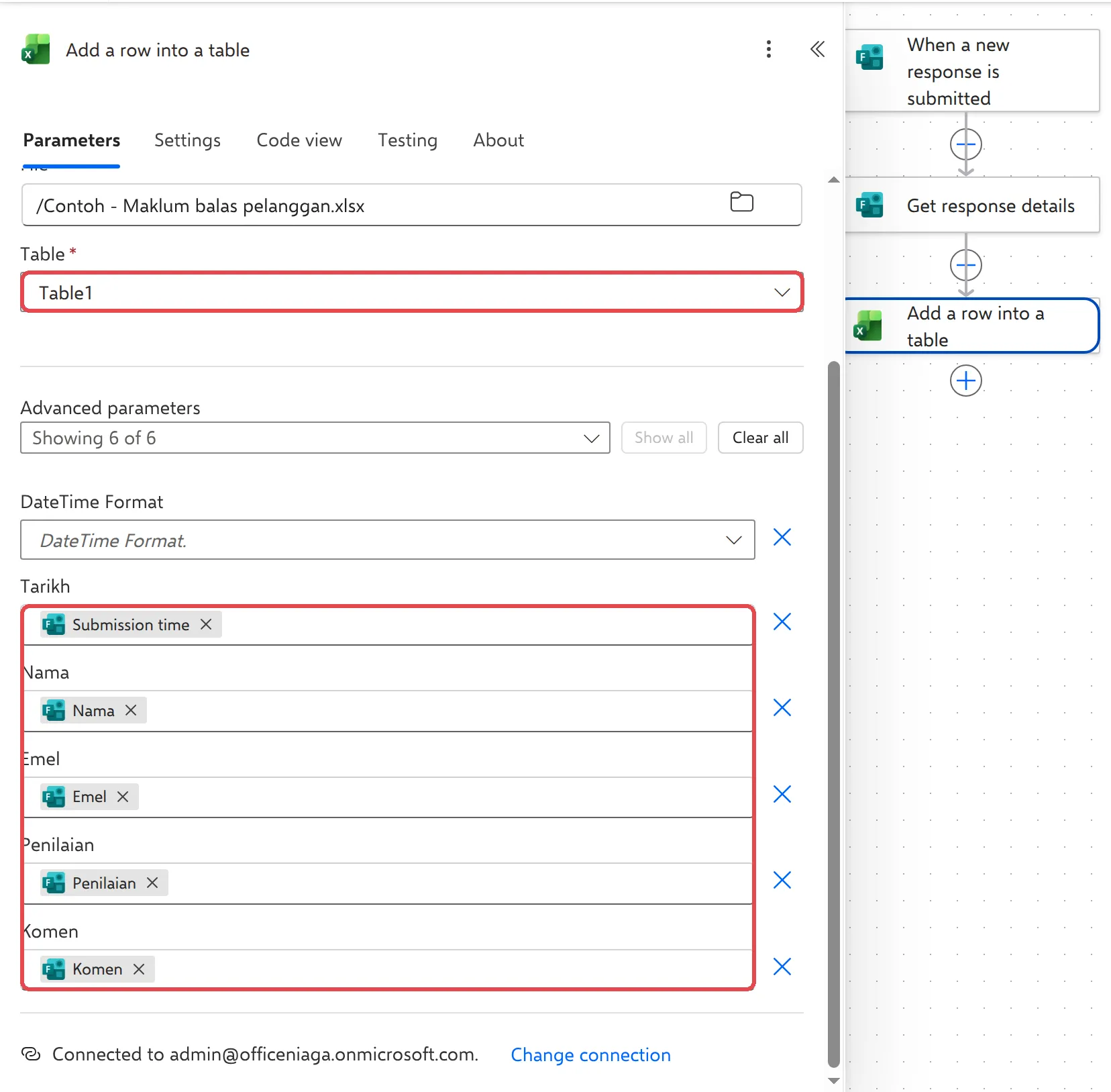
One box appears for each column. Select a box, then the lightning icon, and pick the answer that belongs there. The list shows each question by name, plus Responders’ Email and Submission time.
-
Check each column has its answer, then select Save.
Test it
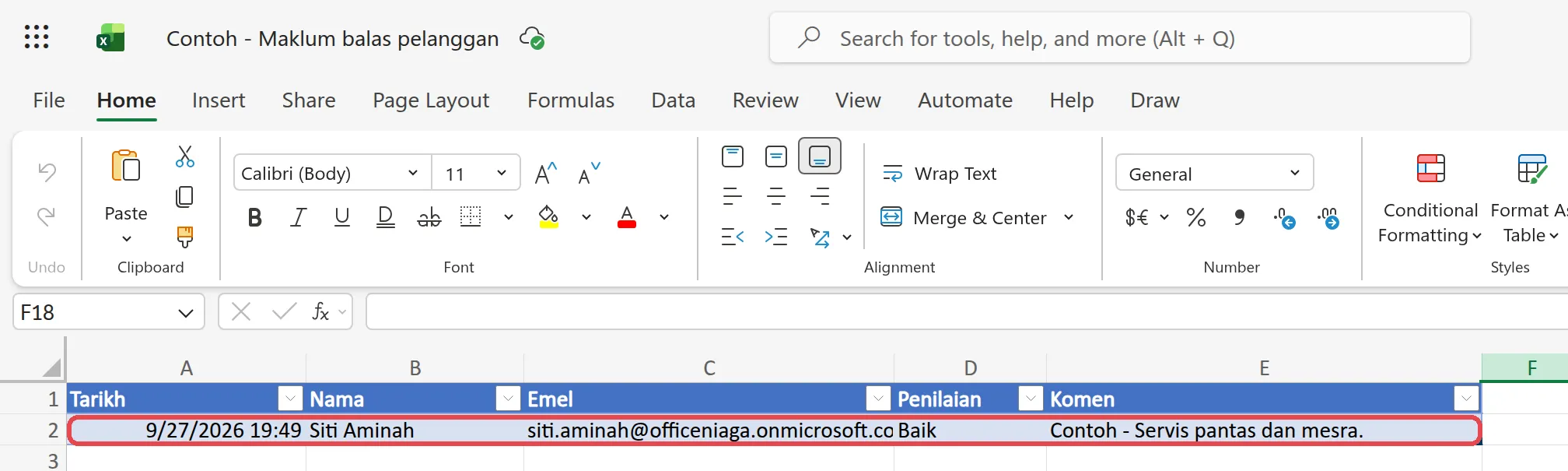
Section titled “Test it”Fill in the form yourself, or ask a colleague to. Open the Excel file: a new row appears with the answers, usually within a minute.
Microsoft describes these steps in Microsoft Forms connector and Excel Online (Business) connector.
Still stuck
Section titled “Still stuck”WhatsApp our support team at +60 16-916 3324.
Common issues
My form or my Excel file isn't in the list.
The Form Id list only shows forms you own. For a group form, choose Enter custom value and paste the form's ID from its address. For Excel, the file must be in OneDrive or SharePoint, and it must have a table: plain cells don't count. See prepare the Excel file.
The date in Excel is 8 hours behind.
Submission time is in UTC, Malaysia time minus 8 hours. Format the column in Excel, or before the Excel step add the standard Convert time zone action and use its output instead.
The flow failed with NotFound.
The Excel file was moved, renamed or deleted. Put it back, or open the flow, select Add a row into a table and pick the file and table again. Then resubmit the failed runs.
Can I add responses that came in before I made the flow?
The flow only picks up new responses. For older ones, open the form, select View responses → Open results in Excel, and copy them across.
Someone had the Excel file open. Did we lose a row?
No. Excel for the web lets the flow add rows while people have the file open. Only the desktop app, with the file checked out or locked, can block it.
Was this article helpful?
Thanks for your feedback.
Sorry this didn't help. WhatsApp us and we'll sort it out with you.