
Ask an AI about this page
 ChatGPT
 Claude
 Perplexity
 Google AI Mode
 Microsoft Copilot
 Grok
Grok Mistral Le Chat
Run a flow on a schedule
To run a flow on a schedule, create a Scheduled cloud flow in Power Automate. You choose how often it runs (every day, every week on Monday, every month) and at what time, then add the actions. For a weekly reminder email, the flow has two steps: Recurrence and Send an email (V2).
We tested these steps on 27 September 2026 with a sample weekly reminder, “Contoh - Peringatan mingguan”, from Ali Hassan to Siti Aminah.
Create the scheduled flow
Section titled “Create the scheduled flow”The first box sets the schedule.
-
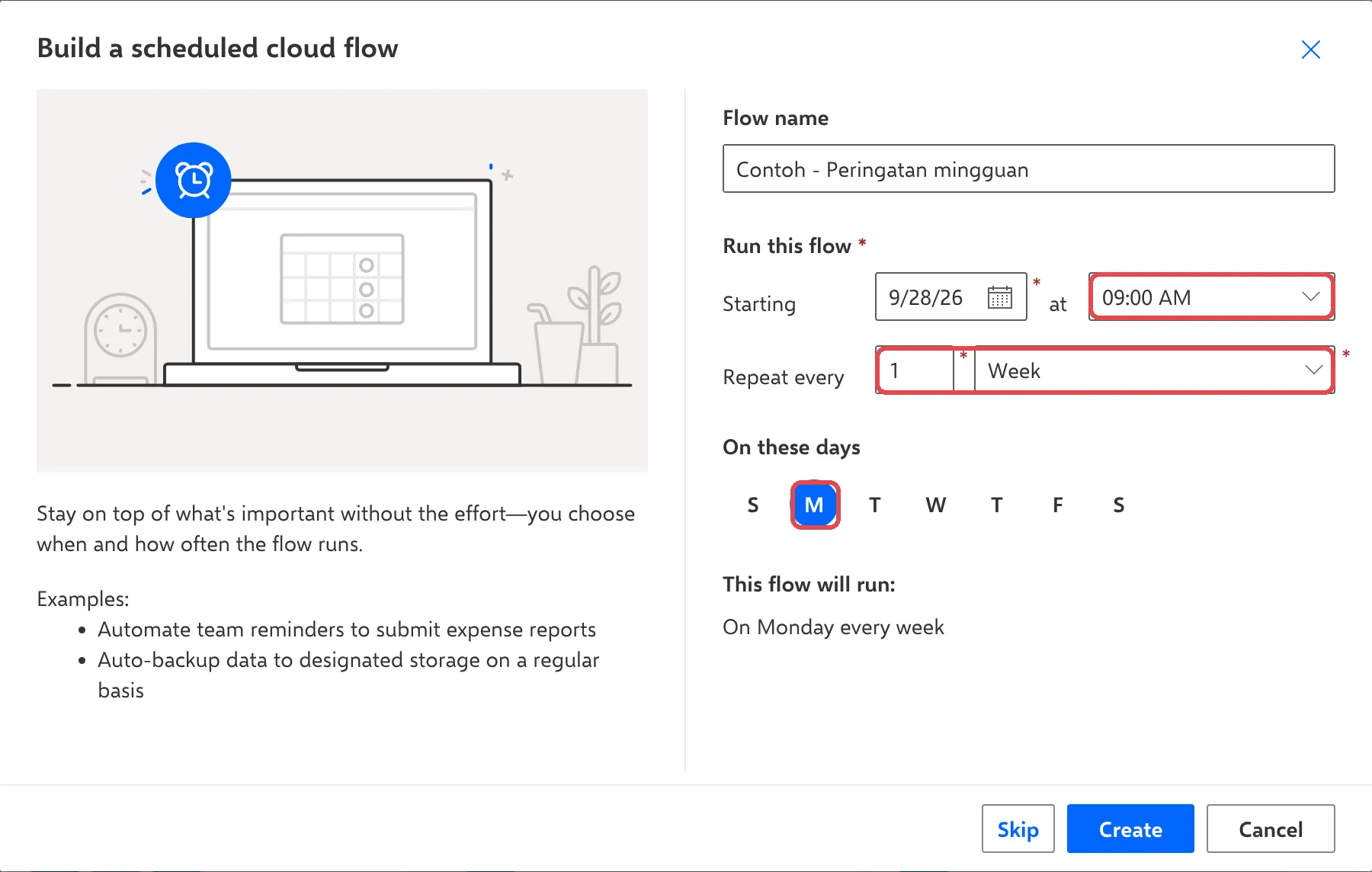
In Power Automate, select Create → Scheduled cloud flow.
-
In Flow name, type a name such as
Contoh - Peringatan mingguan. -
Under Run this flow, pick the starting date, and the time, for example 09:00 AM.
-
Set Repeat every to
1Week. -
Under On these days, all seven days are selected. Select each day you don’t want, so only M (Monday) stays blue. This flow will run now says On Monday every week.
-
Select Create.
Set the time zone
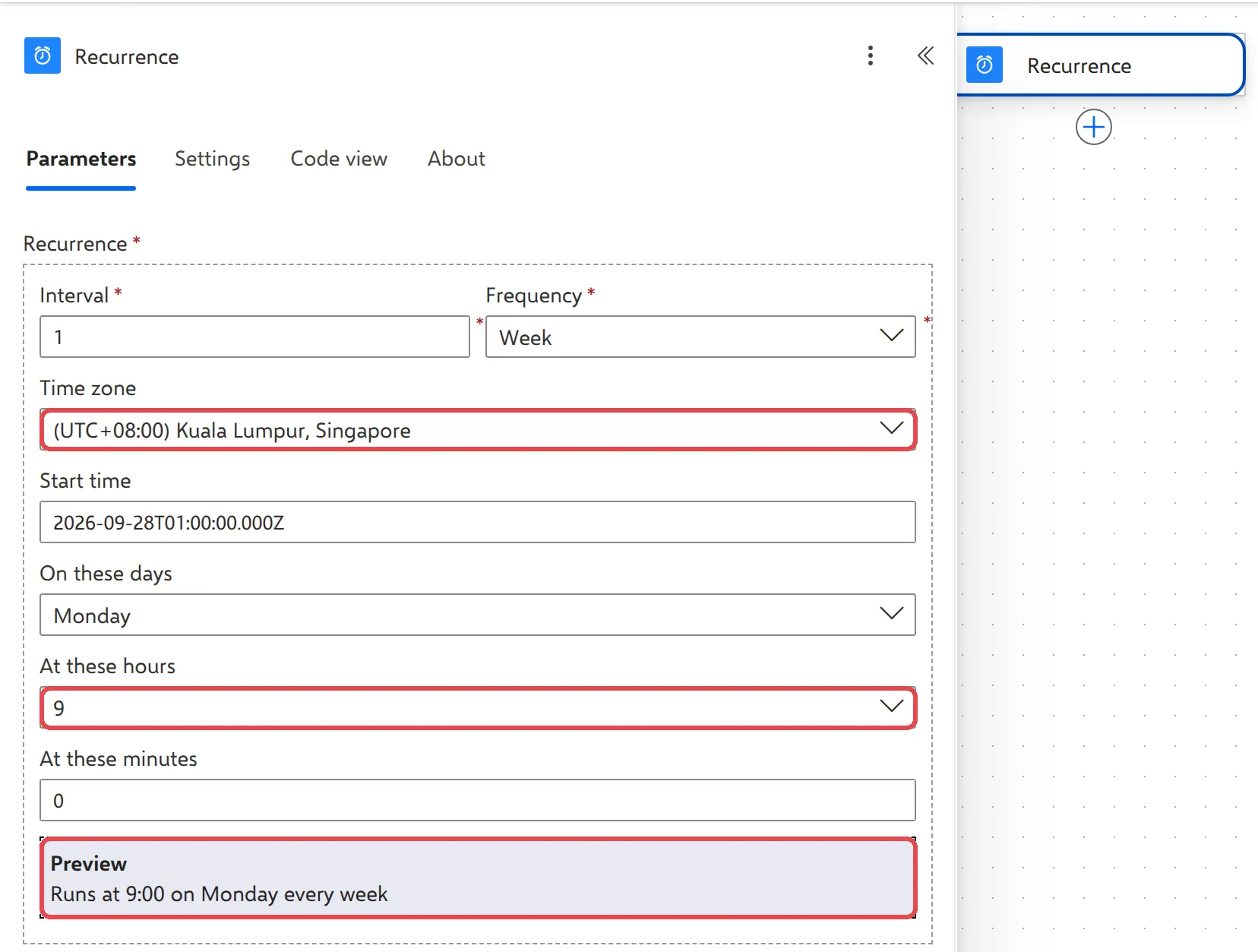
Section titled “Set the time zone”Power Automate stores the schedule in UTC (Malaysia time minus 8 hours) unless you tell it otherwise. Set the time zone so 9am means 9am in Malaysia.
-
Select the Recurrence step.
-
Set Time zone to (UTC+08:00) Kuala Lumpur, Singapore.
-
In At these hours, tick
9. In At these minutes, type0. -
Check that Preview says Runs at 9:00 on Monday every week.
Add the reminder email
Section titled “Add the reminder email”The action is what happens each time the schedule fires.
-
Under Recurrence, select + → Add an action, search for
Send an email (V2)and select it. -
In To, add the people or group who should get the reminder.
-
Fill in Subject and Body, for example
Contoh - Peringatan: hantar laporan jualan mingguan.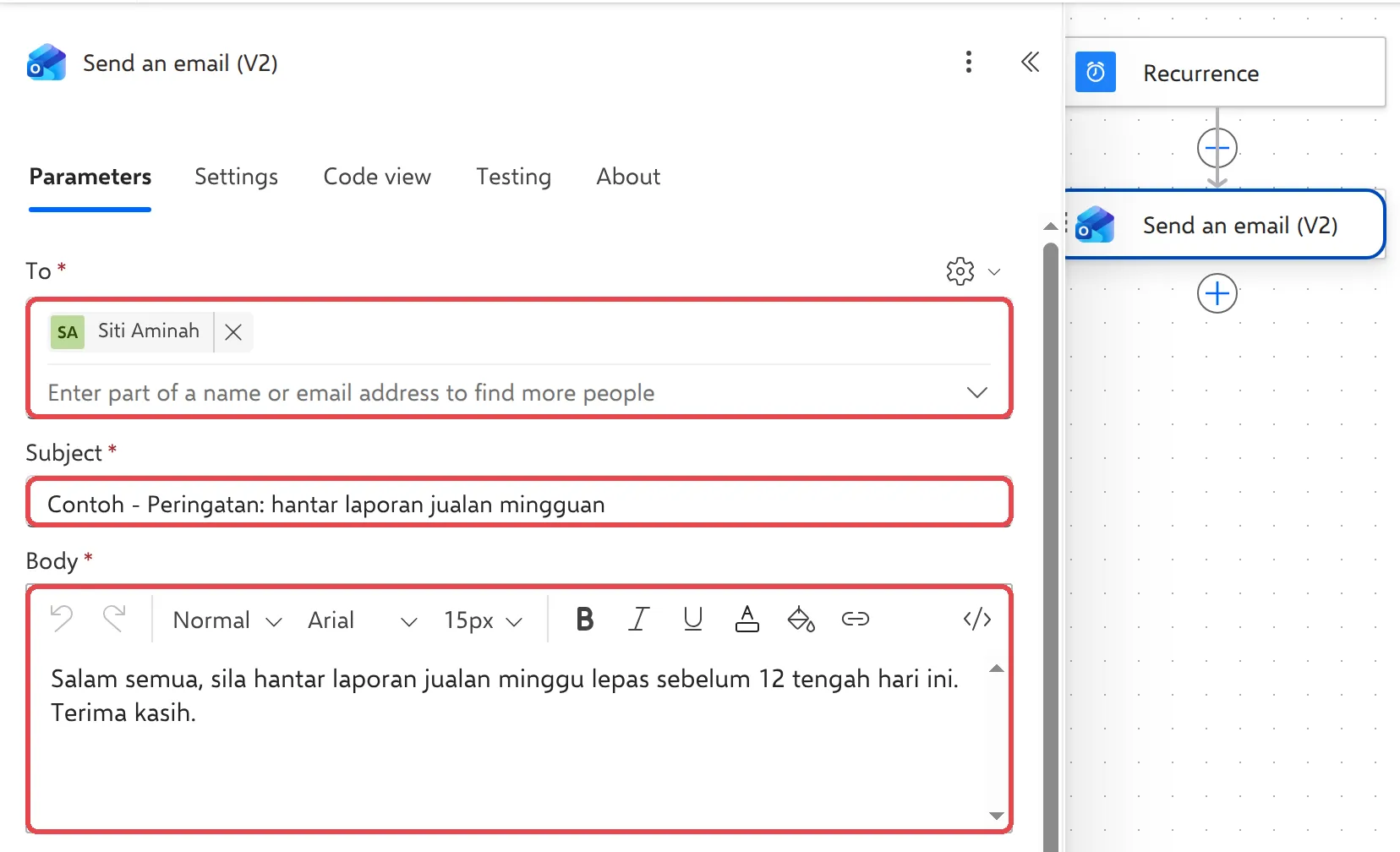
-
Select Save.
Test it now
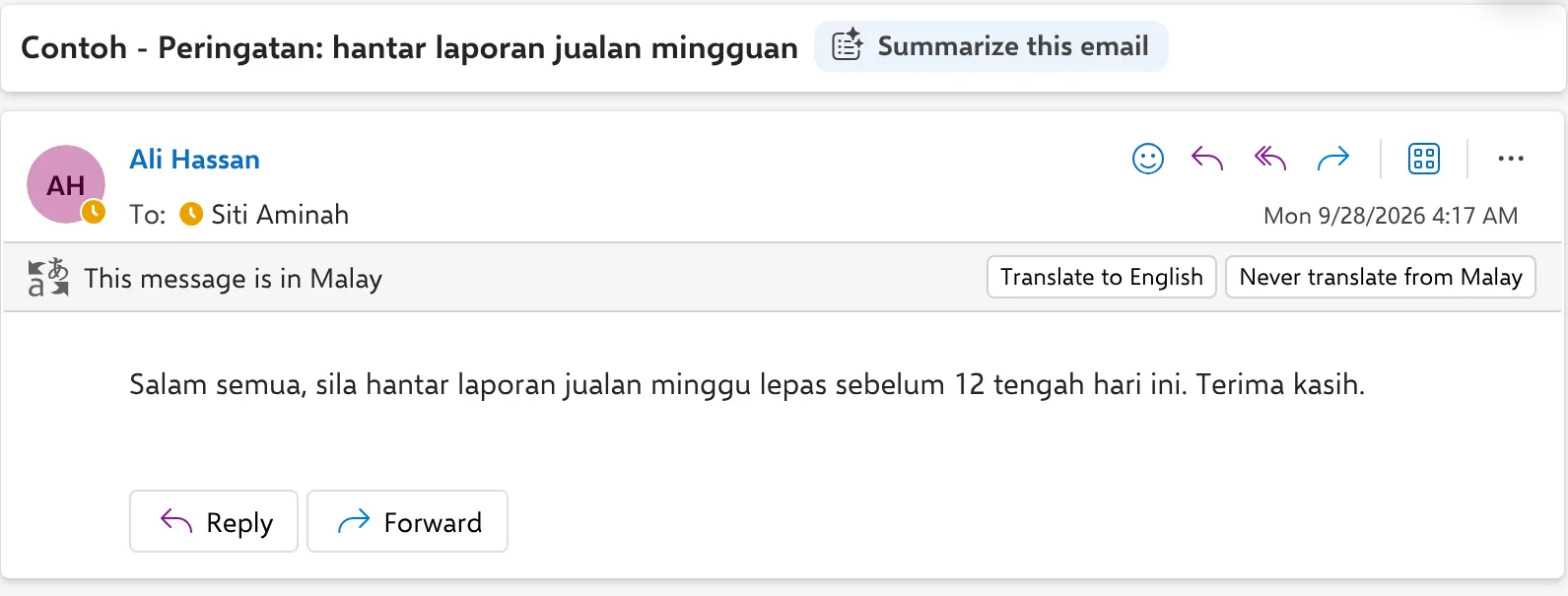
Section titled “Test it now”You don’t have to wait until Monday. Select Test → Manually → Test, then Run flow. The email goes out straight away, from your address:
After that, the flow runs by itself at the time you set. Each run appears in the flow’s run history.
Microsoft describes schedules in run flows on a schedule.
Still stuck
Section titled “Still stuck”WhatsApp our support team at +60 16-916 3324.
Common issues
The flow ran at 5pm instead of 9am.
The schedule is in UTC unless you set a time zone. Open the Recurrence step, set Time zone to (UTC+08:00) Kuala Lumpur, Singapore, and set At these hours to 9 and At these minutes to 0. The Preview line confirms the time.
I want it every weekday, not just Monday.
In Recurrence, keep Frequency as Week and tick Monday to Friday in On these days.
How do I pause the reminder during the holidays?
Open the flow in My flows and select Turn off. Turn it on again when you're back. See manage your flows.
The reminder came from my own email address. Can it come from a shared mailbox?
Yes, if you have Send as permission on it. Use the Send an email from a shared mailbox (V2) action instead of Send an email (V2).
Was this article helpful?
Thanks for your feedback.
Sorry this didn't help. WhatsApp us and we'll sort it out with you.