
Ask an AI about this page
 ChatGPT
 Claude
 Perplexity
 Google AI Mode
 Microsoft Copilot
 Grok
Grok Mistral Le Chat
Save email attachments to OneDrive automatically
To save email attachments to OneDrive automatically, use the Power Automate template Save Office 365 email attachments to OneDrive for Business. Once it’s saved, every attachment on a new email in your inbox is copied into a OneDrive folder you choose, usually within a minute or two.
We tested these steps on 27 September 2026 with a work account on Microsoft 365 Business Premium, sending a sample PDF from Siti Aminah to Ali Hassan.
Before you start
Section titled “Before you start”You need two things:
- A Microsoft 365 work account with Outlook and OneDrive. Personal Outlook.com accounts use a different template.
- Power Automate open at make.powerautomate.com. See what Power Automate is.
Pick the template
Section titled “Pick the template”Power Automate has several attachment templates. The one for work accounts says Office 365 in its name.
-
Select Templates on the left.
-
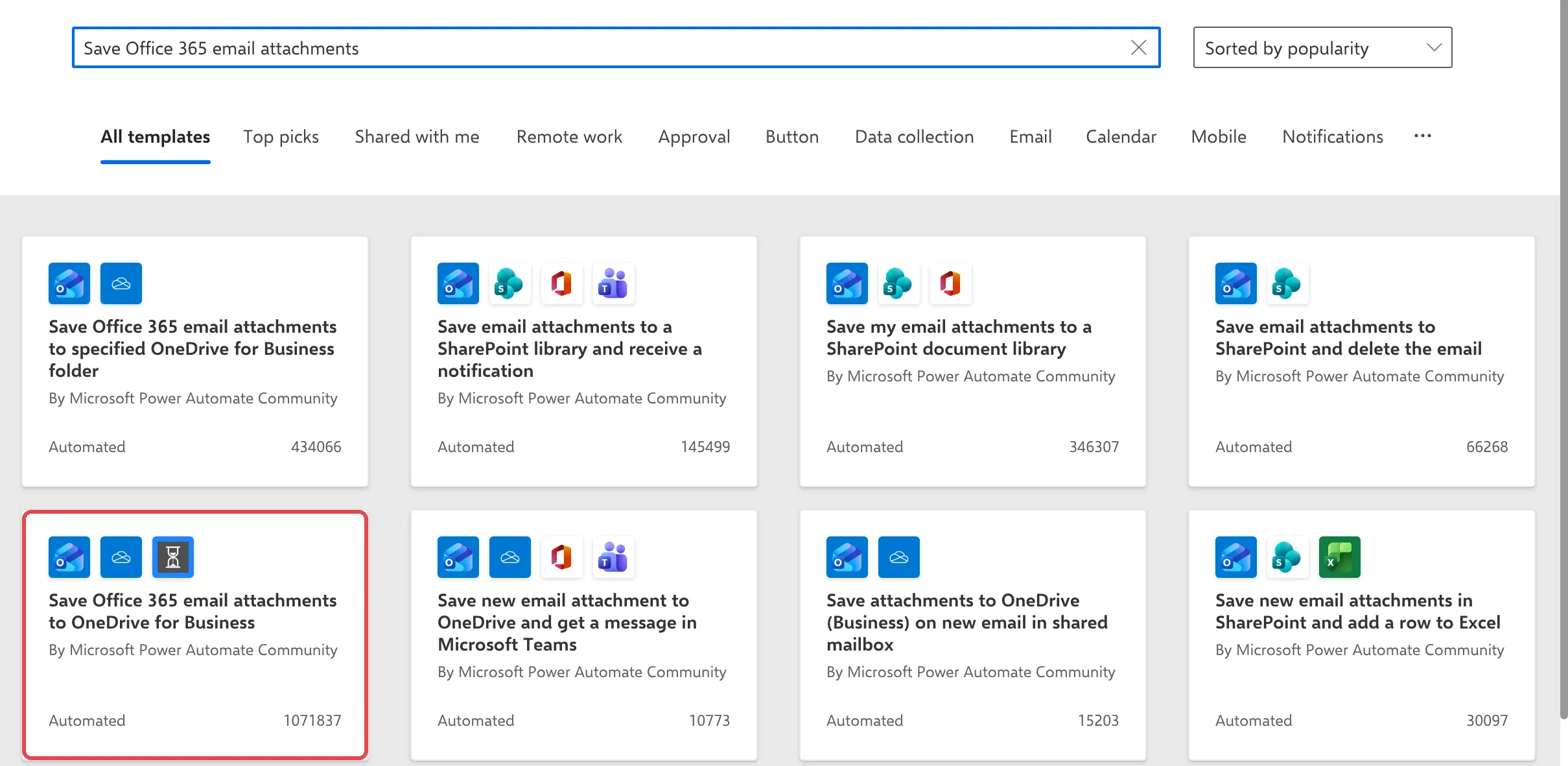
In the search box, type
Save Office 365 email attachmentsand press Enter. -
Select Save Office 365 email attachments to OneDrive for Business.
-
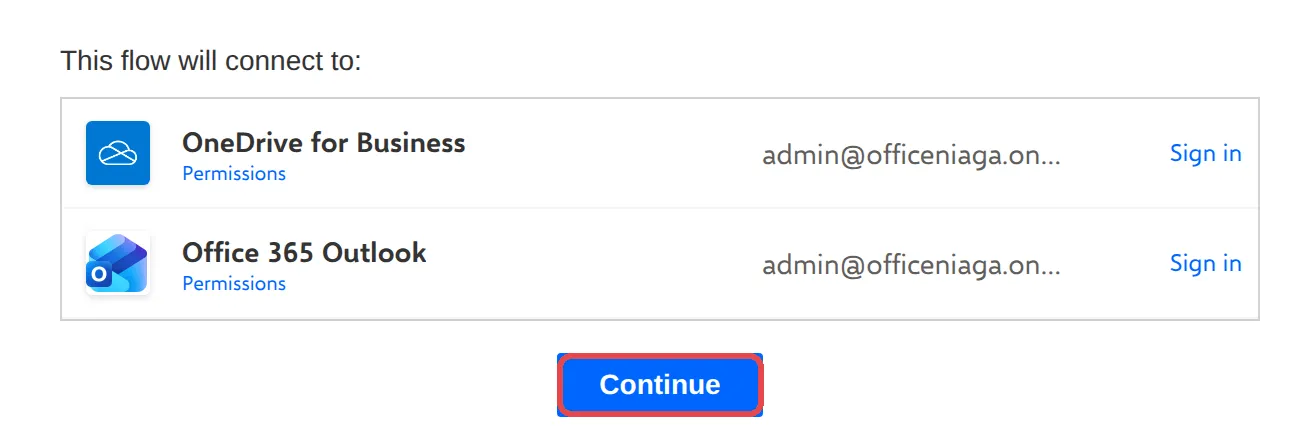
Under This flow will connect to, Power Automate lists OneDrive for Business and Office 365 Outlook with your work email. If either shows Sign in, that’s fine: select Continue and Power Automate connects them for you.
Check the settings
Section titled “Check the settings”The template opens in the flow designer. Check two things before you save.
-
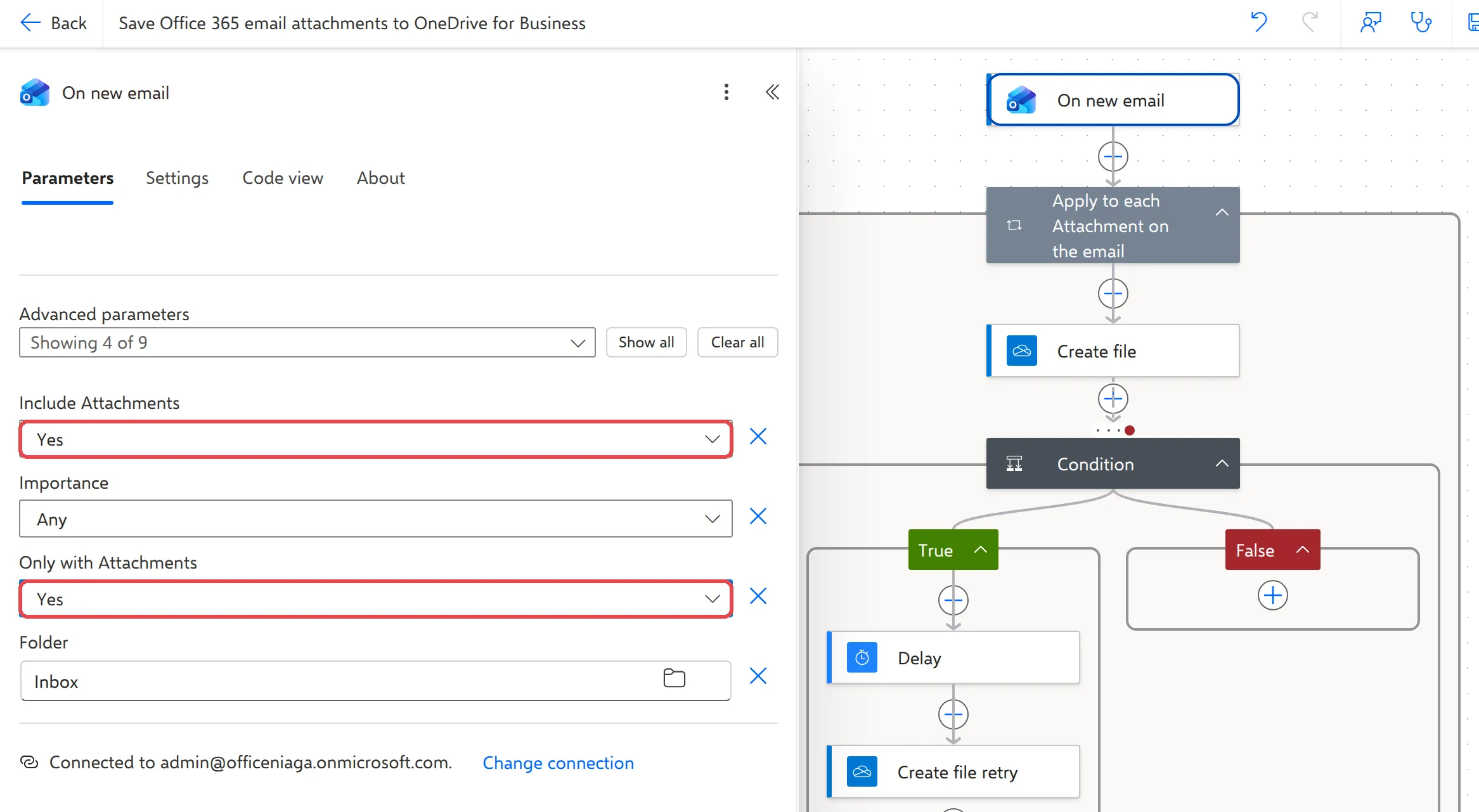
Select the first step, On new email. Set Include Attachments and Only with Attachments to Yes. Leave Folder as Inbox.
-
Select the Create file step. In Folder Path, type the OneDrive folder for your attachments, starting with
/, for example/Contoh - Lampiran emel. Do the same in the Create file retry step further down. OneDrive creates the folder the first time a file arrives.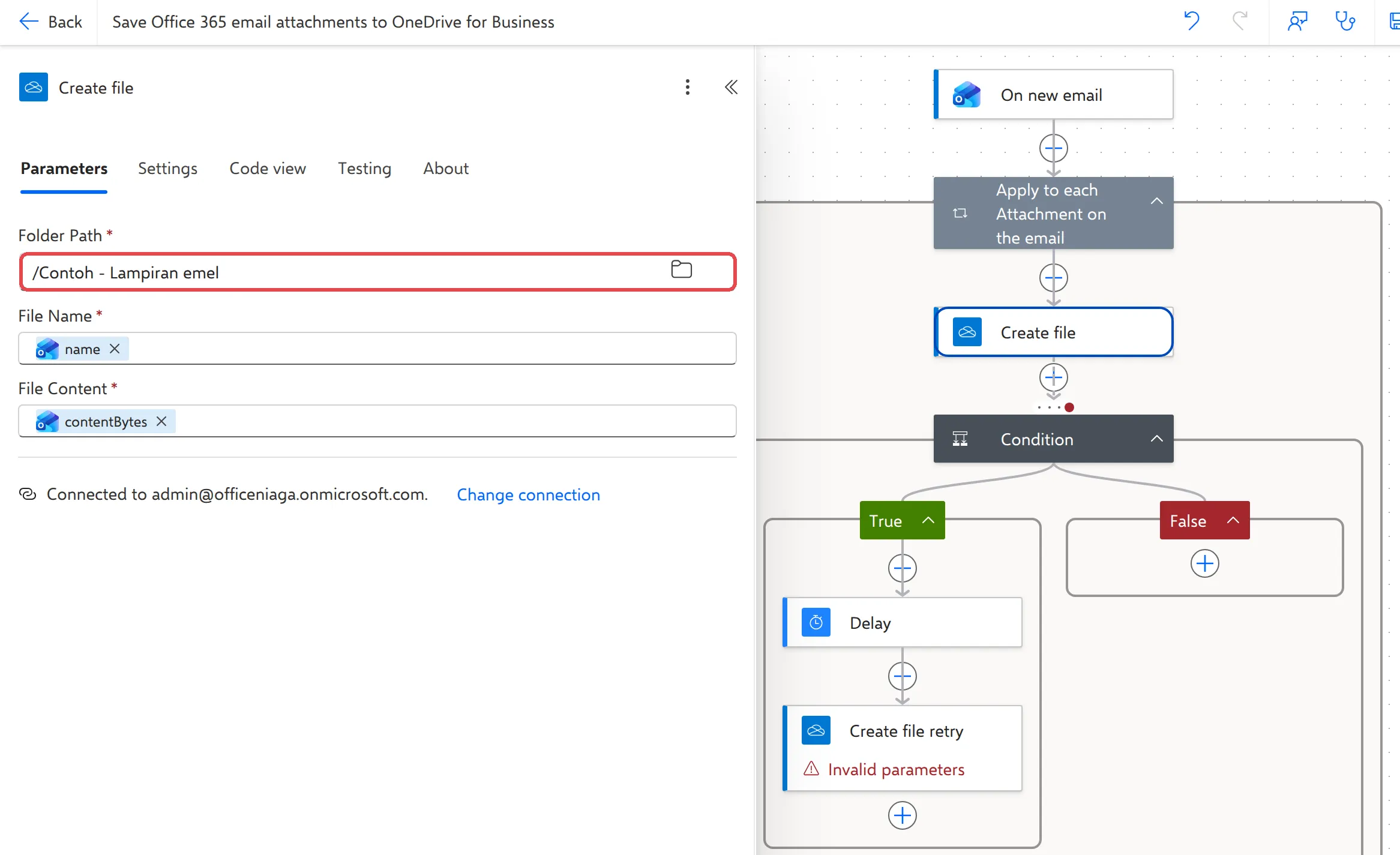
-
Optionally, select the name at the top (Save Office 365 email attachments to OneDrive for Business) and give the flow a shorter name, such as
Contoh - Simpan lampiran emel. -
Select Save. Power Automate shows Your flow is ready to go.
Test it
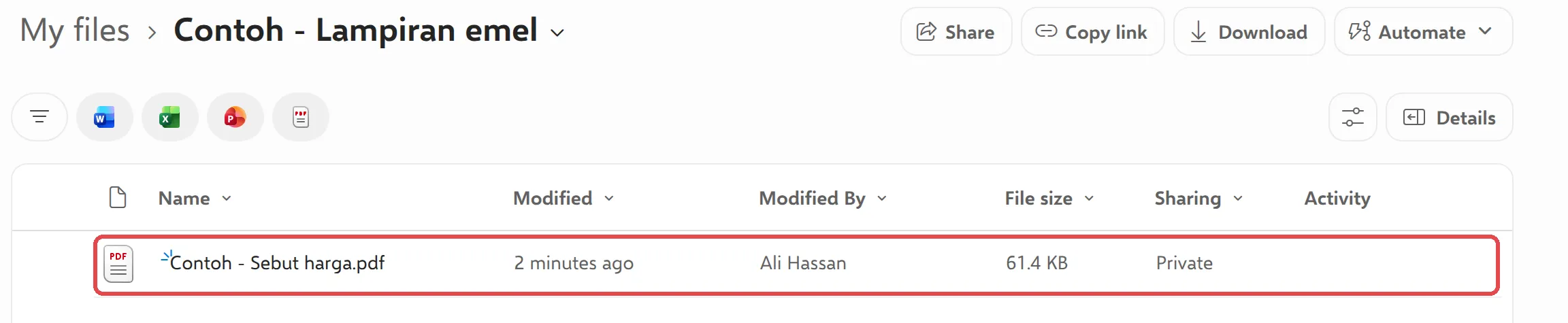
Section titled “Test it”Ask a colleague to send you an email with an attachment, or send one to yourself from another account. Within a minute or two, open OneDrive and go to the folder you typed. The attachment is there, with its original name.
To see what the flow did, open My flows and select the flow. Each run is listed under 28-day run history. See manage your flows.
Microsoft describes templates in create a cloud flow from a template.
Still stuck
Section titled “Still stuck”WhatsApp our support team at +60 16-916 3324.
Common issues
The flow runs but no file appears in OneDrive.
Open the flow's run history and select the latest run. If Create file failed, check the Folder Path in that step. If the run didn't happen at all, check that Only with Attachments and Include Attachments are both Yes, and that the email arrived in the folder the trigger watches (normally Inbox).
Which template should I use, the Outlook.com one or the Office 365 one?
Use the one that says Office 365. Templates that say Outlook.com are for personal Microsoft accounts and don't work with a work email.
Will it save attachments from emails I already have?
No. The flow only reacts to new emails that arrive after you save it.
It saves pictures from email signatures too.
Logos in signatures count as attachments. Add a condition that skips small files, or clean the folder now and then. Remember OneDrive storage counts towards your quota.
Two attachments with the same name arrived. What happens?
The template waits a moment and tries again with Create file retry. If the name still clashes, that run fails and the file isn't saved. Rename one of the files by hand and save it yourself.
Was this article helpful?
Thanks for your feedback.
Sorry this didn't help. WhatsApp us and we'll sort it out with you.