
Use Word, Excel & PowerPoint in your browser
Updated For Microsoft 365

Sign in at m365.cloud.microsoft, select Create, and choose a document, workbook or presentation. Your new file opens in the browser and saves to your OneDrive automatically. You do not need to install anything.
Who this is for
Section titled “Who this is for”If your company is on Microsoft 365 Business Basic, this is how you use Word, Excel and PowerPoint: Business Basic includes the web and mobile apps, not the desktop apps. On Business Standard or Business Premium you can use the browser too, for example on a borrowed computer, and switch to the desktop app when you need a feature the browser does not have.
Create a new file
Section titled “Create a new file”The Create page on the Microsoft 365 home lets you start any of the three apps from one place.
-
Go to m365.cloud.microsoft and sign in with your work email. See the Microsoft 365 web home if you are new to it.
-
Select Create on the left.
-
Choose Create a document, Create a presentation or Create a workbook. The templates below change to match.
-
Select Blank document, Blank presentation or Blank workbook, or pick a template.
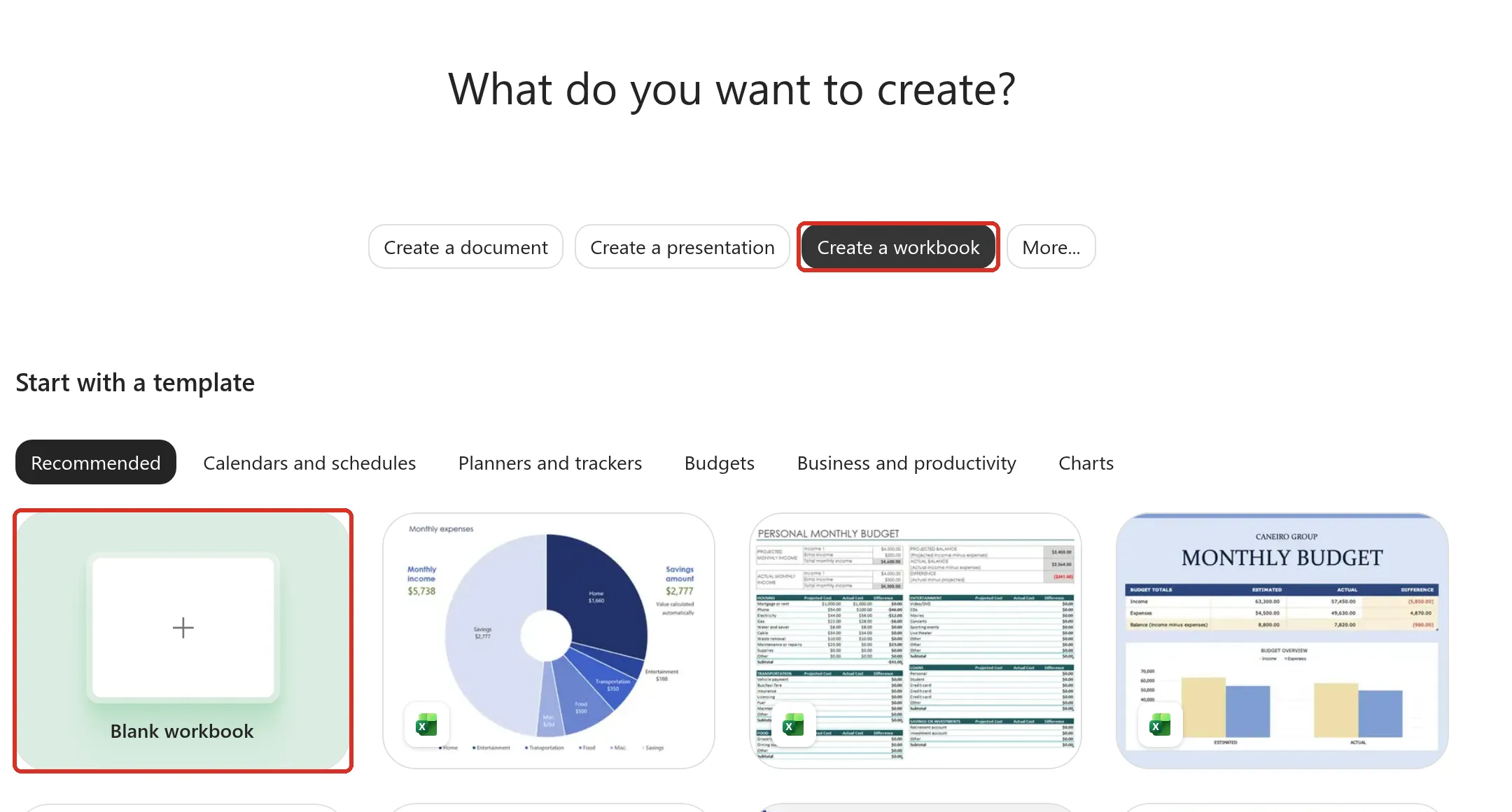
The file opens in a new browser tab. You can also select Word, Excel or PowerPoint on the left of the home page, then Create blank document (or workbook, or presentation) on that app’s start page.
Name your file
Section titled “Name your file”New files start with a plain name such as “Document”, “Workbook” or “Presentation”. Give the file a proper name straight away so you can find it later.
-
Select the file name at the top left, next to the app icon.
-
Type the new name, such as “Sebut harga Syarikat ABC”, and press Enter.
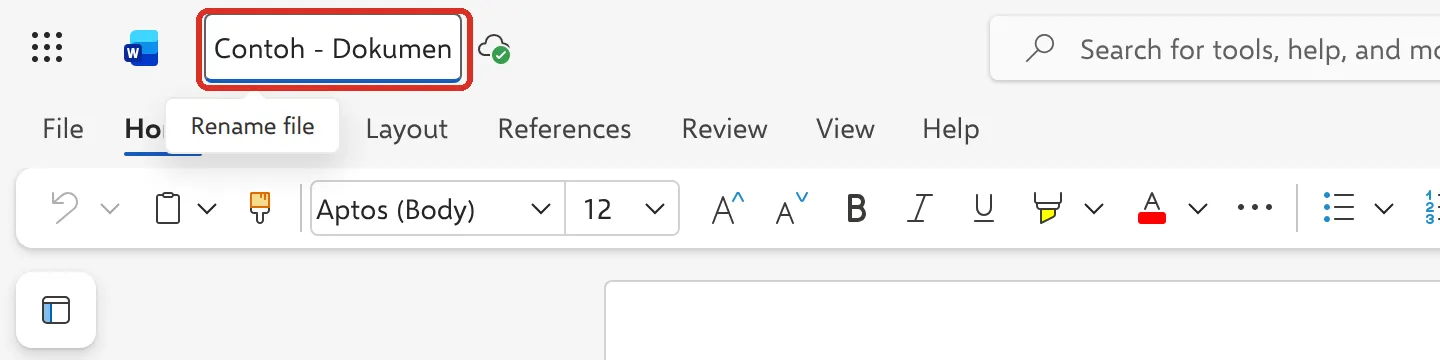
You can rename a file later the same way, or from File > Rename.
Where your files are saved
Section titled “Where your files are saved”Everything you create in the browser is saved to your OneDrive. Select the cloud icon next to the file name to see Last saved and the File location.
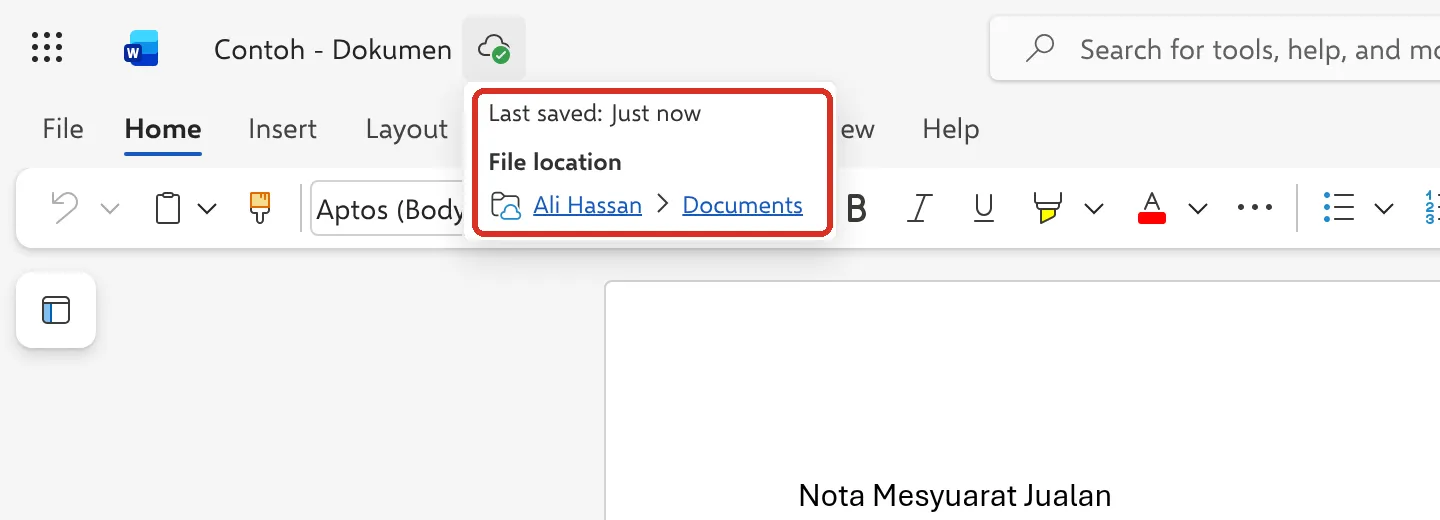
Documents here is the top level of My files in OneDrive. To move, share or organise the file, see upload and organise files in OneDrive. There is no Save button, because changes save as you type. If you make a mistake, see AutoSave and version history.
Download a copy
Section titled “Download a copy”Download a copy when you need to email a file as an attachment or keep it on your computer. The copy on your computer does not update when the online file changes.
-
Select File > Create a Copy (in PowerPoint, Create a copy).
-
Select Download a copy (in Excel, Download a Copy). Word saves a
.docxfile, Excel an.xlsxfile and PowerPoint a.pptxfile.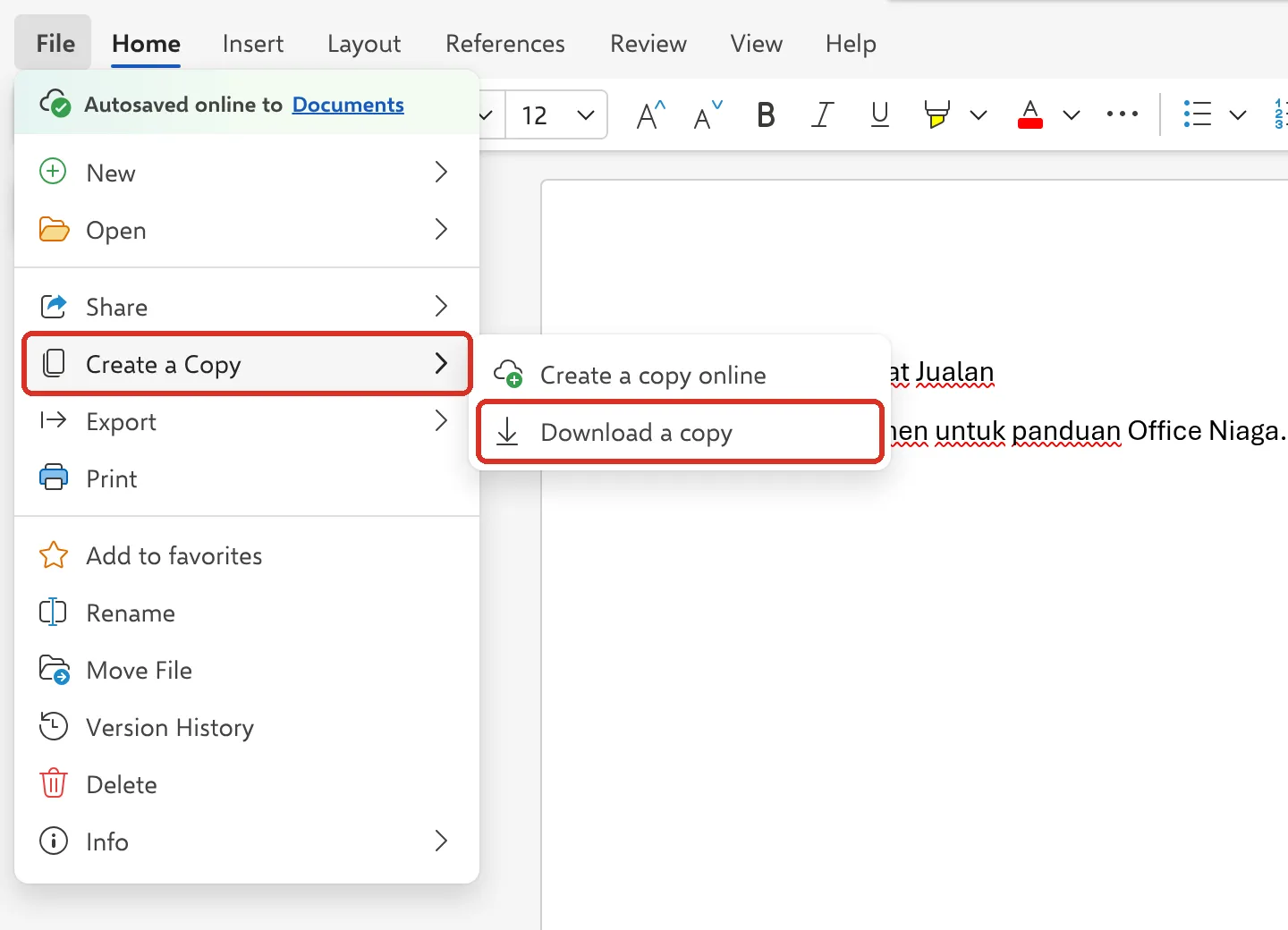
Create a copy online in the same menu makes a second copy in OneDrive instead. Use it before you reuse an old quotation, so you do not change the original.
Save as PDF
Section titled “Save as PDF”A PDF is best for quotations and invoices you send to customers, because they cannot change it by accident.
-
Select File > Export.
-
Select Download as PDF.
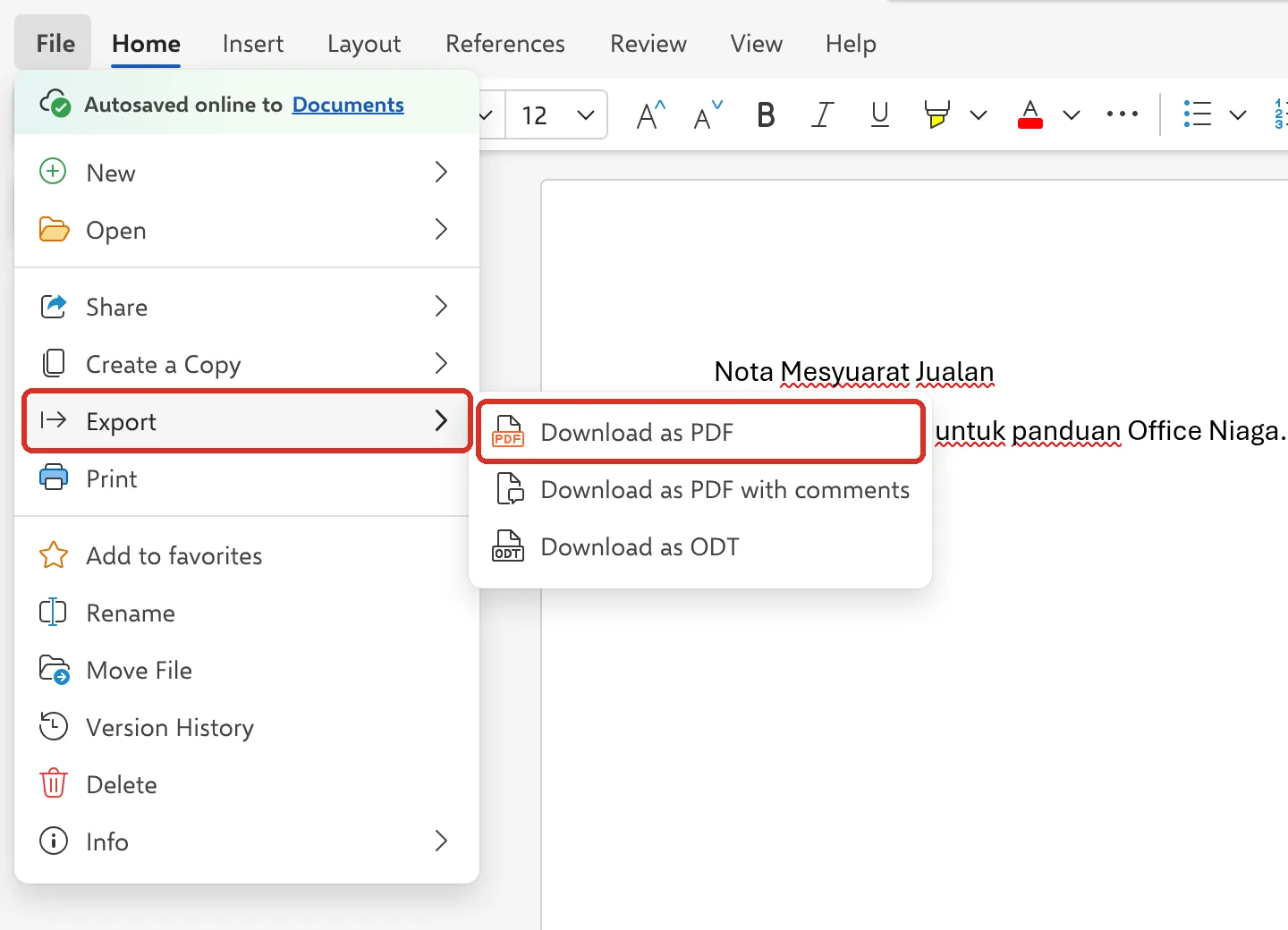
The other choices in Export differ by app, as Microsoft shows them:
- Word: Download as PDF, Download as PDF with comments and Download as ODT.
- Excel: Download as PDF, Download as CSV UTF-8, Download as CSV and Download as ODS.
- PowerPoint: Download as PDF, Export to ODP and Export to images.
Open in the desktop app
Section titled “Open in the desktop app”If your plan includes the desktop apps and they are installed, you can move to the desktop app without downloading anything. The file stays in OneDrive, so both versions stay the same.
-
Select Editing at the top right.
-
Select Open in Desktop.
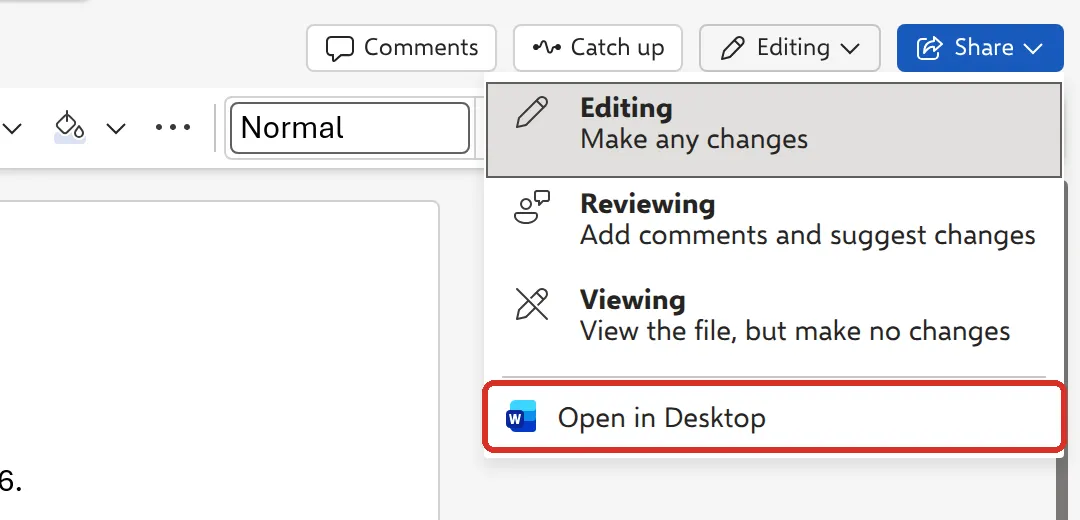
The same option is under File > Info > Open in desktop. In OneDrive, select a file, then Open > Open in app.
What the browser apps cannot do
Section titled “What the browser apps cannot do”The web apps handle everyday letters, quotations, price lists and slides well. Microsoft’s own comparison lists these as desktop-only features:
- Word: mail merge, captions, citations and bibliography, watermarks, and password protection.
- Excel: creating or running macros (VBA), what-if analysis tools, form controls, and creating new external data connections.
- PowerPoint: presenter view, custom animations, and headers and footers. The browser has a smaller set of transitions and animations.
- All three: working offline, and editing files protected with a password or IRM.
Files with these features still open in the browser, and in most cases you can view them. To edit those parts, you need the desktop app. Microsoft keeps the full list in its Office for the web service description.
Work on files together
Section titled “Work on files together”Because the file is in OneDrive, you can share it and edit it with colleagues at the same time. See share a OneDrive file or folder and work on the same file together.
Still stuck
Section titled “Still stuck”WhatsApp our support team at +60 16-916 3324.
Common issues
Where is the Save button?
There isn't one. Word, Excel and PowerPoint for the web save your changes to OneDrive as you type. The cloud icon next to the file name shows the file is saved.
I don't see Open in Desktop.
You need the desktop apps installed on your computer, and your plan must include them. Business Basic does not include the desktop apps, so keep working in the browser or on the phone apps. See install the Microsoft 365 apps.
Can I work without the internet?
No. Microsoft lists offline viewing and editing as a desktop app feature only. If you need to work offline, use the desktop apps with OneDrive sync.
Was this article helpful?
Thanks for your feedback.
Sorry this didn't help. WhatsApp us and we'll sort it out with you.